

If you’ve ever wished you could create a new WordPress page without starting from scratch, you’re not alone. Duplicating pages in WordPress saves you time and effort, especially when you want to keep the same layout or content style.
Whether you’re building a website for your business or managing a blog, knowing how to quickly copy a page can make your work smoother and more efficient. In this guide, you’ll learn simple ways to duplicate your WordPress pages—no complicated steps, no technical headaches—just easy methods you can use right now.
Keep reading, and you’ll be duplicating pages like a pro in no time.

Credit: wordpress.org
Methods To Duplicate Pages
Duplicating pages in WordPress saves time and helps maintain consistency. Several ways exist to copy pages quickly. Choose one based on your comfort and needs.
Using Plugins
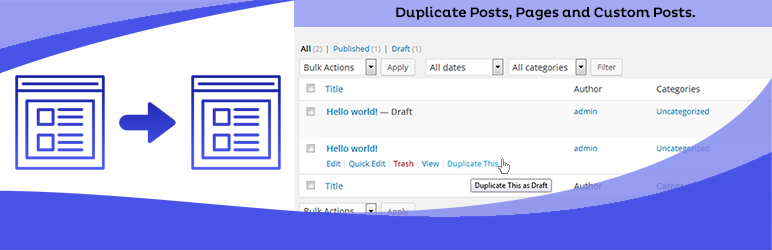
Plugins simplify the page duplication process. Install a plugin like “Duplicate Page” from your dashboard. After activation, a “Duplicate This” link appears near each page. Click it to create an exact copy instantly. This method keeps all content and settings intact. No manual effort needed beyond installation.
Manual Copy And Paste
Copying content manually works without extra tools. Open the page you want to copy in the editor. Select all blocks and copy them using keyboard shortcuts or the menu. Create a new page and paste the content inside. Add a new title and adjust page settings as needed. This method is simple but requires more steps.
Built-in Editor Features
WordPress editors often include tools to copy content easily. In the block editor, use the “Copy all content” option from the three-dot menu. This copies all blocks at once. Then paste into a new page’s editor. Adjust the title and permalink manually. This method avoids plugins and speeds up copying content.
Top Plugins For Page Cloning
Page cloning saves time and effort when building a WordPress site. Using plugins makes duplicating pages simple and fast. Plugins add useful features that let you copy pages with just one click. They keep the design and content intact. Below are some top plugins to help you clone pages easily.
Duplicate Page Plugin
The Duplicate Page plugin is a popular choice for many WordPress users. It adds a “Duplicate This” link to your page list. Clicking this link creates an exact copy of the page as a draft. The plugin works with posts, pages, and custom post types. It supports multiple languages and lets you choose where to redirect after duplication. The setup is quick and user-friendly. No coding skills are needed to use this plugin.
Other Popular Plugins
Yoast Duplicate Post is another widely used plugin. It offers options to clone or rewrite content quickly. You can duplicate posts, pages, or custom types. It also copies SEO settings and metadata. This helps maintain search engine rankings on duplicates.
WP Staging is more than a cloning tool. It creates a staging site to test changes safely. It also allows cloning of pages within the staging environment. This plugin is great for developers and site owners who want to avoid errors on live sites.
Duplicate Page and Post plugin is simple and effective. It adds duplicate links to the page and post lists. The plugin lets you choose the status of the new copy, like draft or published. It is lightweight and fast.
Step-by-step Plugin Duplication
Duplicating pages in WordPress using a plugin is a simple and efficient method. This process saves time and keeps your content consistent. Follow these clear steps to install and use a plugin for page duplication.
Installing The Plugin
First, log in to your WordPress dashboard. Navigate to the Plugins menu and select Add New. In the search bar, type Duplicate Page.
Find the plugin in the results. Click Install Now and wait for it to complete. Then, click Activate to enable the plugin on your site.
Activating And Using Duplicate Function
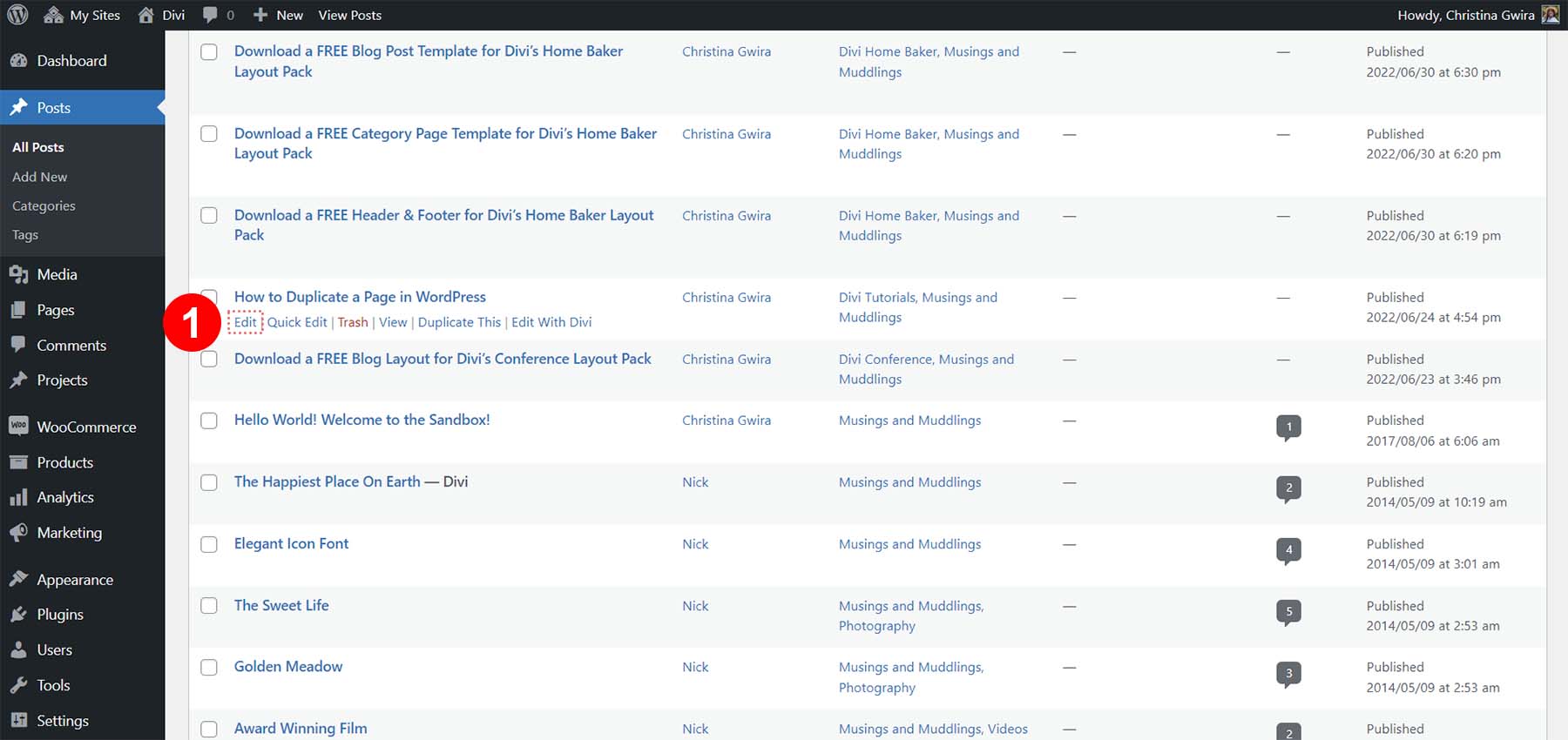
After activation, go to the Pages section in your dashboard. Hover over the page you want to copy. You will see a new option called Duplicate This.
Click Duplicate This. The plugin creates an exact copy of the page as a draft. You can edit the new page to change the title or content as needed.
Manual Duplication Process
Duplicating a page manually in WordPress lets you control every detail of your new page. This process involves copying content block by block and setting up a fresh page. It works well if you want to avoid plugins or customize the copy deeply. Follow these simple steps to duplicate your page manually.
Copying Content Blocks
Open the page you want to copy in the WordPress editor. Click the three-dot menu at the top right. Choose “Copy all blocks” to copy every content block. This saves all text, images, and layouts to your clipboard.
Creating A New Page
Go to your WordPress dashboard and click “Pages” then “Add New.” This opens a blank page ready for your copied content. Make sure the new page is empty before you paste.
Pasting Content And Adjusting Settings
Click inside the new page content area and paste the copied blocks using Ctrl+V or Cmd+V. After pasting, add a new title to the page. Adjust the permalink and other settings like featured image or SEO options. Save or publish the new page to finish.
Duplicating With WordPress Editor
Duplicating pages directly within the WordPress editor is a simple way to save time. It lets you copy your page content without extra tools. You keep the design and layout intact. This method works well when you want to create similar pages quickly. It uses the built-in features of the WordPress block editor.
Using the editor to duplicate pages means you copy all blocks from one page. Then, paste them into a new page. This process helps keep your work consistent. You only need to change the title and settings on the new page. The steps are clear and easy to follow.
Using Copy All Blocks Feature
Open the page you want to duplicate in the WordPress editor. Click the three-dot menu in the top-right corner. Select “Copy all blocks” from the dropdown menu. This copies every block of content on the page to your clipboard.
Next, go to “Pages” and click “Add New”. Click inside the new page content area. Paste the blocks by pressing Ctrl+V or Cmd+V. All your content appears exactly as on the original page. This method avoids manual copying of text and images.
Creating And Editing New Pages
After pasting the content, give your new page a unique title. Adjust the permalink to match your new title. Check all page settings such as SEO and visibility. Make any changes necessary for your new page’s purpose.
Save your page as a draft or publish it immediately. Review your page to ensure everything looks right. Editing the copied content is easy with the WordPress editor. This approach keeps your website organized and professional.
Credit: wordpress.org
Tips For Effective Cloning
Duplicating pages in WordPress saves time and keeps your site consistent. Effective cloning needs careful adjustments to avoid confusion. Small changes can make a big difference in SEO and user experience. Follow these tips to ensure your duplicated pages work well and fit your site perfectly.
Adjusting Titles And Permalinks
Change the page title to match the new content or purpose. Use clear and unique titles to avoid duplicate content issues. Update the permalink to a simple and relevant URL. This helps search engines and visitors find the page easily. Avoid using the same slug as the original page. Always check for conflicts in your URL structure.
Checking Seo Settings
Review the SEO metadata on the cloned page. Update the meta title and description to reflect the new content. Remove any duplicate keywords or tags that might confuse search engines. Ensure the page has a proper focus keyword. Use SEO plugins like Yoast or Rank Math for easy management. This improves your page’s chance to rank well in search results.
Updating Page Elements
Edit images, links, and buttons to fit the new page’s goal. Replace any content that is specific to the original page. Check for outdated information or broken links and fix them. Customize call-to-action elements to guide visitors correctly. Update widgets and sidebars if they show page-specific content. These updates keep your cloned page relevant and useful.
Common Issues And Fixes
Duplicating pages in WordPress is simple but can come with some common problems. These issues may disrupt your workflow or cause errors in the copied page. Understanding these problems helps you fix them quickly and keep your site running smoothly.
Below are some frequent issues users face while duplicating pages. Each problem has clear solutions to guide you through fixing them.
Plugin Conflicts
Plugins can interfere with each other, causing duplication tools to fail. Some plugins may block the duplicate button or create incomplete copies. To fix this, deactivate all plugins except the duplication plugin. Test if the issue persists. Reactivate plugins one by one to find the conflict. Update all plugins to their latest versions for better compatibility.
Content Formatting Errors
Copying pages can sometimes break text styles, images, or layouts. This happens when the editor does not copy the blocks properly. Fix formatting errors by switching to the HTML editor and checking the code. Clean up any broken tags or missing elements. Use the “Copy all blocks” feature in the block editor to preserve formatting better.
Permalink Problems
Duplicated pages may get incorrect or duplicate permalinks. This can cause URL conflicts or broken links. After duplicating, always update the page permalink manually. Choose a unique URL slug for the new page. Clear your site cache and refresh permalinks by going to Settings > Permalinks and clicking “Save Changes.”
Duplicating Pages In Popular Builders
Duplicating pages in popular WordPress builders saves time and keeps design consistent. Many page builders offer easy ways to copy entire pages or templates. This helps create similar pages without starting from scratch. Below, learn how to duplicate pages using two widely used builders: Elementor and Oxygen Builder.
Elementor
Elementor allows quick page duplication through its template system. First, open the page in Elementor editor. Click the arrow next to the “Update” button. Choose “Save as Template” to save the page design. Next, create a new page and click “Add Template.” Select your saved template from the library. Insert it to duplicate the entire page layout and content. This method keeps all styling and widgets intact. It also works well for sections or blocks inside pages.
Oxygen Builder
Oxygen Builder does not have a direct “duplicate page” button but supports template reuse. Open the page in Oxygen editor. Save the page or section as a reusable part by clicking “Save” in the structure panel. Give it a name to identify later. To duplicate, create a new page and add the saved reusable part. This copies the entire design, including styles and settings. For full pages, export templates and import them to reuse designs. This approach keeps workflows simple and efficient.
Credit: www.elegantthemes.com
Frequently Asked Questions
Is There A Way To Duplicate A Page In WordPress?
Yes, duplicate a WordPress page by installing a plugin like “Duplicate Page” or using the editor’s “Copy all blocks” feature. Both methods create an exact copy quickly. Manually copying and pasting content also works but requires re-entering the title and settings.
How Do I Duplicate An Entire Page?
To duplicate an entire page, install and activate a “Duplicate Page” plugin. Then, click “Duplicate This” under the desired page. Alternatively, copy all blocks in the editor, create a new page, paste the content, add a new title, adjust settings, and save.
How To Duplicate A Page In WordPress Without A Plugin?
Open the page editor, click the three-dot menu, select “Copy all blocks. ” Create a new page, paste content, add title, and save.
How To Duplicate A Single Page In Pages?
Open the page in Pages, select all content, then copy it. Create a new page and paste the copied content. Save the new page with a different title.
Conclusion
Duplicating pages in WordPress saves time and effort. You can use plugins or the built-in copy feature. Both methods create exact copies quickly. Remember to update titles and settings for each new page. This helps keep your website organized and consistent.
Practice these steps to manage your content better. Duplicating pages makes website editing easier and faster. Try these simple tips for smoother WordPress management.


