

Want to save time when building your WordPress site? Learning how to duplicate a page can be a real game-changer for you.
Instead of starting from scratch every time, you can create exact copies of your pages in just a few clicks. This not only speeds up your workflow but also ensures consistency across your website. Whether you’re a beginner or an experienced user, this guide will show you simple, effective ways to duplicate your WordPress pages—using plugins or built-in tools—so you can focus on what matters most: creating great content.
Keep reading, and you’ll discover how easy it is to clone your pages and boost your productivity today.
Duplicate Using Plugins
Duplicating pages in WordPress becomes easy with plugins. They save time and reduce errors. Plugins add a simple button to clone pages quickly. You do not need to copy content manually or adjust settings. This method suits beginners and busy site managers. Follow the steps below to duplicate pages using plugins.
Install Duplicate Page Plugin
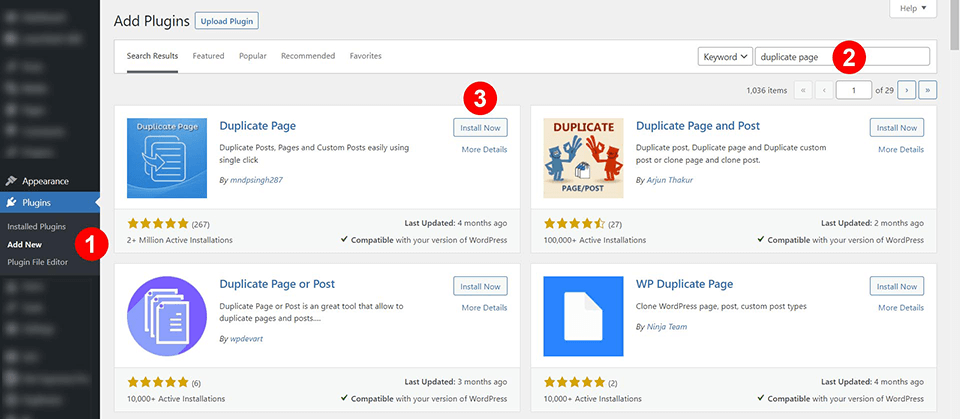
Open your WordPress dashboard. Go to Plugins > Add New. Type Duplicate Page in the search box. Find the plugin called “Duplicate Page” by mndpsingh287. Click Install Now. Wait for the installation to finish. Then, click Activate to enable the plugin.
Activate And Configure Plugin
After activation, go to Settings > Duplicate Page. Choose where the duplicate link appears, like pages or posts. Pick the status for the duplicated page—draft, published, or private. Save the settings. This setup controls how the plugin works on your site. You can change options anytime.
Duplicate Page With One Click
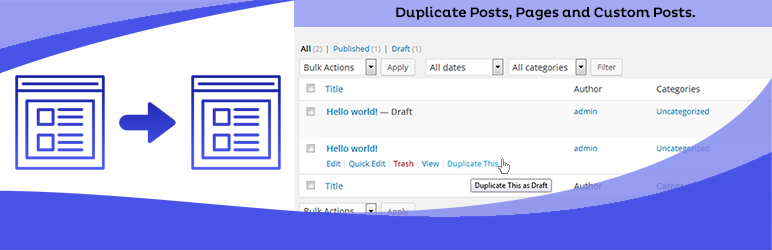
Open Pages > All Pages in your dashboard. Hover over the page you want to copy. Click the Duplicate This link under the page title. The plugin creates a new draft with the same content and settings. Edit the new page title or content if needed. Publish the page when ready.

Credit: wordpress.org
Manual Copy Method
The Manual Copy Method lets you duplicate a WordPress page without any plugins. It requires copying the content blocks yourself. This method works well for simple pages or when you want full control over the new page. Follow these easy steps to copy a page manually.
Open Page Editor
Go to your WordPress dashboard and click on Pages. Find the page you want to copy and click Edit. This opens the page editor where you can see all the content blocks.
Copy All Content Blocks
In the editor, click the three-dot menu in the top-right corner. Select Copy all blocks. This copies every block of content on the page, including text, images, and media.
Create And Paste Into New Page
Next, go back to Pages and click Add New. In the new page editor, click inside the content area. Use Ctrl+V (Windows) or Cmd+V (Mac) to paste the copied blocks. All content from the original page appears here.
Add Title And Adjust Settings
Type a new title for your page at the top. Adjust any other settings like the URL slug, template, or visibility. These settings do not copy automatically, so set them manually. Finally, save or publish your new page.
Using Built-in WordPress Features
WordPress offers simple built-in features to duplicate pages without extra tools. Using these options saves time and keeps your content consistent. This method works well for basic page copying needs. Follow easy steps to copy all content and create a new page.
Copy All Blocks Option
Open the page you want to duplicate in the WordPress editor. Click the three-dot menu in the top-right corner. Select “Copy all blocks” from the dropdown menu. This copies all content blocks to your clipboard, including text, images, and layouts.
Create New Page And Paste
Go to “Pages” and click “Add New” to create a blank page. Click inside the editor area of the new page. Paste the copied content using Ctrl+V (Windows) or Cmd+V (Mac). The content from the original page appears exactly as before.
Modify Page Details
Change the title to avoid confusion with the original page. Update the permalink if needed to match the new title. Check other settings like featured image or page template. Save or publish the new page once all changes are done.
Duplicating Pages With Page Builders
Duplicating pages using page builders simplifies the process of copying complex layouts and designs. Page builders store your content in a structured way, making it easier to replicate pages without losing style or functionality.
This method saves time and effort compared to manual copying. You keep all the elements, widgets, and settings intact. Popular page builders like Elementor and Oxygen Builder provide built-in or easy cloning options.
Duplicate In Elementor
Elementor offers a straightforward way to duplicate pages. Open the page you want to copy in the Elementor editor. Click the arrow next to the “Update” button and select “Save as Template.”
Name your template and save it. Create a new page and click “Add Template” in the Elementor editor. Choose your saved template to load the duplicated content instantly.
This method copies all sections, columns, and widgets exactly. It works well for complex designs and ensures consistency across pages.
Clone Pages In Oxygen Builder
Oxygen Builder allows cloning pages directly from the WordPress dashboard. Go to “Pages” and find the page you want to duplicate. Hover over it and click “Clone” or “Duplicate.”
Oxygen creates an exact copy with the same content and structure. You can then edit the new page without affecting the original.
This option is ideal for users who want a quick copy without opening the builder. Oxygen’s cloning feature preserves all custom code and styles within the duplicated page.
Tips For Managing Duplicated Pages
Managing duplicated pages in WordPress requires careful attention. It ensures your site stays organized and SEO-friendly. Each duplicated page needs unique settings to avoid conflicts and confusion. Proper management helps maintain a clear site structure and improves user experience.
Rename And Update Permalinks
Always rename duplicated pages to reflect their new purpose. Use clear and simple titles that match the page content. Update the permalink to avoid URL conflicts. Unique URLs help search engines index your pages correctly. Avoid using default or identical slugs from the original page.
Check Seo Settings
Review SEO settings for each duplicated page. Update meta titles and descriptions to fit the new content. Avoid duplicate meta tags to prevent SEO penalties. Use SEO plugins like Yoast or Rank Math for easy edits. Ensure keywords are relevant and not repeated across pages.
Review Page Layout And Content
Check the layout for any design issues after duplication. Adjust images, text, and links to suit the new page’s goal. Remove or update outdated content to keep the page fresh. Ensure all internal links point to the correct pages. This keeps visitors engaged and reduces bounce rates.
Credit: www.elegantthemes.com
Common Issues And Fixes
Duplicating pages in WordPress is simple, but some common issues may arise. These issues can affect the look and functionality of the duplicated page. Knowing how to fix these problems saves time and keeps your site running smoothly.
Missing Styles Or Images
Sometimes, duplicated pages lose their styles or images. This happens if the links to CSS files or images break during copying. Check the page source to see if URLs are correct. Clear your browser cache and refresh the page. If the problem stays, re-upload missing images or fix broken links manually.
Plugin Conflicts
Plugins that help duplicate pages may conflict with other plugins. This can cause errors or incomplete copies. Deactivate other plugins one by one to find the conflict. Update all plugins to their latest versions. If conflicts persist, try using a different duplication plugin with good reviews.
Draft Not Showing
After duplicating, the draft may not appear in the page list. This happens if the draft status is not set correctly. Check the duplicate page’s status in the editor. Change it to “Draft” or “Pending Review” if needed. Also, clear any caching plugins or server cache to make drafts visible.
Credit: wordpress.org
Frequently Asked Questions
Is There A Way To Duplicate A Page In WordPress?
Yes, duplicate a WordPress page by installing a “Duplicate Page” plugin or using the editor’s “Copy all blocks” feature. Then, create a new page and paste the content. Adjust the title and settings before saving or publishing the new page.
How Do I Duplicate An Entire Page?
Install and activate a “Duplicate Page” plugin in WordPress. Then, go to Pages > All Pages, hover over the page, and click “Duplicate This” to create an exact copy instantly. Alternatively, copy all blocks from the original page, create a new page, paste content, and update title and settings manually.
How To Duplicate A Page In WordPress Without A Plugin?
Open the page editor, click the three-dot menu, select “Copy all blocks. ” Create a new page and paste the content. Add a new title and adjust settings, then save.
How To Duplicate A Single Page In Pages?
Open the page in Pages, click the three-dot menu, and select “Duplicate Page. ” Rename and edit the new copy as needed.
Conclusion
Duplicating a page in WordPress saves you time and effort. Plugins make the process quick and simple. You can also copy content manually if you prefer. Remember to update titles and settings on the new page. This helps keep your site organized and consistent.
Use these steps to duplicate pages smoothly. Your WordPress site will stay easy to manage and grow. Try these tips today to improve your workflow.


