
Want to save time and keep your WordPress site consistent? Learning how to duplicate a page in WordPress is a game-changer.
Whether you’re building a new landing page, creating a similar blog post, or just want to speed up your workflow, duplicating pages helps you avoid starting from scratch every time. In this guide, you’ll discover simple, effective methods to copy your pages quickly—no confusing tech talk or complicated steps.
Keep reading, and you’ll be duplicating pages like a pro in no time.
Methods To Duplicate WordPress Pages
Duplicating pages in WordPress helps save time and keep your site consistent. Several methods exist to copy pages quickly and easily. Each approach fits different needs and skill levels. Explore simple manual ways, plugin tools, and page builder features. Choose the best method that suits your workflow and site setup.
Using Plugins
Plugins provide the easiest way to duplicate pages. Install a plugin like “Duplicate Page” or “Duplicate Post.” Once activated, these plugins add a “Clone” or “Duplicate” option in your page list. Click this option to create an exact copy with the same settings and content. This method saves time and avoids errors in copying.
Manual Copy-paste
Copying content manually works without extra tools. Open the page you want to duplicate in the editor. Select all content and copy it. Create a new page and paste the copied content into the editor. Save the new page and update settings as needed. This method is simple but may take more time with complex pages.
Duplicating With Page Builders
Many page builders include built-in duplication features. Builders like Elementor or Beaver Builder allow you to save pages as templates. Load the saved template to create a new page with the same design. This method keeps layouts intact and speeds up page creation. Check your builder’s options for duplicating content easily.

Credit: wordpress.org
Top Plugins For Page Duplication
Using plugins to duplicate pages in WordPress saves time and avoids errors. Plugins create exact copies of your pages with all settings intact. They help maintain your site’s design and structure without manual copying. Below are some top plugins that simplify page duplication.
Duplicate Post Plugin
Duplicate Post is a popular choice for cloning pages and posts. It adds a “Clone” option to your page list. This plugin copies the entire content, including SEO settings and metadata. It works well with the Gutenberg editor and classic editor. Easy to use and reliable for quick duplication.
Duplicate Page Plugin
Duplicate Page Plugin focuses on creating fast page copies. It supports posts, pages, and custom post types. You can set the copied page status as draft, private, or published. The plugin offers simple settings to control who can duplicate pages. No coding knowledge is required to operate it.
Page And Post Duplicator
Page and Post Duplicator duplicates pages and posts with one click. It copies all content, including featured images and custom fields. The plugin adds a “Duplicate” link in the page and post lists. It is lightweight and easy to install. Ideal for users who want a straightforward duplication tool.
Steps To Duplicate Using Plugins
Duplicating a page in WordPress becomes simple using plugins. Plugins save time by copying pages with all settings intact. This method avoids manual copying and pasting. It also keeps layouts, images, and SEO settings unchanged. Below are clear steps to duplicate pages using plugins.
Installing And Activating The Plugin
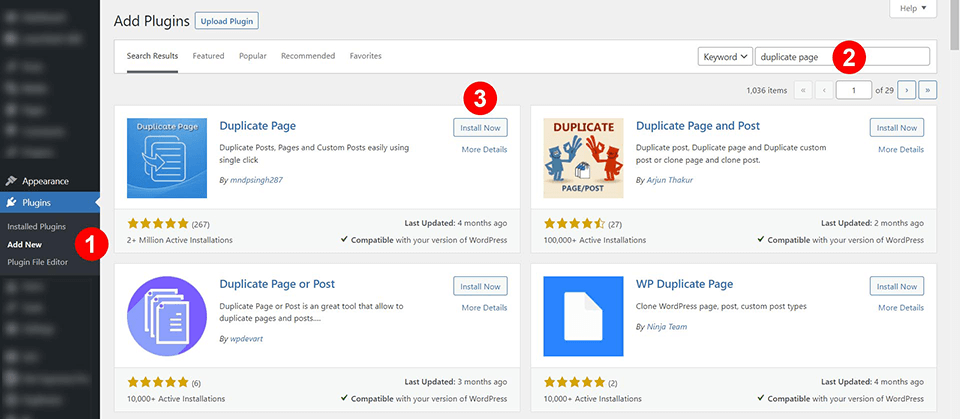
Log in to your WordPress dashboard. Navigate to Plugins > Add New. In the search bar, type Duplicate Post or Duplicate Page. Find a plugin with good ratings and reviews. Click Install Now and then Activate. The plugin is now ready to use.
Cloning Pages From Dashboard
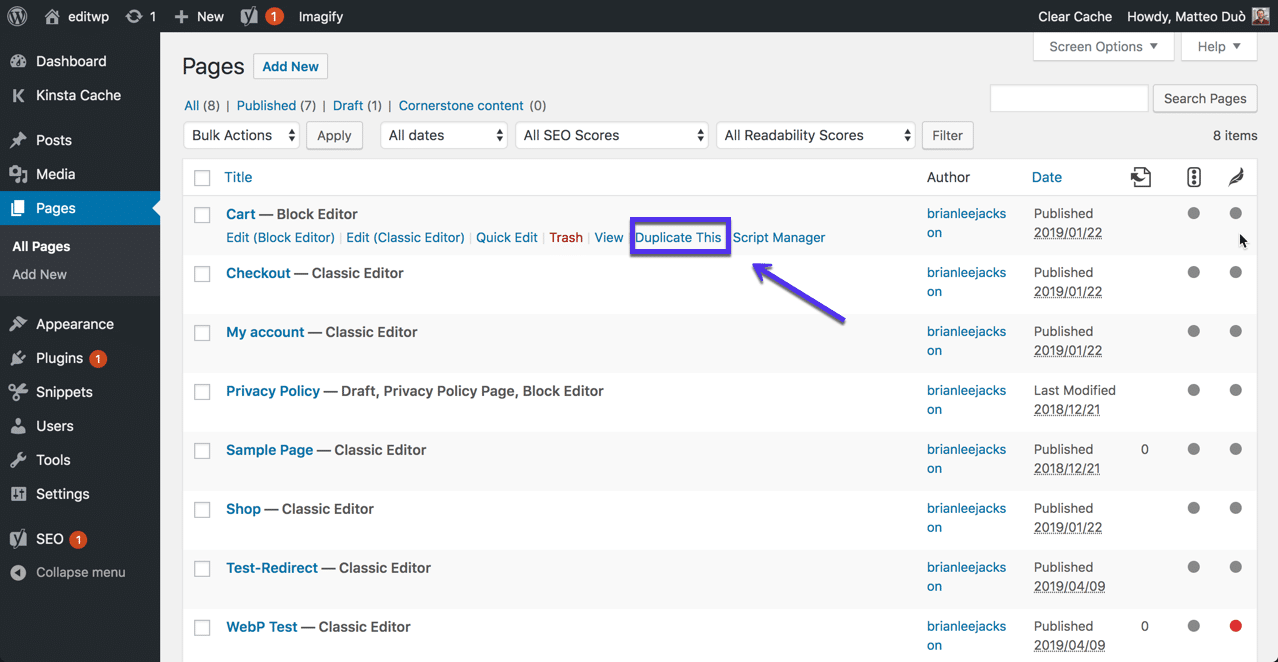
Go to Pages > All Pages in your dashboard. Hover your mouse over the page you want to copy. You will see new options like Clone or Duplicate. Click on one of these options. The plugin will create an exact copy of the page. The duplicate will appear in your page list as a draft.
Managing Duplicate Settings
Some plugins offer settings to control duplication features. Find these under Settings > Duplicate Post or a similar menu. You can choose what to copy, such as title, content, and SEO data. Adjust these options to fit your workflow. Save your settings before duplicating more pages.
Credit: kinsta.com
Manual Duplication Process
Duplicating a page manually in WordPress is simple and requires no extra plugins. This process lets you copy your content and create a new page with the same layout and text. It is useful when you want to keep the style but change some details. Follow these steps carefully to ensure your duplicate page looks right.
Copying Content In Block Editor
Open the page you want to duplicate in the WordPress Block Editor. Click anywhere inside the editor area. Press Ctrl + A (or Cmd + A on Mac) to select all blocks on the page. Then press Ctrl + C (or Cmd + C) to copy the content. This copies all text, images, and blocks exactly as they appear.
Pasting Content Into New Page
Go to your WordPress dashboard and click Pages > Add New. Name your new page at the top. Click inside the editor area and press Ctrl + V (or Cmd + V) to paste the copied content. The entire page content will appear as it was on the original page. Save or publish the new page to keep your changes.
Adjusting Page Attributes
After pasting, check your page settings. On the right side, find the Page Attributes box. Choose the same parent page or template as the original if needed. Set the order if your site uses custom page orders. Review the permalink and change it so it does not conflict with the original page. This step avoids broken links and confusion.
Duplicating Pages With Elementor
Duplicating pages with Elementor makes website editing faster. It helps keep style and layout consistent. You can reuse designs without starting from scratch. Elementor offers easy tools to copy pages or sections. This saves effort and avoids errors in manual copying.
Using Elementor Templates
Elementor Templates store page designs for reuse. You can save a page or section as a template. Then insert it into new pages anytime. This method duplicates the look and content quickly. Templates keep your website’s design uniform across pages. It also helps share designs between different sites.
Cloning Pages Within Elementor
Elementor lets you clone pages directly inside its editor. Click the arrow next to the “Publish” button. Choose “Save as Template” to save the current page. Create a new page and load this saved template. This copies all content and style exactly. You avoid rebuilding the page manually.
Saving Time With Templates
Using templates speeds up page creation. It reduces repetitive work and human errors. Templates let you focus on content, not design details. You can update one template and apply changes everywhere. This keeps your site consistent and easy to manage. It is perfect for large websites or frequent updates.
Benefits Of Duplicating Pages
Duplicating pages in WordPress offers clear advantages for site owners and content creators. It simplifies the workflow and boosts productivity. This process saves effort and ensures your website looks professional and uniform. Understanding the benefits helps you decide when to duplicate pages for your site.
Saving Design Time
Duplicating pages saves a lot of design time. You don’t need to build a new page from scratch. The copied page keeps the original layout and style. This allows quick adjustments without starting over. It speeds up website creation and updates.
Maintaining Consistency
Consistency is key for a professional website. Duplicating pages helps keep the design uniform across the site. Elements like headers, footers, and menus stay the same. Visitors enjoy a smooth and familiar experience on every page.
Easier Content Updates
Content updates become easier with duplicated pages. You can edit the copy without affecting the original page. It allows testing new ideas or seasonal changes safely. This approach reduces errors and ensures content stays fresh.
Common Issues And Fixes
Duplicating a page in WordPress can sometimes cause issues that slow down your workflow. Understanding common problems helps fix them quickly. This section covers frequent issues and easy solutions.
Plugin Conflicts
Plugins designed to duplicate pages may clash with others on your site. Conflicts cause errors or stop duplication from working. To fix this, deactivate all plugins except the duplicator. Test duplication again. Reactivate plugins one by one to find the conflict. Update all plugins to their latest versions for better compatibility.
Url And Seo Considerations
Duplicated pages often keep the same URL slug, which causes SEO problems. Search engines see duplicate content and may lower your ranking. Change the URL slug immediately after duplication. Use unique titles and meta descriptions for the new page. This helps search engines understand the difference between pages.
Updating Duplicate Content
After duplication, the new page’s content must be updated. Leaving identical content can hurt SEO and confuse visitors. Edit text, images, and links to make the page unique. Review all blocks or widgets to ensure they fit the new page’s purpose. Regularly update duplicated pages to keep content fresh and relevant.
Credit: www.elegantthemes.com
Best Practices For Page Duplication
Duplicating pages in WordPress saves time and ensures consistency across your site. Following best practices helps maintain order and improves site management. It prevents confusion and keeps your content organized. Use clear methods and keep your workflow efficient.
Naming Conventions
Name duplicated pages clearly and uniquely. Include terms like “Copy” or version numbers. Avoid using generic names like “Untitled” or “New Page.” Consistent naming helps you find pages quickly. It also prevents overwriting existing pages by mistake.
Reviewing Duplicated Content
Check the duplicated page for accuracy before publishing. Update titles, links, and images to reflect the new content. Remove or change any outdated or irrelevant information. This step avoids duplicate content issues in search engines. It also improves user experience on your site.
Keeping Plugins Updated
Use a reliable plugin to duplicate pages safely. Keep your duplication plugins updated to the latest version. Updates fix bugs and improve security. Outdated plugins can cause errors or security risks. Regular updates ensure smooth duplication and better site performance.
Frequently Asked Questions
How Do I Duplicate An Entire Page?
Go to your WordPress dashboard, hover over the desired page, and click “Duplicate” or “Clone. ” Alternatively, use a plugin like “Duplicate Post” for full duplication.
How To Duplicate A WordPress Page Without A Plugin?
Open the original page editor, copy all content or blocks, create a new page, and paste the copied content. Save the new page.
How To Duplicate A Single Page In Pages?
Open the Pages app, select the page thumbnail, then choose Edit > Duplicate Page. The copy appears in your document sidebar.
How To Duplicate A Page In WordPress 2025?
To duplicate a page in WordPress 2025, install and activate the “Duplicate Post” plugin. Then, hover over the desired page in Pages > All, and click “Clone” to create a copy with all settings intact.
Conclusion
Duplicating a page in WordPress saves time and effort. You can copy content manually or use plugins for ease. Plugins create exact copies, including settings and images. Manual copying works well for simple pages. Choose the method that fits your needs best.
Now, editing your duplicated page is quick and simple. Keep your website organized by using page duplicates wisely. This skill helps improve site management and workflow. Try duplicating pages to make your WordPress experience smoother.


