
Want to create a backup of your WordPress site or move it to a new domain without losing any content? Duplicating your WordPress site on Hostinger can save you hours of work and prevent costly mistakes.
Whether you’re redesigning your site, testing new features, or simply making a copy for safety, knowing the right steps to duplicate your WordPress site is essential. In this guide, you’ll learn exactly how to do it quickly and safely on Hostinger, so you can focus on growing your website with confidence.
Keep reading to master this simple yet powerful process!
Hostinger WordPress Cloning Options
Hostinger offers several easy ways to duplicate your WordPress site. These cloning options save time and reduce errors. Each method fits different needs, from quick copies to full agency-level control.
Explore how Hostinger’s tools make site duplication simple and efficient.
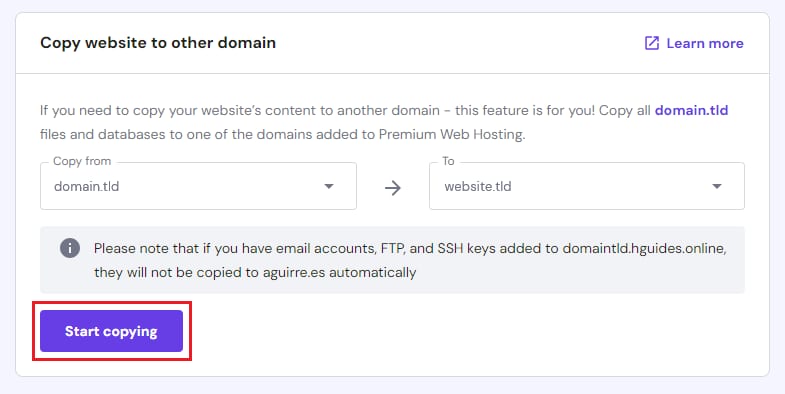
Using Hostinger Hpanel Copy Feature
The hPanel copy feature lets you clone your WordPress site quickly. You start by logging into your Hostinger account. Then, find the site you want to duplicate. Click the three dots icon next to your website name and choose “Duplicate”.
This creates an exact copy in your account. You select a new domain or subdomain for the clone. The process runs automatically, copying files and databases. It works well for small to medium sites.
Cloning Via Agency Hosting Plan
Hostinger’s Agency Hosting Plan includes powerful cloning tools. It is designed for users managing many websites. You can clone sites with one click across different domains. This plan also provides easy site migration options.
The plan offers centralized control over all your clones. It saves hours of manual setup. Agencies and freelancers benefit from this streamlined workflow. This option suits users with multiple client sites.
Duplicating With Hostinger Website Builder
Hostinger’s Website Builder lets you duplicate sites visually. It is ideal for users who prefer drag-and-drop tools. You open your project in the builder dashboard. Then, use the “Duplicate” button to create a copy.
The cloned site keeps the same design and content. You can edit the new site independently after cloning. This method is perfect for simple websites and beginners. It avoids technical steps involved in manual copying.
Credit: www.hostinger.com
Preparing Your WordPress Site
Preparing your WordPress site is a crucial step before duplication. It ensures a smooth and error-free process. Taking time to organize your website helps avoid common issues during transfer.
Cleaning and backing up your site protects your data and improves performance. It sets a solid foundation for a successful duplication on Hostinger.
Backup Your Website Data
Create a full backup of your website files and database. Use plugins like UpdraftPlus or your hosting control panel. Store the backup in a safe location outside your server. This step prevents data loss if something goes wrong.
Check Plugin And Theme Compatibility
Review all active plugins and themes for compatibility. Update them to the latest versions to reduce errors. Disable or remove any outdated or unused plugins. Ensuring compatibility avoids conflicts on the new host.
Clean Up Unnecessary Files
Delete unused themes, plugins, and media files. Clear your cache and temporary files to reduce site size. Removing clutter speeds up the duplication process. It also helps your new site run efficiently.
Step-by-step Cloning Process
Duplicating a WordPress site on Hostinger is a simple task. It requires just a few clear steps. Follow this guide to clone your website easily. This process saves time and effort in setting up a new site. You get an exact copy of your original WordPress site.
Each step is designed to guide you through the Hostinger interface. You will learn how to select your site, choose where to copy it, and start the cloning. After that, checking the new site’s functionality ensures everything works well.
Access Hostinger Dashboard
First, log in to your Hostinger account. The dashboard shows all your hosting services. Locate the section for websites or hosting plans. This is where you manage your WordPress sites. Make sure you have the correct permissions to clone a site.
Select Website To Duplicate
Find the WordPress site you want to copy. Click the three dots menu next to it. Choose the “Duplicate website” option from the list. Hostinger will prepare the site for cloning. Confirm your choice to proceed to the next step.
Choose Destination Domain Or Subdomain
Select the domain or subdomain for the new site. You can use an existing domain or add a new one. This is where your cloned site will be hosted. Make sure the destination is ready and active in your Hostinger account.
Initiate The Copy Process
Click the button to start copying your website. Hostinger will duplicate all files, databases, and settings. The time taken depends on your site size. Wait until the process finishes without closing the browser. You will get a notification once done.
Verify Cloned Site Functionality
Open the new site in a browser to check it. Test all pages, links, and forms to confirm they work. Log in to the WordPress admin panel of the cloned site. Verify plugins and themes are active and updated. Fix any issues before making the site live.
Duplicating Individual Pages Or Posts
Duplicating individual pages or posts helps save time when building or updating a WordPress site on Hostinger. Instead of creating content from scratch, you can copy existing pages or posts. This process keeps your design and layout consistent across the site. It also reduces errors and speeds up publishing.
WordPress offers simple ways to duplicate content. You can use built-in editor options or install a plugin designed for this task. Both methods are easy and require no coding skills. Below, learn how to duplicate pages or posts using these methods.
Using WordPress Editor Options
WordPress editor includes a quick option to duplicate pages or posts. Open the page or post list in your dashboard. Hover over the item you want to copy. Click the three dots (ellipsis) next to the title. Select the “Duplicate” or “Copy” option from the menu. A new draft with the same content will open. Edit the title and make changes before publishing. This method works well for small sites or occasional duplication.
Installing Duplicate Page Plugin
For frequent duplication, install a plugin like “Duplicate Page.” Go to your WordPress dashboard. Navigate to Plugins > Add New. Search for “Duplicate Page” in the search bar. Click “Install Now” and then activate the plugin. The plugin adds a duplicate link to pages and posts. This tool helps you duplicate content faster and more reliably. It works with both classic and block editors.
Configuring Plugin Settings
After activating the plugin, configure its settings to fit your needs. Go to Settings > Duplicate Page. Choose where to redirect after duplication, such as to the edit page or list. Select the user roles allowed to duplicate content. Pick the post types you want to enable for duplication. Save changes to apply your settings. Proper configuration improves workflow and control over duplicated content.
Migrating Cloned Site To Another Host
Migrating a cloned WordPress site to a new host requires careful steps. This process ensures your website works smoothly on the new server. Proper migration prevents downtime and data loss. Follow these steps to move your cloned site safely and quickly.
Exporting WordPress Files And Database
Start by exporting all WordPress files from the original host. Use an FTP client or the file manager in your hosting control panel. Download the entire WordPress directory to your computer. Next, export the database using phpMyAdmin or a similar tool. Select your WordPress database and choose the export option. Save the database file in SQL format for easy import later.
Importing To New Hosting Provider
Upload the WordPress files to the new host using FTP or the file manager. Place them in the public_html or root directory. Create a new database on the new host from the hosting control panel. Import the previously exported SQL file into this new database using phpMyAdmin. Update the wp-config.php file with the new database details. This links your WordPress files to the new database correctly.
Updating Dns And Urls
Change your domain’s DNS records to point to the new hosting provider. This directs visitors to the new server location. Update the WordPress site URL and home URL in the database. Use phpMyAdmin or a plugin like Better Search Replace for this. Correct URLs ensure your site loads properly without broken links. DNS changes may take a few hours to fully propagate.
Common Issues And Fixes
Duplicating a WordPress site on Hostinger can sometimes cause issues. These problems often appear after the cloning process. Knowing common issues and their fixes helps keep your site running smoothly. Below are typical problems and ways to solve them.
Handling Broken Links
Broken links appear when URLs do not update after duplication. This happens because links still point to the old site address. Fix this by using a search and replace tool in the database. Change old URLs to the new site’s address. Plugins like Better Search Replace make this easy. Always back up your database before making changes.
Resolving Plugin Conflicts
Some plugins may not work well after duplication. Conflicts can cause errors or site crashes. Deactivate all plugins first, then activate them one by one. This helps find the problematic plugin. Check plugin settings and update them if needed. If issues persist, contact the plugin support team for help.
Fixing Permalink Problems
Permalinks may break after cloning, causing 404 errors. This happens because WordPress needs to refresh its URL structure. Go to Settings > Permalinks in your dashboard. Click “Save Changes” without altering anything. This action rebuilds the permalink rules and fixes broken URLs. Clear your cache after this step to see the changes.
Tips For Smooth Duplication
Duplicating a WordPress site on Hostinger requires careful planning. Following specific tips ensures the process goes smoothly. These tips reduce errors and keep your site safe. Use the following advice to duplicate your site without losing data or functionality.
Maintain Regular Backups
Always create backups before starting duplication. Backups protect your data if something goes wrong. Use Hostinger’s backup tools or WordPress plugins for this task. Store backups securely in different locations. Regular backups help restore your site quickly after any issue.
Test Site On Staging Environment
Use a staging environment to test the duplicated site. This environment mirrors your live site but is separate. Testing here avoids disruptions to your active site. Check all pages, links, and plugins carefully. Fix any errors before making the duplicated site live.
Keep WordPress Updated
Update WordPress core, themes, and plugins before duplication. Updates improve security and compatibility. Running outdated software can cause errors during duplication. Regular updates keep your site stable and smooth. Always check compatibility of your plugins with the latest WordPress version.

Credit: www.youtube.com

Credit: www.youtube.com
Frequently Asked Questions
How To Duplicate A WordPress Website On Hostinger?
Log in to Hostinger hPanel and find your WordPress website. Click the three dots icon, then select “Duplicate website. ” Choose the destination domain or subdomain and start copying. Wait for the process to complete, then access and customize your duplicated site.
How Do I Clone An Entire WordPress Site?
Use a plugin like Duplicator or All-in-One WP Migration to export your site. Then, import files to the new location and update URLs. Alternatively, Hostinger’s hPanel offers a “Copy Website” feature for easy cloning to another domain or subdomain.
How To Duplicate An Existing Page In WordPress?
To duplicate a WordPress page, open the page editor. Click the three dots icon near the title, then select “Duplicate. ” Rename the new page and save it. Alternatively, use a plugin like “Duplicate Page” for easier cloning.
What Is The Disadvantage Of Hostinger?
Hostinger offers affordable, fast hosting but limits design flexibility in its website builder. It lacks advanced eCommerce features and built-in email marketing. Third-party app support is also minimal, which may restrict growing businesses needing more robust tools and integrations.
Conclusion
Duplicating your WordPress site on Hostinger is simple and quick. Follow each step carefully to avoid errors. Using Hostinger’s tools saves time and effort. You can clone sites for testing or backups with ease. Remember to check all settings after duplication.
This method helps manage multiple websites smoothly. Keep your site secure by updating plugins regularly. Now, you can confidently duplicate your WordPress site on Hostinger.


