
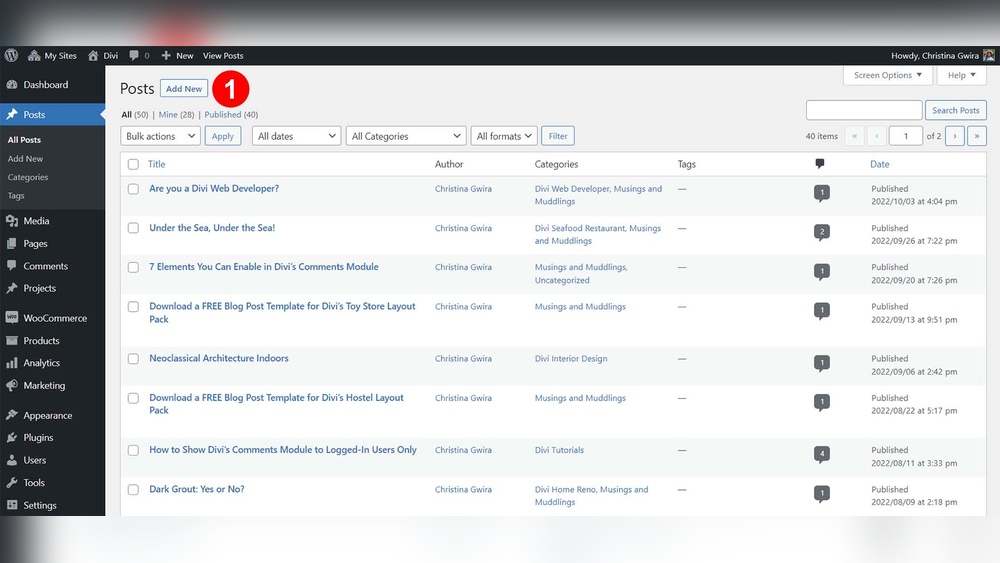
Want to save time and keep your WordPress site consistent? Knowing how to duplicate a page on WordPress can be a game-changer for your workflow.
Whether you’re creating a new landing page, testing different layouts, or simply want to reuse content without starting from scratch, duplicating a page is a simple trick that makes your life easier. You’ll discover easy, step-by-step methods to duplicate any page on your WordPress site—no technical skills needed.
Keep reading, and you’ll be duplicating pages like a pro in just minutes!
Credit: www.elegantthemes.com
Methods To Duplicate A WordPress Page
Duplicating a page in WordPress can save time and keep your website consistent. There are simple ways to copy your content without starting from scratch. Choose the method that suits your skills and needs best.
Manual Copy And Paste
Open the page you want to duplicate in the WordPress editor. Select all the content by pressing Ctrl + A (Windows) or Cmd + A (Mac). Copy it using Ctrl + C or Cmd + C.
Create a new blank page in WordPress. Click inside the editor and paste the copied content with Ctrl + V or Cmd + V. Save or publish the new page.
This method works well for simple pages. It does not copy page settings or SEO details. You must adjust those manually for the new page.
Using WordPress Plugins
Plugins offer an easy way to duplicate pages with a single click. Popular plugins like “Duplicate Page” or “Yoast Duplicate Post” add a duplicate option in your page list.
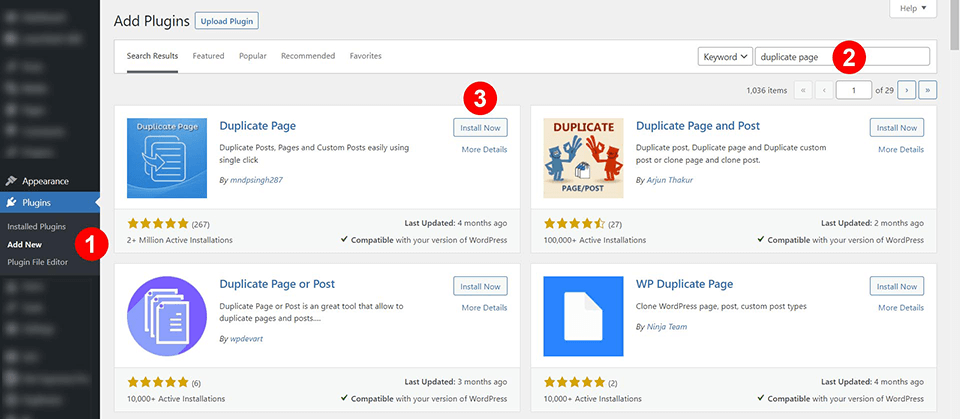
Install and activate the plugin. Go to the Pages section in your dashboard. Find the page to copy and click the duplicate link added by the plugin.
The plugin creates a new draft with all content, settings, and metadata copied. Edit the new page and publish when ready. This method saves time and reduces errors.
Popular Plugins For Page Duplication
Duplicating pages saves time and keeps site design consistent. WordPress plugins simplify this task. They allow quick copying of pages without manual copying and pasting. Many plugins offer extra features like copying settings or SEO data. Below are some popular plugins to help you duplicate pages easily.
Duplicate Post Plugin
The Duplicate Post Plugin is simple and widely used. It lets you clone posts and pages with one click. You can copy titles, content, and metadata. The plugin adds a “Clone” link under each page in the admin panel. It works well for beginners and speeds up content creation.
Yoast Duplicate Post Plugin
Yoast Duplicate Post Plugin is a trusted choice by many. It offers options to copy content, SEO settings, and custom fields. You can choose to open the copy in the editor right away. This plugin integrates well with other Yoast SEO tools. It helps maintain SEO consistency across duplicated pages.
Other Useful Plugins
Several other plugins offer page duplication features. “WP Staging” creates duplicates for testing without affecting live sites. “Duplicate Page and Post” is lightweight and easy to use. “Page and Post Clone” offers fast cloning with minimal setup. Choose a plugin based on your needs and site setup.
Step-by-step Guide To Manual Duplication
Duplicating a page manually in WordPress is simple and useful. It helps save time and keep your design consistent. Follow this step-by-step guide to copy a page without plugins. The process involves copying content, creating a new page, and pasting the content into it.
Copy Page Content
Open the page you want to duplicate in the WordPress editor. Select all the content by pressing Ctrl + A (Windows) or Cmd + A (Mac). Copy the selected content using Ctrl + C or Cmd + C. Make sure to include text, images, and any other elements on the page.
Create A New Page
Go to the WordPress dashboard and click on Pages > Add New. This action opens a blank page where you can paste the copied content. Give your new page a clear title that matches your original page or indicates it is a duplicate.
Paste And Save Content
Click inside the new page editor area. Paste the copied content by pressing Ctrl + V or Cmd + V. Check if all elements appear correctly. Adjust formatting if needed. Finally, click Publish or Save Draft to keep your duplicated page ready for use.
Duplicating Pages With Plugins
Duplicating pages with plugins in WordPress saves time and avoids errors. Plugins create an exact copy of your page quickly. This method is simple, even for beginners. It keeps your design and settings intact. Using a plugin, you can duplicate pages without manual copying.
Install And Activate Plugin
Go to your WordPress dashboard. Click on “Plugins” and then “Add New”. Search for “Duplicate Page” or “Duplicate Post”. Choose a plugin with good reviews and click “Install Now”. After installation, click “Activate” to enable the plugin.
Find The Duplicate Option
Open the “Pages” menu in the dashboard. Hover over the page you want to copy. You will see a new option like “Duplicate” or “Clone”. Click this option to create a copy of the page. The plugin will make an exact duplicate instantly.
Edit And Publish The Duplicated Page
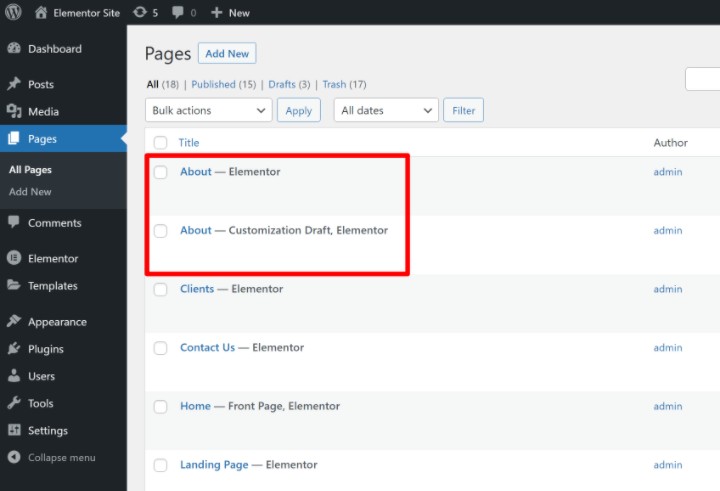
Find the duplicated page in your list of pages. It usually has the same title with “Copy” or “Draft”. Click “Edit” to open the page editor. Change the content or title as needed. When ready, click “Publish” to make the page live on your site.
Duplicating Pages In WordPress Block Editor
Duplicating pages in the WordPress Block Editor is a simple way to save time. You can reuse layouts, content, and designs without starting from scratch. This method works well for blogs, landing pages, or any content that shares a similar structure. The Block Editor has built-in tools that make copying content easy and fast.
Using Block Editor Features
The Block Editor lets you select and copy entire blocks or groups of blocks. Click on a block to reveal its toolbar. Use the “More options” menu to find the “Copy” command. After copying, create a new page and paste the blocks. This keeps the design and content intact.
You can also select multiple blocks by holding the Shift key while clicking. This allows you to copy several blocks at once. Pasting the blocks on a new page recreates your layout quickly. It is a simple way to duplicate pages without plugins.
Copying Blocks Between Pages
Open the page you want to duplicate in the Block Editor. Select the blocks or content you want to copy. Press Ctrl + C (Cmd + C on Mac) to copy the selection. Next, create a new page or open an existing one.
Press Ctrl + V (Cmd + V on Mac) to paste the copied blocks. The content appears exactly as it was on the original page. You can then edit or rearrange the blocks as needed. This method works well for duplicating parts or full pages.
Duplicating Pages In Classic Editor
Duplicating pages in the Classic Editor of WordPress is straightforward. It helps save time by reusing content layouts. You can duplicate pages either by copying content manually or using plugins. Each method suits different needs and skill levels. This guide explains both approaches clearly.
Copying Content Manually
Open the page you want to duplicate in the Classic Editor. Click inside the content area and press Ctrl + A (Windows) or Cmd + A (Mac) to select all content. Then, press Ctrl + C or Cmd + C to copy it.
Create a new page by clicking Pages > Add New. Click inside the content area of the new page and press Ctrl + V or Cmd + V to paste the copied content.
After pasting, adjust the title and any specific details. This method works well for short pages or when you want full control over what copies.
Using Plugin Options
Plugins make duplicating pages faster and easier in WordPress. Popular plugins like “Duplicate Post” add a duplicate option to the page list. Install and activate your chosen plugin from the WordPress plugin directory.
Go to the list of pages in your WordPress dashboard. Hover over the page to duplicate and click the new “Clone” or “Duplicate” link added by the plugin. The plugin creates a copy instantly without opening the editor.
This method saves time, especially with large or many pages. It keeps all content, settings, and metadata intact for a perfect copy.
Best Practices For Duplicating Pages
Duplicating pages in WordPress can save time and effort. Following best practices ensures the process runs smoothly. It helps avoid common pitfalls that affect your site’s performance and SEO. Proper handling of duplicated pages keeps your website organized and search-friendly.
Avoiding Duplicate Content Issues
Duplicate content can confuse search engines. It may lower your page rankings. Change the content on the new page. Add unique text and images. This helps search engines see the pages as different. Avoid copying everything exactly. Use the duplicate page only as a starting point.
Updating Titles And Urls
Each page needs a unique title and URL. Change the page title to match the new content. Update the URL slug to avoid conflicts. Use simple and clear words in URLs. This improves user experience and SEO. Check that the new URL works correctly after saving.
Checking Seo Settings
Review SEO settings on the duplicated page. Update meta descriptions to reflect new content. Change focus keywords if needed. Ensure the page is set to be indexed by search engines. Add or update schema markup if your site uses it. This keeps your SEO strategy consistent.
Credit: elementor.com
Troubleshooting Common Issues
Troubleshooting common issues helps you duplicate pages smoothly in WordPress. Problems may arise from plugin conflicts, formatting errors, or permission limits. Understanding these obstacles saves time and effort.
Plugin Conflicts
Sometimes, plugins clash and stop the duplication process. Deactivate all plugins except the one used to duplicate pages. Test duplication again. Reactivate plugins one by one to find the conflict. Update plugins to their latest versions for better compatibility.
Content Formatting Problems
Duplicated pages may lose formatting or display oddly. This happens if the page builder or editor styles are not copied properly. Use the same editor for both original and duplicate pages. Check for inline styles and custom CSS that may not transfer. Manually adjust formatting if needed after duplication.
Permission Restrictions
User roles and permissions can block page duplication. Ensure your WordPress user account has the rights to create and edit pages. Administrators usually have full access. Editors may need additional permissions. Contact your site admin if you lack necessary rights.

Credit: wordpress.org
Frequently Asked Questions
How Do I Duplicate An Entire Page?
Select all content on the page and copy it (Ctrl+C or Cmd+C). Create a new page and paste the content (Ctrl+V or Cmd+V). Some apps offer a “duplicate page” option in the page navigation or menu for faster copying.
How To Duplicate A Page In WordPress Without A Plugin?
Open the original page in WordPress editor, select all content, copy it (Ctrl+C). Create a new page, then paste the content (Ctrl+V). Save the new page to duplicate without using a plugin.
How To Duplicate A Single Page In Pages?
Open the Page Thumbnails sidebar in Pages. Right-click the page you want to duplicate and select “Duplicate. ” The copy appears immediately.
How To Duplicate A Page In WordPress 2025?
To duplicate a page in WordPress 2025, use a plugin like “Duplicate Page. ” Install, activate it, then click “Duplicate” under your page list. Alternatively, copy all content, create a new page, and paste the content manually.
Conclusion
Duplicating a page in WordPress saves time and keeps your content consistent. Use plugins or manual copy-paste methods for best results. Always check the duplicated page for formatting and links. Practice these steps to build your website faster and easier.
Keep your workflow smooth and efficient with simple page duplication.


