
Are you looking to offer downloadable files on your WordPress site but don’t know where to start? Whether you want to share PDFs, images, or even let visitors download your entire media library, understanding how to download and add files on WordPress is key.
In this guide, you’ll discover simple, step-by-step methods to upload, link, and manage downloads on your website. By the end, you’ll have the confidence to provide your visitors with easy access to the files they need — making your site more engaging and user-friendly.
Ready to unlock the full potential of downloads on WordPress? Let’s dive in!
Credit: www.elegantthemes.com
Add Downloadable Files
Adding downloadable files to your WordPress site lets visitors easily access important documents. This feature helps share PDFs, reports, guides, and other files. WordPress offers simple tools to upload and display these files clearly. Follow these steps to add downloadable files to your posts or pages.
Use File Block
The File block is the easiest way to add downloads. It allows you to upload or select files from the media library. After adding the block, visitors see a download link or button. This block supports many file types like PDFs, DOCs, and images. You can also add a caption or description for the file.
Upload Pdfs And Documents
Upload files directly inside the File block or the Media Library. Click “Upload” to select files from your computer. Large files may take a few seconds to upload. WordPress safely stores your files and prepares them for download. Ensure your files have clear names so visitors know what they are.
Add Download Buttons
Download buttons help make files stand out on your page. Use the File block’s built-in button option or add a custom button block. Link the button to the file URL in your media library. Customize the button text to say “Download PDF” or “Get Document.” Buttons improve user experience and encourage clicks.
Create Download Links
Creating download links on your WordPress site allows visitors to save files directly to their devices. This feature is useful for sharing documents, images, or software. It makes your content more accessible and user-friendly.
There are simple ways to add download links using basic HTML or WordPress tools. You can choose the best method depending on your needs and skills. Below are three common methods to create effective download links.
Html Anchor Tag Method
Use the HTML anchor tag to link files for download. Place the file URL inside the href attribute. This method creates a clickable link that opens the file in the browser.
Example: Download PDF. This shows “Download PDF” as a link.
This method works well for simple links but does not force download. Files may open in the browser window.
Using Download Attribute
Add the download attribute to the anchor tag to force the file to download. This attribute tells the browser to save the file instead of opening it.
Example: Download PDF. This triggers download on click.
You can also set a custom file name by adding a value to the download attribute. Example: download="guide.pdf".
Linking Media Files
WordPress stores uploaded files in the Media Library. You can get the file URL from the library to create download links.
To link media files, open the Media Library, select a file, and copy its URL. Then use this URL in your anchor tag or WordPress link block.
WordPress also offers a File block for easy file linking. It adds a download button with few clicks, no coding needed.
Export WordPress Content
Exporting your WordPress content is a simple way to save your site data. It creates a backup of your posts, pages, comments, and other important information. This process helps you keep a copy of your work or move content to another website.
Export All Content
Go to your WordPress dashboard and click on Tools. Then select Export. Choose the option labeled All content. This option includes every post, page, comment, custom field, category, and tag on your site. It is the best choice if you want a full backup.
Export Specific Content Types
You can also export only certain types of content. For example, you might want just your posts or pages. In the export screen, choose the content type you want. This option saves time and reduces file size. It is useful for selective backups or moving parts of your site.
Download Export File
After selecting your content, click the Download Export File button. WordPress will create an XML file for you. Save this file on your computer. It holds all the content you chose to export. Keep it safe to restore or import later.
Credit: www.wpbeginner.com
Download Media Library
Downloading the media library from WordPress helps keep your files safe and accessible. This process allows you to export all images, videos, and documents uploaded to your site. You can store these files offline or transfer them to another platform easily.
Managing your media downloads also helps maintain your website’s performance and organization. Proper backup and export routines ensure you never lose important media content. Below are key steps to handle your WordPress media library downloads effectively.
Export Media Files
To export media files, go to your WordPress dashboard. Navigate to Tools > Export. Choose the option to export media files only. Click on Download Export File to save your media library as an XML file. This file contains links to all your media items for easy transfer or backup.
Backup Media Library
Backing up your media library protects your files from loss or damage. Use a plugin or your hosting service’s backup tool. Schedule regular backups to keep your media up to date. Store backups on an external drive or cloud service. This step ensures your media stays safe in case of emergencies.
Manage Media Downloads
Organize and manage your media downloads for better site performance. Delete unused or duplicate files to save space. Rename files with clear, descriptive names for easier identification. Use folders or categories to group similar media. These practices keep your library tidy and efficient.
Backup Full Website
Backing up your full WordPress website is crucial. It protects your content from loss due to errors or hacks. You can save everything, including files, themes, plugins, and the database. This process ensures you have a copy to restore anytime. Follow these simple steps to back up your site securely.
Use Cpanel Backup
Most web hosts offer cPanel for managing your site. Log into cPanel to find backup options. Locate the “Backup” section for full or partial backups. You can create a complete backup of your website here. This method is fast and reliable for saving all site data.
Download Full Site Backup
After generating a backup in cPanel, download it to your computer. The backup file usually appears as a compressed archive. Click the file link to start the download. Keep this file safe as it contains all website data. You can use it to restore your site later if needed.
Save Site Locally
Store the downloaded backup in a secure folder on your computer. Consider making multiple copies for extra safety. Use external drives or cloud storage for added protection. Regularly updating your backup keeps your data current. This practice helps avoid data loss during site changes.
Manage Downloads With Plugins
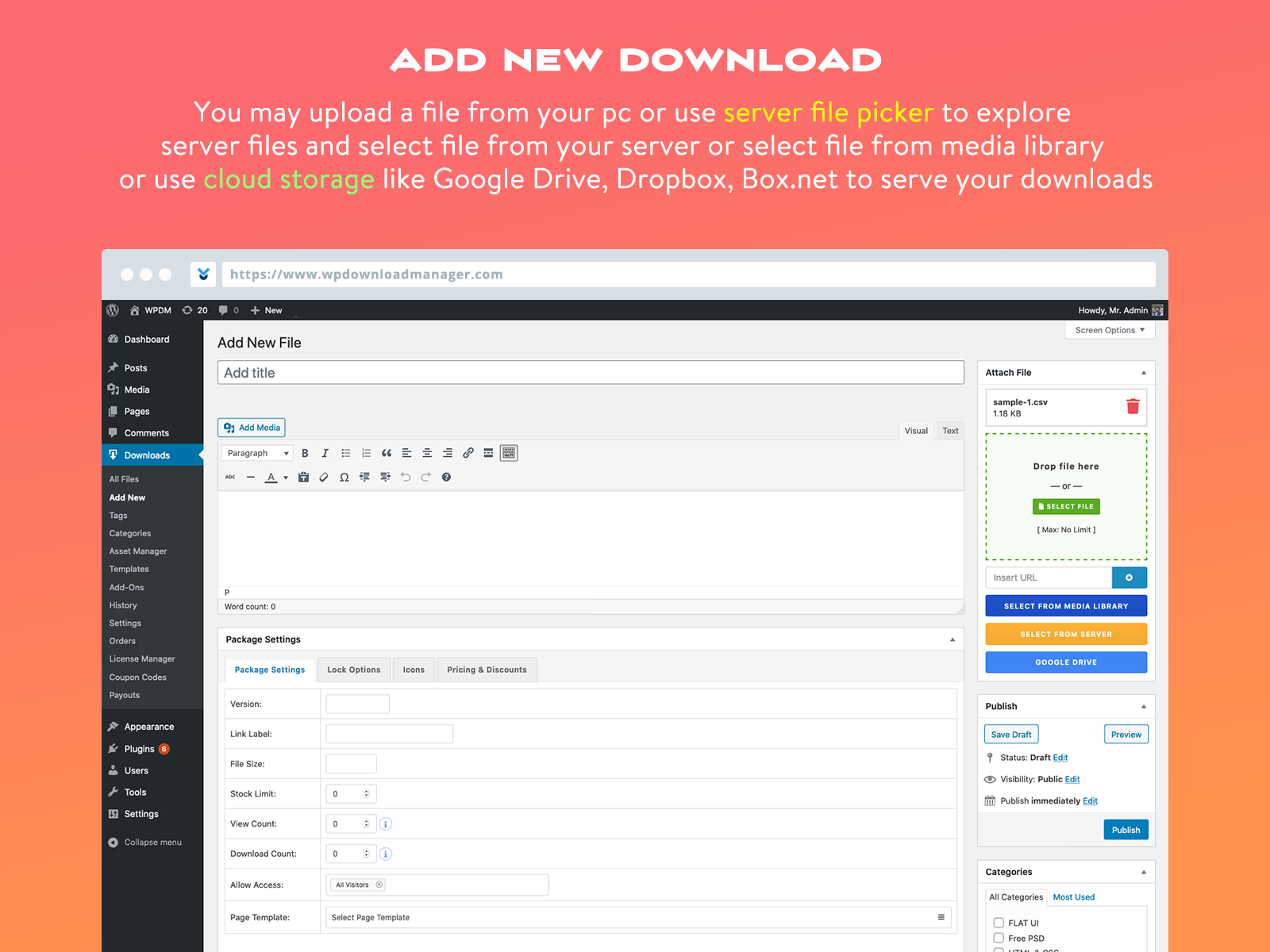
Managing downloads on WordPress is simple with the right plugins. Plugins help organize files and control access. They save time and improve user experience. Using plugins, you can offer downloads safely and track their usage. This section explores popular plugins to manage downloads effectively.
Easy Digital Downloads
Easy Digital Downloads is a popular plugin for selling digital products. It supports files like PDFs, images, and software. The plugin offers a user-friendly interface to upload and manage downloads. You can set pricing and offer discounts. It integrates with payment gateways for smooth transactions. It also handles customer management and order tracking.
File Download Management
File Download Management plugins help organize your downloadable files. They allow you to categorize and tag files for easy access. You can control who can download specific files. Some plugins provide download buttons and links customization. They help keep your files safe and easy to find. This improves the overall site navigation.
Download Tracking
Download tracking plugins monitor how often files are downloaded. They provide detailed reports on user activity. You can see which files are popular and which are not. This data helps you improve your content and offers. Tracking also helps detect unauthorized downloads. It ensures you maintain control over your files.
Credit: es.wordpress.org
Frequently Asked Questions
Can You Download From WordPress?
Yes, you can download content from WordPress. Use the Tools → Export option to download your site’s content or media files easily. Upload files to offer downloads by adding download links or using the File block for visitors to access documents, images, or videos.
How Do I Download A Website On WordPress?
Go to WordPress dashboard, navigate to Tools → Export. Select “All content” or specific content types. Click “Download Export File” to save your website data.
How Do I Put A Downloadable Pdf On WordPress?
Upload your PDF via WordPress Media Library. Insert it into a post using the File block. Visitors can then download the PDF easily.
How Do I Add A Download Option In My Website?
Add a download option by uploading your file to your website. Then, create a link using an HTML anchor tag with the href set to the file URL and add the download attribute. Alternatively, use WordPress’s File block to easily insert downloadable files into pages or posts.
Conclusion
Downloading files on WordPress is simple and useful. You can add download links or buttons quickly. Upload your files, then create links using the File block or HTML. Export your entire site or media for backup anytime. These steps help you share content and keep your data safe.
Practice these easy methods to improve your WordPress site today.


