
Are you ready to get your website online with one of the most popular hosting providers? Figuring out how to do web hosting in GoDaddy can feel overwhelming, but it doesn’t have to be.
You’ve probably heard of GoDaddy’s reputation as a leading web host, but what you might not realize is just how simple it can be to get started. Imagine having your website up and running in no time, reaching your audience without any technical headaches.
In this guide, you’ll discover a step-by-step process that makes web hosting with GoDaddy straightforward and stress-free. Whether you’re building a personal blog, a business site, or an online store, mastering the basics of GoDaddy hosting will give you the confidence you need to launch your digital presence. Let’s dive in and unlock the potential of your website with ease and efficiency.
Credit: www.godaddy.com
Choosing A Godaddy Hosting Plan
GoDaddy offers different hosting types. Shared hosting is good for small websites. It is cheap and easy. VPS hosting gives more control. Dedicated hosting is for big websites. It is more powerful but costs more. Choose what fits your needs.
Think about your website size. Small sites need less space. Big sites need more space. Check speed and uptime. Fast sites keep visitors happy. Look at customer support. Good support helps you fix problems. Compare prices. Pick what matches your budget.
Setting Up A Godaddy Account
Start by visiting the GoDaddy website. Click on the “Sign In” button. If you do not have an account, click “Create Account”. Fill in your email, username, and password. Choose a strong password. Keep your login details safe. You will need them later. Check your email for a verification link. Click it to verify your account. Now, you have a GoDaddy account.
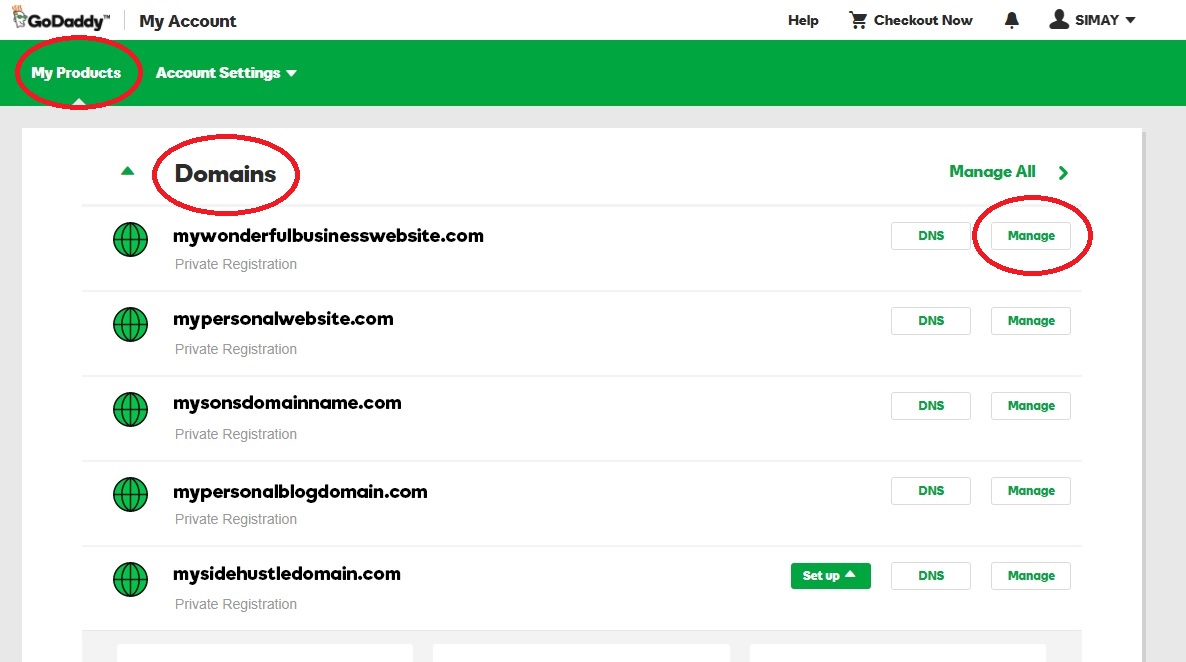
Once logged in, you will see the dashboard. This is your control center. You can manage domains, hosting, and more. Look for the “My Products” section. Here, you can find all your products. Click on each to explore more options. Use the navigation bar at the top. It helps you find features easily. Explore each tab to know what you can do.
Registering A Domain
Type your desired domain name on the search bar. Ensure the name is easy to spell. Godaddy will check if the name is taken. If not, you can proceed. See alternatives if it’s unavailable. Choose a name that fits your website. A unique name is best.
Once you find the right domain, add it to your cart. Follow the prompts to buy it. Godaddy will guide you through the payment steps. You can use a credit card. Make sure your details are correct. After payment, the domain is yours. You can start your website.
Configuring Domain Settings
DNS stands for Domain Name System. It helps your website connect to the internet. To configure DNS, go to your GoDaddy account. Find the DNS settings for your domain. You will see options like Records, Nameservers, and Forwarding. Choose the right record type. Common types are A, CNAME, and MX. Enter the IP address or host name. Save your changes. Wait a few hours for them to update. Your website will be live soon.
Subdomains are parts of your main domain. They help organize your site. To create a subdomain, log into GoDaddy. Go to your domain dashboard. Click on Add Subdomain. Name your subdomain. Examples are blog.yoursite.com or shop.yoursite.com. Link it to the right folder. This folder holds your site files. Save the settings. Your subdomain will be ready soon.
Uploading Website Files
Discover how to upload website files on GoDaddy with ease. Begin by accessing your hosting account and locating the file manager. Simply drag and drop your website files into the public_html directory. Now, your site is ready to go live for the world to see.
Using File Manager
Godaddy provides a simple File Manager for uploads. First, log in to your Godaddy account. Click on Web Hosting and choose your account. You’ll find the File Manager under the Manage menu. Open it. Click the Upload button to add files. Choose files from your computer. Wait for the upload to finish. Your files are now on the server. Easy, right?
Ftp Client Setup
Using an FTP client is another way. Download an FTP client like FileZilla. Install it on your computer. Open FileZilla. You need your FTP credentials. Find these in your Godaddy account. Enter the Host, Username, and Password. Click Quickconnect. Now, you can drag files from your computer to the server. Make sure your internet is stable. Uploading might take time if files are large.

Credit: www.godaddy.com
Installing Applications
GoDaddy offers many CMS choices. The most popular ones include WordPress, Joomla, and Drupal. Each CMS helps you create websites. WordPress is easy for beginners. Joomla is great for more features. Drupal is for advanced users. Choose a CMS based on your needs. Each has special features.
GoDaddy makes installing apps simple. Use the one-click app installer. First, log into your GoDaddy account. Find the hosting panel. Click on the app you want. Follow the steps to install. The process takes only a few minutes. No coding is needed. Your app will be ready soon. Enjoy your new website!
Managing Databases
Setting up web hosting on GoDaddy involves managing databases efficiently. Select a hosting plan, then access the cPanel. Use the MySQL Database Wizard to create and manage your database. This ensures your website runs smoothly and securely on GoDaddy’s platform.
Creating A New Database
Start by logging into your GoDaddy account. Go to the Web Hosting section. Click on Manage next to your hosting account. Look for the Databases section. Choose MySQL Databases. Click on Create Database. Enter a name for your database. Choose a username and password. Keep these safe. Click Create. Your database is ready.
Connecting To Your Database
Download a tool like phpMyAdmin or MySQL Workbench. Open the tool. Enter your database name. Use the username and password you set. Set the host to localhost. Click on Connect. You can now manage your database. Add, edit, or delete data easily.
Enhancing Security Measures
SSL Certificates keep your website data safe. They ensure that information is encrypted. This means no one can read it. People trust your site more with SSL. They see a padlock in the browser. This shows your site is secure. Google also likes SSL. It helps your site rank better. You can get SSL from GoDaddy easily. Follow their steps to set it up. It takes only a few minutes. This is important for all websites.
Backups are copies of your website. They protect you from data loss. GoDaddy offers simple backup solutions. You can set automatic backups. This saves time and effort. If something goes wrong, you can restore your site. This keeps your website running smoothly. Backups are like safety nets. They are very important for websites.
Monitoring And Maintenance
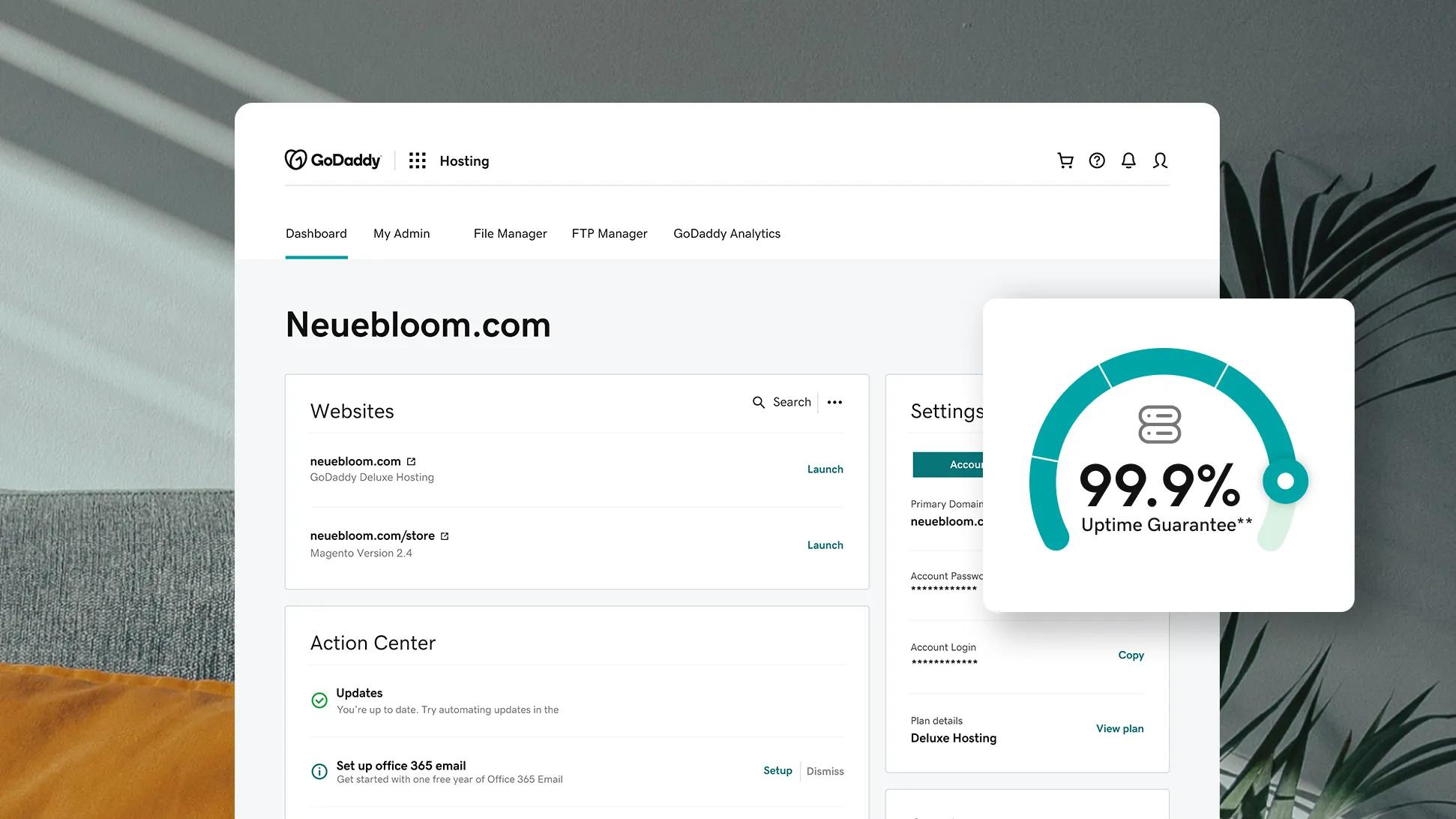
Managing web hosting on GoDaddy involves regular monitoring and maintenance. Keep an eye on server performance and uptime. Perform routine updates to ensure security and stability.
Performance Tracking
Keep an eye on your website’s speed. Slow sites make visitors leave. Use tools like Google PageSpeed Insights. These tools show how fast your site is. Quick sites rank better in search engines. This means more visitors will come. Check your website often. Fix any slow areas you find.
Regular Updates
Update your site’s software regularly. Outdated software can cause problems. It might make your site slow. It can also be a security risk. Godaddy provides easy updates. Use them to keep your site safe. Regular updates improve site performance. Visitors will have a better experience.
Troubleshooting Common Issues
Some errors occur during web hosting with GoDaddy. One common issue is the “404 Not Found” error. Check the URL for mistakes. Make sure the page exists. Another issue is the “500 Internal Server Error”. This might be due to a server problem. Restart the server to fix it.
GoDaddy offers many support options. The Help Center has guides and FAQs. Phone support is available 24/7. You can talk to a real person. Email support is also an option. Send a detailed message. Get help from the community forum, too. Other users may have solved your problem.
Credit: www.godaddy.com
Frequently Asked Questions
How To Setup Web Hosting In Godaddy?
Sign in to GoDaddy account, select Web Hosting, and choose your plan. Complete purchase and access cPanel. Set up your domain, upload website files, and configure settings. Test your site to ensure it functions correctly.
Is Godaddy Good For Website Hosting?
GoDaddy is a popular hosting provider, offering reliable uptime and diverse plans. Its user-friendly interface suits beginners. Some users report slower speeds and higher renewal costs. Reviews vary, so assess your needs and compare options. Always consider customer support quality and specific hosting requirements when choosing a provider.
Does Godaddy Host Websites For Free?
GoDaddy does not offer free website hosting. They provide various paid hosting plans with different features. Consider their plans for reliable and professional website hosting services.
How To Give Hosting Access To Godaddy?
Log in to your GoDaddy account. Go to “My Products” and select your hosting plan. Click “Manage” and then “Delegate Access. ” Enter the recipient’s email and choose access level. Confirm and send the invitation. The recipient will receive an email to accept access.
Conclusion
Web hosting on GoDaddy can be straightforward and reliable. You start by choosing a hosting plan that fits your needs. Then, register your domain name easily. Set up your website using GoDaddy’s user-friendly tools. Don’t forget to manage security settings for safety.
Use GoDaddy’s support if you face challenges. Hosting on GoDaddy empowers your online presence efficiently. Enjoy the flexibility and control over your website. Remember, a well-hosted site attracts more visitors. So, take the leap and make your mark online today!


