

If you’re looking to connect your Salesforce data directly to your WordPress site, you’ve come to the right place. Imagine effortlessly displaying your customer info, leads, or product details from Salesforce right on your WordPress pages—without juggling multiple systems or wasting time on manual updates.
Whether you want to capture new leads, sync user data, or automate workflows, this guide will show you simple, effective ways to make it happen. By the end, you’ll know exactly how to bring your Salesforce and WordPress platforms together to boost your site’s functionality and streamline your business processes.
Ready to unlock the power of integration? Let’s dive in.
Plugins For Integration
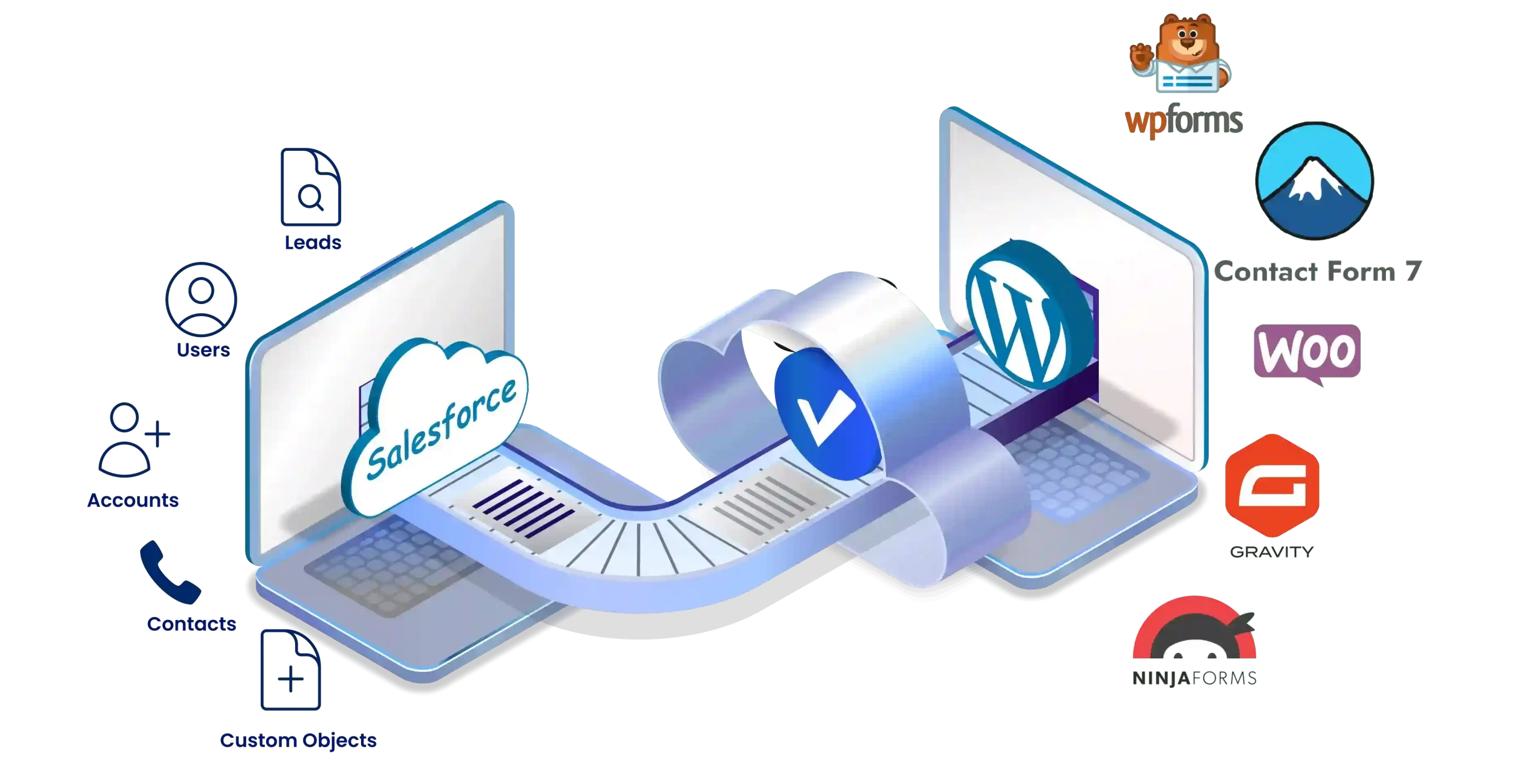
Integrating Salesforce with WordPress can simplify your data management. Plugins help connect these two platforms smoothly. They allow you to display Salesforce data on your WordPress site easily. Below are some popular plugins for this integration.
Wpforms With Salesforce Add-on
WPForms is a user-friendly form builder for WordPress. Its Salesforce add-on connects your forms to Salesforce. This plugin sends form entries directly to Salesforce as leads or contacts. You can map form fields to Salesforce fields easily. Embedding forms on your site requires no coding. This tool suits beginners who want simple integration.
Gravity Forms Salesforce Add-on
Gravity Forms is a powerful form plugin for WordPress. The Salesforce add-on links your Gravity Forms to Salesforce CRM. It automatically pushes form data to Salesforce records. You control how form fields match Salesforce fields. This plugin works well for businesses needing detailed forms. It supports complex workflows and data capture.
Wp Fusion Plugin
WP Fusion connects WordPress users and data with Salesforce CRM. It syncs user data, tags, and form submissions between both platforms. WP Fusion supports multiple CRM systems including Salesforce. This plugin automates marketing and sales workflows. It is great for sites with membership or e-commerce features. Setup involves entering Salesforce credentials and configuring sync options.
Credit: sfplugin.com
Custom Integration Using Api
Custom integration using the Salesforce API allows deep connection between Salesforce and WordPress. This method gives full control to developers to create solutions that fit exact needs. Unlike plugins, API integration can handle complex data and workflows that standard tools cannot.
With API integration, you can pull data from Salesforce in real-time and display it on WordPress pages. You can also push data from WordPress back to Salesforce seamlessly. This approach requires programming skills but offers unmatched flexibility.
Building Tailored Workflows
API integration lets you build workflows specific to your business process. You can automate tasks such as lead assignment, data validation, or notification sending. The API allows triggering actions based on user activity on your WordPress site.
This customization helps reduce manual work and errors. Your workflows can include multiple Salesforce objects and data fields. You decide which data to sync and how to handle it.
Syncing Complex Salesforce Objects
Salesforce stores many types of data objects like contacts, opportunities, and custom objects. API integration can sync these complex objects with WordPress. You can display detailed records or update Salesforce from your site.
This syncing requires mapping object fields correctly between systems. You can set rules to manage data conflicts and updates. The API supports bulk data transfer and real-time updates for accuracy.
Setting Up Wpforms Integration
Setting up WPForms integration with Salesforce allows you to capture leads directly from your WordPress site. This setup helps send form submissions to Salesforce automatically. It improves data flow and saves time by avoiding manual entry.
Follow these steps to connect WPForms with Salesforce smoothly. You will install needed plugins, create forms, map fields, and embed forms on your WordPress pages.
Installing Plugins And Add-ons
Start by installing the WPForms plugin on your WordPress dashboard. Go to Plugins > Add New, search for WPForms, and click Install Now. Activate the plugin once installed.
Next, get the WPForms Salesforce add-on. This add-on connects your forms to your Salesforce account. Find it in WPForms > Add-Ons and install it. Activate the add-on to enable Salesforce integration features.
Creating And Mapping Forms
Create a new form using WPForms by selecting WPForms > Add New. Choose a template or start from scratch. Add fields like name, email, and phone number.
After creating the form, go to Marketing > Salesforce in the form settings. Click Add New Connection and log in to your Salesforce account. Map each form field to the matching Salesforce field carefully. This mapping ensures data flows correctly into your CRM.
Embedding Forms On WordPress
To display the form on your website, open the WordPress page or post editor. Click the Add Block button and select WPForms. Choose your created form from the dropdown menu.
Publish or update the page. Your WPForms form now appears on your WordPress site. Visitors can submit their information, which automatically sends to Salesforce.

Credit: aibudwp.com
Configuring Wp Fusion
Configuring WP Fusion is an essential step to link Salesforce with WordPress. This plugin helps you sync data smoothly between the two platforms. It allows easy management of contacts, leads, and user data. Setting up WP Fusion correctly ensures real-time data updates and accurate mapping.
Connecting Salesforce Account
Start by installing and activating WP Fusion on your WordPress site. Go to the WP Fusion settings page. Select Salesforce from the CRM options. Enter your Salesforce login credentials to connect securely. WP Fusion will verify the connection and show a success message once linked.
Setting Up Salesforce Feeds
Salesforce feeds control how data flows from WordPress to Salesforce. Create new feeds in WP Fusion to define what data to send. Choose which WordPress forms or user actions trigger the feed. Set rules to filter and control the data syncing process. This setup helps automate lead capture and user updates.
Mapping Fields And Syncing Data
Field mapping matches WordPress data with Salesforce fields. WP Fusion offers a simple interface to link fields like name, email, and phone. Ensure all important data points are mapped for accurate sync. After mapping, test the sync by submitting a form or updating a user. Check Salesforce to confirm data appears correctly.
Benefits Of Integration
Integrating Salesforce with WordPress brings many benefits. It connects your sales and website data. This connection helps you save time and reduce errors. It improves how your teams work together. Your business runs smoother with less manual work. Here are key benefits of this integration.
Streamlining Lead Management
Lead data from WordPress forms goes directly to Salesforce. No need to enter information twice. You capture leads faster and follow up quickly. This speed can increase your chances of closing deals. Your sales team stays updated with fresh lead details. It keeps your sales process organized and efficient.
Synchronizing User And Product Data
User details and product information sync automatically between systems. This means your website shows accurate product stock and prices. Customers see the latest updates without delays. User profiles stay consistent across platforms. It helps provide a better user experience and reliable data.
Automating Salesforce Workflows
Integration triggers automatic actions based on WordPress activity. For example, sending welcome emails or updating contact records. This reduces repetitive manual tasks. It ensures important steps are not missed. Automation saves time and improves accuracy. Your team can focus on higher-value work.
Managing Membership Sites
Membership data syncs between WordPress and Salesforce seamlessly. Member access and status update automatically. You can track member activity and payments in one place. This integration helps run membership sites without hassle. It keeps member information current and easy to manage.
Credit: plugins.miniorange.com
Integration With Woocommerce
Integrating Salesforce with WooCommerce brings powerful tools together. It allows seamless sharing of data between your CRM and your online store. This connection helps keep product details, customer info, and orders up to date across platforms. Automation reduces manual work and errors. You can improve customer service and sales efficiency by linking these systems.
With WooCommerce, you can easily display Salesforce data on your WordPress site. This helps in managing inventory and tracking orders directly from Salesforce. The integration supports syncing products and orders, plus enhancing your marketing efforts. It creates a unified experience for managing your e-commerce business.
Syncing Products And Orders
Syncing products and orders between Salesforce and WooCommerce keeps data consistent. Product details like names, prices, and stock levels update automatically. When a customer places an order on WooCommerce, the information sends to Salesforce. This helps your sales team track orders and manage customer data in one place.
Automatic syncing reduces errors caused by manual entry. It saves time and ensures that both systems reflect the latest information. Your store inventory remains accurate, preventing overselling or stock issues. Syncing also helps in generating reports and analyzing sales trends efficiently.
Enhancing Marketing Campaigns
Using Salesforce data enhances marketing campaigns for WooCommerce stores. Customer purchase history and behavior from WooCommerce flow into Salesforce. Marketers can create targeted campaigns based on this data.
Personalized emails and offers reach customers more effectively. Tracking campaign results in Salesforce shows which promotions work best. This data-driven approach improves customer engagement and boosts sales. Integrating WooCommerce and Salesforce strengthens your marketing strategy with real-time insights.
Testing And Troubleshooting
Testing and troubleshooting are vital steps after connecting Salesforce to WordPress. They ensure that data flows correctly and the integration works smoothly. Without proper testing, errors may cause loss of data or broken website features.
In this section, you will learn how to verify the data sync and how to fix common issues. These steps help maintain a reliable connection between the two platforms.
Verifying Data Sync
First, check if Salesforce data appears on WordPress as expected. Submit a test form on your WordPress site and see if the information reaches Salesforce. Then, check if Salesforce updates show on WordPress.
Use debug logs in Salesforce to trace incoming data. Check plugin settings in WordPress to confirm proper field mapping. Review synchronization schedules to ensure timely updates. Test different data types like contacts, leads, or custom objects.
Common Issues And Fixes
Failed data sync is a common problem. Often, wrong API credentials cause this. Recheck your Salesforce username, password, and security token. Another issue is incorrect field mapping. Ensure WordPress form fields match Salesforce fields exactly.
Plugin conflicts can block data flow. Disable other plugins one by one to find the culprit. Network or server errors may also disrupt sync. Check your hosting provider if errors persist. Finally, keep all plugins and WordPress updated for best compatibility.
Frequently Asked Questions
How To Connect Salesforce To WordPress?
Connect Salesforce to WordPress by installing plugins like WPForms, Gravity Forms with Salesforce add-ons, or WP Fusion. Configure settings, map fields, and authenticate Salesforce credentials. For advanced needs, use the Salesforce API for custom integration and data syncing between platforms.
How Do I Connect Salesforce To My Website?
Connect Salesforce to your website by installing plugins like WPForms, Gravity Forms, or WP Fusion. Set up Salesforce add-ons, map fields, and embed forms. Developers can use Salesforce API for custom integration and advanced workflows. This syncs data and automates lead management efficiently.
How To Integrate Crm With WordPress?
Integrate CRM with WordPress using plugins like WPForms, Gravity Forms, or WP Fusion. Connect by entering CRM credentials and mapping form fields. For advanced needs, use the CRM’s API to build custom workflows and sync data between WordPress and your CRM system.
Does Salesforce Have Data Visualization?
Yes, Salesforce offers robust data visualization tools like dashboards and reports. These tools help users analyze and display data effectively.
Conclusion
Connecting Salesforce to WordPress helps manage leads efficiently. Plugins like WPForms or WP Fusion make setup simple. You can sync user data and automate tasks easily. Custom API integration fits more complex needs. This connection saves time and keeps information updated.
Try these steps to improve your website’s functionality. Keep your data organized and workflows smooth. Integration brings your CRM and website closer together.


