
Imagine this: you’ve spent countless hours perfecting your WordPress theme, crafting every detail to reflect your unique style and brand. Everything is just the way you want it, until one day an update rolls in, wiping out your customizations.
Frustrating, isn’t it? You’re not alone. Many WordPress users face this dilemma, yearning for a way to prevent unwanted theme updates from disrupting their carefully curated designs. You might be wondering if there’s a simple solution to this problem. Well, good news! There is a way to disable theme updates in WordPress, preserving your design exactly as you intended.
Whether you’re worried about losing precious customizations or simply want to keep your site’s appearance stable, this guide will provide you with the tools you need to take control. Ready to safeguard your theme and ensure it remains untouched by automatic updates? Keep reading to discover how you can protect your WordPress masterpiece with ease.
Credit: www.redbridgenet.com
Reasons To Disable Theme Updates
Custom changes often get lost during updates. Updates can overwrite unique designs. Keeping your style is crucial. Preserving customization maintains your brand look. It avoids unexpected design changes.
Not all plugins work with new themes. Updates might break things. Compatibility issues can cause errors. Site might not function well. Keeping the current theme ensures stable performance.
Updates sometimes fix security holes. Old themes can be risky. But manual security checks help. Regular scans protect your site. Ensure your theme is safe without updates.

Credit: kinsta.com
Methods To Disable Theme Updates
Editing theme files can stop updates. Open the theme’s style.css file. Find the version number. Delete it or change it. This tricks WordPress. It thinks your theme is updated.
Functions.php is a powerful tool. Add a small code snippet. This disables updates. Use this code: remove_action('load-update-core.php', 'wp_update_themes');. Add it to the theme’s functions.php file. Saves effort and time.
Wp-config.php controls many settings. You can stop theme updates here. Add this line: define('AUTOMATIC_UPDATER_DISABLED', true);. This line stops all updates. Safe and easy.
Using Plugins To Block Updates
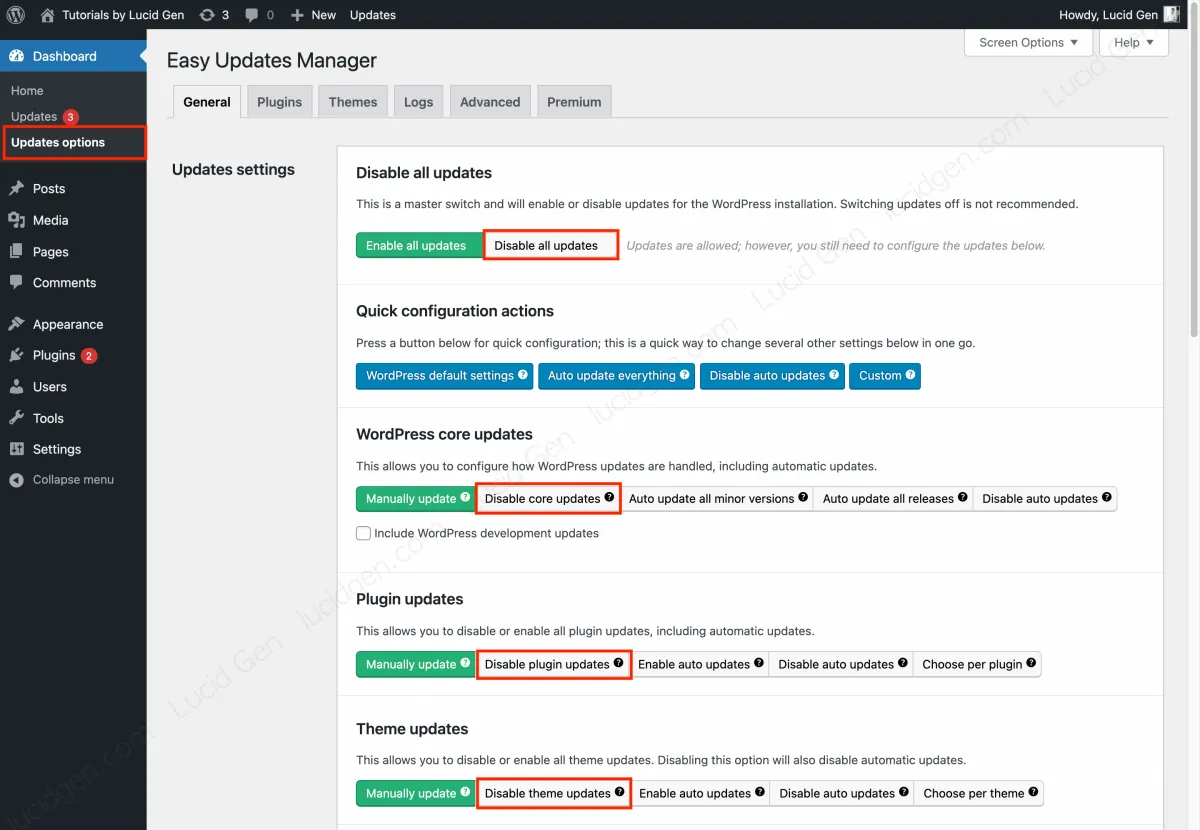
Plugins can help you stop theme updates in WordPress. Some popular plugins include Easy Updates Manager and WP Rollback. These plugins make it easy to control updates.
Install the plugin from the WordPress Plugin Directory. Go to your dashboard. Click on Plugins, then Add New. Search for the plugin name. Click Install Now, then Activate.
After activation, configure the settings. Go to the plugin’s settings page. Choose options to block theme updates. Make sure to save the settings. This way, updates won’t happen without your permission.
Credit: lucidgen.com
Potential Risks And Drawbacks
Disabling theme updates may lead to security vulnerabilities. Themes not updated lack the latest security patches. Hackers can easily target outdated themes. This can put your site at risk. Regular updates keep your website secure.
Updates often bring new features. Without updates, you miss out. New features can improve your site. They make your website more engaging. Staying updated ensures you have the latest tools.
Old themes may not work with new plugins. This causes compatibility issues. It can break your site. Regular updates ensure everything works smoothly. Compatibility is key for a well-functioning website.
Best Practices For Theme Management
Easily manage your WordPress themes by learning how to disable theme updates. This prevents unwanted changes and maintains site stability. Follow simple steps to ensure your theme remains consistent and reliable.
Regular Backup Strategies
Backing up themes is very important. It saves your work. Always have a backup before changing anything. Use reliable backup plugins. Schedule regular backups. This keeps your data safe. You won’t lose any changes.
Monitoring For Security Alerts
Security alerts keep themes safe. Check for alerts often. Use tools that notify you quickly. Update security settings regularly. This protects your site from threats. Pay attention to alerts. Act fast if you see any.
Using Child Themes
Child themes are useful. They help customize your site. Without losing main theme updates. Always create a child theme first. This keeps your changes safe. You can update the parent theme anytime. Your custom work stays intact.
Re-enabling Theme Updates
Disabling theme updates in WordPress ensures stability by preventing unexpected changes. Access your WordPress dashboard, navigate to your theme’s folder, and edit the functions. php file. Insert a specific code to halt automatic updates, giving you control over changes.
Reverting Code Changes
To bring back theme updates, undo code changes. Go to your WordPress files. Find the code you changed before. Carefully remove or comment out those changes. Save your file after removing them. This action restores the original code.
Deactivating Plugins
Sometimes, plugins stop updates. Check your plugins list in WordPress. Deactivate plugins related to theme updates. Go to the Plugins section. Click on “Deactivate” next to each plugin. This might allow updates to work again. Afterward, you can activate the plugins one by one. This helps find the problem plugin.
Frequently Asked Questions
How Do I Turn Off Theme Updates In WordPress?
To disable theme updates in WordPress, add this code to your theme’s functions. php file: `add_filter(‘auto_update_theme’, ‘__return_false’);`. Use a child theme or a custom plugin to ensure changes aren’t lost during updates. Always backup your site before making changes.
How To Undo Theme Update In WordPress?
Restore your theme using a backup plugin. Access your WordPress dashboard, navigate to the backup section, and select the previous version. Confirm the restoration to undo the theme update. Always backup your site before updating themes to prevent data loss.
Do WordPress Themes Update Automatically?
WordPress themes do not update automatically by default. Users need to enable automatic updates. Access the WordPress dashboard, then navigate to “Appearance” and “Themes” to manage updates. Regular updates ensure security and compatibility.
How Do I Disable Themes In WordPress?
To disable a WordPress theme, navigate to “Appearance” in your dashboard. Activate another theme to deactivate the current one. You can’t delete the active theme directly. Ensure a backup before making changes to avoid issues. Changing themes may affect site appearance and functionality.
Conclusion
Preventing unwanted theme updates keeps your WordPress site stable. Follow these steps to disable automatic updates. This ensures customizations remain intact. Regularly check themes for security issues. Manual updates offer greater control. Always back up your site before making changes.
This practice protects your data. Disabling updates is easy and effective. Maintain your site’s performance and appearance. A simple tweak makes a big difference. Keep your website running smoothly. Don’t forget to update when necessary. This maintains security and functionality.
Enjoy a hassle-free WordPress experience. Your website deserves the best care.


