
Are you tired of WordPress automatically cutting your posts into short excerpts? If you want full control over how your content appears, disabling the auto excerpt feature is the key.
Imagine your readers seeing your entire message without any frustrating cutoffs, keeping them engaged from start to finish. You’ll discover simple, step-by-step methods to turn off auto excerpts on your WordPress site—no coding skills needed. Ready to make your posts shine exactly the way you want?
Let’s dive in and take charge of your WordPress excerpts today.
Disable Excerpt Via Reading Settings
Disabling auto excerpts on WordPress helps show full content in your posts. This improves reader experience and keeps your site clean.
You can easily do this via the Reading Settings in your dashboard. This method changes how WordPress displays posts in feeds.
Accessing The Dashboard
Start by logging into your WordPress admin panel. Use your username and password to enter the dashboard.
Once logged in, look for the menu on the left side of the screen. This menu lets you access all WordPress settings.
Changing Feed Display To Full Text
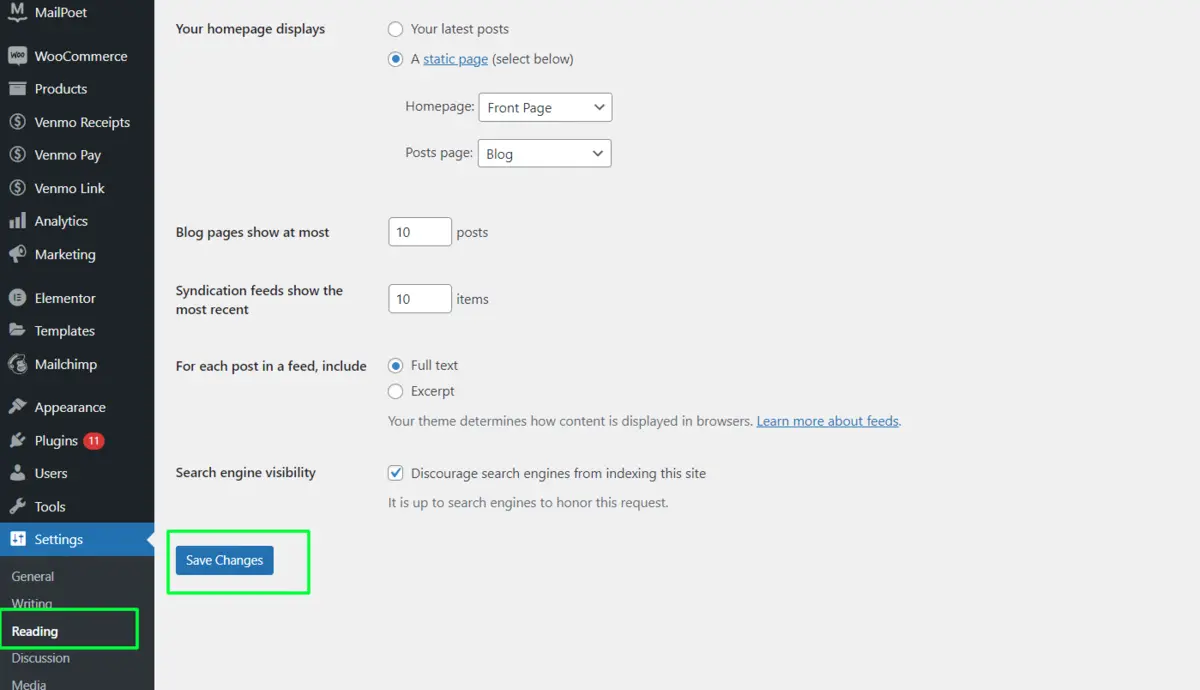
Find the “Settings” option in the menu and click on it. From the dropdown, select “Reading” to open the reading settings page.
On the Reading Settings page, locate the section labeled “For each post in a feed, include.”
Change the option from “Excerpt” to “Full text.” This makes WordPress show the entire post content instead of a short summary.
Saving The Changes
After selecting “Full text,” scroll down to the bottom of the page. Click the “Save Changes” button to apply your new settings.
These changes take effect immediately, so your posts will now show full content in feeds and archives.
Modify Theme Files To Remove Excerpts
Modifying theme files offers a direct way to remove auto excerpts in WordPress. This method targets the code that generates excerpts on your site. Editing these files requires caution to avoid breaking your theme. Always back up your theme before making changes. Using a child theme is recommended to keep updates safe. Below are steps to modify theme files effectively.
Locating Excerpt Functions
Open your theme folder using a file manager or FTP. Look for files like index.php, archive.php, or content.php. These often contain excerpt functions. Search for the_excerpt() within these files. This function controls the display of post excerpts. Note the exact location of each instance. It will help when replacing the code.
Replacing The_excerpt() With The_content()
Replace every the_excerpt() with the_content() inside your theme files. The the_content() function shows the full post content. This change stops WordPress from showing auto excerpts. Save the files after editing. Refresh your website to see the full posts instead of excerpts. This simple swap removes the automatic excerpt display.
Child Theme Usage
Never edit your main theme directly. Create a child theme to keep your changes safe. Copy the files containing the_excerpt() to your child theme. Make the replacements there. Activate the child theme in your WordPress dashboard. Your site will use the modified files. Updates to the parent theme will not erase your changes. This keeps your modifications stable and secure.
Use Plugins To Control Excerpts
Using plugins to control excerpts on WordPress offers a simple way to manage how much content appears on your blog pages. Plugins let you disable automatic excerpts or customize them without touching code. This method suits users who want quick and flexible control over post summaries.
Plugins often provide options to set excerpt length, hide excerpts entirely, or display full content. They work smoothly with most themes and save time by automating excerpt management. Here’s how to use plugins for controlling excerpts effectively.
Recommended Plugins
Several plugins help disable or customize excerpts easily. “Advanced Excerpt” allows precise control over excerpt length and appearance. “Disable Excerpts” completely turns off excerpts for all posts. “Easy Custom Auto Excerpt” lets you create custom excerpts automatically. These plugins are popular, lightweight, and beginner-friendly.
Plugin Installation Steps
Go to your WordPress dashboard and open the Plugins menu. Click on “Add New” to search for your chosen plugin. Type the plugin’s name in the search bar and locate it from results. Click “Install Now” and wait for the process to finish. Press “Activate” to enable the plugin on your site.
Configuring Plugin Settings
After activation, find the plugin’s settings under the Settings or Tools menu. Adjust options like excerpt length, read more text, or disable excerpts completely. Save your changes to apply them immediately. Test your posts to confirm excerpts behave as you want.
Credit: roconpaas.com
Create Custom Excerpts Manually
Creating custom excerpts manually gives you control over what readers see in previews. It lets you craft short summaries that highlight key points. This approach improves the reading experience and boosts engagement.
Custom excerpts also help maintain consistency across your posts. They prevent WordPress from cutting off sentences awkwardly. You can ensure every excerpt is clear and inviting.
Adding Excerpts In Post Editor
Open the WordPress post editor for the article you want to edit. On the right side, find the “Excerpt” box. If you don’t see it, click “Screen Options” at the top and enable “Excerpt.”
Type your custom summary in the excerpt box. Keep it brief and informative, usually under 55 words. Save or update the post to apply the changes. Your custom excerpt will now display instead of the auto-generated one.
Benefits Of Custom Excerpts
Custom excerpts let you control your site’s appearance. They highlight the most important details and draw readers in. This boosts click-through rates and keeps visitors on your site longer.
They also improve SEO by using targeted keywords naturally. Custom excerpts avoid repeated text, reducing duplicate content issues. Overall, they enhance both user experience and search engine rankings.
Disable Automatic Excerpt Generation Via Code
Disabling automatic excerpt generation in WordPress can improve control over your content display. Using code to stop this feature offers a clean and precise solution. It prevents WordPress from creating excerpts automatically, letting you use custom excerpts or none at all.
This method suits developers and site owners comfortable with basic coding. It helps keep your posts exactly how you want them without unwanted summaries.
Using Filter Hooks
WordPress uses filter hooks to modify many functions, including excerpts. The excerpt_length and get_the_excerpt filters allow you to change or disable auto excerpts.
To disable automatic excerpts, add this code to your theme’s functions.php file:
add_filter('get_the_excerpt', function($excerpt) { return ''; });This code returns an empty string instead of the generated excerpt. It stops WordPress from showing any automatic excerpt.
Applying Code Snippets Safely
Editing theme files can cause issues if done incorrectly. Use a child theme or a code snippet plugin to keep changes safe.
Backup your site before applying any code. This step prevents data loss if errors occur.
Test your changes on a staging site first. Confirm the excerpts no longer appear automatically before going live.
Credit: cyberpanel.net
Troubleshoot Common Excerpt Issues
Troubleshooting common excerpt issues can save time and frustration. Excerpts may still show even after disabling them. Conflicts with your theme or plugins often cause this. Identifying the root cause helps fix the problem quickly. Below are key areas to check.
Excerpts Still Appearing
Sometimes excerpts keep showing despite changes. Clear your site cache and browser cache first. Old cache can display outdated content. Check your post editor for manually added excerpts. Remove any text in the excerpt box. Also, verify your reading settings under Settings > Reading. Ensure “Full text” is selected for feeds.
Theme Conflicts
The active theme may force excerpts to display. Some themes use custom code to show excerpts. Switch to a default WordPress theme like Twenty Twenty-One. See if excerpts still appear. If they disappear, the theme is the cause. Edit the theme files carefully or contact the theme developer. Focus on files like index.php or content.php where excerpts load.
Plugin Interference
Plugins can override excerpt settings. Deactivate all plugins temporarily. Check if excerpts are gone. Reactivate plugins one by one to find the culprit. Look for plugins related to posts, feeds, or SEO. Adjust plugin settings or replace the conflicting plugin. Keep your plugins updated to avoid compatibility issues.
Credit: devdiggers.com
Frequently Asked Questions
How Do I Disable The Excerpt Function In WordPress?
Log in to WordPress dashboard. Go to Settings > Reading. Select “Full text” under “For each post in a feed. ” Save changes to disable excerpts. Alternatively, replace the_excerpt() with the_content() in theme files.
How Do I Turn Off Autoload In WordPress?
To turn off autoload in WordPress, access your database via phpMyAdmin. Locate the wp_options table, find autoloaded items, and set their autoload value to ‘no’. Save changes to prevent these options from loading automatically on every page load.
How To Disable Plugin Auto Update In WordPress?
Go to WordPress dashboard, then Plugins > Installed Plugins. Click “Disable auto-updates” for the desired plugin to stop automatic updates.
How To Hide Excerpts In WordPress?
Open WordPress dashboard, go to Settings > Reading. Select “Full text” under “For each post in a feed. ” Save changes to hide excerpts.
Conclusion
Disabling the auto excerpt feature in WordPress helps you control your content better. You can show full posts or write custom excerpts instead. This improves how your site looks and reads to visitors. Follow simple steps in your dashboard to make changes quickly.
Managing excerpts lets you create a cleaner, more professional website. Try these methods to enhance your WordPress blog today.


