
When your website is down, it can feel like the world has come to a standstill. You rely on your web host to keep your online presence accessible and running smoothly.
But when things go wrong, it’s crucial to understand why your web host is down and how to fix it. This article is your guide to pinpointing the problem and getting your site back online quickly. By understanding the root cause, you can minimize downtime and prevent future issues.
Dive in to discover the essential steps you need to take to diagnose and resolve web hosting problems effectively.
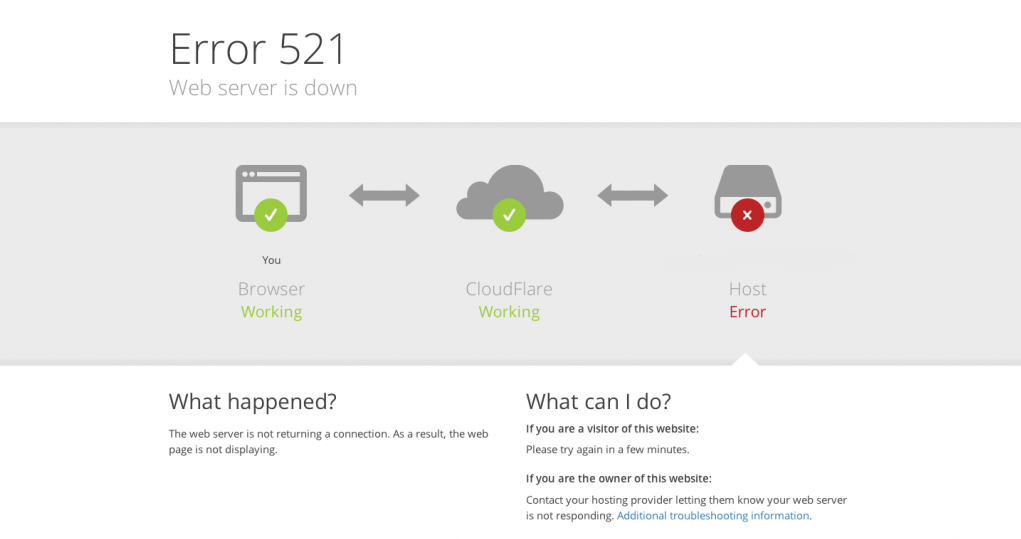
Credit: www.hostinger.com
Checking Server Status
Server logs are like a book. They tell stories about your website. Problems are recorded here. You need to find the error logs. These logs show what went wrong. Look for error codes and messages. They help in understanding the problem. Sometimes it’s a server overload. Other times it’s a code error. Knowing the error helps in fixing it.
Many tools online can check if a site is down. Tools like Down For Everyone Or Just Me are helpful. You only need to enter your website URL. The tool checks the site. It shows if the problem is with you or the server. These tools are easy to use. They provide quick results. Using them saves time.
Network Connectivity Issues
Sometimes, the issue is with the local internet. Check if other websites load on your browser. This can show if the internet is working. Restart the router to fix minor issues. Call the internet provider if problems stay. They can help you get back online.
Use tools to trace network routes. Ping the web host to check connectivity. This shows if data reaches the server. If there are delays, there might be a problem. Trace the path to see where data stops. This helps find the location of the issue.
Domain Name System (dns) Problems
Check the DNS settings to spot any mistakes. Ensure the DNS records are correct. These include A records and MX records. Errors can cause the website to go down. Use the DNS settings page to view these details. Look for any red flags or errors. Adjust the settings if needed. This can help fix the problem.
DNS lookup tools can help find problems. These tools check if the DNS servers are responding. They show the current DNS records of the domain. Tools like NSLookup or Dig are useful. Enter the domain name to see the results. Look for any errors or warnings. These can point out what is wrong. Fixing these can restore the website.
Server Resource Limitations
Servers have CPU and memory to run tasks. Too many tasks can slow them down. Check if the CPU usage is high. If it’s always high, the server may need upgrades. Look at the memory usage too. Low memory means the server is struggling. This can make the web host go down.
Bandwidth is like a road for data. Small roads can get traffic jams. High traffic can slow things or cause a crash. Check if too many users use the site at once. If yes, the server might need more bandwidth. Ensuring a clear path for data keeps the web host running smoothly.
Security Breaches And Attacks
Web hosts can go down due to security breaches and attacks. Identifying the issue requires checking server status, error logs, and network traffic. Understanding these factors helps in pinpointing the cause and restoring service swiftly.
Detecting Ddos Attacks
Websites may slow down. This happens when many computers send too many requests. These requests overload the server. DDoS attacks cause this problem. It is important to find out if a DDoS attack is happening. Look for signs like a very slow website. Check if many requests come from one place. Security tools can help find these attacks. They can alert you if there’s unusual activity. Protect your site with strong defense systems.
Scanning For Malware
Malware can make a web host go down. It harms the server and stops the website from working. Use malware scanners to find bad software. Regular scans keep your site safe. Always update your security software. This helps it find new threats. Malware can hide in files or code. Look for changes in these areas. Remove any suspicious files quickly. This keeps the site running smoothly.
Software And Configuration Errors
Recent updates can sometimes cause problems. Check if any new software was added. Or if any existing software was updated. These changes can affect the server. If something was changed, try to undo it. See if the server works better after.
Configuration files help the server run smoothly. They tell the server what to do. Sometimes, these files can get messed up. A small change might cause a big issue. Open the files and look for mistakes. Pay attention to recent changes. Fix any errors you find.
Hosting Provider Outages
Contacting support is the first step when your host is down. They can tell you what is wrong. Use their chat or call them. Ask about the problem. Sometimes, they may give you updates. This way, you know what is happening. Keep your support ticket number safe. It helps in future talks. Support can take time. Be patient and polite.
Provider status pages show what is happening. They list current problems. These pages are often updated fast. You can see past issues too. Look for alerts or warnings. Status pages help you know if the problem is large. Some providers have apps. These apps can send alerts. Always check these pages when issues arise.

Credit: www.instagram.com
Environmental Factors
Servers are machines. Machines sometimes get too hot. Heat can make servers stop working. Check the server room temperature. Is it too warm? Cooling systems must work well. Servers need fresh air to keep cool. Dust can block air vents. Cleaning can help. Look at the server cases. Are they clean? Clean cases help servers stay cool.
Electricity keeps servers running. No power means no server. Check the power source. Is it plugged in? Power surges can break servers. Use surge protectors to be safe. Outages can happen. Have backup power ready. Generators help in outages. Batteries keep servers on during short outages. Test them often. Ensure everything works well.
Scheduled Maintenance
Always check for any maintenance announcements from your web host. These announcements are usually sent via email or posted on the host’s website. They give details on planned downtime. Maintenance ensures the server runs smoothly. Without it, servers can fail.
Access the maintenance logs through your host’s control panel. These logs show past maintenance activities. They help you understand any recent changes. Logs can explain the current downtime. If something seems unusual, contact your host. They can provide more details.

Credit: www.hostinger.com
Frequently Asked Questions
How To Check Why The Server Is Down?
Check server logs for errors or warnings. Monitor network connectivity and hardware status. Verify server configuration settings. Use online tools to ping the server or check its uptime status. Contact hosting support for assistance if needed.
Why Would A Web Server Be Down?
A web server may be down due to hardware failures, software bugs, network issues, or maintenance. High traffic can also cause server overload. Cyberattacks like DDoS can disrupt services, leading to downtime. Regular monitoring and updates help prevent these issues.
Why Is A Website Down Just For Me?
A website might be down for you due to local network issues or browser cache problems. Check your internet connection and clear your browser cache. It could also be a DNS issue. Try accessing the site using a different network or device to confirm the problem.
How To Check If A Host Is Down?
Use a website like DownDetector or IsItDownRightNow to check if a host is down. Alternatively, use the “ping” command in your command prompt or terminal to test the server’s response. These methods help you quickly determine the status of a host.
Conclusion
Determining why your web host is down can be tricky. Start by checking server status and recent updates. Look for service alerts from your hosting provider. Investigate potential issues with domain settings. Ensure your internet connection is stable. Use online tools to diagnose server problems.
Contact support for further assistance. Regular monitoring helps prevent future issues. Keep backups to avoid data loss. Stay informed about common hosting problems. Quick action can minimize downtime impact. Your website’s performance depends on a reliable host. Always prioritize security and updates.


