
Imagine you’re diving into a pool of endless possibilities for your WordPress website. The design, the features, the functionality—everything is customizable.
But before you can truly unlock its potential, you need to identify the backbone: the parent theme. Knowing how to determine the parent theme of your WordPress site is crucial. It’s like finding the blueprint to your digital masterpiece. You might be wondering why this is so important.
The answer is simple: it gives you control. Understanding your parent theme allows you to make informed decisions about customization and updates. It ensures that your site remains stable and looks great while evolving to meet your needs. Stick around, and you’ll discover how to uncover this vital piece of information. You’ll gain the confidence to take your WordPress site to the next level, transforming it into a powerful tool that works for you.
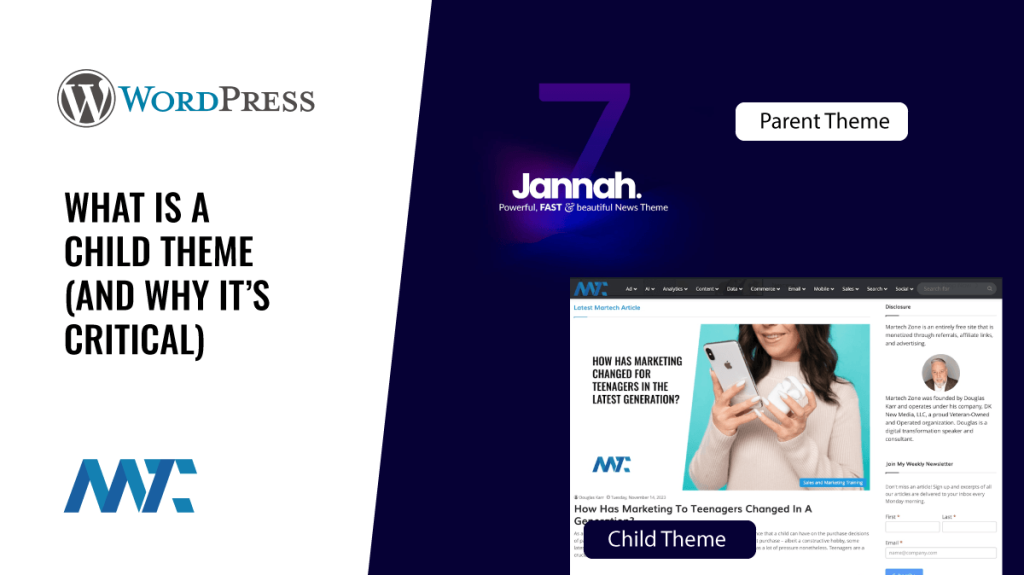
Credit: martech.zone
Identifying The Parent Theme
Start by opening your WordPress Dashboard. Look for “Appearance” in the menu. Click on “Themes.” You will see all your installed themes here. Find the active theme and click on it. A theme details page will open. This page shows the theme name, description, and version. Check the theme information carefully. Look for a section that mentions the parent theme. If a parent theme is used, it will be listed here. Understanding this helps you know the theme’s structure.
The dashboard offers tools to find the parent theme. Use the theme editor for checking files. Click “Appearance” then “Theme Editor.” This opens the theme files. Search for style.css file. This file often lists the parent theme name. The first few lines show theme details. Check if a parent theme is mentioned. This confirms if your theme has a parent.
Credit: thimpress.com
Exploring Theme Files
The stylesheet file is often called style.css. This file is crucial. It contains important information about your theme. Find it in your theme folder. Look for the Theme Name and Theme URI. These details help identify the parent theme.
Headers in theme files show important data. They contain meta-information. Check the header section of style.css. Look for Template. This field usually indicates the parent theme. Understanding headers helps in identifying theme structure.
Utilizing Online Tools
Theme Detector Tools help identify a WordPress theme. They are easy to use. Enter the website URL. The tool shows the theme name. WPThemeDetector and What WordPress Theme Is That are popular. They also show plugin information. This helps in theme analysis.
Plugins can also reveal theme details. Theme Check is a useful plugin. It shows parent theme information. Install the plugin from the WordPress directory. Activate it and check the theme. It gives a detailed report. This helps in understanding the theme structure.
Credit: www.dreamhost.com
Manual Code Inspection
Discovering the parent theme in WordPress involves manual code inspection. Look for the “Template” header in the style. css file. It indicates the parent theme’s name, revealing the foundational theme structure.
Examine Functions.php
The functions.php file is like the brain of the theme. Open this file to see how it works. Look for the parent theme name inside it. Often, themes mention their parent theme here. It might look like a line of code saying, “parent theme”. If you see it, note it down.
Analyze Template Files
Template files are like the skeleton of the site. Check the header.php or footer.php files. Sometimes, they mention the parent theme. Search for comments or code that refers to another theme. These clues help identify the parent theme. Always keep a backup before making changes.
Consulting Documentation
Theme documentation helps you understand your WordPress theme. It explains features and functions. Important sections include setup steps and customization options. Reading it gives you a clear idea about the theme’s capabilities. It’s like a guidebook for your theme.
The WordPress Codex is an online manual. It is full of valuable information. You can learn about themes, plugins, and settings. The Codex is easy to navigate. It offers detailed articles and tutorials. It is a trusted source for WordPress knowledge. Beginners find it very helpful.
Seeking Developer Assistance
WordPress experts know many things about themes. They can find the parent theme quickly. Experts use tools and code to check themes. They can give detailed advice. This saves you time and trouble. Experts help keep your website safe. They make sure everything works well.
Many people visit WordPress forums. These forums are full of helpful tips. Users share their stories and solutions. You can ask questions there. Someone might have the same problem as you. They can tell you what they did. Forums are a great place to learn more. They are free and easy to join. Always check them first for guidance.
Frequently Asked Questions
What Is A Parent Theme In WordPress?
A parent theme is a standalone WordPress theme that provides the foundational design and functionality for your website. It contains all the necessary template files and assets. Parent themes are essential when creating a child theme, allowing you to modify or add features without altering the original theme’s code.
How Can I Identify A Parent Theme?
To identify a parent theme, navigate to your WordPress Dashboard. Go to Appearance > Themes, and find the active theme. If it’s a child theme, the parent theme’s name will be displayed. Alternatively, check the style. css file in the theme’s directory for the “Template” field, which shows the parent theme’s name.
Why Use A Parent Theme In WordPress?
Using a parent theme allows you to implement a child theme for customizations. This approach ensures your modifications are safe during theme updates. Parent themes provide a solid foundation, reducing development time and effort. They’re ideal for users wanting flexibility without compromising the original theme’s structure or functionality.
How Do Parent And Child Themes Interact?
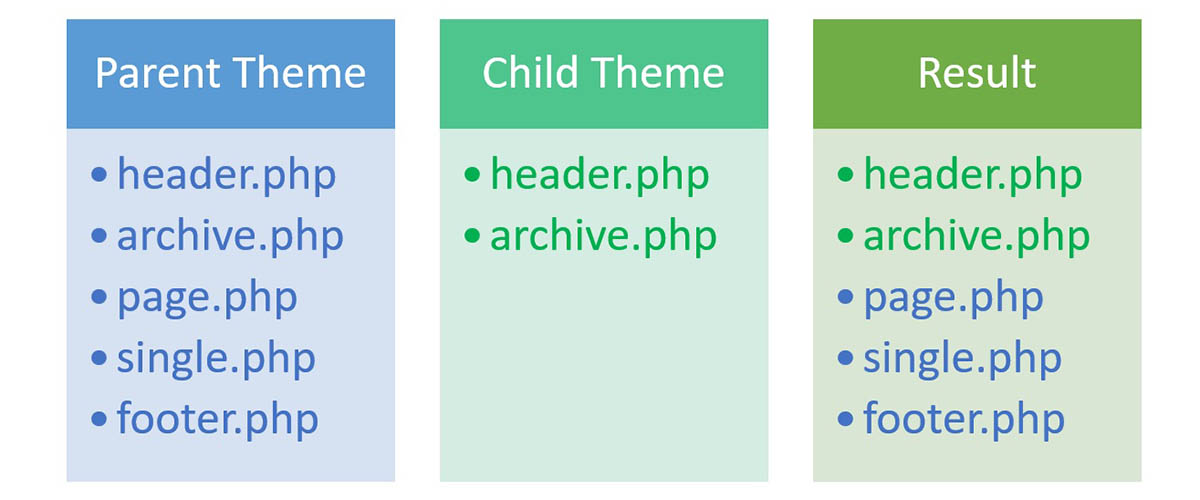
Parent and child themes interact by inheriting functionalities. The child theme modifies or extends the parent theme without altering its code. When WordPress loads a theme, it first checks the child theme for files. If absent, it defaults to the parent theme, ensuring continuity and customizability.
Conclusion
Identifying the parent theme in WordPress helps streamline your website management. It clarifies which template your site relies on for updates and functionality. Knowing this is crucial for customizing your site effectively. Avoid common pitfalls by understanding your theme structure.
This ensures smoother theme updates and compatibility. Use the tools and steps discussed to determine your parent theme. With this knowledge, you can make more informed design choices. Your website will thank you for it. Keep your site organized and functional by recognizing its foundational elements.
Happy website managing!


