
Are you ready to remove your WordPress website but not sure where to start? Whether you want to completely erase your site to start fresh or simply no longer need it, deleting a WordPress website can feel overwhelming.
But don’t worry—this guide will walk you through every step in a clear, simple way. By the end, you’ll know exactly how to back up your data, delete your website files and database, cancel your domain registration, and even remove your site from search engines.
Keep reading to take full control of your online presence and make sure your WordPress site disappears safely and permanently.
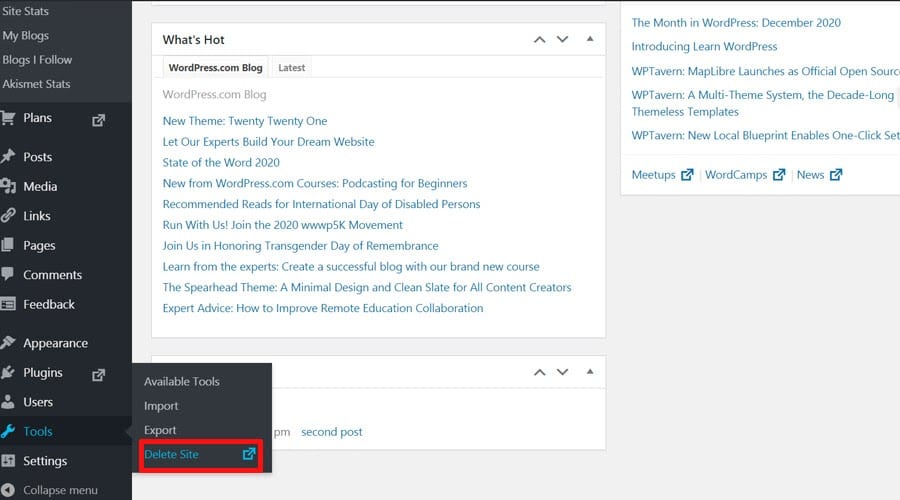
Credit: www.fixrunner.com
Backup Your Website
Backing up your WordPress website is the first step before deletion. It protects your data in case you need it later. A complete backup includes your content, media, and database files. This ensures you can restore your website or reuse parts of it anytime.
Export Content And Media
Exporting your content saves your posts, pages, and comments. Use the WordPress export tool under Tools > Export. Choose “All content” to get everything in one file. This file contains your text and links but not your images.
To save your media, access your website’s wp-content/uploads folder. Download all files using an FTP client or file manager. This folder holds all your images and other media files.
Save Database Files
Your database holds your website’s settings and user data. Log into your hosting control panel and open phpMyAdmin. Select your WordPress database and click “Export.”
Choose the Quick export method and format as SQL. This file contains all your site’s content and configurations. Keep it safe on your computer or external storage.
Use Backup Plugins
Backup plugins simplify saving your entire website. Popular plugins like UpdraftPlus or BackWPup create full backups automatically. They save your files and database in one package.
These plugins also allow backups to cloud storage like Google Drive or Dropbox. This protects your data even if your computer fails. Use plugins to schedule regular backups and avoid data loss.
Delete WordPress Files
Deleting WordPress files is a key step to remove your website completely. This action erases all the content and code stored on your server. It prevents your site from loading and frees up server space. Follow these simple steps to delete your WordPress files safely.
Access Hosting Control Panel
Start by logging into your hosting account. Most hosts provide a control panel like cPanel or Plesk. This panel gives you access to all your website files and databases. Use your username and password to sign in securely. Once inside, find the section that manages your website files.
Use File Manager Or Ftp
File Manager is an easy tool inside the control panel. It lets you see and manage files directly on the server. Alternatively, use an FTP client such as FileZilla. FTP connects your computer to the server remotely. It allows you to transfer, edit, or delete files with ease. Choose the method you prefer to access your WordPress files.
Remove All Website Files
Locate the folder where WordPress is installed, usually named “public_html” or the site’s domain. Select all files and folders inside this directory. Delete everything including themes, plugins, and media files. Make sure to clear out all hidden files like “.htaccess”. This step removes your entire WordPress installation from the server.
Remove WordPress Database
Removing the WordPress database is a key step in deleting your website completely. The database holds all your website’s content, settings, and user data. Clearing it ensures no traces of your site remain on the server. This section guides you through locating and deleting the database safely.
Locate Database In Phpmyadmin
Start by logging into your hosting control panel. Look for the phpMyAdmin tool, which manages databases. Open phpMyAdmin and check the list on the left. Find the database linked to your WordPress site. You can confirm the name by checking the wp-config.php file in your website files. It contains the exact database name used by your WordPress installation.
Delete Database And User
After locating the database, select it in phpMyAdmin. Click the option to drop or delete the database. This action removes all tables and data inside it. Next, go to your hosting control panel’s database section. Find the database user connected to your WordPress database. Delete this user to prevent any further access. Removing both the database and user completes the cleanup process.
Cancel Domain Registration
Canceling your domain registration is a crucial step when deleting a WordPress website. The domain is your website’s address on the internet. If you do not cancel or transfer it, others might buy it or it might keep renewing automatically. This can cost you money and cause confusion.
Follow the steps below to properly cancel your domain registration and manage your domain settings.
Access Domain Registrar
Start by logging into your domain registrar account. This is where you bought your domain name. Common registrars include GoDaddy, Namecheap, and Google Domains. Use your username and password to sign in. If you forgot your login details, use the password recovery option.
Once logged in, find the list of your registered domains. This section usually appears under “My Domains” or “Domain Management.” Select the domain you want to cancel.
Cancel Or Transfer Domain
Look for options to cancel or transfer your domain. Cancelling means you will stop renewing the domain, and it will expire after the current period. Transferring means moving the domain to another registrar or owner.
To cancel, disable auto-renew or delete the domain if your registrar allows it. To transfer, unlock the domain and get the authorization code. Provide this code to the new registrar for a smooth transfer.
Update Dns Settings
After canceling or transferring, update the DNS settings to avoid site errors. DNS controls where your domain points on the internet. If you plan to keep the domain active but stop using the website, point DNS records to a parking page or a different site.
If you cancel the domain, DNS settings will eventually stop working once the domain expires. Double-check that no important email or service relies on this domain before making changes.
Remove Site From Search Engines
Removing your WordPress site from search engines stops it from appearing in search results. This step helps protect your privacy and control your content. Search engines like Google may still show pages if not properly removed. Follow these methods to ensure your site disappears from search listings quickly.
Use Google Search Console Removals
Google Search Console lets you request temporary removal of URLs. Log in and select the site you want to remove. Use the “Removals” tool to submit URLs or entire directories. This hides your site from Google search within about 24 hours. It does not delete content but blocks its display in search results.
Add Noindex Tags
Noindex tags tell search engines not to index specific pages. Add in the
section of your site pages. This stops search engines from showing those pages in results. Use this method to control which pages stay hidden without deleting the site.Edit Robots.txt File
The robots.txt file guides search engine crawlers on which pages to visit. Add the line Disallow: / to block all crawling. Upload the updated file to your site’s root directory. This helps prevent search engines from indexing your entire website. It works well alongside noindex tags for full removal.
Delete WordPress.com Site
Deleting a WordPress.com site is a straightforward process. You can remove your entire website and all its content quickly. This is useful if you want to start fresh or no longer need your site. Follow simple steps to delete your site safely.
Log In To WordPress.com Dashboard
First, open the WordPress.com website. Enter your username and password to log in. After logging in, you will see the dashboard. This is where you manage your site and its settings.
Navigate To Site Settings
In the dashboard, find the site you want to delete. Click on the site name to open its management panel. Look for the Settings menu in the sidebar. Click on it to access all site options.
Use One-click Delete Option
Scroll down in the settings until you find the Delete your site permanently option. Click this link to start the deletion process. WordPress.com will ask you to confirm your choice. Follow the instructions and enter your password again. Once confirmed, your site and all content will be removed.
Troubleshoot Deletion Issues
Deleting a WordPress website can sometimes lead to unexpected issues. These problems might stop the process or cause confusion. Troubleshooting helps identify what blocks deletion. It also guides you on how to fix these blocks quickly. Below are key steps to resolve common deletion problems.
Check Active Purchases
Active purchases like plans or domains can prevent site deletion. WordPress often requires these to be canceled first. Verify any ongoing subscriptions or services. Cancel or transfer them before trying to delete the site again. This step ensures no billing conflicts stop the deletion.
Confirm Hosting Type
Knowing your hosting type helps find the right deletion method. WordPress.com and self-hosted WordPress sites have different processes. Check if your site is hosted on WordPress.com or another provider. Self-hosted sites need deletion via hosting control panels. Confirming hosting avoids using wrong deletion steps.
Contact Support
If deletion still fails, contact your hosting or WordPress support. They can check server or account settings blocking removal. Support teams offer guidance or manually remove the site if needed. Reaching out saves time and prevents accidental data loss.
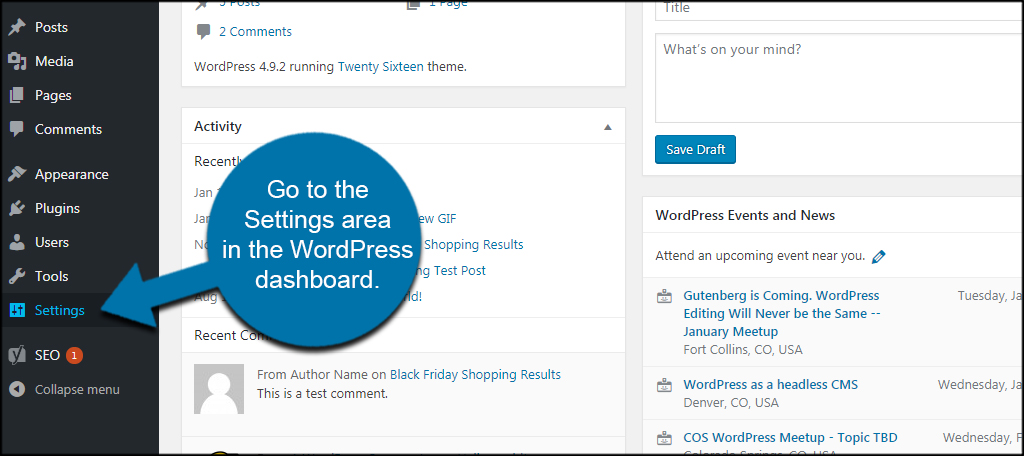
Credit: www.greengeeks.com

Credit: wpmarmite.com
Frequently Asked Questions
Why Can’t I Delete My WordPress Site?
You can’t delete your WordPress site if you have active plans or domains. Cancel these first in your account settings. Also, ensure you use the proper delete option on WordPress. com or your hosting dashboard. Back up your data before deleting to avoid loss.
How Do I Permanently Delete A Website?
Back up your website data first. Then, delete all files and databases via your hosting control panel or platform dashboard. Cancel your domain registration to prevent reuse. Finally, request removal of outdated content from search engines using tools like Google Search Console.
How Do I Cancel A WordPress Website?
To cancel a WordPress website, back up your data first. Then, delete site files and database via your hosting control panel. Cancel your domain registration, and optionally remove the site from search engines using Google Search Console.
How Do I Delete A WordPress Site In 2025?
Back up your WordPress site data first. Then, log into your hosting or WordPress dashboard. Delete all site files and the database. Cancel your domain registration if needed. Finally, use Google Search Console to remove outdated content from search results.
Conclusion
Deleting a WordPress website takes careful steps. Always start by backing up your data. Next, remove all website files and databases from your hosting panel. Don’t forget to cancel your domain registration to avoid extra charges. Lastly, use tools like Google Search Console to remove your site from search results.
Following these steps ensures your site is fully deleted and your information stays safe. Take your time and check each step carefully for a smooth process.


