
Are you struggling to free up space on your website or improve its performance? Deleting unused WordPress themes could be the solution you need.
But what if you can’t access your WordPress dashboard? Don’t worry, there’s an easy way to delete WordPress themes directly from your FTP server. Imagine having a cleaner, faster website that runs smoothly without unnecessary clutter. In this guide, you’ll discover simple, step-by-step instructions to help you safely remove unwanted themes from your FTP.
By the end, you’ll feel empowered to take control of your website’s health and performance. Ready to give your site a fresh start? Let’s dive in!
Credit: www.wpzoom.com
Why Delete A WordPress Theme
Improve website performance by removing unused themes. Extra themes slow your site. Fewer themes mean faster loading. Fast sites keep visitors happy. Happy visitors stay longer.
Enhance security with fewer themes. Old themes can have security holes. Hackers love these holes. Remove themes you don’t use. Safer sites protect your data.
Reduce clutter by cleaning up your site. Too many themes create a mess. A tidy site is easier to manage. Less clutter makes updates simple. Simple sites run smoothly.
Preparation Steps
Backing up your website is crucial. It protects your hard work. Use plugins like UpdraftPlus or Duplicator. They make backup easy. Store copies on your computer. Keep them safe from data loss.
FTP clients help manage files. Choose wisely. FileZilla is popular. It’s free and easy to use. Cyberduck is another choice. It works on Mac and Windows. Ensure the client is secure.
Credentials are essential. You need them to access FTP. Gather your FTP server address. Know your username and password. Store them safely. Never share them with strangers.
Accessing Your Server Via Ftp
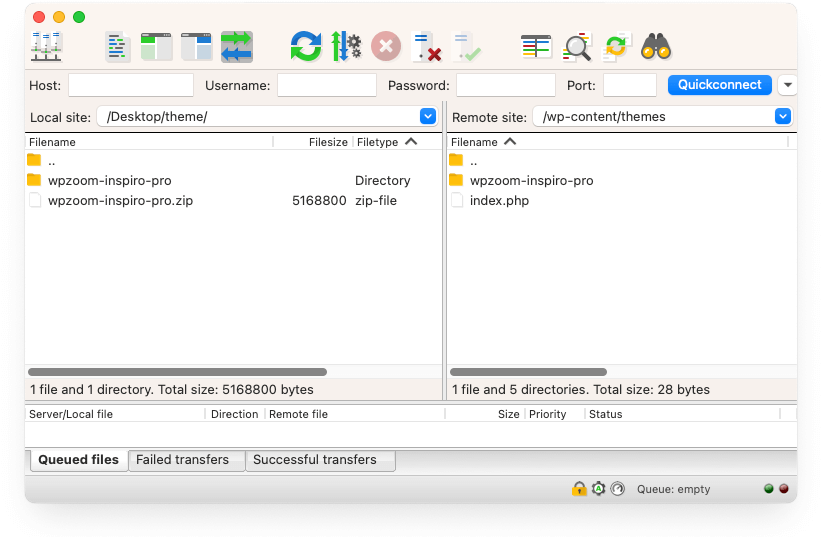
First, install an FTP client on your computer. There are many free options online. Choose one that is easy to use. Once installed, click to open the program. A window should pop up.
You need your FTP credentials. These include your host, username, and password. Enter these details in the FTP client. Make sure they are correct. Click the “connect” button to proceed.
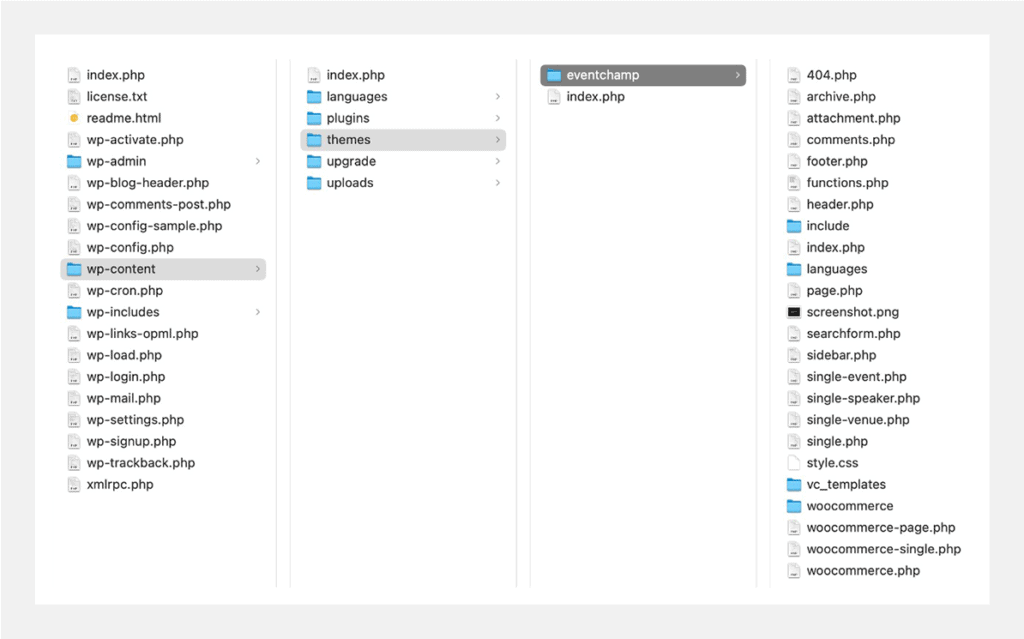
After connecting, you see several folders. Look for the folder named public_html or something similar. Open it. Inside, find the folder called wp-content. This is where your themes are stored.
Credit: gloriathemes.com
Locating The Theme Directory
Access your FTP client to start. Enter your WordPress directory. Find the folder called wp-content.
Inside wp-content, there is a folder named themes. This folder holds all your site themes. Click on it.
Look for the theme you wish to delete. Check twice to be sure. Right-click on the theme’s folder. Choose delete to remove it. Your theme is now gone.
Deleting The Theme
Make sure you select the right WordPress theme. Double-check the theme name in your FTP client. Wrong selection might cause problems. Look carefully at the directory path. Confirm it’s the theme you want to delete. Missteps can lead to trouble.
Open your FTP client. Navigate to wp-content/themes. Find the theme folder you want to delete. Right-click and choose delete. It removes the theme files completely. Be cautious while deleting. Deleted files can’t be recovered easily.
Check for leftover files after deletion. Sometimes, files remain in other folders. Look in uploads or plugins folders. These may hold theme-related files. Deleting them cleans your site. Keep your site tidy and free of clutter.

Credit: wpmarmite.com
Post-deletion Steps
After removing the theme, check your website. Ensure pages load correctly. Look for missing images or broken links. Test different pages. Make sure everything works.
Clearing cache is important. It helps display the latest changes. Access your website’s cache settings. Clear the cache. This helps avoid old data showing.
Keep your active theme updated. Visit the theme settings. Check for any updates. Install updates if available. Updates improve security and performance.
Common Issues And Solutions
Struggling to delete a WordPress theme via FTP? Access your server with an FTP client, locate the “wp-content/themes” folder, and remove the unwanted theme. Ensure to back up your site first to prevent data loss. This simple approach keeps your WordPress dashboard clutter-free.
Permission Denied Error
Many users face permission denied errors. This happens when you try to delete a theme from FTP. Your user may not have the right permissions. Check with your hosting provider. Ask them to grant the necessary permissions. This will help you delete the theme.
Theme Not Visible
Sometimes, the theme is not visible in FTP. This can be confusing. Themes may be stored in different folders. Make sure to look in the wp-content/themes folder. If still not found, refresh the FTP connection. This might solve the issue.
Site Breaks After Deletion
Deleting a theme can break your site. This happens if it’s the active theme. Check the WordPress dashboard first. Change to another theme before deleting. This keeps your site running smoothly.
Best Practices For Theme Management
Regularly update themes to keep your website safe. Updates fix bugs and improve features. Outdated themes can cause problems. Always check for new versions. This ensures security and good performance.
Limit the number of installed themes on your site. Having too many themes can slow your website. Only keep themes you use. Remove the ones you don’t need. It helps your site run faster and smoother.
Use child themes for customization to protect your original theme. A child theme allows changes without losing updates. It keeps your custom styles safe. Use it for small tweaks or big changes. Your site stays fresh and unique.
Frequently Asked Questions
How To Access WordPress Files Via Ftp?
To access WordPress files via FTP, use an FTP client like FileZilla. Enter your server’s hostname, username, and password. Navigate to the ‘wp-content/themes’ folder to locate theme files. Ensure you have the necessary permissions and backups before making changes.
Can I Delete Themes Directly From Ftp?
Yes, you can delete themes directly from FTP. Navigate to the ‘wp-content/themes’ folder. Select the theme folder you want to delete and remove it. This action permanently deletes the theme files from your server.
Is Deleting A Theme From Ftp Safe?
Deleting a theme from FTP is generally safe if done correctly. Ensure you have a backup of your website files. This prevents data loss and allows recovery if something goes wrong during deletion.
What Happens After Deleting A Theme Via Ftp?
After deleting a theme via FTP, it will be removed from your WordPress dashboard. Your site will no longer use that theme. Ensure another active theme is set to avoid site display issues.
Conclusion
Deleting a WordPress theme via FTP is simple and straightforward. Anyone can do it. First, connect your FTP client to your server. Locate the theme folder in your WordPress directory. Delete the unwanted theme folder. This process helps keep your site clean and organized.
Always back up your site before making changes. This ensures you can restore if needed. Regular maintenance prevents issues and improves site performance. Understanding FTP makes managing your site easier. It’s a valuable skill for any WordPress user. Keep practicing and soon you’ll do it with ease.


