

Are you ready to say goodbye to your WordPress website but not sure where to start? Whether you want to clear out an old project, fix mistakes by starting fresh, or simply reclaim your digital space, deleting a WordPress site can feel overwhelming.
But it doesn’t have to be. In this guide, you’ll discover clear, step-by-step instructions to delete your WordPress website safely and completely. By the end, you’ll have full control over your online presence and peace of mind knowing your site is gone for good.
Keep reading—you’re just a few clicks away from a clean slate.
Credit: www.greengeeks.com
Backup Your Site
Backing up your WordPress site is a crucial step before deleting it. It protects your content and data from permanent loss. A backup allows you to restore your site if you change your mind later. This process includes saving your posts, pages, images, and database.
Take time to create a complete backup. This ensures you keep everything safe and ready for future use.
Export Content
Start by exporting your site’s content using WordPress tools. Go to your WordPress dashboard and find the “Tools” menu. Click on “Export” to download your posts, pages, comments, and custom fields. Choose “All content” to get a full copy of your site’s content. WordPress will create an XML file for you to save on your computer. This file holds all your written content and site data.
Download Files And Database
Next, download your website files and database from your hosting account. Use a file manager or FTP client to access your site files. Save all folders and files, including themes, plugins, and uploads. Then, export your database using tools like phpMyAdmin. This step saves your site’s structure and settings. Keep these backups safe on your computer or cloud storage.
Delete WordPress.com Site
Deleting a WordPress.com site is straightforward. You can permanently remove your site through the WordPress.com dashboard. This action deletes your content and site settings. Follow simple steps to complete the process safely.
Access Site Settings
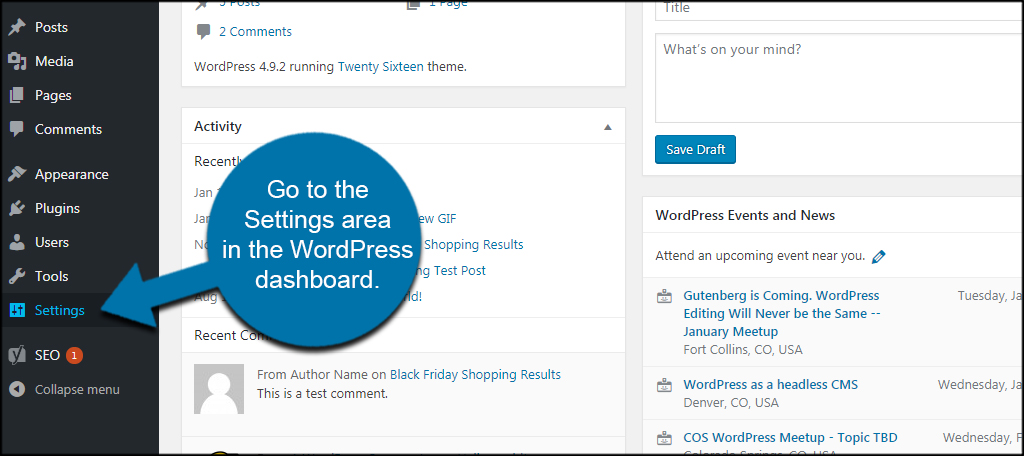
Log in to your WordPress.com account. From the dashboard, select the site you want to delete. Click on Manage in the left menu, then choose Settings. Scroll down to find site options. This area lets you control your site’s main settings.
Remove Active Purchases
Before deleting, check for any active purchases. These include plans, domains, or upgrades. Go to Plans or Domains sections in your account. Cancel or transfer these purchases. Removing them avoids extra charges or complications.
Confirm Site Deletion
At the bottom of the Settings page, find Delete your site permanently. Click this option to start deletion. WordPress.com will ask you to confirm. Type your site address to verify. Press Delete Site to finish. Your site and content will be erased forever.
Delete Self-hosted WordPress Site
Deleting a self-hosted WordPress site involves removing all files, databases, and domain registrations. This process frees up server space and ends your website’s online presence. Follow each step carefully to ensure complete deletion without leftover data.
Log In To Hosting Control Panel
Start by logging into your web hosting control panel. This is usually cPanel or a similar interface. Use your hosting provider’s website and enter your username and password. Once logged in, locate the file manager and database management tools.
Delete Website Files
Access the file manager in your control panel. Find the folder containing your WordPress files, often named “public_html.” Select all files and folders inside. Delete them to remove your website’s content, themes, and plugins completely.
Remove Database
Next, open the database management tool, like phpMyAdmin. Identify the database linked to your WordPress site. Select the database and delete it to erase all posts, pages, and settings stored there. Confirm the deletion to avoid data loss.
Cancel Domain Registration
Visit your domain registrar’s website to cancel your domain name registration. This stops renewal charges and releases the domain for others to use. Follow the registrar’s specific steps to complete cancellation or transfer your domain if needed.

Credit: wpmarmite.com
Clean Up Domain And Dns
Cleaning up your domain and DNS settings is an important step after deleting a WordPress website. It helps avoid extra charges and prevents visitors from reaching a site that no longer exists. Proper cleanup ensures your domain is free to use elsewhere or to be fully canceled.
Managing your domain and DNS records carefully protects your online presence and stops unwanted traffic. Follow the steps below to cancel your domain renewal and remove DNS records safely.
Cancel Domain Renewal
Cancel your domain renewal to stop automatic payments. Visit your domain registrar’s website and sign in to your account. Find the domain you want to cancel. Look for renewal or auto-renew settings. Turn off auto-renew to prevent future charges.
Make sure to check the expiration date of your domain. After cancellation, the domain will remain active until it expires. You can still use it until then or transfer it to another provider.
Remove Dns Records
Removing DNS records stops your domain from pointing to your old website. Login to your domain registrar or DNS hosting provider. Go to the DNS management section. Locate all records related to your deleted site, such as A, CNAME, or MX records.
Delete these records carefully. This prevents users from landing on broken pages or old content. If you plan to use the domain for a new website, add new DNS records after clearing the old ones.
Remove Site From Search Engines
Removing your WordPress site from search engines stops it from appearing in search results. This step is important after deleting your website or when you want to keep it private. Search engines like Google cache pages, so removal takes some time and actions. Follow these methods to effectively remove your site from search engines.
Use Google Search Console Removals
Google Search Console helps control how your site appears in Google search. Log in to your account linked with your website. Use the “Removals” tool to request temporary removal of URLs. Enter the site’s address or specific pages to hide them from search results. This process speeds up removal from Google’s index.
Add Noindex Tags
Noindex tags tell search engines not to list your pages. Add the tag in the
section of your site’s HTML. This signals search engines to stop indexing the page. You can add this tag using SEO plugins or by editing your theme files. Noindex tags work well for individual pages or entire sites.Update Robots.txt File
The robots.txt file guides search engine bots on which pages to crawl. Add rules to disallow all bots from accessing your site. Use the code:
User-agent: Disallow: /
This stops search engines from crawling any pages on your website. Upload the updated robots.txt file to your site’s root directory. Keep in mind, this method blocks crawling but may not remove already indexed pages immediately.
Credit: www.ipage.com
Alternatives To Deletion
Deleting a WordPress website is a big step. Sometimes, it is better to consider other options first. These alternatives help you keep your site without losing all your work. They also give you time to rethink your plans. Here are some ways to manage your website without deleting it.
Deactivate Site Temporarily
You can deactivate your site instead of deleting it. This option hides your website from visitors. Your content stays safe and ready to use later. Deactivation pauses your site without removing files or data. It is a good choice if you want a break or need to fix issues.
Replace Content
Changing your site’s content can give it new life. Instead of deleting, update pages, posts, and images. This refresh keeps your website active and useful. You can switch topics or improve design easily. Replacing content attracts new visitors and keeps your site relevant.
Transfer Ownership
Transferring ownership lets someone else manage the site. It keeps the website online and active. You can give control to a friend, partner, or buyer. This option avoids deletion and preserves your work. Transferring ownership is simple and secure through WordPress settings.
Frequently Asked Questions
How Do I Completely Delete A WordPress Website?
Back up your website first. Then, delete all files and databases via your hosting control panel. Cancel your domain registration. Finally, remove your site from search engines using Google Search Console.
Why Can’t I Delete My WordPress Site?
You can’t delete your WordPress site if you have active plans or domains. Cancel these first. Also, ensure you delete site files via your hosting control panel. Backup your data before deleting to avoid losing important information.
How Do I Permanently Delete A Website?
Back up your website data first. Then, delete all files and databases via your hosting control panel. Cancel your domain registration. Finally, request removal of outdated content from search engines to permanently delete your website.
How Do I Remove A Web Page In WordPress?
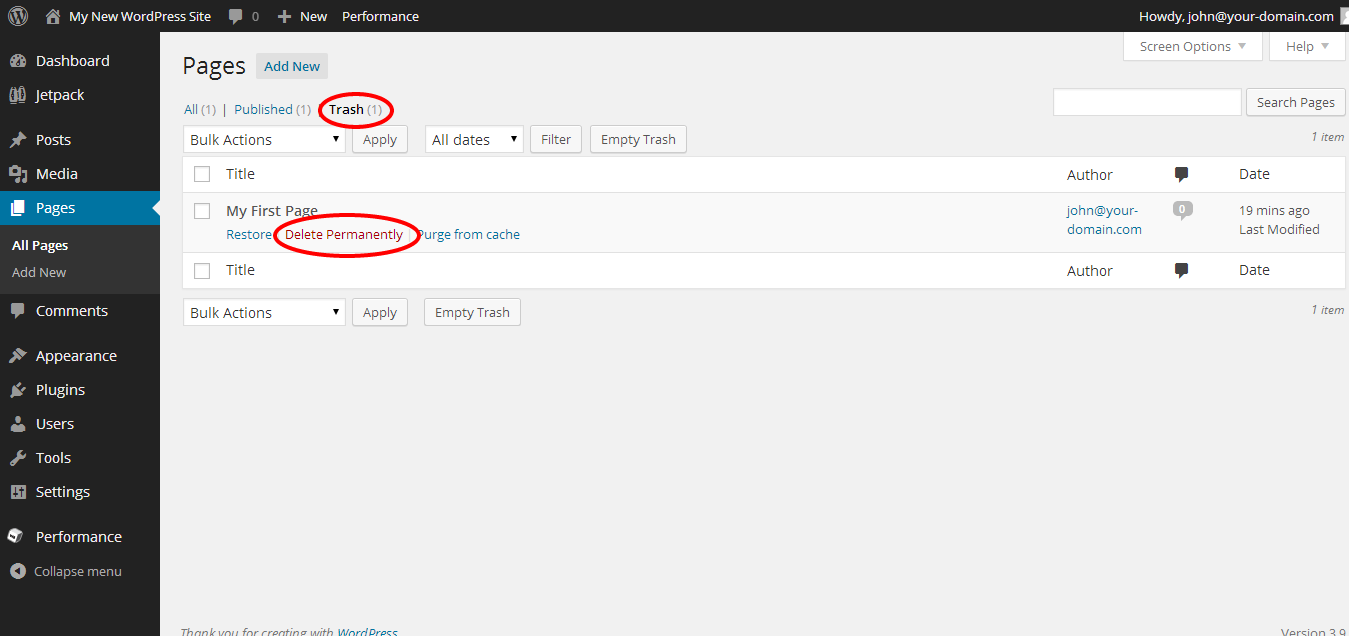
To remove a web page in WordPress, log in to your dashboard. Go to Pages, find the page, then click “Trash. ” Empty the Trash to delete permanently.
Conclusion
Deleting a WordPress website is straightforward when you follow the right steps. Always start by backing up your data to avoid losing important information. Then, delete your site files and databases carefully through your hosting control panel or WordPress dashboard.
Don’t forget to cancel your domain registration if you no longer need it. Removing your site from search engines can help prevent old pages from appearing online. Taking these actions ensures your website is fully deleted and your digital space stays organized.


