
You’ve just spent hours customizing your WordPress site, but now it’s time to clean up those unused themes that are cluttering your dashboard. Knowing how to delete a theme from your WordPress admin not only keeps your site organized but also enhances its performance and security.
Ever wondered why your site feels a little sluggish or why you keep seeing those annoying update reminders? Unused themes might be the culprit. By the time you finish reading this guide, you’ll have the confidence and know-how to effortlessly streamline your WordPress experience.
Ready to optimize your site and improve its health? Let’s dive in and uncover the simple steps to declutter your WordPress admin.
Credit: www.wpbeginner.com
Accessing The WordPress Dashboard
Log in to your WordPress site. Use your username and password. Find the Dashboard on the left. It looks like a list. Click on it. You will see many options.
Go to Appearance. It’s near the bottom. Click on Themes. Now you see all your themes. Choose the theme you want to delete. It’s easy. Just click on the theme. A small window opens.
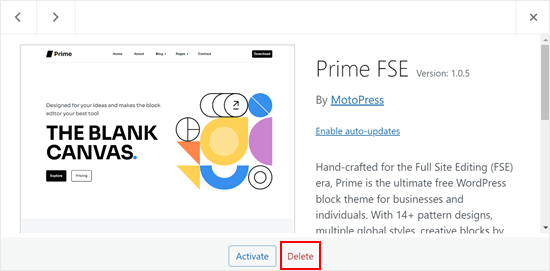
In the window, find Delete. Click on it. A message will ask if you are sure. Say yes. The theme will be gone. Your site will be cleaner.
Navigating To The Themes Section
First, log in to your WordPress admin area. Find the Appearance tab on the left side. Click on it. This opens the Themes section.
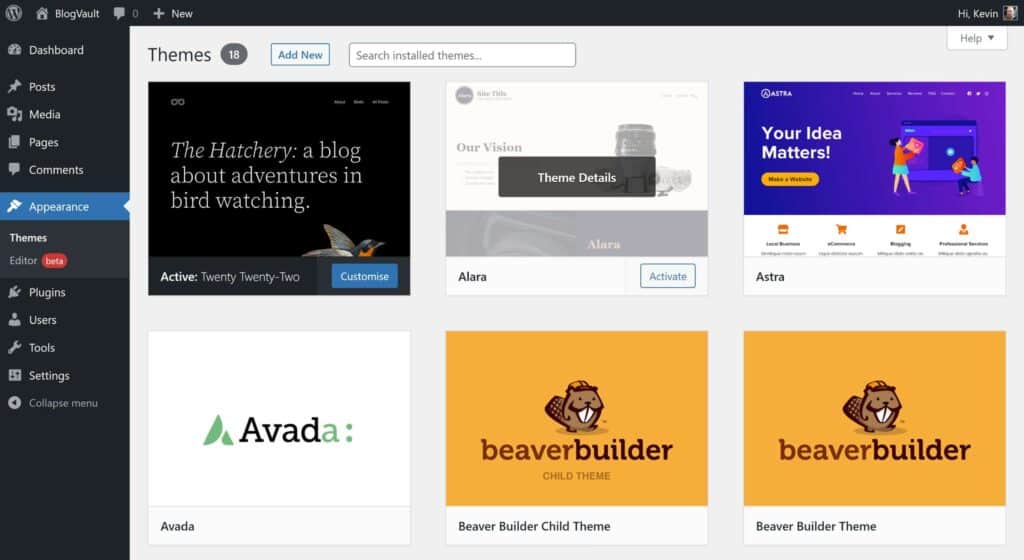
Here, you see all your installed themes. The active theme shows at the top. Other themes are below it. Each theme has a thumbnail image. You can view theme details by clicking on the thumbnail.
To delete a theme, click on the theme thumbnail. A window opens. At the bottom right, find the Delete button. Click this button to remove the theme. Confirm your choice. The theme gets deleted from your site.
Identifying The Active Theme
To find the active theme, first log into your WordPress Admin. Look for the Appearance section in the sidebar. Click on it. You will see the Themes page. The first theme shown is your current theme. It will have a “Active” label. Make sure to remember this theme. You need this information to change themes later.
Switching to a default theme is simple. Go back to the Themes page. Scroll until you see default themes like Twenty Twenty-One. Hover over the theme you want. Click Activate. This will make the new theme active. Your previous theme is now inactive. Check your site to see changes.
Deleting An Inactive Theme
Removing an inactive theme in WordPress is straightforward. Access the admin dashboard, click on ‘Appearance,’ then ‘Themes. ‘ Choose the theme to delete and press ‘Delete. ‘ This helps in maintaining a clutter-free and efficient website environment.
Selecting The Theme
To start, open your WordPress admin panel. Look for the “Appearance” section on the left. Click it to see all your themes. Find the theme you don’t use. Make sure it is not active. Active themes have a bold label.
Confirming Theme Deletion
Click on the inactive theme’s thumbnail. A details box will appear. There is a “Delete” button at the bottom-right. Press it. A message will pop up. It asks if you are sure. Click “OK” to confirm. The theme is gone now. Check your themes again to be sure.
Managing Theme Files Via Ftp
Deleting a theme from WordPress admin is straightforward. Navigate to ‘Appearance’, select ‘Themes’, and find the theme you wish to remove. Click ‘Delete’ once you’ve activated another theme, ensuring your site remains functional.
Connecting To Ftp Server
Start by opening your FTP client. Enter your FTP server details. Use your WordPress login credentials. Click connect. Wait for the connection to establish. You will see your site files.
Removing Theme Files
Locate the wp-content folder. Open it. Find the themes folder. Identify the theme you want to delete. Right-click on the theme folder. Choose delete. Confirm the deletion. The theme files will be removed.
Credit: blogvault.net
Reasons To Delete Unused Themes
Old themes can be a security risk. Hackers look for weak spots. Unused themes can be that weak spot. They often have vulnerabilities. Removing them makes your site safer. Keep only the themes you use. This reduces the chance of attacks. Your site will be more secure.
Unused themes take up space. This can slow your site down. A fast site is important. Visitors leave slow sites. Deleting unused themes frees up space. Your site runs faster. This improves user experience. People enjoy visiting fast sites. Speed keeps them coming back.
Troubleshooting Common Issues
Deleting a theme from WordPress Admin is simple. Navigate to “Appearance,” then “Themes,” and select “Delete” on the unwanted theme. Ensure the theme is inactive before removal to prevent issues.
Handling Deletion Errors
Sometimes, deleting a theme can cause errors. A common issue is a missing stylesheet error. This happens if the theme is not fully deleted. Check if the theme folder is gone from the server. Use FTP or a file manager for this. If it’s not gone, delete it manually.
Another issue is a broken site error. This happens when the active theme is deleted. Always activate a default theme before deleting. This prevents the site from breaking. Backup your site to avoid data loss. Backups help restore your site if something goes wrong.
Restoring Deleted Themes
Accidentally deleted a theme? Don’t worry. You can restore it. First, check your backups. If you have a backup, you can easily restore the theme. Use a plugin or your hosting service to do this. If no backup exists, download the theme again. Install it like a new theme. This brings back your theme without issues.
Best Practices For Theme Management
Efficient theme management involves knowing how to delete unnecessary themes from WordPress admin. Access the dashboard, navigate to “Appearance,” then “Themes. ” Find the inactive theme, click “Theme Details,” and hit “Delete” to free up resources and keep your site tidy.
Regular Updates
Updating themes is very important. It keeps your site safe. Updates fix bugs. They add new features too. Always check for updates. Do this every week. Use the update button in WordPress. This keeps your site running well. Outdated themes can break your site. They can cause security problems. Regular updates prevent these issues.
Theme Backup Strategies
Backing up themes is smart. It saves your work. Use a plugin for backups. Many plugins are free. They are easy to use. Backup themes before updating. This protects your site if things go wrong. Store backups in a safe place. Use cloud services or external drives. Keep multiple copies. This ensures your site can be restored.
Credit: www.softaculous.com
Frequently Asked Questions
How Do I Access WordPress Admin To Delete Themes?
To access WordPress admin, go to your site’s URL followed by /wp-admin. Log in with your credentials. Navigate to “Appearance” and then “Themes” to manage your themes. From there, you can select and delete unwanted themes to optimize your site.
Can I Delete Active WordPress Themes?
No, you cannot delete an active theme directly. First, activate a different theme. Once the active theme is changed, you can delete the unwanted theme from the “Themes” section in your WordPress admin panel.
Why Should I Delete Unused WordPress Themes?
Deleting unused themes reduces clutter and improves site performance. It also minimizes security risks by eliminating outdated code. Keeping only essential themes ensures your WordPress installation remains efficient and secure, providing a better user experience.
What Happens After Deleting A WordPress Theme?
Once deleted, the theme and its settings are removed from your site. It won’t appear in your theme list anymore. Ensure to back up any customizations before deletion. Your active theme remains unaffected by this change.
Conclusion
Deleting a theme from WordPress is simple. Follow the steps provided here. First, log into your WordPress admin panel. Next, find the theme section under “Appearance. ” Then, select the theme you want to delete. Click “Delete,” and confirm your choice.
Done! Your site stays clean and organized. Remember to choose themes wisely. Always backup your site before changes. This prevents loss of data. You have control over your site’s look. Keep it fresh, keep it relevant. Happy WordPress managing! Your site reflects your brand.
Make it shine with the right themes.


