
Are you struggling with a cluttered WordPress site? Perhaps you need to tidy up by deleting an unused theme destination folder.
This might sound technical, but it’s easier than you think! Removing unnecessary themes can enhance your site’s performance, improve security, and free up valuable space. Imagine your website loading faster, running smoother, and being more secure—all by following a few simple steps.
You’re about to learn how to efficiently clean up your WordPress dashboard. Ready to streamline your site and boost its performance? Let’s dive in and discover how to delete that theme destination folder effortlessly.
Credit: rankmath.com
Why Delete A Theme Destination Folder?
Deleting a theme destination folder in WordPress helps keep your site clean. Old themes can slow down your website. Removing them frees up space. It also reduces security risks. Hackers may target unused themes. Removing them protects your site.
Too many themes confuse the system. It may lead to errors. Deleting unused themes makes managing your site easier. It keeps things simple and tidy.
Always back up your site before deleting files. It ensures you can restore if needed. This way, your website stays safe and secure.
Precautions Before Deleting
Backing up your site is very important. It saves your data from loss. Use plugins to make a backup. Plugins like UpdraftPlus are good. Store your backup in a safe place. You can use cloud storage. Backup files should be easy to find.
Make sure you know which theme is active. An active theme cannot be deleted. Check the theme from the dashboard. Go to Appearance and then Themes. You will see the active theme there. Change the theme if needed. Only delete inactive themes. This keeps your site running.
Accessing WordPress Files
First, open your FTP client and connect to your website. Use your FTP credentials to log in. Find the folder named wp-content. Inside it, click on the themes folder. Look for the theme you want to delete. Right-click on the theme folder and choose delete. Confirm the deletion. This will remove the theme from your site.
Log in to your cPanel account. Find the File Manager icon and click it. Open the public_html folder. Navigate to wp-content then to themes. Locate the theme folder you wish to delete. Select the folder and click the Delete option. Confirm the action by clicking delete again. The theme will be removed.
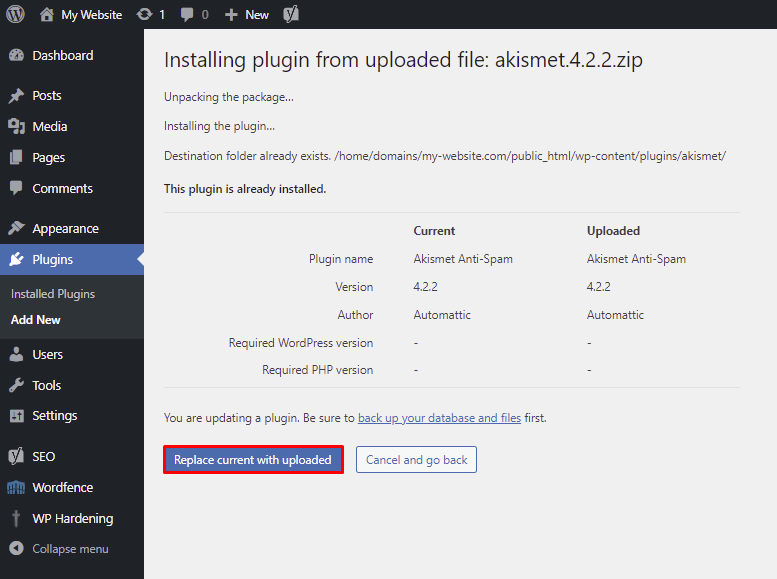
Credit: www.hostinger.com
Locating The Theme Folder
First, open your website’s file manager or FTP client. You will find the root directory here. Look for the folder named wp-content. This folder holds all your themes and plugins. Clicking on it will open more folders inside.
Within wp-content, find the themes folder. This folder contains all installed themes. Each theme has its own folder. Check the names to identify the theme you wish to delete. Be sure to pick the right one. Deleting the wrong folder can break your site.
Deleting The Theme Folder
Connect to your website with FTP client. Use software like FileZilla. Find the wp-content folder. Inside, locate the themes folder. Select the theme you want to delete. Right-click and choose delete. Wait for the process to finish. Check if the theme is gone from WordPress dashboard. Always back up important files first. This prevents data loss.
Log in to your cPanel account. Look for File Manager option. Open it to access website files. Navigate to public_html directory. Then, find the wp-content folder. Inside, open themes folder. Select the theme folder to delete. Click on the delete button. Confirm the action if prompted. Check the WordPress dashboard. The theme should be removed. Always ensure files are backed up before deletion.
Verifying Successful Deletion
Deleting a theme destination folder in WordPress requires careful steps. First, access the WordPress dashboard and navigate to the theme section. After deletion, ensure successful removal by refreshing the browser and checking the theme list for absence of the folder.
Checking Site Functionality
Ensure your site works fine after deleting the theme folder. Visit your website and check the homepage. Make sure it loads without issues. Click on different pages. Verify they open correctly. Test any forms or features. Ensure everything functions smoothly.
Ensuring No Broken Links
Broken links can harm your site. Use a link checker tool. It will find any broken links. Fix them if needed. Check your menu links. Verify they all work. Ensure your internal links function well. This keeps your site healthy.
Common Issues And Fixes
Deleting a theme folder can be tricky. You might see Permission Denied errors. These errors happen when you can’t change files. Check the file’s permissions. Right-click the folder. Select Properties. Click Security tab. Ensure your account has full control. Change it if needed. Sometimes, you must change settings on the server. Use FileZilla or a similar tool. Connect to your server. Find the folder. Change permissions to 755 or 777. Try deleting the folder again.
Accidentally deleting a theme can be scary. Always have a backup ready. Use a plugin like UpdraftPlus. It helps you restore files easily. If you have no plugin, check your hosting service. Many hosts keep backups. Log into your hosting account. Look for a backup option. Restore the theme folder from there. You can also manually copy files. Use an FTP client to download backups. Restore them by uploading back to the server. This ensures your site works again.
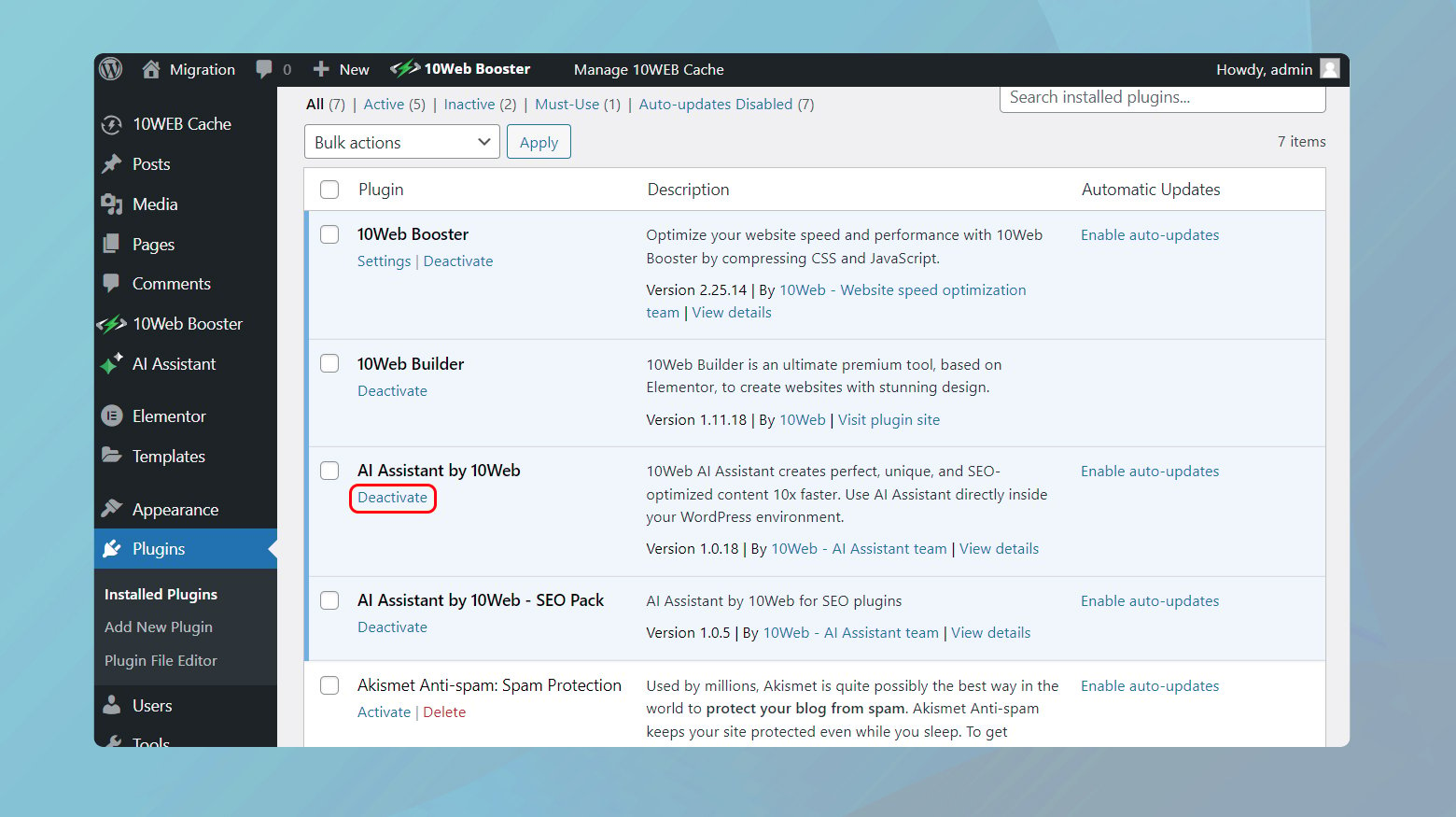
Credit: 10web.io
Best Practices Post-deletion
To safely delete a theme destination folder in WordPress, first back up your files to avoid data loss. Access the WordPress dashboard, navigate to Appearance, then Themes, and deactivate the theme before deletion. Use FTP or File Manager in hosting to remove the folder completely.
Regular Backups
Making regular backups of your WordPress site is very important. Backups help you restore your site if something goes wrong. Use backup plugins like UpdraftPlus or BackupBuddy. These plugins are easy to use and very reliable. Always store your backups in a safe place. Cloud storage like Google Drive or Dropbox is a good choice. Set a schedule for automatic backups. Weekly or monthly backups are a good idea. This ensures your data is always safe.
Maintaining Site Security
Keeping your site secure is very important. Use strong passwords for all accounts. Update WordPress and plugins regularly. This helps fix any security holes. Install security plugins like Wordfence or Sucuri. These plugins protect your site from hackers. Always use themes and plugins from trusted sources. Never download from unknown sites. Be careful with user permissions. Give access only to people you trust.
Frequently Asked Questions
How Can I Delete A Theme Folder?
To delete a theme folder in WordPress, access your website files via FTP or cPanel. Navigate to `wp-content/themes`, locate the desired theme folder, and delete it. Ensure you’ve backed up your site before deleting any files to avoid accidental loss of important data.
Is It Safe To Delete Theme Folders?
Deleting theme folders is safe if you have backups. Removing unused themes frees up space and reduces security risks. Always ensure the active theme isn’t accidentally deleted, as this could break your website layout and functionality.
What Happens When I Delete A Theme?
When you delete a theme, its files are removed from your server. Your site will default to another installed theme. Ensure you have a suitable active theme before deletion to avoid layout issues or broken functionality on your website.
Can I Recover Deleted Theme Folders?
Yes, you can recover deleted theme folders if you’ve backed them up. Use your backup solution to restore the theme files. Without a backup, recovery is impossible, emphasizing the importance of regular backups of your WordPress site.
Conclusion
Deleting a theme destination folder in WordPress is straightforward. Follow the steps carefully for success. Always back up your site before making changes. This prevents data loss. Use the WordPress dashboard for easy navigation. FTP access is also an option.
Be sure to delete unwanted folders only. This keeps your site running smoothly. Regular maintenance improves site performance. Keep your WordPress updated. This enhances security and functionality. Troubleshooting is easier with a clean theme folder. Stay organized to simplify future tasks.
Your WordPress site deserves proper care and attention.


