
Struggling to clean up your WordPress site? You’re not alone.
Many WordPress users install themes and demos only to later find their site cluttered and sluggish. This can be frustrating, especially when you’re aiming for a sleek, professional look. Imagine having a site that not only looks great but also runs smoothly, attracting visitors with ease.
In this guide, you’ll discover step-by-step instructions on how to delete unwanted themes and demos from your WordPress site. By the end, you’ll have the knowledge to streamline your website, improve its speed, and enhance user experience. Ready to transform your WordPress site into a lean, mean, content machine? Let’s dive in and get started on making your website shine!

Credit: www.youtube.com
Accessing WordPress Dashboard
Begin by logging into your WordPress dashboard. This is your control center. Use your username and password. Look for the sidebar on the left. Find the Appearance tab. Click on it to open more options. Now, you will see a list of themes. These are the themes you have installed.
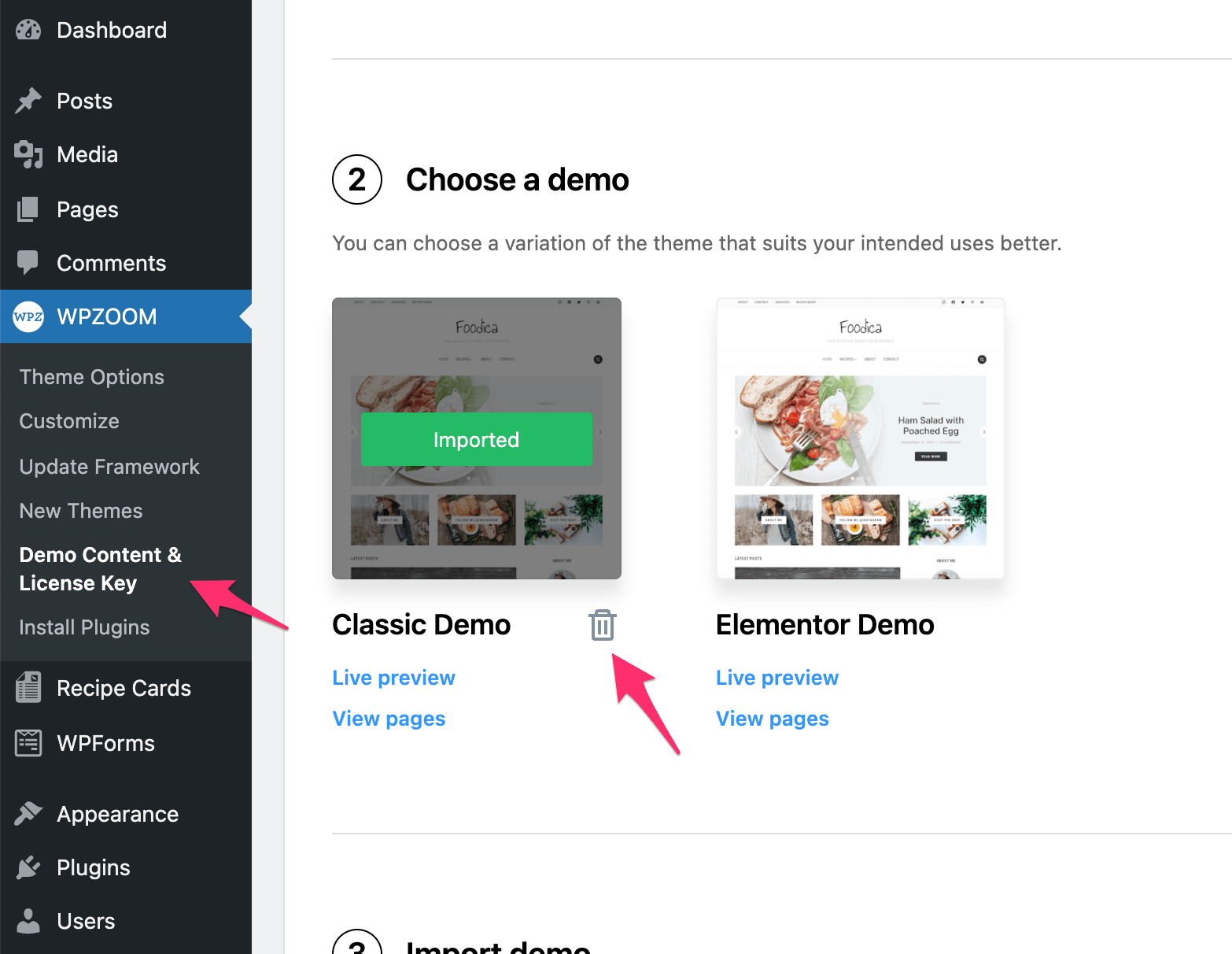
To delete a theme, select the one you want. Hover over it with your mouse. Click on the Theme Details button. A new window will appear. Look for the Delete button at the bottom right. Click it to remove the theme. Confirm your choice to complete the action. Your theme will be gone now.
Remember, deleting a theme is permanent. You can’t undo it. Make sure you want to delete it first. Always have a backup plan. This keeps your website safe.
Credit: www.wpzoom.com
Identifying Installed Themes
Find the WordPress Dashboard first. Look on the left side for Appearance. Click on it. A list of themes will show. Your active theme is first. Others are below. Each theme has a name. Themes also have details. Details like version and author. Know the theme you want to delete. Themes have a thumbnail image too. This helps in identifying them. Select the theme for removal. Remember its name for later. You can read more about each theme. Click on its thumbnail. A small window opens. It shows more information.
Deleting An Unwanted Theme
Activate a default theme like Twenty Twenty-One. Go to your WordPress dashboard. Click on Appearance, then Themes. Hover over your chosen default theme. Click Activate. Your unwanted theme is now inactive.
Removing theme files keeps your site clean. Still in the dashboard, go to Appearance and Themes. Find the theme you want to delete. Click Theme Details. A small window will pop up. Look for the Delete button at the bottom right. Click it. Confirm your choice. Now, the theme files are gone.

Credit: medium.com
Locating Demo Content
First, go to the dashboard. Find the Pages section on the left side. Click it to see all pages. Look for pages with names like “Demo” or “Sample”. These are often demo content. Check the page content to confirm. If it has no important info, it might be demo.
Next, navigate to Posts. You will see a list of posts. Search for titles that sound like examples. Titles such as “Hello World” are usually demo. Open these posts to review their content. Most demo posts have general information. If it looks like a template, it’s likely demo.
Removing Demo Content
Easily clean up your WordPress by deleting themes and demo content. Navigate to the dashboard, select ‘Appearance,’ then ‘Themes,’ and remove unwanted ones. For demo content, use the ‘Customizer’ or ‘Tools’ to reset settings. Keep your site neat and user-friendly.
Delete Posts And Pages
Navigate to the WordPress Dashboard. Find the Posts or Pages section. Click on it. You will see a list. Choose the items you want to delete. Select the checkbox next to each item. Then, click on Bulk Actions. Choose Move to Trash. Hit the Apply button. Your demo posts and pages are gone.
Remove Media Files
Open the Media Library in your dashboard. Look for demo images and files. Select them. Use the checkbox next to each file. Click on Bulk Actions. Choose Delete Permanently. Press the Apply button. This clears your media library. Your site looks clean now.
Cleaning Up The Database
Deleting unnecessary themes and demos from WordPress can enhance site performance. Navigate to the Themes section, select the theme to remove, and click delete. For demo content, use a plugin or manually delete posts and pages. This reduces database clutter and improves loading speed.
Optimize Database Tables
To keep your database smooth, it’s smart to optimize tables. Use plugins like WP-Optimize or WP-Sweep. They help tidy up the database. They also remove unnecessary junk. These tools are simple to use. Just click, and they do the work. This process can speed up your site. A fast site makes visitors happy. It also helps with search engines. A tidy database is a healthy one.
Remove Unused Data
Unused data can slow down your website. First, delete old revisions of posts. They take up space. Next, get rid of spam comments. They are not needed. Finally, clear out trashed items. Every little bit helps. You can use plugins to do this. They make the task easy. Just a few clicks, and the data is gone. Keeping only what you need is best for your site.
Verifying Changes
After removing a theme, check your website. Ensure it looks the same. No broken links or missing images should appear. Click on different pages. Each page should load correctly. If a page is not working, recheck your changes.
Verify the site speed. It should be as fast as before. Sometimes, removing themes affects speed. Ensure all plugins work correctly. Plugins should not show errors. If errors show, troubleshoot quickly.
Check your site’s appearance. Colors and fonts should match your expectations. If something looks off, adjust settings. Always back up your site before making changes. This keeps your data safe.
Preventing Future Issues
Regular maintenance keeps your WordPress site healthy. Check your themes and plugins often. Outdated themes can cause problems. Update them regularly. Remove themes you don’t use. They take up space and might slow your site. Always check for updates. New updates fix bugs and improve security.
Backup Strategies
Backing up is very important. Always have a backup of your site. Use plugins like UpdraftPlus for easy backups. Save your backups in different places. You can use cloud storage or external drives. Backup before making big changes. This helps if something goes wrong. You can restore your site quickly.
Frequently Asked Questions
How Do I Delete A WordPress Theme?
To delete a WordPress theme, navigate to your dashboard. Go to Appearance > Themes, select the theme you want to remove, and click Delete. Confirm the deletion to remove the theme from your site. Ensure you have another active theme before deleting.
Can I Safely Remove WordPress Demo Content?
Yes, you can safely remove demo content. Go to your WordPress dashboard and navigate to Posts, Pages, and Media sections. Delete any demo content you don’t need. Ensure to back up any important data before deleting.
Why Should I Delete Unused WordPress Themes?
Deleting unused themes improves your site’s performance and security. Unused themes can become outdated and vulnerable to attacks. Removing them reduces server space usage and minimizes potential security risks. Always keep your active theme updated.
How To Back Up Before Deleting Themes?
Use a WordPress backup plugin like UpdraftPlus or BackWPup. Install and activate the plugin from your dashboard. Follow the plugin’s instructions to back up your files and database. Having a backup ensures you can restore your site if needed.
Conclusion
Deleting WordPress themes and demos is simple. Follow the steps above. Keep your website clean and organized. Removing unused themes improves site speed. Enhance security by eliminating old demos. Always back up your site before making changes. Regular maintenance ensures smooth performance.
Stay updated on WordPress best practices. Protect your site from potential threats. Keep your website efficient and user-friendly. You can manage your WordPress site easily. Don’t hesitate to remove unnecessary elements. Your website deserves a fresh look. Keep it simple and functional.
Maintain a clutter-free site for optimal user experience.


