
Are you looking to streamline your online presence by deleting a domain on Namecheap? Whether you’ve decided to rebrand or simply no longer need a particular domain, knowing how to delete it efficiently is crucial.
You might be wondering about the steps involved and how they affect your digital footprint. Well, you’re in the right place! This guide will walk you through the process in a straightforward manner, ensuring you understand each step clearly. By the end of this article, you’ll not only know how to delete your Namecheap domain but also feel confident in managing your online assets.
Keep reading to discover the essential steps and tips that will empower you in your domain management journey.
Accessing Your Namecheap Account
Accessing your Namecheap account is the first step to manage your domain. It’s a straightforward process that requires your login credentials. Once logged in, you can navigate through various settings and options available. Let’s explore the details of accessing your account.
How To Log In
Visit the Namecheap website and click on the login button. Enter your username and password. If you forget your password, use the ‘Forgot Password’ link to reset it. Ensure you have access to your email for verification.
Dashboard Overview
After logging in, you land on your dashboard. This is your control center. Here you can view all your domains and settings. Familiarize yourself with the dashboard layout for easier navigation.
Locating Your Domain List
In the dashboard, find the ‘Domain List’ section. This section shows all domains registered under your account. Click on it to view details and perform actions like deletion.
Security Settings
Security is crucial for your account. Make sure to review your security settings. Enable two-factor authentication for added protection. Regularly update your password for safety.

Credit: crmsupport.freshworks.com
Navigating To Domain Management
Accessing the domain management section in Namecheap is simple. Log into your account, navigate to the Domain List, and select the domain you wish to delete. Follow the on-screen instructions to complete the deletion process efficiently.
Navigating to Domain Management is a crucial step in the process of deleting your Namecheap domain. Whether you’re looking to declutter your domain portfolio or simply need to make room for new projects, understanding how to access the right tools on Namecheap can save you time and effort. The task might seem daunting at first, but with the right guidance, you can accomplish it easily. First things first, you need to log into your Namecheap account. Your account dashboard is where all the magic begins. Have you ever wondered how a simple login can open up a world of possibilities? Once logged in, you’ll be greeted with a user-friendly interface that makes navigating to domain management a breeze.Finding The Domain List
Once you’re in your account, look for the “Domain List” section. This is where all your registered domains reside. It’s like opening a treasure chest of potential, waiting for you to decide what stays and what goes. Do you see your domain waiting there, eager for your next move? Scroll through your domain list and identify the domain you wish to delete. It’s a bit like deciding which book to remove from your shelf. Why did you choose this domain initially, and what’s changed now? Clicking on the domain will take you to its management settings.Accessing Domain Management Settings
In the management settings, you have various options at your disposal. Click on the “Manage” button next to your domain name to dive deeper into its settings. This is where you have the power to make changes, including starting the deletion process. Are you ready to take control and make the necessary changes? Navigating to Domain Management is not just about clicking buttons; it’s about understanding the domain’s lifecycle and making informed decisions. Whether it’s cleaning up your digital space or making room for new ventures, each step is a part of your journey in the digital realm.Selecting The Domain For Deletion
Choosing the right domain for deletion involves accessing your Namecheap account dashboard. Navigate to the domain list, identify the domain you wish to delete, and follow the prompts for removal. Ensure all necessary information is backed up before proceeding with deletion.
Selecting the right domain for deletion is a crucial step if you are considering decluttering your digital portfolio. Whether you are moving on from a past project or just cleaning up, this process requires thoughtful consideration. It’s about making informed decisions that align with your current needs and future plans. Let’s dive into the practical steps. ###Understanding Your Domain Portfolio
Take a moment to review all the domains registered under your Namecheap account. Make a list if necessary. This will help you identify which domains are no longer serving your purpose. ###Evaluating Domain Relevance
Ask yourself: Does this domain still align with your business goals? Consider how each domain fits into your current projects or strategies. If a domain no longer aligns, it might be time to let it go. ###Checking Expiration Dates
Look at the expiration dates of your domains. If a domain is nearing expiration and doesn’t hold value, it might be a good candidate for deletion. Why pay for something you don’t need? ###Analyzing Traffic And Seo Value
Does the domain still drive traffic or hold SEO value? Use tools like Google Analytics to check. If it still brings traffic, you might reconsider deleting it. ###Reviewing Financial Implications
Consider the cost of keeping the domain versus its value. Domains may have sentimental or potential future value, but if they’re costing you more than they’re worth, deletion could be a wise choice. ###Consulting Stakeholders
If the domain is tied to a business or project involving others, consult with them. Their insights might reveal hidden potential or reasons to keep the domain. ###Making The Final Decision
Once you’ve gathered all the information, make a decision. Be confident in your choice. Remember, deleting a domain is about focusing your resources where they matter most. Selecting a domain for deletion is not just about letting go but about making space for new opportunities. With careful consideration, you ensure that your digital assets are working for you, not against you. What domains in your portfolio are you ready to release?Reviewing Domain Details
Reviewing domain details is crucial before deleting your Namecheap domain. You need to ensure you have all the necessary information at hand. This step helps prevent accidental deletions and data loss. It is a simple yet important process that should not be overlooked.
Understanding Your Domain Information
Check your domain name carefully. Verify its spelling and extension. Make sure it’s the exact domain you want to delete.
Checking Expiration Date
Look at the expiration date of your domain. If it is close to renewal, consider your options. Deleting a domain close to expiration may affect future plans.
Verifying Ownership Details
Ensure you are the rightful owner of the domain. Confirm the contact details are yours. This prevents any unauthorized actions.
Examining Domain Services
Identify any services linked to your domain. Email accounts or hosting services may be affected by deletion. Make a list of services to manage them properly.
Backing Up Important Data
Backup essential data related to your domain. Save website files, emails, and databases. This step is crucial to avoid losing valuable information.
Initiating Domain Deletion Process
Deleting a Namecheap domain involves accessing your account dashboard, selecting the domain, and initiating the deletion process. Follow on-screen prompts to confirm your decision, ensuring careful review of any associated services or settings before finalizing the deletion.
Initiating the process of deleting a domain on Namecheap may seem daunting, but it’s manageable with the right guidance. Whether you’ve decided a particular domain no longer serves your needs or simply want to streamline your portfolio, taking action is crucial. Let’s explore the steps to ensure a smooth deletion process, keeping your digital assets tidy and purposeful. ###Understanding The Implications
Before you proceed, understand what domain deletion entails. Once deleted, your domain becomes available for others to register. If you have any ongoing projects or emails linked to it, those will be affected. Consider backing up important data or redirecting services before taking the plunge. ### To start, log into your Namecheap account. Use your credentials and navigate to the Dashboard. This is your control center for managing all your domains. If you don’t remember your password, utilize the ‘Forgot Password’ option to reset it swiftly. ###Locating The Domain
Once inside your account, you’ll see a list of your registered domains. Identify the domain you wish to delete. Use the search bar if you own multiple domains to find it quickly. This step ensures you target the right domain for deletion. ###Initiating The Deletion
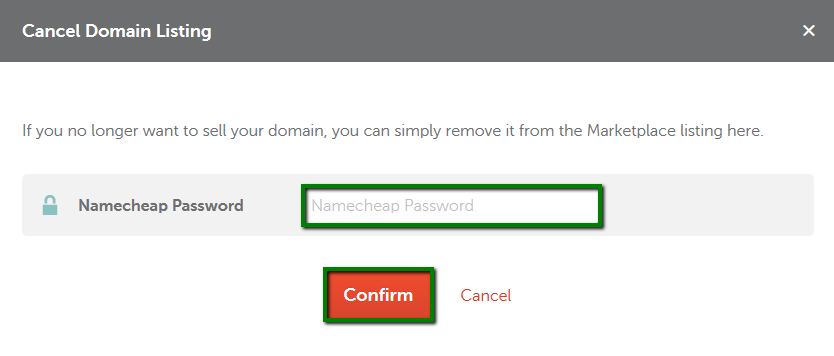
Click on the domain name to access its management page. Here, you’ll find various options related to domain settings and controls. Look for an option labeled ‘Domain Deletion’ or ‘Cancel Domain’. This is where you’ll start the deletion process. ###Confirming Your Decision
Namecheap will prompt you to confirm your decision. This is a safeguard to prevent accidental deletions. Double-check that you’ve selected the correct domain and understand the consequences. Click ‘Confirm’ to finalize your decision. ###Reflecting On Your Decision
Have you considered the potential need for the domain in the future? Think about any long-term implications. Some users have regretted their decision after realizing the domain’s potential value. Always weigh your options thoroughly before concluding the process. Deleting a domain can be a straightforward process if you follow these steps carefully. Have you ever encountered a situation where you needed to reverse a decision like this? Sharing your experience can help others navigate similar challenges. Remember, managing your digital footprint effectively is a critical skill in today’s online world.
Credit: www.youtube.com
Confirming Domain Deletion
Deleting a domain from Namecheap might feel like a daunting task, but confirming its deletion is a crucial step that ensures you don’t unintentionally lose something important. It’s like double-checking if you’ve packed all your essentials before leaving for a trip. You want to be absolutely sure that this is the right decision, as once it’s gone, it’s gone for good.
Understanding The Consequences
Before you proceed, take a moment to consider what deleting your domain entails. This action is irreversible, meaning you’ll lose any associated website, emails, and data. Ask yourself if you’re prepared to lose this digital identity.
Once confirmed, someone else could potentially register your domain. This is particularly important if your domain holds brand value or sentimental worth.
Verifying Domain Details
Check your domain details carefully. Is this the domain you really want to delete? Reviewing your domain list in your Namecheap account can help avoid mistakes. Maybe you have several similar names, and deleting the wrong one could be a costly error.
Ensure you’ve backed up any important data linked to your domain. This includes website content, email accounts, and any databases. A quick backup can save you from losing valuable information.
Receiving Confirmation Emails
After you initiate the deletion process, keep an eye on your email. Namecheap will typically send a confirmation email to ensure the request is genuine. This email acts as a final checkpoint.
Open the email promptly and confirm your request. Ignoring this step can stall the process and keep your domain active longer than intended.
Reflecting On Your Decision
Ask yourself: why are you deleting this domain? Maybe it was a project that didn’t take off, or perhaps you’re consolidating your digital assets. Reflecting on your reasons can bring clarity and peace of mind.
Consider consulting with someone you trust if you’re unsure. Sometimes, a second opinion can highlight aspects you hadn’t considered.
Deleting a domain is a significant action that requires careful consideration and verification. By taking these steps, you ensure that your decision is informed and deliberate. Have you thought of the future implications of this choice? It’s essential to align it with your broader goals and digital strategy.
Post-deletion Steps
After deleting a Namecheap domain, ensure you clear your browser cache to prevent old data from appearing. Check your email for confirmation of deletion. Review your account settings to verify successful removal.
Deleting a domain from Namecheap isn’t just about clicking a few buttons and moving on. Once you’ve made the decision to remove a domain, what comes next? The post-deletion steps are crucial to ensure everything is in order and no loose ends are left behind. Whether you’re streamlining your digital portfolio or clearing up space for new projects, understanding what to do after deletion can save you from potential headaches down the road.Verifying Deletion
The first step after deleting your Namecheap domain is to make sure it has been successfully removed from your account. Log back into your Namecheap account and check the list of domains. If the domain is still visible, double-check the deletion process. Sometimes, a simple refresh of your browser or clearing your cache might update the display. Consider whether you have received a confirmation email from Namecheap. This email is usually sent to confirm the domain deletion process.Managing Remaining Domains
With one domain gone, it’s time to focus on what you have left. Look at your remaining domains and assess their importance to your current projects. Is there a domain you haven’t used in a while that could be deleted next? Or maybe there’s a domain that deserves more attention and development. Organize your domain list by relevance or expiration date. This will help you manage renewals and prioritize domains that align with your goals. Now, think about how your digital strategy evolves. Are your domains supporting your business or personal objectives? Reflect on how each domain fits into your broader plan. After deletion, are there any new opportunities that you can explore with your remaining domains? Sometimes, clearing out old domains makes room for fresh ideas and approaches. Deleting a domain isn’t just the end of something; it’s also the beginning of a new chapter in your digital journey.Potential Issues And Troubleshooting
Deleting a domain on Namecheap can sometimes present challenges. Understanding potential issues is essential. This helps ensure a smooth process. Read on to learn about common problems and troubleshooting tips.
Common Problems
Users may face login issues. This can happen due to incorrect credentials. Ensure your username and password are correct. Password resets can help if needed.
Another issue is domain lock. Domains may be locked for security. Unlock your domain in the Namecheap dashboard before deleting it.
Users sometimes encounter authorization code errors. Ensure the code is entered correctly. Double-check for any typos or spaces.
Contacting Support
If problems persist, consider reaching out to Namecheap support. They offer assistance through live chat and support tickets. This can be helpful for complicated issues.
Before contacting support, gather all necessary information. This includes your account details and any error messages. Providing this can speed up the support process.
Remember to be clear and concise in your communication. This helps support agents understand and resolve your issue quickly.
Credit: www.namecheap.com
Frequently Asked Questions
How Do I Delete My Namecheap Domain?
Log into your Namecheap account. Go to “Domain List” and select the domain. Click “Manage,” then “Advanced DNS. ” Choose “Delete Domain” and confirm your choice. Ensure there’s no associated hosting or email before deletion. Always double-check to avoid losing important data permanently.
How Do I Completely Delete A Domain?
To delete a domain, log into your domain registrar account. Navigate to the domain management section. Select the domain you wish to delete. Follow the registrar’s instructions to remove the domain permanently. Ensure you have no active services linked to the domain before deletion.
How Do I Delete My Domain Com Account?
Log in to your Domain. com account. Access the account settings. Choose “Delete Account” option. Confirm deletion by following prompts. Contact support if needed.
How Can I Cancel A Domain?
Log in to your domain registrar account. Locate your domain management section. Select the domain you wish to cancel. Follow the cancellation process provided. Confirm and save changes.
Conclusion
Deleting a Namecheap domain is straightforward. Follow the steps carefully. First, log into your Namecheap account. Locate the domain you wish to delete. Access the domain settings. Choose the delete option, and confirm your choice. Remember, deleting is permanent. Double-check before you proceed.
Always back up important data. Losing files can be frustrating. Stay organized to avoid mistakes. Now, you can manage your domain efficiently. Simplify your online tasks with proper planning. Thank you for reading. Feel free to explore more tips and guides on domain management.


