
Are you feeling overwhelmed by an array of unused themes cluttering your WordPress dashboard? Or perhaps you’re ready for a fresh start with a new design, but the remnants of old themes keep holding you back.
You’re not alone, and the good news is, there’s a simple solution. Imagine the satisfaction of a clean, streamlined WordPress interface where only the themes you love and use remain. By deleting unnecessary themes, not only do you declutter your workspace, but you also enhance your site’s performance and security.
Curious to discover how you can effortlessly remove those unwanted themes and enjoy a smoother WordPress experience? Keep reading to unlock the secrets of maintaining a tidy and efficient WordPress environment, tailored just for you.

Credit: wpmanageninja.com
Accessing The WordPress Dashboard
Log into your WordPress site first. Use your username and password. Go to your website link. Add “/wp-admin” at the end. Press enter. This opens the login page. Enter your details. Click the Login button. Now, you see the dashboard. This is where you manage your site. Find the menu on the left.
Look for Appearance. Click on it. A new menu will drop down. This is where you find themes. You can see all your installed themes here. Make sure to choose the right theme to delete. Be careful! Deleting a theme is permanent.
Navigating To Appearance Settings
First, log into your WordPress account. Find the dashboard on the left side. Click on Appearance. This is where you manage themes. You will see a list of themes installed. Select the theme you want to remove.
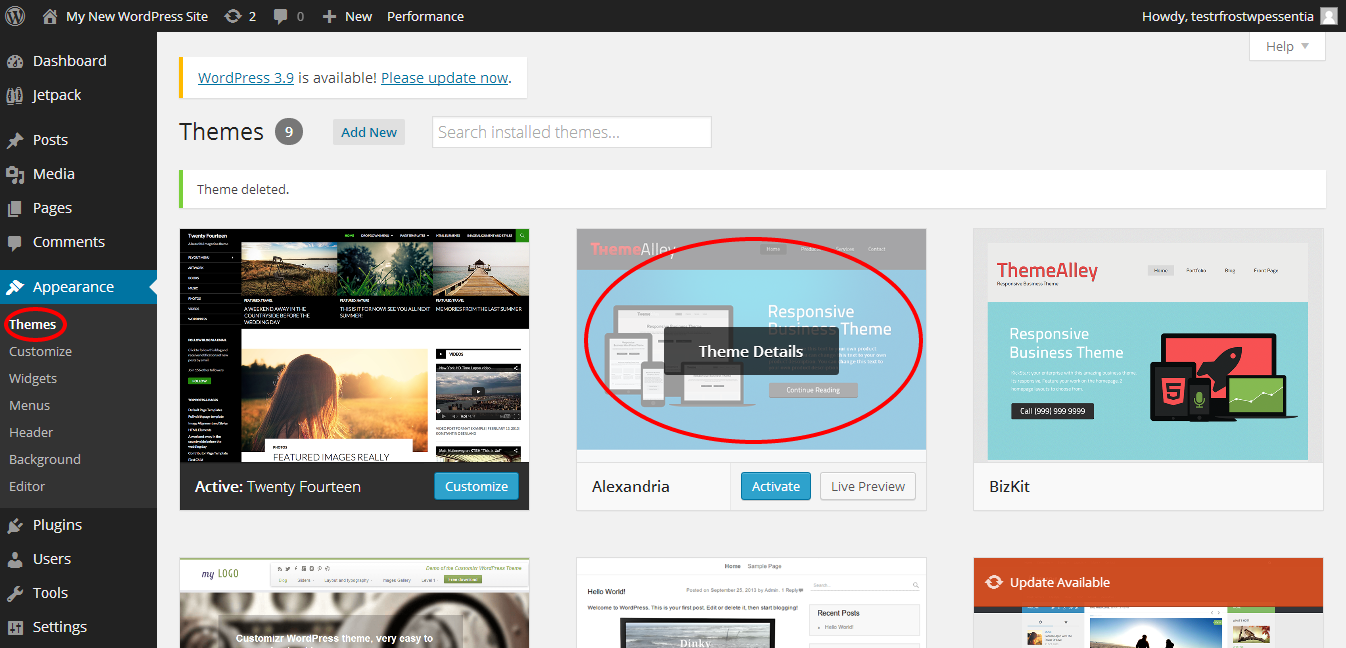
Hover over the theme. You should see an option for Theme Details. Click on it. At the bottom-right corner, there is a Delete button. Press it to remove the theme. Be sure before you delete the theme. Deleted themes cannot be recovered easily.
Locating Installed Themes
First, open your WordPress dashboard. Look for the sidebar on the left. Click on Appearance. Then, select Themes from the drop-down menu. A list of installed themes will appear. Each theme has its own thumbnail. You can see the active theme at the top. Other themes are below it.
Hover over any theme to see options. You will find Theme Details and Activate. The active theme cannot be deleted. Switch themes if you want to delete the current one. Just activate a different theme first.
Now you know where to find your themes. Ready for the next step?
Credit: www.domain.com
Switching To A Different Theme
First, go to your WordPress Dashboard. Click on Appearance and then Themes. Here, you will see all your themes. Find a default theme like Twenty Twenty-One. Click on Activate. This theme is now your active theme. This step is important before deleting any other theme. Ensure that your site looks fine with the new theme.
Go to the Themes section in your Dashboard. Click on Add New. You can search for a custom theme you like. Click on Install and then Activate. This makes your custom theme active. Check your site to see the new changes. Remember to keep a backup of your old theme before making changes.
Deleting The Unwanted Theme
Begin by going to your WordPress dashboard. Navigate to Appearance and then Themes. Here, you will see all your installed themes. Select the theme you want to delete. Click on it to see more details. Make sure it is not the active theme. You cannot delete an active theme. Switch to another theme if needed. Once done, look for the Delete option at the bottom right. Click it to remove the theme from your site.
After deletion, check the theme list again. Ensure the unwanted theme is gone. Refresh the page if needed. Sometimes, deleted themes can still appear due to cache. Clear your browser cache to see the changes. If the theme reappears, try deleting it again. Always confirm by checking the list.
Error messages can pop up during deletion. One common error is permission denied. This means you lack rights to delete the theme. Check your user role and permissions. Another issue is database errors. These can occur if the theme files are corrupted. Use the WordPress support forum for help. They offer solutions to many common problems.
Checking For Theme Files
Connect to your website using FTP client like FileZilla. Enter your host details and click connect. Find the folder named wp-content. Click to open it. Then, find the themes folder. Locate the theme you want to remove. Right-click on the theme folder. Choose delete from the options. Confirm the deletion. The theme will be removed from your site.
Log in to your cPanel account. Find and click on File Manager. Open the public_html directory. Navigate to wp-content/themes. Look for your unwanted theme. Right-click on the theme folder. Select delete to remove it. Confirm the deletion. Your theme will be gone.
Ensuring Website Functionality
Deleting a theme might affect your site. Test your website after removing a theme. Check if all pages load properly. Verify images and links. Make sure your site is not slow.
Use online tools for testing. These tools check speed and errors. They help find issues quickly. Ensure your site runs smoothly.
Confirm your theme is deleted. Go to your dashboard. Check the theme list. The old theme should be gone.
Inspect your website carefully. Look for changes. Ensure your site looks right. Everything should function well.

Credit: wpmarmite.com
Backup And Restore Options
Always make a backup of your theme. It keeps your data safe. Use a plugin like UpdraftPlus or BackupBuddy. They are easy to use. Click a few buttons and you’re done. Save the backup to your computer or cloud. This way, your files are protected. You can always get them back if needed.
Restoring is simple and quick. Open your backup plugin. Find the backup file you saved. Click on the restore button. Wait for the process to complete. Your theme is now back. It is just like before. No data lost. Everything is safe. Make sure to test your site. Check if all is working fine.
Frequently Asked Questions
Can I Delete A WordPress Theme Without Ftp?
Yes, you can delete a theme directly from your WordPress dashboard. Navigate to Appearance > Themes, click on the theme you wish to delete, and select “Delete”. This method is straightforward and doesn’t require FTP access.
What Happens When I Delete A Theme?
When you delete a theme, it removes all theme files from your WordPress installation. Your site will use the default theme if no other active theme is selected. Ensure you have another theme activated to avoid issues.
Will Deleting A Theme Affect My Site?
Deleting a theme won’t affect your site if another theme is active. Ensure that you have a backup and that your site uses a different active theme before deletion. This will keep your site running smoothly.
How Do I Back Up My WordPress Theme?
To back up your theme, use a plugin like UpdraftPlus or manually copy theme files via FTP. Ensure you save these files in a secure location. This helps you restore the theme if needed.
Conclusion
Deleting a theme in WordPress is straightforward. First, navigate to your dashboard. Access the “Appearance” section. Choose “Themes. ” Ensure the theme you want to delete is inactive. Click on “Theme Details. ” Find the “Delete” button in the lower right corner.
Confirm your decision. Your theme is now removed from WordPress. Regularly review themes for better site performance. Stay organized. Keep your WordPress site tidy. Remember, a clean dashboard enhances functionality. Manage themes wisely for smoother operations. Feel free to explore new themes anytime.
Happy WordPress managing!


