
Are you feeling overwhelmed by the number of themes installed on your WordPress site? Too many options can slow down your site and make it harder to manage.
Imagine the relief of having a clean, efficient website that runs smoothly and looks professional. In this guide, you’ll discover how to delete those unwanted themes in just a few simple steps. We’ll simplify the process and show you exactly what you need to do.
By the end of this article, you’ll have a clutter-free WordPress site that performs better and is easier to navigate. Ready to take control of your website? Let’s dive in and start decluttering!
Accessing The WordPress Dashboard
First, open your web browser. Type your WordPress site URL. Add “/wp-admin” at the end. Press enter. A login page will appear. Enter your username. Enter your password. Click the “Log In” button. You will see the dashboard. The dashboard is your control center. It is where you manage your site. You can make changes here. You can add posts and pages. You can also change settings. It is important to be familiar with the dashboard. It helps you manage your site better.
Credit: www.wpzoom.com
Navigating To The Themes Section
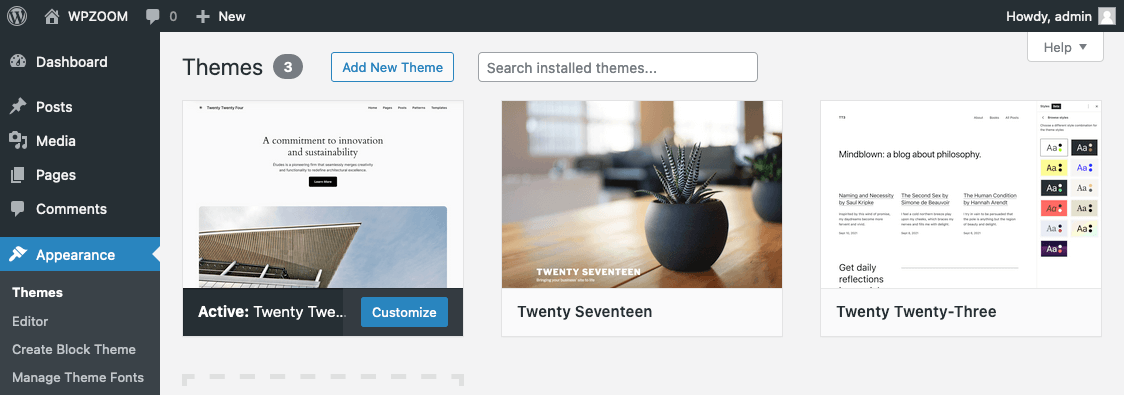
First, log in to your WordPress dashboard. Look for the Appearance option. It is usually on the left menu. Click on it. You will see the Themes section. This is where you manage all your themes.
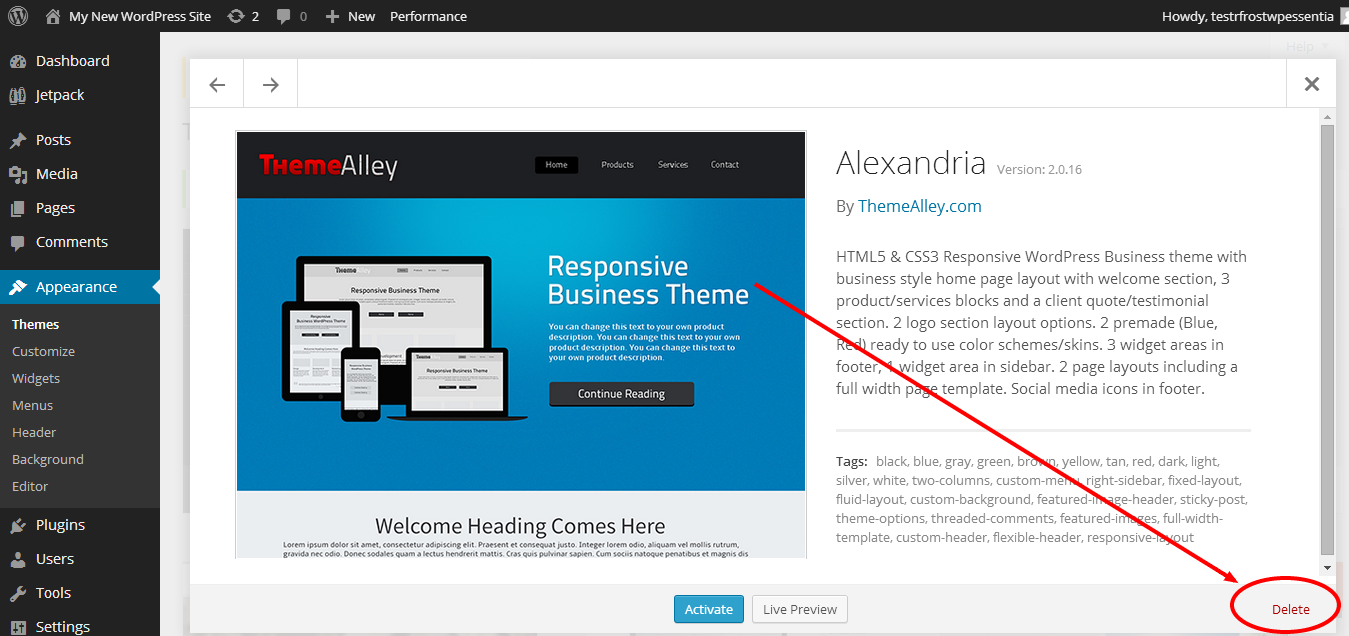
Find the theme you want to delete. Hover over it. You will see options appear. Click the Theme Details button. A new screen will open. Look for the Delete button. It is usually at the bottom right. Click it to remove the theme.
Confirm the deletion. This action cannot be undone. Make sure you want to delete it. After clicking delete, the theme is gone. Your site will not use it anymore.
Identifying Installed Themes
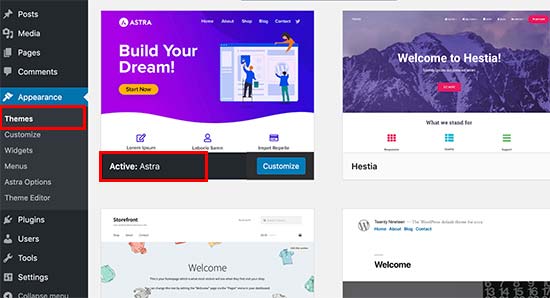
First, log in to your WordPress dashboard. Look for the Appearance menu on the left. Click on it to see the Themes section. Here, you can view all installed themes. The active theme will be at the top. It will have a label saying Active. Other themes will be below it. Each theme has its own thumbnail. You can hover over them for more details.
It’s important to identify unused themes. These are the ones you can delete. Check their thumbnail descriptions for last used date. Or see if they have customizations. Make sure not to delete the active theme. Or any theme you may use soon. Once identified, you can proceed to delete.
Activating A Default Theme
Activating a default theme is very important. It makes your site look normal. Your site won’t break. It’s like a safety net for your site. Default themes are stable. They get updates often. This keeps your site safe from bugs. They are simple. Easy to use. They load fast. This helps your site speed. A fast site makes visitors happy. It can help you keep them longer.
Go to your WordPress dashboard. Find the ‘Appearance’ tab. Click on ‘Themes’. Look for a default theme. You might see ‘Twenty Twenty-One’ or ‘Twenty Twenty-Three’. Click ‘Activate’ under the theme name. Your site now uses the default theme. Check your site. Make sure it looks fine. This step is easy. It takes just a few minutes.
Deleting A Theme Via The Dashboard
Locating the Delete Option is easy on WordPress. First, go to your WordPress dashboard. Click on Appearance in the left menu. Now, select Themes. You will see all your installed themes here. Choose the theme you want to delete. Click on the theme to open its details. Look for the Delete button at the bottom right corner. It might be hard to spot, so search carefully. Click the button to proceed.
Confirming Theme Deletion is the next step. After clicking delete, a confirmation message appears. This message asks if you are sure about deleting the theme. Think carefully before you confirm. Once deleted, the theme cannot be restored easily. If you are sure, click OK or Yes on the message box. The theme will now be gone from your WordPress site. Check your theme list to ensure it is deleted.
Deleting A Theme Via Ftp
Deleting a theme via FTP on WordPress involves accessing your website’s files. Use an FTP client to navigate to the wp-content/themes directory. Select the theme folder you wish to remove and delete it. This method ensures a clean removal without affecting your site’s functionality.
Setting Up Ftp Access
Start by choosing an FTP client. FileZilla is a popular choice. Install it on your computer. You need your website’s FTP details. Find them in your hosting account. Enter the details in your FTP client. Connect to your website server.
Locating The Theme Directory
Once connected, look for the public_html folder. Open it. Find the wp-content folder next. Open themes inside wp-content. All installed themes are here. Note the theme’s name you want to delete.
Removing The Theme Files
Inside the themes folder, find the theme’s folder. Right-click on the folder. Choose delete. This removes the theme from your site. Refresh your FTP client to see changes. The theme is now gone.
Using A File Manager Plugin
Picking the right file manager plugin is important. Some plugins are free, while others cost money. Look for plugins with good reviews. Make sure they are easy to use and safe. Popular options include File Manager and WP File Manager. These plugins help you manage files easily. They also make it easy to delete themes. Check if the plugin works with your WordPress version. Choose a plugin with many installs. It shows it is reliable.
First, open the plugin. Find the themes folder. It is usually in the wp-content directory. Click on the theme you want to delete. Some plugins let you select multiple themes. This makes deleting faster. After selecting, find the delete option. Click it to remove the theme. Always double-check before deleting. This step ensures you do not remove the wrong theme. Removing themes frees up space. It also keeps your site neat.
Credit: www.domain.com
Ensuring No Residual Files
Deleting a theme on WordPress is simple. But leftover files might remain. Ensure all files are removed to keep your site tidy. Navigate to the WordPress dashboard. Find “Appearance” and click “Themes”. Locate the theme you want to delete. Click “Theme Details” and then “Delete”. This removes the theme. But, check the wp-content folder. Some files might hide there. Use an FTP client or File Manager in cPanel. Explore folders for old theme files. Remove any leftovers. This ensures no residual files clutter your site.
A clean site runs faster. It also reduces security risks. Old files can be a target. Regular checks keep your site safe. Always double-check for hidden files. Your site will thank you.
Troubleshooting Common Issues
Sometimes, after deleting a theme, it may still appear in your WordPress dashboard. This can be due to caching issues. Clear your browser cache and refresh the page. If the theme still shows, there might be a server-side cache. Try clearing the cache using a plugin or ask your hosting provider for help.
Permission errors can prevent you from deleting themes. You need the right permissions to make changes. Check your file permissions using an FTP client. Make sure the wp-content/themes folder is writable. If not, change its permissions to 755. If you still face issues, contact your hosting provider for assistance. They can help fix permission problems.
Credit: themelooks.com
Maintaining Theme Hygiene
Regular checks help keep your site safe. Old themes can have security issues. Unused themes take up space and slow down your site. Removing them helps speed things up. Check your themes every few months. Spot unused ones and delete them.
Updated themes work well with new plugins. They also fix bugs and improve your site’s look. New features come with theme updates. These features can make your site better. Regular updates mean your site stays fresh and secure. Look for updates often and install them.
Frequently Asked Questions
How Do I Uninstall A WordPress Theme?
To uninstall a WordPress theme, access your dashboard, navigate to “Appearance,” then “Themes. ” Activate another theme first. Hover over the theme you want to delete and click “Theme Details. ” Finally, click the “Delete” button in the bottom right corner to remove it.
Can Deleting Themes Improve Site Speed?
Yes, deleting unused themes can improve site speed by reducing server load. It helps declutter your WordPress installation, freeing up resources for active themes and plugins. Regularly removing unused themes ensures optimal performance and prevents potential security vulnerabilities.
Are Inactive Themes Safe To Keep?
Inactive themes can pose security risks if not updated. They may contain outdated code vulnerable to threats. Regularly deleting inactive themes minimizes these risks and keeps your WordPress installation secure. Always ensure your active theme is up-to-date for maximum protection.
Will Deleting Themes Affect My Website?
Deleting themes won’t affect your website if they’re inactive. Active themes are crucial for your site’s design. Always ensure another theme is activated before deleting. This process helps maintain your site’s appearance and functionality while freeing up space.
Conclusion
Deleting themes on WordPress is simple and important. It keeps your site clean. Free up space. Improve performance. Keep only what you need. Avoid clutter. Regularly review your themes. Remove unused ones. Keep your site fast and secure. Follow the steps in the guide.
Make sure your site remains efficient. Always backup before deleting. Protect your data. Enjoy a smooth WordPress experience. Keep your site tidy and optimized. Happy blogging!


