
Are you ready to give your WordPress site a fresh new look but feel stuck with an old theme you no longer love? Maybe you’ve found the perfect replacement, but you’re unsure how to safely delete the outdated one.
You’re not alone! Many WordPress users face this challenge, and the solution is simpler than you might think. In this guide, you’ll discover the step-by-step process to delete a theme and reload a new one on WordPress. Unlock the secrets to effortlessly revamping your website’s appearance, boosting its performance, and captivating your audience all over again.
Stick around to learn how easy it is to transform your site with just a few clicks. Ready to dive in? Let’s get started!
Accessing The WordPress Dashboard
First, log in to your WordPress account. Use your username and password. Once logged in, find the dashboard. This is your main control area. Look for the menu on the left. It has many options.
Click on Appearance. This will show you your current themes. You can view all installed themes here. To delete a theme, hover over it. You will see the Delete button. Click it to remove the theme.

Credit: www.youtube.com
Navigating To The Themes Section
Find the WordPress dashboard first. Look for the “Appearance” tab. Click it. A list appears. Choose “Themes” from the list. All installed themes will show up here.
Spot the theme you want to delete. Hover over it. A few options appear. Choose “Delete”. Confirm your action. The theme is now gone.
To add a new theme, click on “Add New”. Browse available themes. Pick one you like. Click “Install”. Then click “Activate”. Your site now has a fresh look.
Identifying The Active Theme
First, go to your WordPress dashboard. Click on “Appearance” in the menu. This will show you the themes you have. The active theme will say “Active”. It’s important to know which theme is active. Do not delete this theme before switching.
You might want a new look for your website. Changing themes is fun. But be careful. Always have a backup. This keeps your content safe.
Finding the active theme is easy. Just follow the steps above. It helps you keep your site running smoothly. Now you know which theme is active. You can change it if needed.
Deactivating The Current Theme
Start by opening your WordPress dashboard. Then, find the “Appearance” menu on the left. Click on it, and you will see the “Themes” option. Click on “Themes” to see all available themes. Your current theme will be active. To deactivate it, choose a different theme. Click on “Activate” below a new theme. This action deactivates the current theme.
Once a new theme is active, the old theme is inactive. Now, you can delete the old theme if needed. Deleting helps to free up space on your site. But remember, it’s good to keep one theme as a backup. Just in case you need it later.
Deleting The Theme
Start by going to your WordPress dashboard. Click on Appearance and then on Themes. Find the theme you want to delete. Click on Theme Details. Look for the Delete button at the bottom right corner. Click it to remove the theme.
After clicking delete, a confirmation message appears. It asks if you are sure. Click OK to confirm. The theme gets removed from your site. Always ensure you are deleting the correct theme.
Sometimes, errors can occur. Themes may not delete properly. Ensure your theme is not active. Activate a different theme first. Go to the themes page again. Try deleting the theme once more. If errors persist, check for plugin conflicts. Deactivate plugins one by one. Attempt deletion again after each deactivation. This helps identify the problematic plugin.
Reloading A New Theme
Selecting a new theme is exciting. Start by going to the WordPress dashboard. Click on Appearance. Then, go to Themes. You will see a list of options. Pick one that you like. Think about colors and layout. Make sure it fits your style.
After choosing, click Install. Wait for it to load. It may take a few minutes. Then, click Activate. Your new theme is ready. You can now see the changes. Check your blog. Make sure everything looks good. If not, you can change it again. Repeat the steps if needed.
Remember, themes can change the look of your site. Choose wisely. Keep it simple. Your readers will thank you.
Activating The New Theme
First, you need to log in to your WordPress dashboard. Find the Appearance tab on the left. Click on it to see the Themes option. Here, you can see all your installed themes. Look for the new theme you want to use. Hover over it. A button labeled Activate will appear. Click this button. Your new theme is now live on your site. Check your website to see the changes. It’s important to ensure everything looks good. Sometimes small adjustments are needed. Explore your site’s features and make sure they work. Your new theme is now ready for visitors.
Customizing The New Theme
Easily manage WordPress themes by deleting unwanted ones and reloading new designs. Navigate to your dashboard, find your theme, and click delete. Reloading is simple; just upload and activate your chosen theme. Enhance your site’s look effortlessly.
Adjusting Theme Settings
Begin by accessing the theme settings. Look for options to change colors. Modify fonts if needed. Check the layout settings. Adjust the header and footer designs. Ensure the site looks fresh. Make small changes. Test the design on different devices. Preview changes. Save your settings often. Use simple designs for a clean look. Avoid cluttered themes. Adjust settings regularly.
Personalizing Theme Elements
Add your logo to the header. Change the background image. Use images that reflect your style. Customize the menu to suit your needs. Add important links. Modify the sidebar elements. Include widgets for added functionality. Personalize the footer with useful information. Use colors that fit your brand. Keep elements simple and neat. Personal touches make the theme unique. Review your changes. Ensure every element matches your vision.
Testing The New Theme
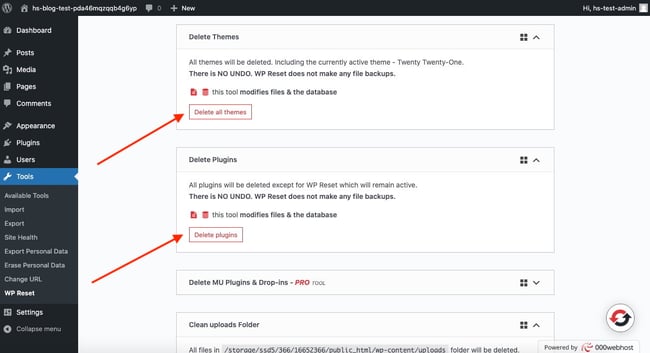
Checking for Compatibility is very important. You must make sure all plugins work. Some plugins might not be compatible. This can cause your site to break. Always check your site’s speed too. A slow site can frustrate visitors. Use tools to test speed. Fix any issues that arise. This will help your site run smoothly.
Ensuring Responsive Design is key for all devices. Your site must look good on phones, tablets, and computers. Resize your browser to check this. Test on different devices if possible. A responsive theme helps users have a good experience. This keeps them on your site longer. Happy visitors may return.
Credit: blog.hubspot.com
Troubleshooting Common Issues
Struggling with theme issues on WordPress? Easily delete and reload themes to fix common problems. Navigate to your dashboard, uninstall the faulty theme, and reinstall it for a fresh start.
Resolving Installation Problems
Installation problems can be frustrating. First, check your internet connection. It should be stable. Next, ensure you have the correct theme file. Sometimes, files get corrupted. Download it again if needed. Also, make sure your WordPress version is updated. Old versions may not support new themes. Finally, check your file permissions. They should allow theme installation. If everything fails, contact WordPress support for help.
Fixing Display Errors
Display errors can make your site look odd. First, clear your browser cache. Sometimes, old data causes errors. Next, check for any plugin conflicts. Disable all plugins and see if the error goes away. If it does, enable each plugin one by one. This will help find the troublemaker. You can also try using a default theme. If the default theme works, your theme might be broken. Consider updating or replacing it.
Credit: kriesi.at
Frequently Asked Questions
How Do I Delete A Theme In WordPress?
To delete a theme, log into your WordPress dashboard. Navigate to Appearance > Themes. Hover over the theme you want to delete and click Theme Details. In the bottom-right corner, click Delete. Confirm your choice. Always ensure you’re not deleting an active theme to avoid site issues.
Can I Reload A Theme After Deletion?
Yes, you can reinstall a theme after deletion. Go to Appearance > Themes in the dashboard. Click on Add New. Search for the theme you want. Click Install, then activate it. Ensure compatibility with your WordPress version to avoid functionality problems.
What Happens If I Delete An Active Theme?
Deleting an active theme can cause your site to break. WordPress will automatically switch to a default theme. Always activate a different theme before deleting the current one. Make sure to backup your site to prevent data loss.
Is It Safe To Delete Unused Themes?
Deleting unused themes is safe and recommended. It helps improve site performance and security. Unused themes can become outdated and vulnerable to attacks. Always check for active child themes before deletion to prevent issues.
Conclusion
Deleting and reloading themes on WordPress is straightforward. Follow the steps carefully. Start by backing up your site. Then, safely delete the current theme. Next, install the new theme you want. Check compatibility. Ensure plugins work smoothly. Test your site’s performance.
If errors occur, troubleshoot promptly. Regularly update themes for security. Keep your site running efficiently. A well-managed theme enhances user experience. Remember, themes are crucial for your site’s look and feel. Always choose themes wisely. Enjoy a refreshed WordPress site with your new theme.
Happy blogging!


