

Are you ready to say goodbye to your WordPress site but not sure how to do it safely and completely? Whether you want to start fresh, clean up unused projects, or simply remove a site you no longer need, deleting your WordPress site can feel tricky if you don’t know the right steps.
But don’t worry—this guide will walk you through the entire process in simple, clear language so you can delete your site confidently and avoid common mistakes. Keep reading to discover exactly how to delete your WordPress site, protect your data, and ensure nothing important is lost along the way.
Your hassle-free site deletion journey starts here!

Credit: wpmarmite.com
Delete WordPress.com Site
Deleting a WordPress.com site is a straightforward process. It helps you remove your site completely from the platform. This can free up your WordPress.com account and prevent visitors from accessing the site. Follow the simple steps below to delete your WordPress.com site safely and correctly.
Access Site Settings
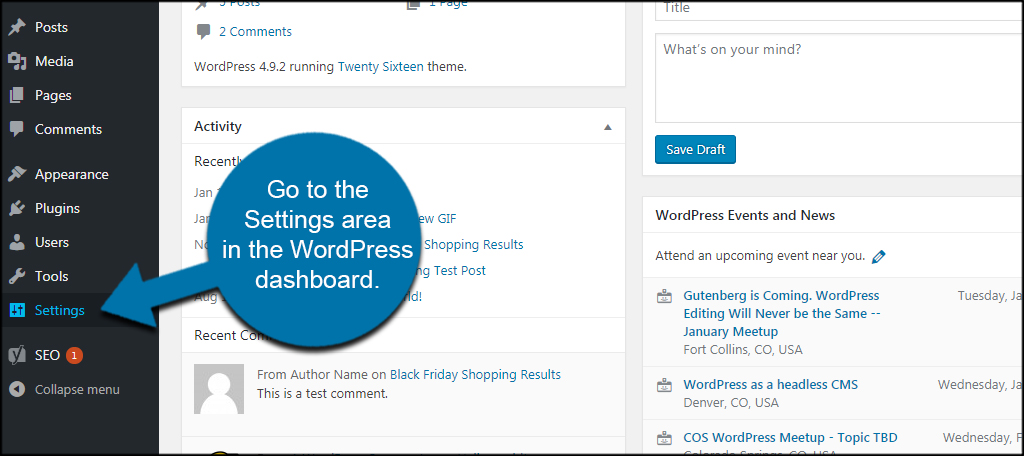
Log in to your WordPress.com account. Go to the dashboard of the site you want to delete. Look for the Site Settings option in the menu. Click on it to open the settings page. This section contains all options related to your site management.
Confirm Deletion
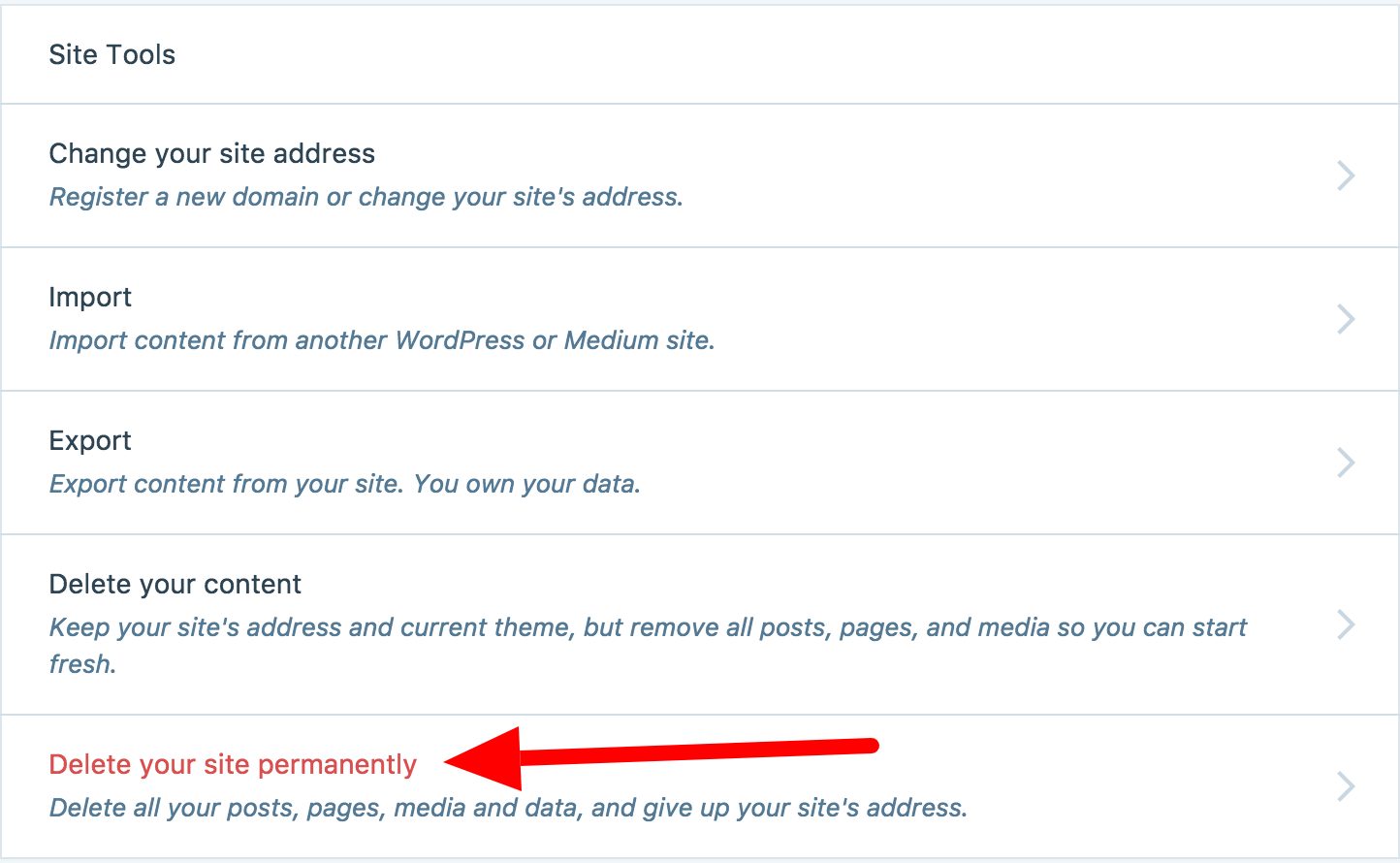
Scroll to the bottom of the Site Settings page. Find the Delete Site button. Click on this button to begin the deletion process. WordPress.com will ask you to confirm your choice. You must type your site’s address to confirm. This step prevents accidental deletion.
Remove Purchases Before Deleting
Check if you have any active purchases tied to the site. These can include custom domains or premium plans. Remove or transfer these purchases before deleting your site. This ensures you do not lose money or access later. Follow the prompts to cancel or move your purchases.
Delete WordPress.org Site
Deleting a WordPress.org site involves removing all site data from your server. This process ensures no files or databases remain. Follow clear steps to delete your WordPress.org site safely and completely.
Access Hosting Control Panel
Start by logging into your hosting control panel. Common panels include cPanel, Plesk, or a custom dashboard. Locate the file manager and database management tools here. Access is essential to remove site files and databases effectively.
Delete Files And Directories
Open the file manager in your control panel. Find the directory where WordPress is installed. Select all WordPress files and folders. Use the delete option to remove these files permanently. This step clears your server of WordPress site data.
Empty Database
Next, open the database management tool like phpMyAdmin. Select the database linked to your WordPress site. Choose all tables inside this database. Use the option to drop or delete these tables. Emptying the database removes all site content and settings.
Delete Pages Or Posts
Deleting pages or posts in WordPress is a simple way to keep your site clean and organized. Removing old or unwanted content helps improve site performance and visitor experience. WordPress offers two main steps to delete pages or posts: moving them to the trash and deleting them permanently. Each step serves a different purpose and offers flexibility in managing your content.
Move To Trash
Start by going to your WordPress dashboard. Click on Pages or Posts to see a list of your content. Find the page or post you want to delete. Hover your mouse over it, and click the “Trash” link that appears. This action moves the item to the trash folder. The content is not deleted yet. You can restore it later if you change your mind. The trash folder keeps your site safe from accidental deletions.
Delete Permanently
To remove the content forever, go to the trash folder. You will see all pages or posts that you moved to trash. Hover over the item you want to delete. Click the “Delete Permanently” link. This action cannot be undone. The content is removed from your site and database. Use this step only when you are sure you no longer need the page or post.
Credit: wordpress.com
Reset WordPress Site
Resetting a WordPress site clears all content and settings. This process restores your site to its original state. It helps when you want a fresh start without reinstalling WordPress. Use a simple tool to reset your site quickly and safely.
Use Wp Reset Plugin
WP Reset is a popular plugin for resetting WordPress sites. Install and activate it from your dashboard. The plugin offers an easy way to erase all data with just a few clicks. It removes posts, pages, and customizations without deleting WordPress itself.
Choose Reset Options
Open the WP Reset plugin settings. You will see several reset options. Select the options that fit your needs. You can reset only the database or remove themes and plugins too. Choose carefully to avoid losing important files.
Confirm Reset
Before resetting, the plugin asks for confirmation. Type the word “reset” in the confirmation box. Click the “Reset Site” button to start the process. The plugin will delete all selected data and refresh your site.
Delete Local WordPress Site
Deleting a local WordPress site helps clear space and remove unused projects. It is a simple process that you can do in a few steps. You can delete the site directly through the Local app or manually remove the site folder from your computer. Both methods are effective and safe if done carefully.
Delete Via Local App
Open the Local app on your computer. Find the site you want to delete in the list of local sites. Hold the Shift key and click on the site to select it. Right-click the selected site to open the menu. Click on the “Delete” option from the menu. Confirm the deletion when prompted. This will remove the site and its files from Local quickly.
Manual Removal Of Site Folder
Locate the “Local Sites” folder on your computer. It is usually found in your user folder or the location you chose when creating the site. Open the folder and find the folder with your site’s name. Right-click the site folder and choose “Delete” or “Move to Trash.” Empty your trash or recycle bin to remove the files completely. This method deletes all site files stored on your hard drive.
Credit: www.greengeeks.com
Backup Before Deletion
Backing up your WordPress site before deletion is essential. It protects your content and data from being lost forever. A good backup gives you peace of mind and a chance to restore your site later if needed.
Creating a backup is simple and quick. It only takes a few steps to export your site content and save it safely on your computer.
Export Site Content
Start by logging into your WordPress dashboard. Go to Tools and then click Export. Choose “All Content” to save posts, pages, comments, and media. Click the Download Export File button. This creates an XML file with your site data.
Save this file to a safe location on your computer or external drive. This file is your site’s full backup. Keep it where you can find it easily.
Verify Backup Locally
After exporting, check your backup file. Open the XML file with a text editor to make sure it has data inside. The file should not be empty or corrupted.
Try importing the file on a test WordPress site if possible. This confirms the backup works correctly. Verifying your backup avoids surprises later.
Troubleshooting Deletion Issues
Deleting a WordPress site can sometimes be tricky. Certain issues may block the deletion process. Troubleshooting these problems helps you complete the task smoothly. This section covers common hurdles and how to solve them quickly.
Missing Delete Option
Sometimes, the delete option is not visible in your WordPress dashboard. This happens if you are not logged in with the correct user role. Only site owners or administrators have the permission to delete a site. Check your user role under Users > All Users.
Another reason might be a temporary glitch. Try refreshing the page or logging out and back in. Clearing your browser cache also helps. If the problem persists, use another browser or device to see if the option appears.
Active Plans And Domains
WordPress may block site deletion if you have active plans or domains linked to your site. These services must be canceled or transferred first. Head to your WordPress account’s Plans section to review active subscriptions.
Remove or transfer any custom domains associated with your site. WordPress will guide you through this during the deletion process. Without clearing active plans or domains, the site cannot be deleted fully.
Frequently Asked Questions
Why Can’t I Delete My WordPress Site?
You can’t delete your WordPress site if it’s not hosted on WordPress. com or if active plans or domains remain. Remove purchases first, then follow the deletion prompts in your dashboard or app to permanently delete the site.
How Do I Erase A WordPress Site And Start Over?
To erase a WordPress site, use the WP Reset plugin from your dashboard under Tools. Select reset options, type “reset,” and click Reset Site. This deletes content, themes, and plugins, letting you start fresh. Always back up your site before resetting to avoid data loss.
How Do I Remove A Webpage From WordPress?
To remove a webpage from WordPress, go to Pages in your dashboard. Hover over the page, click Trash, then Delete Permanently to erase it completely.
How Do I Delete A Local WordPress Site?
To delete a local WordPress site, open Local, right-click the site, and select “Delete. ” Confirm deletion and remove site files manually if needed.
Conclusion
Deleting a WordPress site is simple and straightforward. Follow the steps carefully to avoid mistakes. Always back up your data before deleting your site. Confirm that you no longer need the content or settings. Once deleted, the site cannot be recovered.
Taking these precautions helps protect your work. Now, you can manage your WordPress sites with confidence.


