
Imagine you’re navigating through the intricate maze of web services, and suddenly, you hit a wall. Your web service hosted in IIS isn’t functioning as expected.
Frustration builds as you ponder the complexities of debugging it. But don’t worry; you’re not alone, and there’s a clear path forward. Debugging doesn’t have to be a daunting task. With the right strategies, you can unravel the mysteries behind those pesky errors and get your web service back on track.
This article will arm you with practical, straightforward techniques to diagnose and fix issues effectively. Stay with us, and you’ll soon turn confusion into clarity, ensuring your web service runs smoothly. Ready to dive in and take control of your web service’s performance? Let’s get started!
Setting Up The Environment
First, install Visual Studio. It’s great for coding and debugging. You also need IIS on your computer. This helps run web services. Download .NET framework too. It makes your web service work smoothly. All these tools are free and easy to get. Follow online guides to install them. Remember, each tool has its own setup steps.
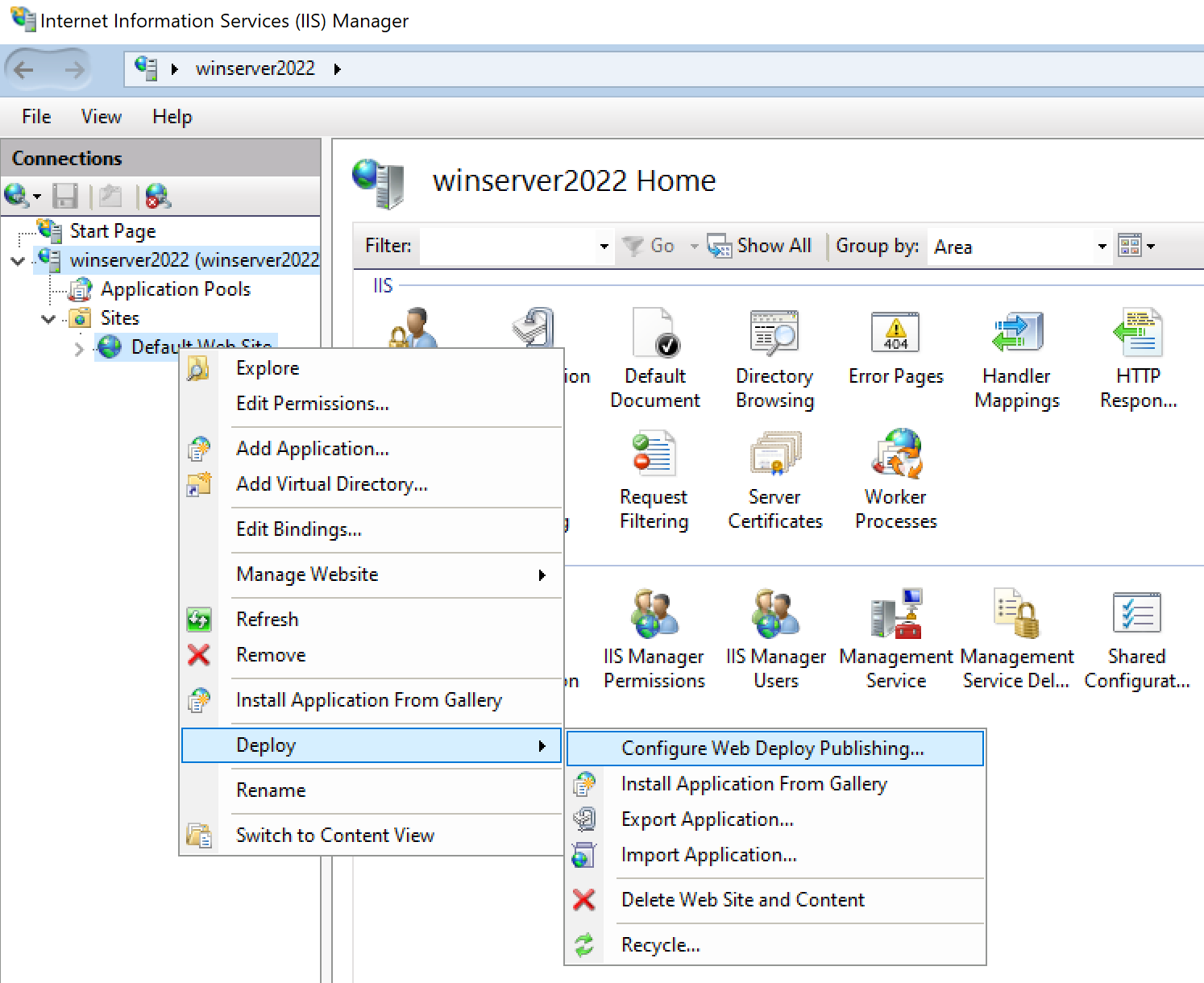
Open the IIS Manager on your computer. Find your web service in the list. Right-click and choose properties. Go to the Debugging tab. Check the box that says Enable debugging. Click Apply and then OK. Now your web service is ready to debug. Always double-check your settings. This ensures everything works correctly.
Common Issues In Iis Hosting
Application pools can stop working. Restarting them often helps. Check if the pool is running. If not, try to start it again. Sometimes, memory issues cause problems. Too much memory use can make the pool fail. Restarting the server can help. Also, look at event logs. They show errors and warnings.
Permissions can block access to files. Make sure users have rights. Adjust permissions in the server settings. Authentication errors can stop users. Check if users have correct credentials. Updating user permissions can fix this. Sometimes, the server needs a restart. This can solve many issues.
Configuration files must be correct. A single mistake can cause problems. Double-check settings in web.config files. Look for typos or missing tags. Backup the original file before changes. This helps if something goes wrong. Check paths and make sure they are correct. Logs will show if there are errors.
Debugging Techniques
Visual Studio helps find and fix errors. Attach the debugger to the IIS process. This process is named w3wp.exe. Set breakpoints in your code. Run your web service. The code will stop at breakpoints. Check variables and their values. Change code if needed. This helps find bugs easily.
IIS logs record all requests to the server. Check these logs for errors or warnings. Look for HTTP status codes like 404 or 500. These codes show what went wrong. Read the log lines carefully. Understand the error messages. Fix errors based on log details. Logs are a valuable tool for debugging.
Add tracing in your web service. Use trace listeners to capture details. Write logs for important events. Use System.Diagnostics for this task. Logs help in identifying issues. They show what happened and when. Tracing helps track the flow of the program. This way, developers can find bugs faster.
Credit: learn.microsoft.com
Advanced Debugging Strategies
Remote debugging helps find problems from far away. It uses Visual Studio or other tools. You can attach these tools to your web service. Then you watch the service work. Find errors without being on the server. This method is very handy. It saves time and effort.
Debugging proxies like Fiddler or Charles are very useful. They let you see data sent and received by your web service. You can capture and inspect network traffic. This helps find mistakes in requests and responses. Use proxies to test changes without affecting the real server.
Network traffic analysis shows the path of your data. Tools like Wireshark can help. They break down how data moves. You can see each step clearly. This makes it easier to spot errors. Understanding data flow helps in fixing bugs quickly.
Optimizing Web Service Performance
Finding bottlenecks is key to better performance. Look at your server’s CPU usage and memory. Check if the network is slow. Use tools like Task Manager. Watch out for slow requests. They might be the problem. Ensure code is clean. Bad code can slow things down.
Fast responses make users happy. Reduce data size sent over the network. Smaller data means faster travel. Use HTTP/2 for speed. Keep server close to users. Distance can slow things down. Check database queries. Slow queries slow everything. Optimize them for speed.
Caching saves time. Store frequent data in cache. It reduces repeated requests. Use application cache for quick access. Cache static files. They change less often. Keep cache updated. Old cache can cause issues. Monitor cache performance. Ensure it helps, not hinders.

Credit: www.winsocketdotnetworkprogramming.com
Security Considerations
Sensitive data must be kept safe. Use strong passwords for protection. Encrypt the data to keep it safe. Do not share passwords with anyone. Always update your software and systems. This keeps hackers away. Remember, safety first with sensitive data.
Secure communications are vital. Use SSL/TLS protocols to encrypt data. This makes data safe during transfer. Check certificates regularly. Ensure they are valid and up to date. Secure connections protect information from prying eyes. Always verify the source of communications.
Unauthorized access can cause problems. Use firewalls to block unwanted traffic. Set up user permissions carefully. Only trusted users should have access. Monitor logs for suspicious activity. Regular checks keep systems safe. Always keep your system updated to prevent threats.
Credit: www.youtube.com
Frequently Asked Questions
How Do I Debug A Hosted Web Application In Iis?
To debug a web app in IIS, enable remote debugging, use Visual Studio, and attach to the process. Ensure debug symbols are available, and check IIS logs for errors. Adjust web. config for detailed error messages if needed.
How To Debug A Web Service?
Debug a web service by checking logs, using tools like Postman, and validating API responses. Ensure correct endpoints, headers, and authentication. Test error responses and monitor network activity for issues. Use debugging tools in your development environment for deeper insights.
How To Enable Debugging In Iis?
Enable debugging in IIS by opening IIS Manager. Select your site and click on “Error Pages”. Choose “Edit Feature Settings” and set to “Detailed Errors”. Ensure web.config has “. This allows detailed error messages for troubleshooting.
How To Run A Web Service In Iis?
To run a web service in IIS, first install IIS via Windows Features. Open IIS Manager, add a new website, select the web service folder, and configure the bindings. Ensure the application pool is correctly set up and start the site.
Test the web service through the browser.
Conclusion
Debugging web services in IIS can be straightforward. Start by checking your logs. They often reveal hidden issues. Use error messages as clues. They guide you to the problem source. Test your service regularly. It helps catch bugs early. Don’t forget to verify your configurations.
Wrong settings lead to issues. Use debugging tools wisely. They simplify troubleshooting. Consult online forums for tips. Community support is valuable. Keep practicing to enhance your skills. Debugging gets easier with experience. Your web services will run smoothly with patience and persistence.
Stay focused, keep learning, and enjoy the process!


