
Have you ever felt stuck with your current WordPress theme? Maybe it’s not delivering the look or functionality you envisioned.
Or perhaps you’re ready for a fresh start but aren’t quite sure where to begin. You’re not alone. Many WordPress users face this challenge, and the good news is, there is a straightforward solution. Deactivating your current WordPress theme can open up a world of possibilities, allowing you to explore new designs and features that better suit your needs.
In this guide, we’ll walk you through the simple steps to deactivate your theme without the stress or confusion. Stick with us, and you’ll be well on your way to revitalizing your website with confidence and ease.
Why Deactivate A WordPress Theme
Sometimes, you need to deactivate a WordPress theme. Maybe you want to try a new look. Or your current theme has bugs or issues. Deactivating helps to test other themes without breaking your site. It is a simple process. You do not lose any data. Your posts and pages stay safe.
A new theme can bring a fresh design. It can also improve site speed. Or offer better features. Always keep your website up-to-date and secure. Deactivating a theme is a smart step. It helps in maintaining the performance of your site. Always backup your site before changes.
Preparing Your Site For Theme Deactivation
Always make a backup of your site. Use a plugin for this. Save all files and data. Keep your site safe. It helps if something goes wrong.
Make sure plugins work with new themes. Some plugins might stop working. Check each plugin’s details. This prevents errors. It keeps your site running smoothly.
Look at your theme settings. Write down any important configurations. You might need them later. This helps if you switch back. It keeps your site looking good.
Using WordPress Dashboard
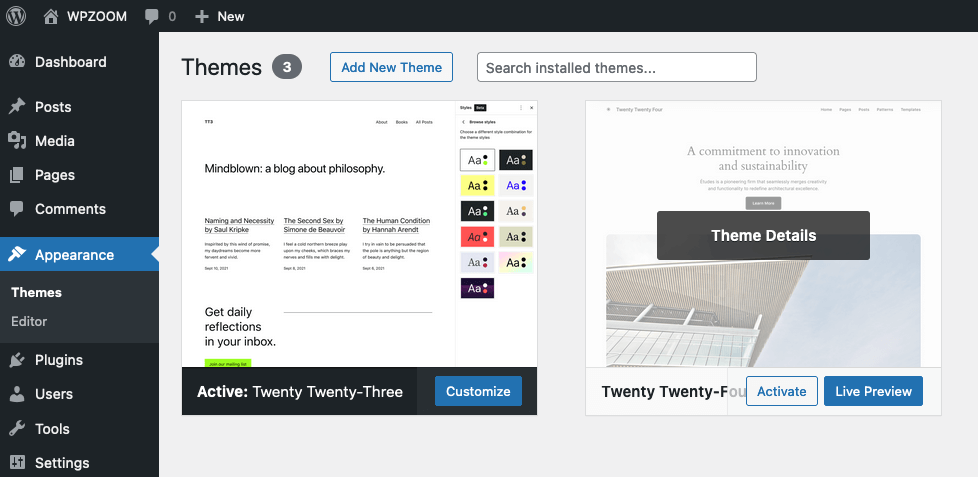
First, log in to your WordPress dashboard. On the left side, find the Appearance menu. Click on Themes under this menu. This will open the theme section. Here you can see all installed themes. The active theme will be highlighted. Make sure to choose the right one.
After reaching the theme section, look for a default WordPress theme. Themes like Twenty Twenty-One or Twenty Twenty are good choices. Hover over the theme you want to use. Click the Activate button. The theme will now become active. Your previous theme is now deactivated. Check your site to see the changes.

Credit: themelooks.com
Via File Manager Or Ftp
Deactivate your WordPress theme using File Manager or FTP. Access your website’s files, and navigate to the “wp-content/themes” directory. Rename the active theme’s folder to deactivate it and switch to a default theme.
Accessing Your Site Files
Use File Manager or FTP to access your site files. Log in to your web hosting account. Find the File Manager option in the control panel. Open it. Locate the public_html folder. This folder holds your WordPress files. Navigate to wp-content/themes. Here, you’ll see all your theme folders.
Renaming The Theme Folder
Find your active theme’s folder. Right-click on it. Choose the rename option. Change the folder name by adding -old at the end. For example, if the folder is named “twentytwenty,” rename it to “twentytwenty-old”. This action will deactivate the theme. WordPress will switch to a default theme. Check your site to confirm the change.
Using Wp-cli For Advanced Users
WP-CLI is a tool for managing WordPress. You can install it on your server. First, open your server terminal. Type the command: curl -O https://raw.githubusercontent.com/wp-cli/builds/gh-pages/phar/wp-cli.phar. This command downloads WP-CLI. Next, make it executable with: chmod +x wp-cli.phar. Then, move it to a global location: sudo mv wp-cli.phar /usr/local/bin/wp. Now, WP-CLI is ready to use.
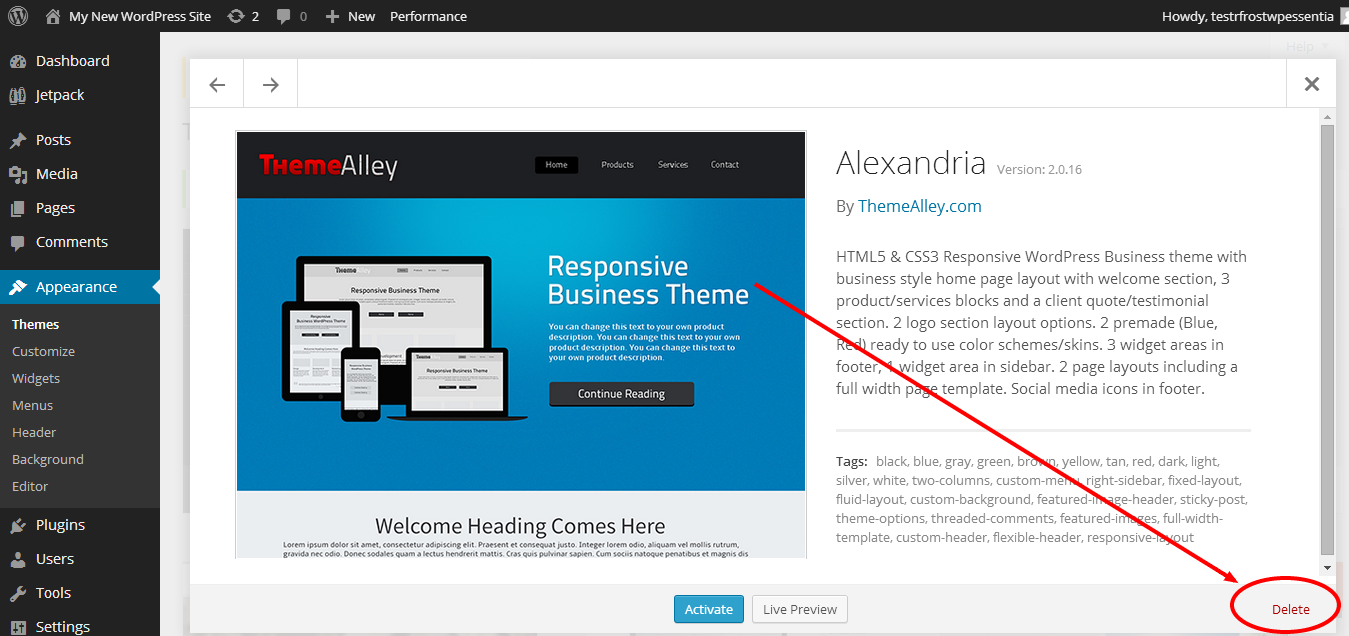
Deactivating your WordPress theme is simple. First, open your terminal. Navigate to your WordPress directory. Type the command: wp theme deactivate theme-name. Replace “theme-name” with your current theme’s name. This command deactivates the theme. Always check for errors. Type: wp theme list. Ensure your theme is inactive.
Credit: www.domain.com
Handling Common Issues
Sometimes, errors happen while deactivating a WordPress theme. A common issue is a broken website layout. This can confuse users. Another problem is missing images or content. It makes pages look incomplete. Plugins might also stop working properly. Check each plugin’s settings. Make sure all updates are complete. This can fix some errors.
Users might see a white screen. This is called the White Screen of Death. It happens if themes conflict. Check for PHP errors. Sometimes, server settings cause problems. Contact your hosting provider for help. They can adjust settings.
After deactivating a theme, settings might change. Backup settings before making changes. Use plugins for easy backups. Restoring settings can be simple. Reinstall the old theme if needed. Check the customizer for old settings. Sometimes, they remain saved. This saves time and effort.
Widgets may need rearranging. Menus can also shift. Adjust them in the WordPress dashboard. Take screenshots before changes. This helps with layout adjustments later. Restoring settings ensures a smooth transition.
Post-deactivation Steps
After changing your WordPress theme, it’s important to check your website. Make sure everything works well. Click on links. Test forms. Ensure images display correctly. Look for any missing parts. This ensures your site is ready for visitors.
Check if pages load quickly. Ensure buttons are clickable. Verify that videos play smoothly. Test your site’s speed and performance. Make notes of any issues. Fix problems as soon as possible.
Customize your new theme. Change colors and fonts to match your style. Add new widgets. Arrange your menu. Ensure your site looks fresh and inviting. Spend time on these changes. Make your site unique and attractive.
Credit: www.wpzoom.com
Frequently Asked Questions
How Can I Deactivate My WordPress Theme?
To deactivate your WordPress theme, navigate to your dashboard. Go to Appearance > Themes. Select a different theme to activate. This automatically deactivates the current theme. Ensure your new theme fits your site’s needs before switching.
What Happens When I Deactivate A Theme?
Deactivating a theme doesn’t delete it. Your site’s appearance changes to the new theme. Your content, plugins, and settings remain unchanged. Always preview a theme before activation to avoid design issues.
Can I Deactivate A Theme Without Losing Data?
Yes, you can deactivate a theme without losing data. Your posts, pages, and media remain intact. Only the site’s appearance changes. It’s safe to switch themes, but backup your site for peace of mind.
Is It Possible To Revert To A Previous Theme?
You can revert to a previous theme anytime. Go to Appearance > Themes, find your old theme, and activate it. Ensure the theme is compatible with your current WordPress version for optimal performance.
Conclusion
Switching your WordPress theme is straightforward. Follow the steps to deactivate the current theme. This process helps manage website design easily. Ensure your new theme fits your site needs. Backup your website before any changes. Protect your site from data loss.
Explore new themes to keep your site fresh. Regular updates enhance user experience. Keep your content consistent during transition. A seamless change maintains audience trust. Enjoy the flexibility WordPress offers. Adapt your site to trends without hassle. This ensures your site stays relevant.
Keep learning and exploring WordPress features. Your site deserves the best look and functionality.


