
Are you ready to transform your WordPress site into something truly unique? Customizing your WordPress theme PHP files can seem daunting at first, but it’s an exciting way to make your website stand out.
Imagine having complete control over every detail, from layout to functionality. By tweaking your theme’s PHP files, you can tailor your site to perfectly fit your brand’s identity. Don’t worry about complexity; we’ll break down each step to make it easy and approachable.
Dive in, and unlock the potential of your WordPress site to captivate your audience and keep them coming back for more!
Credit: www.wpzoom.com
Choosing The Right Theme
Picking a theme is a fun task. First, check if it’s compatible with your WordPress version. Many themes list this on their details page. This ensures your site will work smoothly. Also, some themes have special features. Make sure these features match your needs. It’s like picking the right puzzle piece. A good fit makes everything better.
Design is important. Simple designs often work best. They load fast and look clean. Think about your site’s layout. Do you want a sidebar? Maybe a full-width style? Choose what suits your content. It’s like picking clothes. You want something that fits and looks nice. A good design helps visitors stay on your site longer.
Setting Up A Child Theme
Begin by creating a new folder. This folder is your child theme directory. Name it wisely. Choose a name that relates to the parent theme. This helps in easy identification. Inside this folder, you need two files: style.css and functions.php. These files are essential for a child theme. The style.css file defines your theme’s style. The functions.php file allows you to add features. Keep these files empty for now.
Linking the child theme to the parent theme is crucial. Open the style.css file.
Add a line that says Template: parent-theme-folder-name. This tells WordPress where the parent theme is.
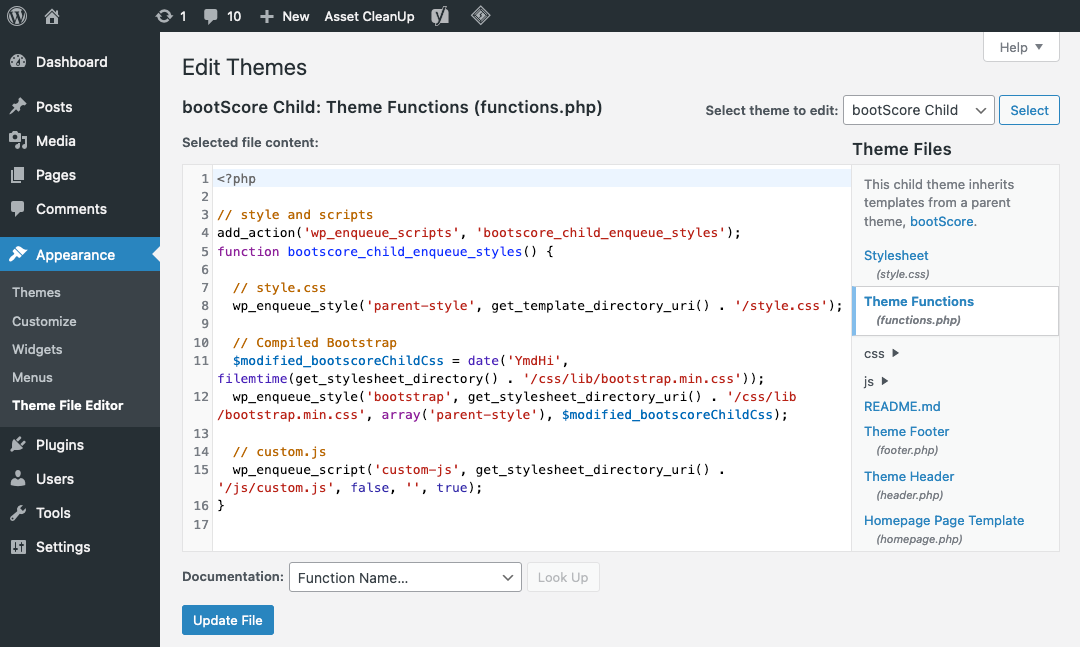
Without this, the child theme won’t work. Next, open functions.php. Add code to enqueue the parent’s styles.
Use wp_enqueue_style function for this. This ensures the child theme inherits the parent’s styles.
Be sure to double-check your code.
Modifying Theme Functions
The functions.php file is like a toolbox. It holds many tools for your theme. You can find it in your theme’s folder. It allows you to add new features. It does not change the core files. This is a safe way to make changes. Always make a backup before editing. This keeps your site safe.
You can add custom functions to your theme. Open the functions.php file. Write your code at the end. Use simple PHP code. Test each change you make. This way, you know if it works. Do not copy code you do not understand. Always check for errors. Errors can break your site. Check your site after changes. Make sure everything works fine.
Editing Template Files
Template files shape your website’s look. They live in your theme’s folder. Use a file manager or FTP client to find them. Common files include header.php and footer.php. Each file serves a unique purpose. Never edit core files directly. Always work with a child theme. This keeps your changes safe during updates.
Changes can break your site. Always make a backup first. Work on a staging site if possible. This is a safe playground. Use comments to remember what you did. For example, Edited by [Your Name] . Save changes and refresh to see results. Always test your site after editing. Check for broken elements or errors. This way, you keep your site running smoothly.
Customizing Styles With Css
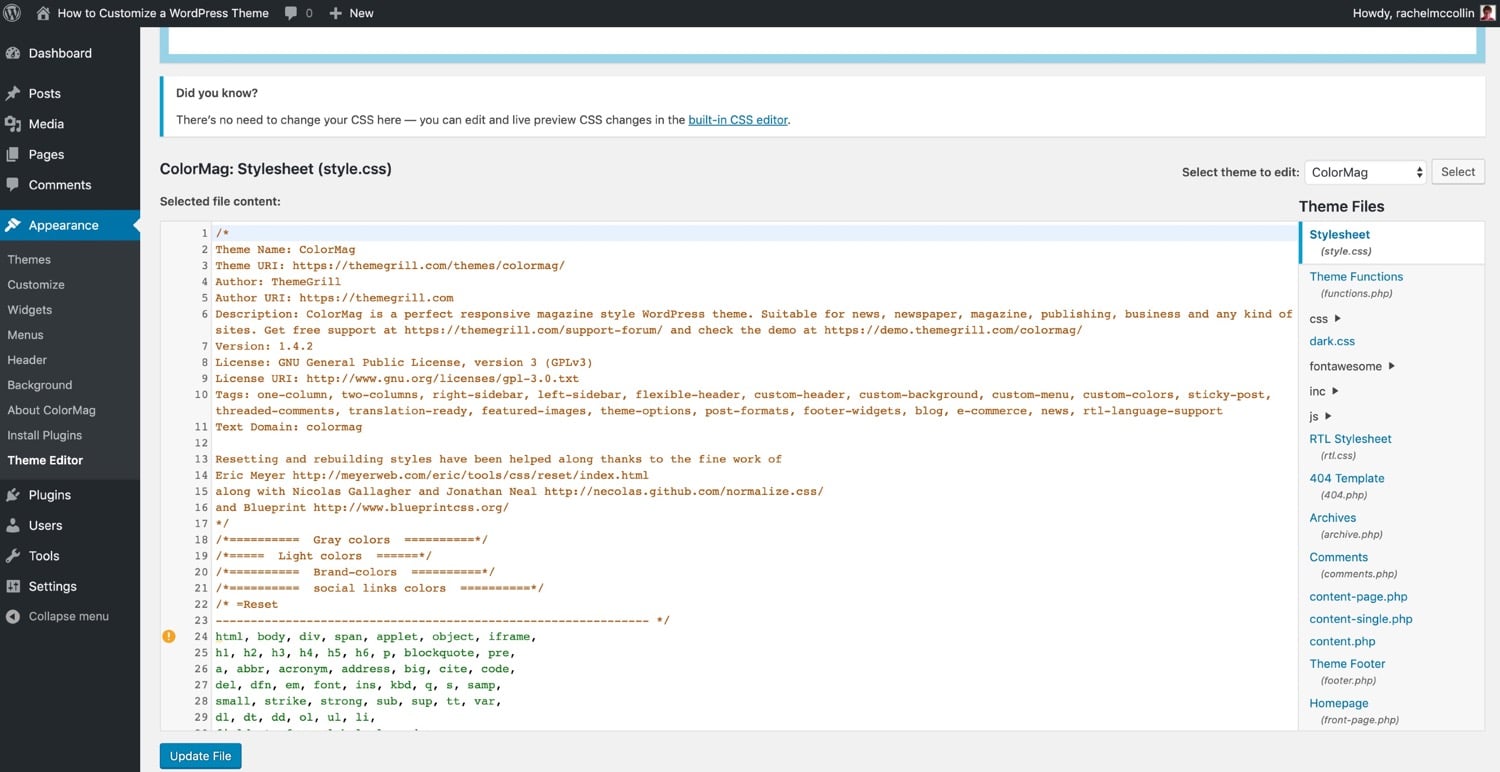
The WordPress Customizer is a useful tool. It helps change your theme’s look. You can find it in the WordPress dashboard. You can adjust colors and fonts. It allows you to see changes live. This is very helpful. You can also add custom CSS here. It is simple and easy to use. Type your CSS in the box. Watch your site change as you type. This feature makes it fun to customize.
Enqueuing custom styles is important. It keeps your site organized. You must add styles in the right way. Use the functions.php file for this. This file manages your theme’s functions. You need to use a special function. It is called wp_enqueue_style(). This function links your CSS file. It helps load your styles properly. Place this code in the functions.php file. This keeps everything tidy and neat.
Credit: kinsta.com
Utilizing WordPress Hooks
Action hooks let you add or change things in WordPress. They are like special keywords. You can use them to run your own code. For example, you can add code when a post is saved. Many themes have action hooks. This means you can change parts of the theme. Just add your code to the hook. Your changes won’t break the theme. Action hooks are very helpful.
Filter hooks are different from action hooks. They let you change data. For example, you can change the title of a post. Filters let you change how things look. They are safe to use. Themes use filter hooks a lot. They help make websites look good. You can use filters to change text or images. Filters make customization easy.
Testing And Troubleshooting
Customizing WordPress theme PHP involves testing and troubleshooting to ensure smooth functionality. Edit theme files cautiously, checking for errors. Use a staging site to avoid breaking the live site.
Checking Browser Compatibility
Testing your WordPress theme on different browsers is key. Browsers like Chrome, Firefox, and Safari may show your theme differently. Make sure your theme looks good on each one. Use tools to see how your theme behaves. Some tools show how your theme looks on many browsers. This helps you find problems early. If your theme works on all browsers, users will be happy. Happy users stay longer on your site.
Fixing Common Errors
Errors in themes can confuse users. Some errors are easy to fix. Check your PHP code for mistakes. Small errors can cause big problems. Use a debugger to find issues. Debuggers help spot errors fast. Clear your cache to see changes right away. Sometimes old data causes errors. If an error is hard to fix, ask for help. Many online forums can help solve your problem.
Credit: www.hostpapa.com
Best Practices For Theme Customization
Keep your code neat and tidy. This helps in finding errors fast. Use comments to explain tricky parts. Comments help others understand your work. Indentation is important. It makes code readable. Use spaces or tabs to indent. Follow a naming pattern for variables. This avoids confusion. Use lowercase with underscores, like this: my_variable.
Write down each change you make. This helps in tracking what you did. Use a changelog file for big changes. Write the date and what you changed. Use version numbers like 1.0, 1.1, etc. This shows the progress of your project. Share this file with your team. This way, everyone stays updated.
Frequently Asked Questions
How To Edit Php Files In WordPress Theme?
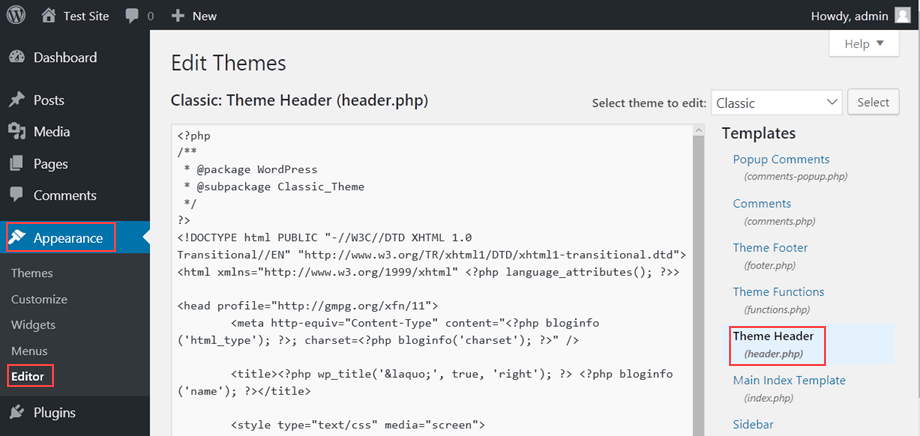
To edit PHP files in a WordPress theme, access your site through FTP or the built-in theme editor. Navigate to the “Appearance” section and select “Theme Editor. ” Make changes carefully, as incorrect edits can break your site. Always backup your theme files before making modifications.
Can I Customize WordPress Theme Php Code Safely?
Yes, you can customize WordPress theme PHP code safely by creating a child theme. This ensures your changes won’t be overwritten during updates. Use a code editor to make changes and test them on a staging site. Always backup your original files before customizing.
What Tools Help Customize WordPress Php Files?
Tools like FTP clients, code editors, and WordPress plugins help customize PHP files. Use FTP clients like FileZilla to access files directly. Code editors like Sublime Text or Notepad++ offer syntax highlighting. Plugins like Code Snippets allow safe PHP edits without touching theme files.
Are Php Changes In Themes Reversible?
Yes, PHP changes in themes are reversible if you backup files beforehand. Always save a copy of your original theme files. You can restore these if changes cause issues. Using a child theme also preserves your customizations after updates.
Conclusion
Customizing your WordPress theme PHP can be simple. Start with a clear plan. Use the WordPress Codex as a guide. Always create a child theme first. This keeps your changes safe. Edit functions. php for custom features. Style. css helps with design tweaks.
Test changes on a local server. Backup your files regularly. Mistakes happen. Stay patient and curious. Explore different PHP functions. Learn from your errors. Practice makes perfect. Soon, you’ll create themes that match your vision. Enjoy the process. Your site will be unique and engaging.
Keep experimenting and improving your skills.


