
Are you eager to make your WordPress site truly unique? Customizing your WordPress theme’s HTML is a powerful way to tailor your website to reflect your brand’s personality and meet your specific needs.
Imagine the possibilities: tweaking layouts, enhancing features, and creating a user experience that’s distinctively yours. But where do you start? In this guide, you’ll discover straightforward steps to modify your theme’s HTML, even if you’re not a coding expert. By the end, you’ll have the confidence to make changes that elevate your site, improve user engagement, and potentially boost your search engine rankings.
Dive in, and let’s transform your website into a digital masterpiece that stands out from the crowd.
Choosing The Right Theme
Free themes are budget-friendly. They offer basic features. Many users find them useful. But, they can lack support. Updates might be slow. Premium themes often come with extra features. They have better support. Updates are usually regular. They can be a good choice. But, they cost money. Users should weigh benefits against costs.
It’s vital for a theme to work on all devices. A responsive theme adapts to different screens. This ensures a good user experience. Some themes might not be compatible with all plugins. Check this before choosing. A compatible theme works well with popular plugins. This avoids future problems.
Setting Up A Child Theme
Creating a child theme in WordPress helps customize HTML without altering the original theme files. It allows safe modifications, ensuring updates won’t erase changes. With a child theme, you can tweak layout, design, and functionality while preserving the core theme.
Benefits Of Using A Child Theme
A child theme keeps the original theme safe. Your changes will not be lost. You can update the main theme easily. Child themes make customization simple. They help keep your site stable. You can try new designs without fear. Mistakes are easy to fix. Your main theme stays clean. Child themes help in learning code. They are great for experiments. A child theme gives you freedom to create.
Creating A Child Theme Manually
Start by making a new folder. Name it after your child theme. Inside, make a style.css file. This file is important. Add a comment at the top. Write the parent theme’s name there. Make a functions.php file next. This file connects your child to the parent. Use it to enqueue the parent’s styles. Your child theme is now ready. You can customize it freely. Enjoy building your own designs.
Editing Theme Files
Editing theme files in WordPress offers a way to customize your site’s appearance. Directly modify HTML to personalize layouts and design. Ensure you back up your site before making changes to avoid errors.
Understanding Theme File Structure
The theme file structure is like a map. Each file has a job. These files work together. They make your site look and feel great. The main folder is called wp-content/themes. Inside, you find folders and files. They hold the theme’s code. Key files include style.css, index.php, and functions.php. You should learn what each file does. This helps in making changes. Always keep a backup before you start. This saves your work if something goes wrong.
Key Files To Modify
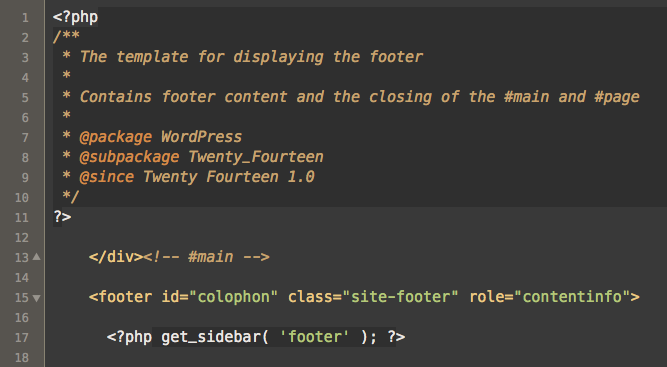
Some files are more important than others. style.css handles your website’s look. It changes colors and fonts. index.php is the main template. It controls what people see first. header.php and footer.php are also important. These files hold the top and bottom parts of your site. Modifying them lets you add logos or links. Only change files you understand. This keeps your site safe and working.
Credit: thethemefoundry.com
Customizing Html Elements
HTML tags are the building blocks of web pages. They tell the browser how to display content. Start by finding the tags in your theme’s files. Look for tags like ,
The header and footer are important parts of your site. To change the header, open the header.php file. Here, you can add or remove menu items. You can also change the background color. The footer is in the footer.php file. Add social media links or change text here. Save changes and check your site. Make sure everything looks good.
Working With Css
Colors make your site pretty. Use CSS to change them. Find the color code. Replace it with your favorite color. Fonts change how words look. Pick a font you like. Use CSS to add it. Your site looks unique.
Developer tools help you see CSS. Right-click on your site. Click “Inspect” to open tools. Look at the CSS code. Change parts you don’t like. Tools show your changes live. Your site updates instantly. Easy to use and learn.
Incorporating Custom Scripts
Adding JavaScript can make your website interactive. It’s important to add scripts safely. This ensures your site runs smoothly. Use the functions.php file in your theme. This is the best place for scripts. Make sure your JavaScript files are enqueued properly. This ensures they load at the right time.
Always use the wp_enqueue_script function. This method helps avoid script conflicts. Keep your scripts lightweight. Heavy scripts can slow down your site. Test your scripts before going live. Testing ensures everything works well. Check for any errors in the console. Fix any issues right away.
Utilizing WordPress Hooks
WordPress hooks are like small helpers. They let you add or change code. Action hooks allow you to add new code at specific points. Filters let you change data before it shows on your site. Knowing hooks makes theme tweaks easy. They help your site do more.
Here are some examples of hooks. Use add_action() to add new functions. With add_filter(), modify data safely. For instance, change the footer text with a filter. Use actions to load scripts or styles. Hooks make your site special.
Testing And Debugging
Customizing WordPress theme HTML involves testing and debugging for smoother functionality. Check for errors and fix broken links. Ensure design elements align correctly across different devices and browsers for optimal user experience.
Ensuring Cross-browser Compatibility
Themes should work on all browsers. Test your theme on Chrome, Firefox, and Safari. Some features might not work on all browsers. Use tools like BrowserStack. BrowserStack helps check how themes look on different browsers. Make sure fonts, colors, and buttons look the same. This helps users have a smooth experience. Users might have trouble if themes look different on each browser.
Troubleshooting Common Issues
Errors can happen in themes. Check if images load correctly. Sometimes images do not appear. Links might break too. Test all links to ensure they work. Check for spelling mistakes. Mistakes can confuse readers. Look at your theme on different devices. Mobile phones and tablets need special checks. These checks help find hidden problems.
Maintaining Your Custom Theme
Always keep your WordPress theme updated. Updates fix bugs and improve security. Use the theme’s update feature. Check for updates regularly. Updating helps your site run smoothly. New features might be added too. Updates can protect your site from hackers.
Back up your custom theme often. This saves your hard work. Use a backup plugin for easy saves. Backups protect your changes. If anything goes wrong, you can restore your theme. Store backups safely. Use cloud storage or an external drive. Always keep a backup before making big changes.

Credit: kinsta.com

Credit: www.youtube.com
Frequently Asked Questions
How To Edit Html In WordPress Theme?
To edit HTML in your WordPress theme, use the theme editor. Access it from your WordPress dashboard under Appearance > Theme Editor. Select the file you want to modify, like header. php or footer. php. Always back up your theme files before making changes to avoid losing important data.
Can I Customize WordPress Theme Without Coding?
Yes, you can customize your WordPress theme without coding using the WordPress Customizer. Navigate to Appearance > Customize in your dashboard. Here, you can change colors, fonts, and layout settings. Use page builder plugins like Elementor for more advanced visual customization without writing any code.
How Do I Change Theme Layout In WordPress?
To change your theme layout in WordPress, use the Customizer or a page builder plugin. Navigate to Appearance > Customize for basic layout settings. For more advanced options, install a page builder plugin. This allows you to drag-and-drop elements and adjust layouts easily without coding.
Is It Safe To Edit Theme Html?
Editing theme HTML is safe if done carefully. Always back up your files before making changes. Use a child theme to prevent losing customizations during theme updates. If unsure, consult documentation or seek help from professionals to avoid breaking your website’s functionality.
Conclusion
Customizing your WordPress theme HTML enhances your site’s look and feel. It allows you to tailor design elements to suit your brand. With patience, you can learn this skill easily. Start with small changes and see the impact. Use online tutorials for guidance.
Experiment with your ideas. Always back up your files before editing. Mistakes happen, but they are part of learning. Your unique customizations make your site stand out. Practice regularly to improve your skills. Enjoy creating a website that reflects your vision.
Happy customizing!


