
Are you ready to give your website a fresh look but overwhelmed by the thought of customizing your WordPress theme? You’re not alone.
Many people find themselves stuck at the crossroads of creativity and functionality when it comes to revamping their site. But here’s the good news: customizing your WordPress theme doesn’t have to be a daunting task. Imagine transforming your website into a unique digital space that truly reflects your style and vision.
With the right guidance, you can easily make tweaks to your theme that will captivate your audience and enhance user experience. This article will walk you through the simple steps to customizing your WordPress theme, turning your website into the masterpiece you’ve always dreamed of. Dive in and discover how you can make your site stand out in 2018!

Credit: nicepage.com
Choosing The Right Theme
First, think about your website’s purpose. Do you need a blog or a shop? A clear idea helps in choosing the right theme. Different themes suit different purposes. Write down a list of features you need. This list guides you in selecting a theme. Consider the design, colors, and layout that fit your brand. A well-suited theme makes your website appealing. This attracts more visitors.
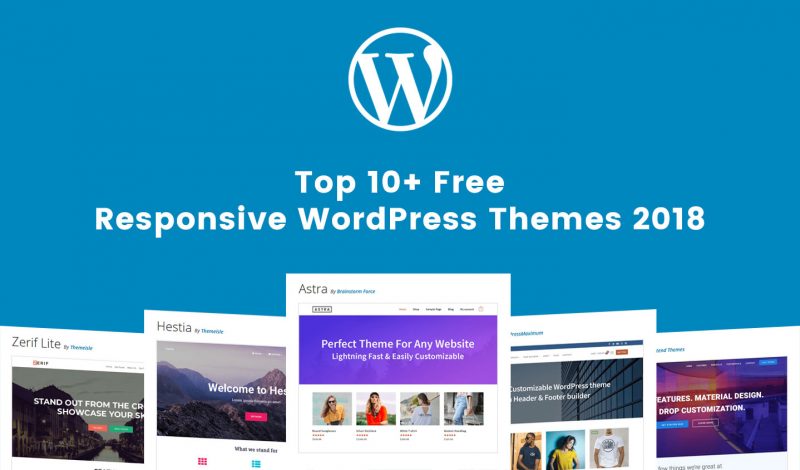
There are many themes to explore. Start with the WordPress Theme Directory. It’s free and has many options. Look for themes that match your list. Each theme has a demo. View demos to see how they look. Check if the theme is responsive. This means it works on both computers and phones. A responsive theme is important for all users. Also, read reviews to know others’ experiences.
Credit: www.hiddentechies.com
Installing Your Theme
Find the Theme Directory on your WordPress dashboard. Click ‘Appearance’, then ‘Themes’. Explore many options. You can search by keywords. Choose a theme that you like. Click ‘Install’ to add it. After installation, click ‘Activate’ to use it. Now the theme is ready. You can customize it.
First, download your theme file. It should be a .zip file. Go to your WordPress dashboard. Click ‘Appearance’ then ‘Themes’. Click ‘Add New’. Choose ‘Upload Theme’. Select your .zip file. Click ‘Install Now’. Wait for it to upload. After that, click ‘Activate’. Your theme is now live. You can start customizing.
Customizing Theme Settings
First, log in to your WordPress dashboard. Find the Appearance tab on the left. Click on Customizer to enter the theme settings. Here, you can change many things about your site.
You can change your site title and tagline. These appear at the top of your browser window. You can also upload a new site icon. This will show in the browser tab. Make your site identity unique.
Choose the best colors for your website. Click on Colors in the Customizer. You can change the background and text colors. Next, choose Fonts that are easy to read. Click Typography to change this.
Adding Custom Code
Custom CSS can change the look of your site. Go to the WordPress dashboard. Find the “Appearance” tab. Click on “Customize”. Then, look for “Additional CSS”. Here, you can add your own CSS. This will change the style of your theme. Make text bold or change colors. Change the layout of pages.
Always be careful with your code. Small mistakes can break your site. Use a CSS validator to check for errors. This keeps your website looking good.
JavaScript can add cool features to your site. Use it to create interactive elements. Go to the “Theme Editor” in the dashboard. Find the “header.php” file. Insert your JavaScript code inside the “ tags.
Be sure to backup your theme before changes. JavaScript errors can cause problems. Start with simple code. This way, you can learn without breaking anything.
Using Page Builders
Page builders help customize websites easily. They offer drag-and-drop features. Choose a builder that fits your needs. Look for options that are easy to use. Some popular choices are Elementor, Beaver Builder, and Divi. These tools come with many templates. Templates save time and effort. They also help create beautiful pages. Pick a builder that suits your style.
Custom layouts make your site unique. Use page builders to design these layouts. Start with a blank canvas. Arrange elements like text, images, and buttons. Try different combinations. Bold colors and fonts catch visitors’ eyes. Remember to keep layouts simple. Simple designs are easy to navigate. Test your layouts on different devices. Make sure they look good everywhere. Adjust sizes and positions as needed.
Credit: www.designlabthemes.com
Implementing Plugins
Plugins enhance your site. They add features. You can find many plugins. Some plugins make pages faster. Others help with design. Choose plugins wisely. Too many plugins slow your site. Look for plugins with good ratings. Read reviews. Check plugin updates. Updated plugins work better. They fix bugs. They improve security.
Enhancing Functionality
Plugins can add forms. They help with galleries. Some plugins add social media buttons. Other plugins help with SEO. They help you rank higher. Plugins can also protect your site. They stop hackers. Choose plugins that fit your needs. Make sure they are compatible with your theme.
Optimizing Performance
Use plugins to make your site faster. Cache plugins help with speed. They save data for later use. Image optimization plugins reduce size. Smaller images load faster. Monitor plugin impact on speed. Test before and after adding plugins. Only keep essential plugins. Remove unused plugins. Less plugins mean better speed.
Testing And Troubleshooting
Customizing a WordPress theme in 2018 involves testing and troubleshooting each change. Ensure every modification works smoothly across devices. This process helps maintain a consistent look and feel on your website.
Checking Responsiveness
Make sure your WordPress theme looks good on all devices. Use a mobile phone and a tablet to check. The theme should fit screens nicely. No part should be cut off. Text must be easy to read. Buttons should be easy to tap. If it doesn’t look right, adjust settings. Use WordPress Customizer for easy changes. Test again until it looks perfect.
Resolving Common Issues
Some themes have common issues. Check if there are missing images. Fix broken links using a plugin. Slow loading pages are bad. Optimize images for faster load time. Check if menus work. If they don’t, recreate them. Check for plugin conflicts. Deactivate plugins one by one. See if this solves the issue. Always keep a backup before making changes.
Backing Up Your Customizations
Ensure your WordPress theme customizations are safe by backing them up regularly. Save changes before updating themes to prevent loss. Utilize backup plugins or manual methods for secure storage.
Using Backup Plugins
Backup plugins are simple tools. They save your theme changes. These plugins store data safely. You can restore it later. Some popular plugins are UpdraftPlus and BackWPup. They are user-friendly. They offer automatic backups. Set a schedule for your backups. Choose daily or weekly backups. Always check your backup settings. Make sure everything is correct. The plugins create backup files. These files can be stored on your computer. Or save them to cloud storage. Google Drive is a good option. Dropbox works well too. This keeps your data safe.
Restoring Previous Versions
Restoring previous versions is easy. Backup plugins help with this task. Open your plugin dashboard. Find the restore option. Click it to start the process. The plugin will locate your backup file. It will replace the current theme. Your old customizations come back. Check your restored theme. Make sure everything is correct. Always test your website. Ensure all features work well. This method saves time. It keeps your website running smoothly.
Frequently Asked Questions
How Do I Customize My WordPress Theme?
Customize your WordPress theme by accessing the WordPress Customizer. Navigate to Appearance > Customize in your dashboard. Use options like colors, fonts, and layout adjustments. Install plugins for advanced customization. Edit theme files or use a child theme for deeper modifications.
Always back up before making changes.
How Do I Edit An Existing WordPress Theme?
To edit a WordPress theme, access your dashboard. Navigate to Appearance, then click on Theme Editor. Use the editor to modify theme files like style. css or functions. php. Always back up your theme before making changes to prevent data loss.
Consider using a child theme for safe modifications.
How Do I Customize The Theme Menu In WordPress?
To customize the theme menu in WordPress, go to Appearance > Menus. Create a new menu or edit existing ones. Add pages, posts, or custom links. Arrange menu items by dragging them. Save changes. Use the “Manage Locations” tab to assign menus to specific theme locations.
Are WordPress Themes Fully Customizable?
Yes, WordPress themes are fully customizable. Users can modify layout, colors, fonts, and functionalities easily. Use custom CSS, plugins, or page builders for advanced customization. Themes often provide customization options in the WordPress dashboard. Creating a unique website design is achievable with WordPress themes.
Conclusion
Customizing your WordPress theme can be simple and fun. You can change colors, fonts, and layouts to match your style. It makes your site unique and personal. Try different features and see what works best. Remember, practice makes perfect. Don’t rush; take your time exploring options.
Use online guides for help if needed. Your site can look professional with just a few tweaks. Keep experimenting and learning new tricks. Enjoy the process and watch your website grow. With creativity, your WordPress site can truly shine.


