
Are you looking to give your WordPress site a fresh look without switching themes? Customizing the Twenty Ten theme could be your perfect solution.
As one of the classic WordPress themes, Twenty Ten offers a clean, straightforward design that serves as a great foundation for personalization. Imagine transforming your site into a unique space that reflects your brand or personality. With just a few tweaks, you can create a visual experience that captures your audience’s attention and keeps them coming back for more.
In this guide, you’ll learn how to make the Twenty Ten theme truly yours, without the need for any complex coding skills. Get ready to dive in and discover how easy it is to customize your online presence and make it stand out!
Getting Started With Twenty Ten
First, visit your WordPress dashboard. Find the Appearance tab. Click on Themes. Choose Add New. Type “Twenty Ten” in the search box. Click Install next to the theme. Wait for the installation to finish. It’s quick and easy.
After installation, locate the Activate button. Click it to use the theme. Your site now has a fresh look. Visitors will see the new design. Simple and clean. Perfect for all.
Customizing The Header
The header image is the first thing people see. Go to the WordPress dashboard. Click on Appearance. Choose Header. Here, you can upload a new image. Choose one that fits your style. The new image changes the look of your site. It’s easy and fun.
The header text is important. It shows your site’s name. Go to the WordPress dashboard. Click on Settings. Choose General. Here, you can change the site title. You can also add a tagline. Make it short and clear. Visitors will see this text first. Good text makes your site stand out.
Modifying The Background
Choose a new background color for your website. Go to the WordPress dashboard. Find the Appearance menu. Click on Background. A color picker tool will appear. Use it to select a new color. Preview the change before saving. Make sure it looks nice with your content.
Personalize your site with a custom image. Go to the Background section. Find the Upload button. Click it to choose an image file. Make sure the file size is not too big. It should load quickly. Adjust the image settings if needed. Tile the image or center it on the page. Save your changes to see them live.

Credit: www.interserver.net
Tweaking The Layout
The sidebar is important for your website. It holds links and widgets. You can choose to place it on the left or right. Go to the theme editor to make this change. Try both sides and see which looks better. This can help in keeping the site user-friendly. Remember, a good sidebar makes finding things easy.
Content width is how wide your text area is. A wide content area can make reading tough. But, a narrow area might look cramped. Adjust the width to make it just right. Use the CSS editor for this. Change the width value in the code. It’s simple and fast. Keep testing until the text looks perfect.
Styling The Navigation Menu
Changing menu links is easy. Go to the admin dashboard. Click on Appearance and then Menus. Here, you see all the menu items. To change a link, click on the item. Type the new link in the URL box. Save changes by clicking the Save Menu button. This updates your menu links. You can remove links too. Click on the link and choose Remove. Save again after removing. Your menu is now customized.
Dropdown menus make navigation easy. Start by creating a new menu item. Drag it under another menu item. This creates a dropdown. To add more, drag more items under the main item. You can rearrange items by dragging them. Save your changes to see the dropdown. Dropdown menus help organize links. This makes your site look tidy. Users find links faster.
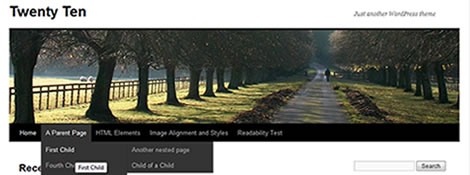
Credit: thebloghouse.com
Enhancing The Footer
Footer widgets can make your site look neat. They hold important info. You can add menus, links, and contact info. First, go to the WordPress dashboard. Click on Appearance and then Widgets. Drag and drop widgets into the footer area. Always save your changes. Check your site to see the new look.
Change the footer text to make your site unique. It can show your name or the year. Go to Appearance and then Editor. Find the footer.php file. Look for the line with “Powered by”. Replace it with your text. Save the file. Refresh your site to see the new footer.
Widget Area Customization
Easily customize the Twenty Ten WordPress theme by adjusting widget areas to match your website’s style. Modify sidebars and footers for a personalized look. Use the WordPress dashboard to add, remove, or rearrange widgets quickly.
Adding Sidebar Widgets
Sidebar widgets make your site look better. First, find the Appearance menu. Then click on Widgets. A list of available widgets will show up. Drag your chosen widget to the sidebar area. You can add as many widgets as you like. Make sure they are useful and pretty. After adding, check the site view. Adjust widget settings for better display.
Configuring Footer Widgets
Footer widgets sit at the bottom of your site. They can display important info. Go to the Widgets section again. Choose your favorite widget. Drag it to the footer area. You may choose text, images, or links. Keep it simple and neat. Check how it looks on the live site. Adjust if needed for a clean look.

Credit: codex.wordpress.org
Personalizing Fonts And Colors
Changing fonts is easy. Go to your WordPress dashboard. Click on Appearance and then Editor. Find the style.css file. Look for the font-family code. Change it to the font you like. You can also change font-size. Make sure to save changes. Refresh your site to see the new look.
Colors make your site unique. Go to your dashboard again. Click on Appearance then Customize. Find the Colors option. Choose a color from the palette. You can change the background color, text color, and link color. Always save changes. View your site to check the new colors.
Using Css For Advanced Customization
Explore CSS for advanced customization of the Twenty Ten WordPress theme. Transform your site’s appearance by adjusting fonts, colors, and layout with simple CSS tweaks. Personalize the design to reflect your unique style effortlessly.
Creating Custom Css Rules
Customizing a theme can be fun. Use CSS to change the look. Write custom CSS rules for your theme. Make text bigger or change colors. Keep changes simple.
Experiment with different styles. Try new things. Add your own touch. Be creative. Use a child theme for changes. It keeps the original safe.
Overriding Default Styles
Sometimes, default styles need a change. Use CSS to override them. Find the right CSS selectors. Add new styles to your theme.
Play with margins and padding. Change fonts and background colors. Test changes in different browsers. Make sure it looks good everywhere. Always save your work.
Managing Theme Settings
Adjusting Site Identity involves setting a title and tagline. Go to Appearance and then Customize. Click on Site Identity. Type your site name and tagline. Save your changes. Your site identity is ready.
Configuring Reading Settings changes how your site shows posts. Open Settings and choose Reading. Decide if you want posts or a static page. Pick how many posts show on the main page. Save these settings. Your reading settings are now updated.
Troubleshooting Common Issues
Explore how to customize the Twenty Ten WordPress theme with ease. Troubleshoot common issues to enhance your website’s look. Ensure smooth navigation by addressing theme customization challenges effectively.
Resolving Header Image Problems
Many users face issues with the header image. This often happens when the image size is incorrect. Make sure the image is the right size. Check the theme settings for recommended dimensions. If the image doesn’t show, check the media library. Ensure the image is uploaded correctly. Sometimes, clearing the browser cache helps. It refreshes the page display. Ensure the image file is not corrupted. Try uploading a different image to test.
Fixing Layout Discrepancies
Layout issues can disrupt your site. Sometimes, widgets may not align properly. This can be due to plugin conflicts. Disable plugins one by one. See if the layout changes. Check the theme’s customizer settings too. A wrong setting might cause the problem. Another trick is to review your CSS code. Errors in CSS can affect layout. Always back up changes before applying.
Frequently Asked Questions
How Do I Change The Twenty Ten Header?
You can customize the Twenty Ten header by navigating to Appearance > Header in your WordPress dashboard. Upload your desired image or change the color scheme to suit your preferences. This feature allows you to personalize the look and feel of your site effectively.
Can I Modify The Twenty Ten Sidebar?
Yes, you can modify the sidebar in the Twenty Ten theme. Go to Appearance > Widgets in your WordPress dashboard. Here, you can add, remove, or rearrange widgets to enhance functionality and design. This customization helps you tailor the user experience on your site.
How To Change Fonts In Twenty Ten Theme?
To change fonts in the Twenty Ten theme, use a custom CSS plugin or child theme. Add CSS code targeting font properties to achieve the desired look. This method ensures that your font changes are preserved even after theme updates.
Is Twenty Ten Theme Mobile-friendly?
Yes, the Twenty Ten theme is mobile-friendly. It automatically adjusts to different screen sizes, ensuring a seamless experience for mobile users. This responsiveness helps improve user engagement and SEO performance.
Conclusion
Customizing the Twenty Ten theme enhances your site’s appearance. You gain flexibility with layout and style. Small tweaks can make a big impact. Experiment with fonts and colors for a unique look. Adding widgets boosts functionality and user experience. Your site becomes more engaging and personal.
Keep your design simple and clean. Visitors appreciate easy navigation and readability. Regular updates ensure compatibility and security. Enjoy creating a site that reflects your vision. The process is fun and rewarding. You now have the tools to personalize your WordPress theme with confidence.


