
Are you ready to transform your WordPress website into something truly unique? The Twenty Sixteen theme might be just what you’re looking for.
Known for its clean design and flexibility, this theme is a favorite among bloggers and business owners alike. But what if you could take it a step further and make it uniquely yours? Customizing the Twenty Sixteen WordPress theme not only allows you to showcase your personal style but also helps in creating a memorable experience for your visitors.
Imagine the satisfaction of having a site that not only meets your needs but also captivates your audience. Get ready to dive into simple yet effective ways to tailor this theme to reflect your brand and message. Let’s unlock the full potential of Twenty Sixteen and make your website stand out from the crowd!
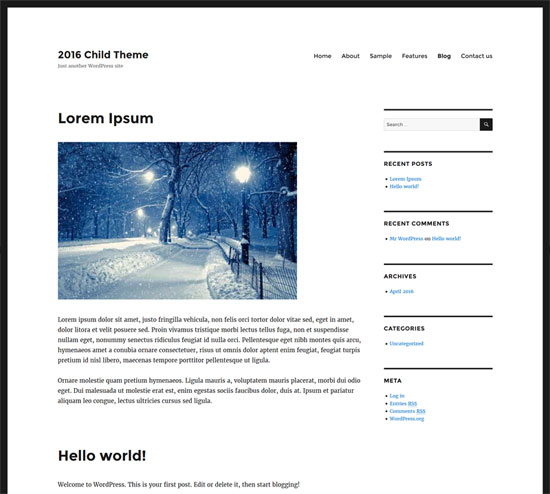
Credit: www.tipsandtricks-hq.com
Getting Started With Twenty Sixteen
First, log in to your WordPress dashboard. Find the “Appearance” option on the left. Click on it. Next, click “Themes.” You will see an “Add New” button. Click it. Type “Twenty Sixteen” in the search box. Once you find it, click “Install.” Wait for it to finish. Then click “Activate.” Now your theme is active.
The Twenty Sixteen theme is simple and neat. It has a clean look. The design is mobile-friendly. This means it looks good on phones. It also works well on tablets. You can change the header color. You can add a custom background. It has a menu at the top. This is for easy navigation. It also supports widgets. These can be added to the sidebar.
Customizing The Appearance
Start by clicking on the Customize option in your dashboard. Select Header Image. Choose an image that fits your style. Upload your chosen image. You can see a preview before saving. Make sure it looks good on mobile devices.
Go to the Background section in the Customizer. You can pick a color or upload a photo. Try different options to see what works best. A simple background can make your site look clean. Always check how it looks on different screens.
Navigate to the Colors and Fonts section. Choose colors that match your theme. Pick fonts that are easy to read. Bold colors can grab attention. Avoid using too many fonts. Consistency is key for a clean look.
Adjusting The Layout
Customize the sidebar easily. Go to the appearance section. Select widgets to add or remove items. You can place images, text, or links. Try different settings to see changes. The sidebar can be on the left or right. This helps make your site unique. Make sure it fits your theme style.
The footer is at the bottom of your site. Use it to add contact info or links. Go to appearance and click on customize. Here, you can adjust the footer text. Add important details like your email. You can also add a menu. This helps visitors find pages quickly.
Page templates decide the look of pages. You can choose different templates for each page. Go to the page editor. Find the page attributes box. Select a template from the dropdown menu. This changes how your page looks. Each template is special. Some have sidebars, others do not. Try them to find the best fit for your needs.

Credit: m.youtube.com
Enhancing Functionality
Widgets make a site more interactive. They are easy to add in the Twenty Sixteen theme. First, go to the WordPress dashboard. Click on Appearance. Then select Widgets. You will see a list of available widgets. Drag the widget you want to use. Drop it in the desired widget area. Customize it as you need. This process is simple and fun. Widgets like text, images, and menus enhance site functionality. They make your site look attractive. Users can find information easily.
Plugins add extra features to your theme. They are like small apps. Go to the Plugins section in the dashboard. Click on Add New. Search for the plugin you need. Click Install and then Activate. Popular plugins include contact forms, SEO tools, and social media buttons. Plugins make your site more useful. They enhance user experience. Always choose reliable and updated plugins. This ensures your site runs smoothly.
Custom Css For Advanced Users
Accessing the Customizer is easy. Click on “Appearance”. Then select “Customize”. Here, you find many options. To add Custom CSS, look for “Additional CSS”. This area is for your code.
Writing Basic CSS Code can change your site look. Begin with simple rules. For example, “body {font-size: 16px;}”. This changes text size. Try changing colors too. Use color codes like “#000000” for black.
Implementing Advanced Customizations needs practice. Use selectors like “.header”. This targets specific areas. Combine rules for unique styles. For example, “.header {background-color: #f0f0f0;}”. This changes the header background. Test your changes to ensure it looks right.
Tips For Responsive Design
Make sure your site looks good on mobile devices. Adjust the font size for easy reading. Use a responsive layout that fits on all screens. Avoid using large images that slow down the site. Keep the menu simple and easy to use. Test your design often. Make changes if needed.
Check your site on different devices. Use a phone, a tablet, and a laptop. Make sure everything works well. Pay attention to buttons and links. They should be easy to click. Test the speed of your site. It should load fast. Fix any problems you find. Testing helps make your site better.

Credit: learn.wordpress.org
Frequently Asked Questions
How Do I Change Twenty Sixteen Colors?
To change colors in Twenty Sixteen, navigate to the WordPress Customizer. Click on “Colors” to access options. You can adjust the header text, background, and accent colors. Save changes to update your site’s look instantly.
Can I Add A Custom Logo To Twenty Sixteen?
Yes, you can add a custom logo. Go to the Customizer, click on “Site Identity,” and upload your logo file. Ensure your logo fits within the recommended dimensions for optimal display. Save changes to update your site with the new logo.
How Do I Modify The Twenty Sixteen Layout?
Modify the layout by accessing the WordPress Customizer. Choose “Layout Options” to change sidebar positions or enable full-width layout. Experiment with settings to find the best fit for your content. Save your changes to apply the new layout.
Is Twenty Sixteen Mobile-friendly?
Yes, Twenty Sixteen is mobile-friendly. It automatically adjusts to different screen sizes for optimal viewing. You can test your site’s mobile responsiveness using the Customizer’s preview tool. Ensure images and text are mobile-optimized for best results.
Conclusion
Customizing the Twenty Sixteen theme can enhance your WordPress site. With simple tweaks, your website feels unique and personal. Update colors, fonts, and layouts to match your brand. These changes improve user experience and engagement. Stay consistent for a professional look.
Use WordPress’s live customizer for easy adjustments. Keep experimenting to find what suits your needs best. Remember, small changes make a big impact. Your website should reflect your style. So, take time to explore and enjoy the creative process. Happy customizing!


