
Are you eager to give your WordPress site a fresh look but unsure where to start? Customizing your theme from the WordPress dashboard is a powerful way to personalize your website without needing any coding skills.
Imagine a website that not only reflects your personality but also captivates your visitors with its unique style. You’re about to discover how easy it is to transform your site into something special. By learning how to navigate the WordPress dashboard, you’ll unlock the potential to adjust colors, fonts, and layouts with just a few clicks.
Dive into this guide to find out how you can effortlessly make your website stand out and leave a lasting impression on your audience.
Credit: torquemag.io
Accessing The Dashboard
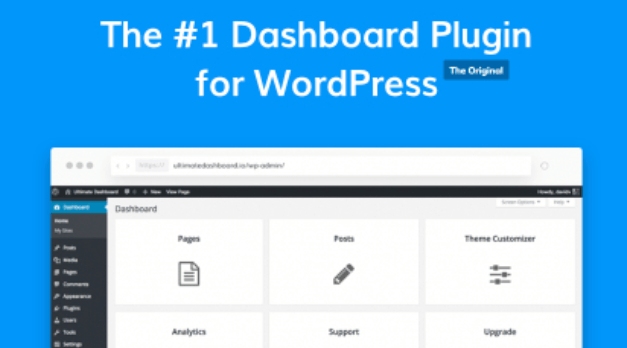
First, open your WordPress website. Look at the top. Find the login link. Click it to access the login page. Enter your username and password. Now, click the login button. You will see the dashboard.
The dashboard is your main control panel. Here, you can change many things. The left side has a menu. This menu helps you find different settings. Look for the word “Appearance”. This is where you will customize your theme.
Click “Appearance” to see more options. You can change the theme or edit it. Remember to save changes. This way, your website looks the way you like.
Credit: codecanyon.net
Navigating To Appearance
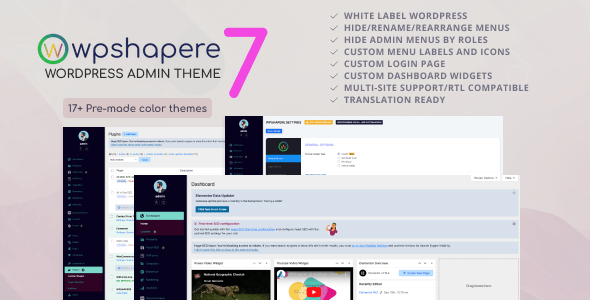
WordPress Dashboard has many options. Appearance lets you change how your site looks. First, log in to your WordPress account. Look for the Dashboard on the left side. Find the Appearance menu. Click on it. Several options will appear. Themes is the first option. Choose it to see available themes. You can select a theme you like. Customize lets you change colors, fonts, and more. Save changes to keep your new design.
Widgets help add features like calendars and social media links. Menus help organize pages. Background lets you change the site’s backdrop. Be creative and make your site stand out. Remember, changes are easy to make. Enjoy designing your WordPress site!
Choosing A Theme
Start by going to the WordPress Dashboard. Click on Appearance, then Themes. Here you see many options. Look for a theme you like. You can sort by features or popularity. Each theme has a preview. This helps you see how it looks. Try different themes. Find one that fits your style. Read reviews if you want more info. This helps in making the right choice.
Choose a theme you like. Click on the Activate button. This makes the theme live on your site. You can change it anytime. After activation, check your site. Make sure everything looks good. Sometimes, you need to adjust settings. This helps in making the theme fit your needs. Don’t worry about making mistakes. You can always switch back to another theme.
Customizing Theme Settings
The WordPress Customizer makes changes easy. Find it in the dashboard. Click “Appearance,” then “Customize.” Now, you see the live preview. Adjust settings and watch changes. It’s simple and fun. Save your work often.
The site identity shows who you are. Change the title and tagline here. You can add a logo too. A small image that represents your site. This makes your site unique and special. Remember to save changes.
Colors and fonts show style. Pick colors that match your brand. Change fonts for a fresh look. Make text easy to read. This helps users enjoy your site. Always preview your changes. Then, save to keep them.
Managing Widgets
Easily manage widgets by customizing your WordPress theme from the dashboard. Navigate to ‘Appearance’ and select ‘Widgets’ to add or remove elements. Tailor your site’s look to fit your style with just a few clicks.
Adding New Widgets
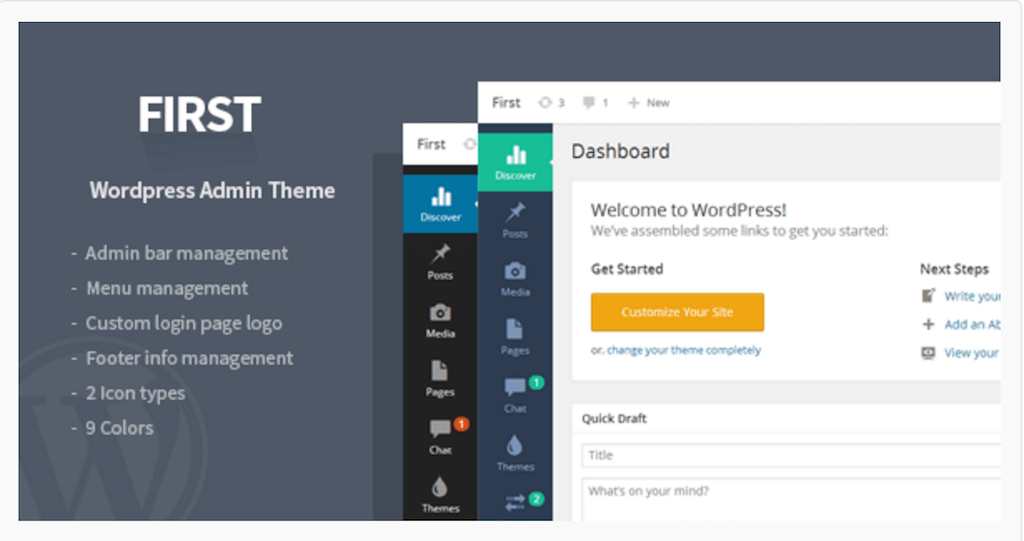
Widgets help make your site special. They add features to your theme. Go to the dashboard. Click ‘Appearance’, then ‘Widgets’. Find the widget you like. Drag it to your sidebar or footer. Save your changes. Now, your new widget will show up on your site. Explore and try different widgets.
Organizing Widget Areas
Widgets need a home. This home is called a widget area. Common areas are sidebars and footers. Drag widgets to the right spot. Arrange them by need. You can move them up or down. Order matters. It affects how your site looks. Keep it neat. Make it easy for visitors to find what they need.
Credit: colorlib.com
Setting Up Menus
Start by going to your WordPress Dashboard. Find the Appearance tab. Click on Menus. You will see a button that says Create a New Menu. Click it. Enter a name for your menu. Use something easy to remember. Click the Create Menu button. Now you have a new menu. Add items to it. Choose from pages, posts, or links. Drag and drop to arrange them. Save your changes.
Look for the Menu Settings area. It’s below the menu structure. Find the Display Location options. These depend on your theme. Check the box next to your preferred location. It could be Header or Footer. Save your settings. Your menu appears in the chosen spot. Double-check on your site. Make sure everything looks right.
Integrating Custom Css
First, open your WordPress Dashboard. Find the Appearance tab. Click on it. Then select Customize. A new page will open. Look for Additional CSS. Click on it. You will see a text area. Type your custom CSS here. It is easy to change your site’s look. Make sure to save your changes.
After adding your CSS, check your website. See the changes live. If something looks wrong, go back. Edit your CSS again. Always check on different devices. Use phones and tablets too. This ensures a good look everywhere. You can always remove or update the CSS. Keep testing until it is perfect.
Previewing Changes
The Live Preview tool helps see changes in real-time. Navigate to the WordPress dashboard. Click on Appearance, then Customize. Here, you can adjust settings and see changes instantly. Choose different colors or fonts. View how they look on your site. This helps make better design choices. Experiment freely without affecting the live site. It’s safe and easy for beginners.
After making changes, saving is important. Click the Publish button at the top. This updates your site with new settings. You can also save changes as a draft. This allows more time for edits. If not ready, schedule changes for later. This way, your site updates automatically. Ensure all changes are as you want before publishing.
Frequently Asked Questions
How Can I Change My WordPress Theme?
To change your WordPress theme, go to the dashboard. Navigate to Appearance > Themes. Click “Add New” to browse available themes. Once you find a theme you like, click “Install,” then “Activate” to apply it. Your website will now display the new theme.
Can I Customize My Theme Without Coding?
Yes, you can customize your theme without coding. WordPress offers a built-in Customizer. Access it via Appearance > Customize. You can change colors, fonts, and layouts. Many themes offer additional customization options. Always preview changes before saving to ensure they look good.
What Are WordPress Theme Customization Options?
WordPress themes offer various customization options. Common ones include colors, fonts, and header images. You can also adjust layouts and widget placements. Some themes provide advanced options like custom CSS. Use the WordPress Customizer for a user-friendly interface. Always check theme documentation for specific customization features.
Is It Safe To Customize My Theme?
Customizing your theme is safe if done correctly. Use the WordPress Customizer for reliable changes. Always back up your website before making major changes. Avoid editing core theme files directly. Consider using a child theme for advanced customizations. This ensures your changes remain after theme updates.
Conclusion
Customizing your WordPress theme is simple and rewarding. Start by exploring the dashboard. Changes bring a fresh look to your site. Adjust colors and fonts for personal touch. Preview your updates before publishing. Always save your work regularly. Learn from tutorials if you face challenges.
Personalizing your site boosts user experience. Engage visitors with a unique design. Keep experimenting with features. Your site reflects your style and brand. Enjoy the process of making it truly yours. With each tweak, you grow more skilled. Your site becomes a place you love.
Keep customizing and watch your site thrive!


