
Are you looking to give your WordPress site a unique touch? Customizing the Dara theme could be your perfect solution.
Imagine having a website that not only stands out but also reflects your brand’s personality. The good news is that personalizing the Dara theme isn’t just for tech wizards—it’s something you can do too. With the right guidance, you can transform your website into a captivating online presence.
You’ll discover simple, step-by-step instructions to customize the Dara theme, making sure your site leaves a lasting impression on every visitor. Ready to make your website truly yours? Let’s dive in!
Getting Started With Dara
Begin by installing the Dara theme from the WordPress dashboard. Go to the “Appearance” section. Select “Themes” and then “Add New.” Search for “Dara” and click “Install.” Once installed, activate the theme. Next, navigate to “Customize” under “Appearance.” Here, you can change the site’s look.
Use the Site Identity option to set your site title and logo. Customize colors in the “Colors” tab. Choose what fits your brand. The “Fonts” tab lets you choose text styles. Pick fonts that are easy to read. Don’t forget to save your changes.
Check the Preview before making changes live. This helps avoid mistakes. Make sure your site looks good on all devices. Enjoy your new look!
Accessing Theme Customizer
Find the WordPress Dashboard on your site. Click Appearance. Choose Customize. This opens the Customizer. You see many options. Each option changes your site. Choose Site Identity. Change your site name. Add a logo. Pick colors next. Colors make your site pretty. Change fonts too. Fonts change text style. Add widgets. Widgets are helpful tools. They show info on your site. Choose Header Image. This adds a picture to the top. Click Menus. Set your site menu. Organize your pages here. Check your changes. See them live. Always click Save. Saving keeps your changes safe. Explore each tool. Discover new things. Customize your site nicely. Enjoy your new design.
Site Identity Customization
Start by adding a unique logo to your site. Click on the Customize button in your WordPress dashboard. Then go to the Site Identity section. Upload a logo that represents your brand. Ensure it fits well with the theme. Your site title should be clear and easy to read. It should match the logo for a cohesive look.
The tagline shows what your site is about. Keep it short and simple. It should explain the purpose of your site. Go to the Site Identity section to change it. Use words that are easy to understand. This helps visitors know what to expect. A good tagline can make your site memorable.
Color Scheme Adjustments
Choosing the right primary colors is important. It sets the tone for your site. In the WordPress Dara theme, you can easily change these colors. Go to the customizer menu. Click on the ‘Colors’ section. There, you can see many options. Try different colors to see what fits best. Use colors that match your brand.
The background can change the feel of your site. You can use a solid color or an image. To adjust this, go to the customizer. Click on ‘Background Image’. Upload an image or choose a color. Make sure it doesn’t distract. Your content should always be easy to read. A good background helps your site look nice.
Font And Typography Changes
Choosing the right font makes your site look great. Open WordPress settings. Go to the theme customizer. Find the font options. Pick a font you like. Test it to see how it looks. Different fonts give different feelings. Choose one that fits your site.
Adjusting text size is easy. Bigger text can be easier to read. Smaller text fits more information. Use the slider to change text size. Test different sizes. Check on computers and phones. Make sure it’s clear and readable. Adjust until it feels right.
Layout And Structure Tweaks
Change the header layout to make your site unique. Go to the WordPress dashboard. Find the Appearance section. Click on Customize. Look for Header Options. Choose the layout you like. You can change the logo position. Also, adjust the menu style. Play with these settings. Make sure your header looks just right.
The footer is the bottom part of your site. Customize it to look nice. Go to the Customize area. Find the Footer Options. Add your own text or links. Change the background color. You can also choose a different font style. Make your footer match your theme. Give it a clean and neat look.
Customizing Widgets
Widgets are tiny tools for your site. They add features to your pages. You can find them in the WordPress dashboard. Click on Appearance, then Widgets. Drag and drop widgets into the sidebar or footer. This makes your site unique. Each widget has settings. Click on a widget to change its settings. It’s simple and fun!
Widget areas are special places on your site. You can place widgets there. Common areas include the sidebar and footer. To manage them, go to the Widgets section. Drag widgets to the area you like. Each theme has different areas. Some have many areas, others have few. Check your theme’s options. This helps you decide where to put widgets.

Credit: wordpress.com
Menu Setup And Navigation
First, open the WordPress dashboard. Click on Appearance and then Menus. Type a name for your menu. Choose items from the list. Add pages, posts, or categories. Drag items to arrange them. Make sure the order looks good. Click Save Menu when done. Check your site to see the menu. Adjust if needed. Keep it simple for easy navigation.
Choose where the menu appears. Go to the menu settings. Look for Menu Location. Pick a spot like Primary Menu. This shows the menu on top. Or select Footer Menu. This places it at the bottom. Click Save to keep the changes. Visit your site to see the menu in action. Adjust the location if you need.
Adding Custom Css
Add your own style with Custom CSS. Open the WordPress dashboard. Find the Appearance section. Click on Customize. Locate the Additional CSS tab. Type your CSS rules here. Make sure to save changes.
Access theme files with caution. Go to the WordPress dashboard. Click on Appearance. Then select Theme Editor. Find the style.css file. Add your CSS at the bottom. Always save changes. Backup your site first.
Plugins make it easier. Search for Custom CSS plugins. Install and activate one. Open the plugin settings. Add your CSS code. Save your work. Plugins keep changes even with updates.

Credit: wordpress.com
Responsive Design Considerations
Responsive design makes websites look good on all devices. Phones, tablets, and computers. Dara theme works well on different screens. It adjusts layout and content for better viewing. Always test changes on various devices. This ensures user experience stays consistent. Use media queries for specific styles. These help tweak the design for small and large screens. Don’t forget to check text size. It must be readable everywhere. Images need proper scaling too. They should not blur or pixelate. Consider loading speed. Faster sites keep visitors happy. Keep code clean and simple. Avoid clutter for quick loading times. Responsive design is key for modern websites. Happy users visit more often.
Troubleshooting Common Issues
Sometimes, the Dara theme may not display correctly. This could be because of a missing update. Always make sure your theme is the latest version. Check if images or text are missing. If they are, clear your browser cache. Sometimes, the screen size can affect display. Try viewing your site on another device. If the issue persists, consider disabling other plugins. This helps find the root of the problem.
Plugins can cause problems with the Dara theme. If a plugin is not working, it might be incompatible. Always update your plugins to the newest version. Deactivate each plugin one by one. This helps find the faulty plugin. Once found, check if there is an alternative plugin. Some plugins might need custom settings. Make sure to check each setting carefully.
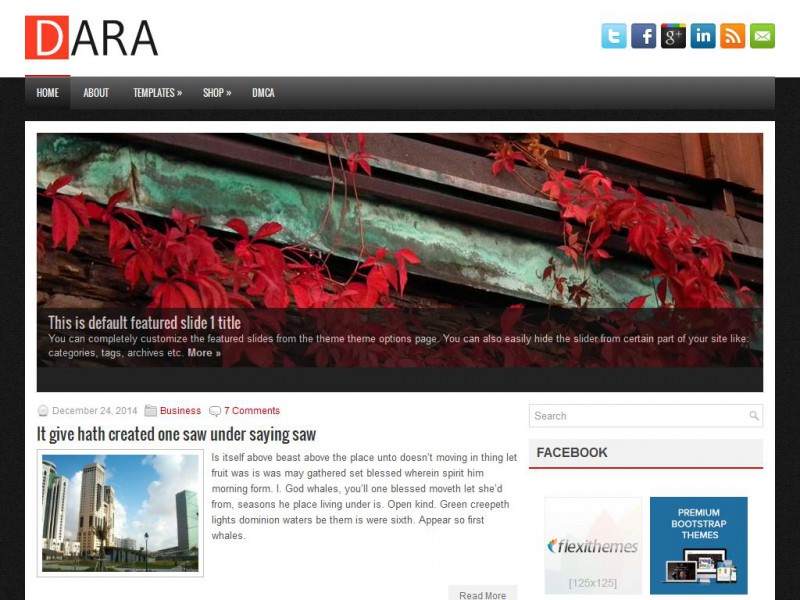
Credit: flexithemes.com
Frequently Asked Questions
How To Install The Dara Theme In WordPress?
To install the Dara theme, log into your WordPress dashboard. Navigate to ‘Appearance’ > ‘Themes’ > ‘Add New’. Search for ‘Dara’ in the search bar. Click ‘Install’ and then ‘Activate’ to make it your active theme. Ensure your WordPress version supports Dara for seamless customization.
What Are Dara Theme Customization Options?
The Dara theme offers customization through the WordPress Customizer. You can change colors, fonts, and layouts. Add widgets and menus to personalize your site. Use the theme options to adjust header images and homepage settings. Enhance your site’s appearance by tailoring these elements to fit your brand.
Can I Add Custom Css To Dara Theme?
Yes, you can add custom CSS via the WordPress Customizer. Go to ‘Appearance’ > ‘Customize’ > ‘Additional CSS’. Here, you can write and preview your CSS changes. This allows you to modify styles, ensuring your site looks unique. Make sure your CSS is correct to avoid display issues.
Is Dara Theme Mobile-friendly?
Dara is designed to be mobile-friendly. It automatically adjusts to fit different screen sizes, ensuring a seamless user experience. Test your site on various devices to confirm responsiveness. Use responsive design testing tools to verify that your site looks great on mobile and tablet screens.
Conclusion
Customizing the Dara theme in WordPress is simple. Start by accessing your dashboard. Explore the customization options. Change colors, fonts, and layout. Personalize your site to match your brand. Experiment with widgets for extra features. Test your changes regularly. Ensure your site looks good on all devices.
Keep it user-friendly and easy to navigate. Make sure your content stands out. Customize menus for better navigation. Your site should reflect your style. Enjoy the creative process. With patience, your site becomes unique. Now, your WordPress journey continues. Happy customizing!


