
Are you looking to give your WordPress site a unique touch with the Penscratch theme? You’re in the right place!
Customizing Penscratch can transform your blog from ordinary to extraordinary, making it a perfect reflection of your personality or brand. Imagine a website that not only looks professional but also feels like a warm, inviting space for your readers. With just a few tweaks, you can create an environment that captivates and engages your audience right from the first click.
Dive into this guide, and let’s unlock the secrets to making Penscratch work seamlessly for you. By the end, you’ll have all the tools you need to craft a site that’s as unique as your ideas. Ready to make your mark? Let’s get started!
Getting Started With Penscratch
Begin by logging into your WordPress dashboard. Navigate to the Appearance section. Click on Themes. Then, click the Add New button. In the search bar, type Penscratch. When you see the theme, click on Install. Wait for a moment. The theme will install automatically.
After installation, find the Activate button. Click it. Now, your site uses the Penscratch theme. Go to your website. See the new look. If you want changes, customize it. Use the Customize option under Appearance. Explore the different settings. Make your site unique. Enjoy your new theme!
Customizing The Header
The logo is the face of your site. Changing it is simple. Go to the customizer on your WordPress dashboard. Find the header section and click on the logo option. Upload your new logo. Make sure it fits well. Choose a logo that represents your brand. It should be clear and visible. Test how it looks on different devices.
The site title tells visitors what your site is about. The tagline adds more detail. Edit these in the header settings. Choose words that are simple and catchy. Keep them short and easy to read. This helps visitors understand your site quickly. Use words that describe your site well. Save changes once you’re done.
Header images can make your site more attractive. Choose images that fit your theme. Go to the header image settings. Upload or choose an image from the library. Make sure the image is clear. Check how it looks on mobile and desktop. Change the image if needed. This makes your site look more professional.
Tweaking The Homepage
A static front page gives your site a fixed homepage. Go to the WordPress dashboard. Click on Settings and then Reading. Here, you can set a static page. Choose a page from the dropdown list. Click Save Changes. Now, your homepage will not change. It looks the same every time.
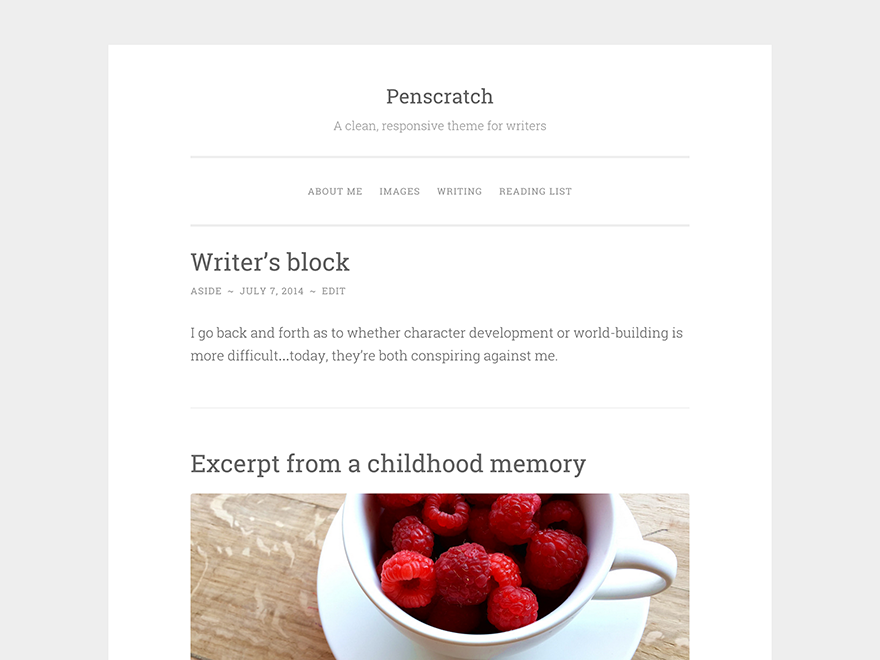
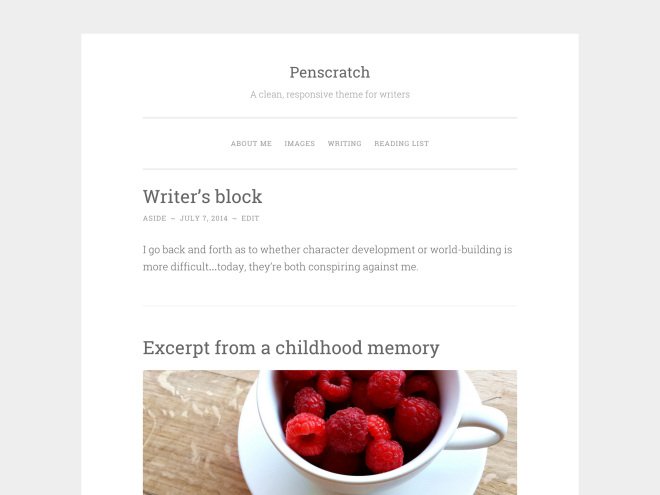
The blog layout can be changed. Go to Appearance and then Customize. Look for Theme Options. You can choose how posts show up. Maybe in a list or grid view. You can also change the colors. Click Save & Publish to keep changes. Now, your blog looks new and fresh.
Credit: childtheme-generator.com
Modifying Fonts And Colors
Choose a font style that you like. Use the theme settings to change it. Explore different font styles for your text. Some fonts are bold and some are thin. Each font gives a different feel. Try to match the font with your blog’s topic. Also, make sure it is easy to read. A good font makes your blog look nice.
Colors make your blog lively. Change colors in the theme settings. Use colors that match your blog’s mood. Bright colors can be fun. Dark colors can be serious. Pick colors that are easy on the eyes. Too many colors can be confusing. Keep it simple for a clean look. This helps readers focus on your content.
Enhancing The Sidebar
Customizing the Penscratch WordPress theme enhances your sidebar, improving navigation and user experience. Adjust colors, fonts, and widgets to match your brand, offering a personalized touch.
Adding Widgets
Widgets make your sidebar more useful. You can add different widgets easily. Use the WordPress dashboard to manage them. Click on ‘Appearance’ and then ‘Widgets’. Drag the widget you want into the sidebar area. Popular widgets include search bars and recent posts. Choose widgets that fit your site’s style. Experiment with different widget combinations for best results.
Organizing Sidebar Content
Organizing your sidebar is important. Arrange items in a way that makes sense. Put the most important widgets at the top. Keep less important ones lower. Use categories to group similar items. This makes content easier to find. A neat sidebar improves user experience. Users will stay longer on your site.
Customizing Menus
Custom menus help organize your site. Start by visiting the WordPress dashboard. Click on “Appearance” and then “Menus.” You can add pages, links, and categories. Choose items for your menu. Select the items from the left panel. Add them to your menu structure. Drag and drop items to reorder them. Save your changes. Your menu is ready!
Menu locations decide where menus appear. Go to the “Manage Locations” tab. You will see different menu spots. Assign your custom menu to a location. You might have spots like header or footer. Select the right spot for your menu. Save changes to update the site. Your menu will now appear in the chosen place.
Setting Up Footers
Customizing the Penscratch WordPress theme’s footer involves easy steps to enhance your site’s look. Access the footer settings in the theme’s customization panel to add widgets or modify text. Personalize colors and layout to match your brand’s style.
Custom Footer Text
Change the footer text in the Penscratch theme easily. Go to the WordPress dashboard. Click on Appearance and then Customize. Find the Footer section. Type your new text in the box provided. This text shows at the bottom of your page. Make it special. Keep it short and clear. Save your changes to see them live.
Adding Footer Widgets
Widgets add extra features to your footer. Visit the Widgets section under Appearance. Drag and drop widgets into the footer area. Choose from options like text, images, or links. Widgets make your site look better. Arrange them as you like. Make sure they fit your site’s style. Save your work to keep changes.
Optimizing For Mobile
Good mobile design is very important. It helps users on phones and tablets. Make sure fonts are easy to read. Choose simple fonts with large sizes. Space between lines helps too. Keep buttons big enough for fingers. People tap them with fingers, not a mouse. Use clear colors. Bright colors catch the eye. Avoid too many colors.
Responsive layout changes with screen size. Check how the theme looks on different devices. Adjust images to fit small screens. Large images can be hard to see. Use flexible grids. Grids help organize content neatly. Test on different phones and tablets. Make sure everything is easy to use. Good mobile design improves user experience.
Using Custom Css
Enhance your Penscratch WordPress theme with custom CSS for a unique look. Adjust colors, fonts, and layout easily. Create a personalized website style that stands out with simple CSS tweaks.
Accessing The Customizer
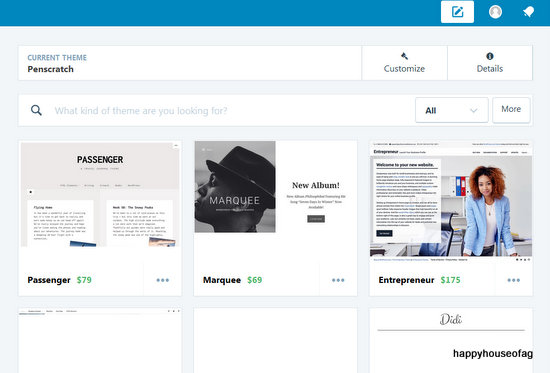
Access the WordPress Customizer to change your site’s look. Find it under the “Appearance” tab in your dashboard. Click on “Customize” to open the Customizer. It shows a preview of your site on the right side. On the left, you see different options to change.
Writing Custom Css Rules
Add your own styles using Custom CSS. Look for the “Additional CSS” section in the Customizer. Click on it to open a box. Type your CSS rules here. For example, you can change text color or size. Make sure you test your CSS. See changes in the preview area. Save your changes by clicking “Publish”. Now, your site has a new look.
Credit: happyhouseofag.wordpress.com
Integrating Social Media
Social media links make your site more connected. The Penscratch theme allows easy link addition. First, go to the theme settings. Find the social media section. Enter your social media URLs there. Save your changes. The links will show on your site. This makes it easy for visitors to find you.
Social sharing buttons let users share your content. This helps reach more people. Open the plugin settings in WordPress. Choose a social sharing plugin. Add buttons to your posts. Select where the buttons will appear. You can put them at the top or bottom of posts. This encourages users to share your content easily.
Troubleshooting Common Issues
Customizing the Penscratch WordPress theme? Encounter issues like unresponsive layouts and missing widgets? Discover simple solutions for a smoother experience. Adjust settings, update plugins, and clear caches to resolve common problems effectively.
Fixing Layout Problems
Sometimes the layout doesn’t look right. This can be due to incorrect theme settings. Check your settings in the WordPress dashboard. Make sure the layout options are set correctly. If things still look odd, consider resetting the theme. Go to the theme settings and choose reset. This can fix many layout issues. Remember to save your work first.
Resolving Plugin Conflicts
Plugins can cause conflicts with your theme. To find the problem, disable all plugins. Then, activate them one by one. This helps you see which plugin causes trouble. If a plugin is the issue, look for a different plugin that does the same job. Sometimes updating the plugin can help too. Always keep plugins updated for the best results.
Credit: janefriedman.com
Frequently Asked Questions
How Do I Change Penscratch Colors?
To change Penscratch theme colors, navigate to WordPress Dashboard. Click on “Customize” under “Appearance”. Select “Colors” and adjust the palette. Save changes. This allows you to personalize your site’s look with preferred colors, enhancing visual appeal and brand consistency.
Can I Add Custom Logo In Penscratch?
Yes, you can add a custom logo. Go to “Appearance” and click “Customize”. Select “Site Identity”, then upload your logo. This helps establish brand identity. Ensure your logo is clear and visually appealing to make a strong impression on visitors.
How To Modify Penscratch Font Style?
To modify fonts, visit the “Customize” section under “Appearance”. Choose “Fonts” and select your preferred style. Save changes. This customization enhances readability and can improve user engagement, making your site more attractive and professional.
Is Penscratch Theme Mobile Responsive?
Yes, Penscratch is mobile responsive. It automatically adjusts to fit screens of various sizes. This ensures a seamless browsing experience for visitors on smartphones and tablets, helping retain engagement and improve SEO rankings.
Conclusion
Customizing the Penscratch WordPress theme is simple. It offers flexibility to suit your style. Start by adjusting colors. Then, tweak fonts for readability. Add widgets to enhance functionality. Personalize the header with your logo. Tailor the layout to fit your content.
Save changes regularly to avoid loss. Preview often to ensure satisfaction. Keep your audience in mind. Make your site user-friendly and visually appealing. Experiment with different elements. Find what works best for your message. Enjoy the creative process. Your customized Penscratch theme awaits.
Happy blogging!


