
Are you looking to make your WordPress site truly unique? Customizing the Genesis theme can be your secret weapon.
It’s not just about changing colors or fonts; it’s about crafting a digital space that reflects your brand’s personality and engages your audience. Imagine a website that not only looks stunning but also functions smoothly and ranks well in search engines.
With Genesis, you have the power to do just that. In this guide, you’ll discover straightforward steps to transform your Genesis theme, making your site a standout in the crowded online world. Ready to dive in and unleash your site’s full potential? Let’s get started!

Credit: www.studiopress.com
Why Choose Genesis Theme
Genesis Theme is very popular for WordPress. It is known for its speed and security. Many people like it because it is easy to use. You can make your website look nice with it. The theme is also SEO-friendly. This helps your site show up in search results.
Genesis has many features that help your site. You can change the design easily. There are also many plugins you can use. These tools make your site better. Many people trust Genesis for their websites. It is a reliable choice. It keeps your site safe and fast.

Credit: www.youtube.com
Getting Started With Genesis
Download the Genesis theme file. Save it on your computer. Log into your WordPress dashboard. Go to Appearance, then Themes. Click Add New. Click Upload Theme. Choose the Genesis file. Click Install Now. Wait for the process to finish. Click Activate once done.
Activate Genesis in your WordPress dashboard. Go to Appearance. Select Themes. Find Genesis in the list. Click Activate. Now Genesis is live. You can start customizing. Check the theme options. Adjust settings as needed. Explore the customization panel. Make your site unique.
Genesis Framework Basics
A child theme is like a baby theme. It inherits features from the main theme. This main theme is called the parent theme. Using a child theme is very important. It keeps your changes safe. Updates to the parent theme will not affect your customizations. You can tweak and change as much as you like. The parent theme stays the same. This is a great way to make your site unique.
Hooks and filters are special tools in the Genesis Framework. They let you add or change parts of your site. Hooks are like little hooks on a wall. They hold or change things. Filters change the information before it shows up. Both are easy to use. They help customize your site without touching the main code. This keeps your site safe and clean. Start using them to make your site better.
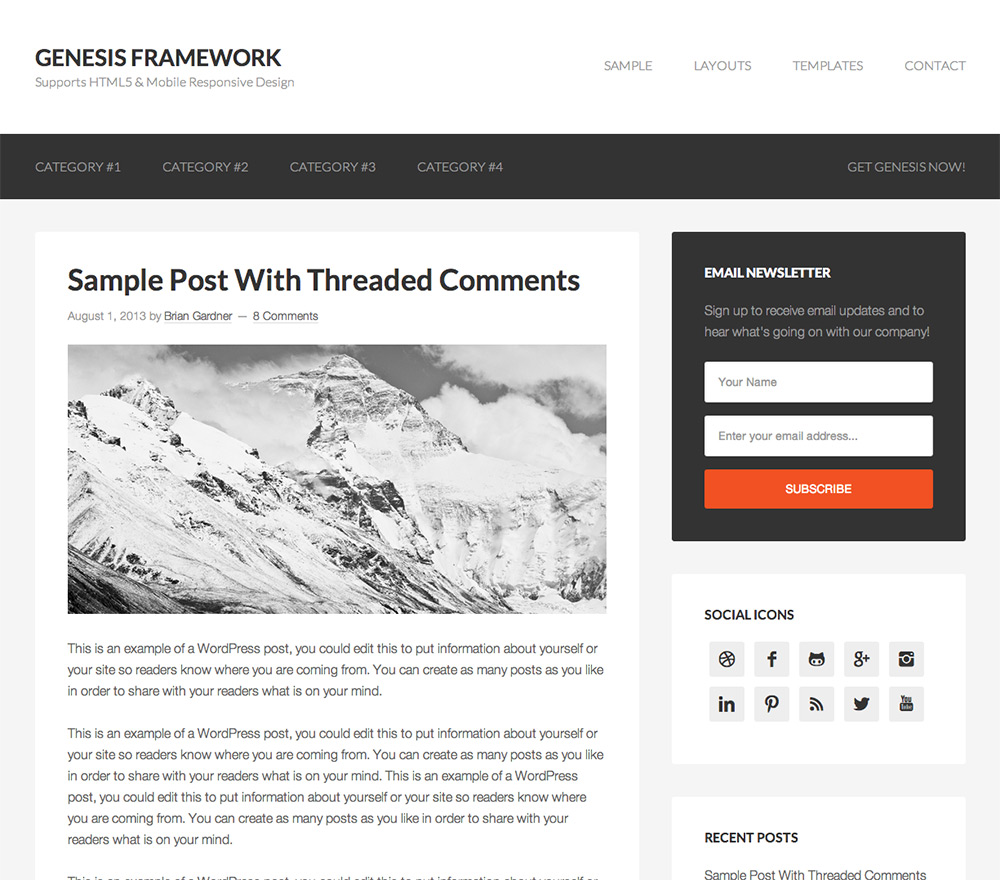
Credit: thestizmedia.com
Customizing Appearance
Pick colors that match your brand or style. Go to the WordPress dashboard. Click on Appearance, then Customize. Find the Colors section. Here, you can change your site’s colors. Choose a new color for your header. Change the color of your links. Make sure text is easy to read. Save your changes.
Fonts make your site look nice. Go to Appearance, then Customize. Look for the Typography section. Choose a font you like. Change the size of your text. Make headings stand out. Check if the text is readable. Save your settings.
Layout Modifications
Sidebars can change the look of your page. Go to the Widgets section in WordPress. Drag and drop items to your sidebar. You can add text, images, or menus. Check how they look on your website. Make sure they are easy to see and use. A well-organized sidebar helps visitors find what they need.
Headers and footers are important for your site’s design. To change them, go to the Customize menu. You can add logos to the header. Choose colors that match your site’s theme. In the footer, add contact info or links. This helps visitors know where to find more details. Always check your changes before saving. Make sure everything looks clear and neat.
Adding Custom Widgets
Custom widgets enhance the Genesis theme in WordPress by adding unique functions. Simply drag and drop them into widget areas. This feature offers flexibility in design and improves user experience, making your website stand out.
Using Genesis Widgets
Genesis offers special widgets for your site. These widgets add features to your pages. You can easily drag and drop them. Widgets help you show content in different areas. They make your site more lively. You can use widgets for text, images, or links. It’s simple to add widgets to your sidebar. Your website looks better with widgets.
Third-party Widget Integration
You can use third-party widgets for extra features. These widgets come from outside sources. They add new options to your site. You can find them in the WordPress plugin store. Popular third-party widgets offer different tools. They help you manage your site better. Some widgets help with social media sharing. Others improve site speed or design. Be careful when choosing third-party widgets. Check their reviews and ratings first.
Seo Optimization Tips
Genesis theme has built-in SEO settings. These settings help improve your site’s search visibility. You can set meta tags and descriptions. This makes your content more attractive to search engines. Use keywords wisely. They should match what people search. Keep descriptions short and clear. Genesis allows you to manage these settings easily. It’s a good start for SEO beginners. Always check your settings after updates. This ensures everything works well.
SEO plugins can boost your site’s performance. Plugins like Yoast SEO are popular. They offer additional tools. These tools help optimize your content more. Install the plugin and follow the setup guide. Ensure your content is readable and well-structured. Some plugins offer keyword analysis. This helps you choose the best words for your posts. Regular updates keep plugins working well. This means better SEO results for your site.
Enhancing Functionality
Genesis plugins can improve your website. They add special features. These plugins are easy to use. Genesis Simple Edits helps change text areas. Genesis eNews Extended adds email signup forms. Genesis Simple Hooks allows custom content. Each plugin provides specific functions. Plugins make your site better and faster. Choose the right plugins for your needs. Always update plugins for security. Read instructions to set them up.
Custom code snippets can change your website look. They are small pieces of code. CSS snippets can change colors and fonts. PHP snippets can add functions. Adding snippets needs care. Always backup your site first. Mistakes can break your site. Use a child theme for safety. Child themes protect your main theme. Learn basic coding to use snippets well. Online guides can help you.
Troubleshooting Common Issues
Customizing the Genesis Theme in WordPress can be challenging. Check theme settings for layout options and widget areas. Use Genesis plugins to enhance functionality without coding expertise.
Resolving Plugin Conflicts
Plugins can sometimes cause issues. It happens when they don’t work well together. Deactivate all plugins first. Then, activate them one by one. This helps find the problem plugin. Once found, check for updates. Developers often fix bugs in updates. If the plugin is still causing trouble, contact support. They can give specific help. Always keep a backup before making changes. This ensures your site stays safe.
Debugging Css Problems
CSS problems can make your site look bad. Use the browser’s inspect tool. It helps find and fix CSS issues. Check if the CSS file is loaded. Sometimes it doesn’t load properly. Clear the browser cache. Old CSS might be stored there. Test your site on different browsers. Some CSS might not work in all browsers. Keep CSS code simple and clean. This makes it easier to spot errors. If the issue persists, seek expert help.
Maintaining Your Customizations
Enhance your website’s appearance by customizing the Genesis Theme in WordPress. Adjust layouts, colors, and fonts easily through the settings panel. Maintain your customizations by regularly updating the theme without losing your unique design.
Backup Strategies
Creating a backup is very important. You need it to save your hard work. Use a plugin to make a copy of your site. It saves time and keeps your data safe. Store the backup in a secure place. Like on a cloud service. You can also use external hard drives. Check backups regularly. Make sure they work. You don’t want surprises later. Keeping backups is like having a safety net. It protects you from losing your changes.
Keeping Themes Updated
Updating your theme keeps it working well. New updates fix old problems. They also add fresh features. Check for updates often. You can set automatic updates. This way, your theme stays current. Updates protect against security issues. They make your site safe. Use the latest version always. It helps your site run smoothly. Updating is like giving your site a health check. It keeps everything in top shape.
Frequently Asked Questions
How Do I Start Customizing Genesis Theme?
Begin by installing the Genesis Framework on your WordPress site. Next, access the theme settings under “Appearance” and “Customize. ” Explore options for colors, fonts, and layout adjustments. Use Genesis child themes for more advanced customizations, ensuring you maintain updates and security.
Can I Use Plugins With Genesis Theme?
Yes, Genesis is compatible with most WordPress plugins. Choose plugins that enhance your site’s functionality without affecting performance. Popular choices include SEO plugins, caching tools, and page builders. Always test plugins in a staging environment first to ensure compatibility.
What Are Genesis Child Themes?
Genesis child themes are pre-designed templates that build upon the Genesis Framework. They offer unique styling and functionality while maintaining the framework’s stability. Child themes allow for easier updates and customization without altering the core framework, ensuring your site remains secure and efficient.
Is Genesis Theme Seo-friendly?
Yes, Genesis is highly SEO-friendly. It offers clean, optimized code that improves search engine rankings. Built-in features like schema markup and fast loading times enhance visibility. Pair Genesis with an SEO plugin for comprehensive optimization, ensuring your site ranks well in search results.
Conclusion
Customizing the Genesis Theme in WordPress is simple. Start with the basics. Change colors and fonts. Adjust layout for personal touch. Use widgets to enhance functionality. Explore theme settings. Tweak your site until it fits your style. Remember, small changes can make a big impact.
Take your time. Experiment with options. Your website reflects your personality. It should feel unique and inviting. Have fun with customization. Make it yours. Enjoy watching your website transform into something special. Keep learning. Your Genesis Theme can grow with you.
Happy customizing!


