
Are you looking to make your WordPress website stand out? The footer is often an overlooked part of your site, but it plays a crucial role in both design and functionality.
Customizing your footer can enhance user experience and improve your site’s overall aesthetics. Imagine your visitors scrolling down and finding a footer that reflects your brand perfectly. It’s more than just links and copyright notices; it’s a space where you can engage your audience, offer them more value, and guide them to important areas of your website.
In this guide, we’ll walk you through the process of customizing the footer in your WordPress theme. Whether you’re a beginner or have some experience, you’ll discover easy-to-follow steps to transform your footer into a powerful tool. By the end of this article, you’ll not only know how to customize your footer, but you’ll also understand why it’s a game-changer for your site. So, are you ready to enhance your website’s potential? Let’s dive into the details and unlock the true power of your WordPress footer.
Why Customize The Footer
Customizing the footer helps make your website unique. It can show important information like contact details or social media links. A well-designed footer improves the overall look of your site. It also helps users find what they need quickly.
Some footers have legal information like privacy policies. Adding such info makes your site more trustworthy. You can also include a site map to help visitors navigate. Custom footers can include a search bar too. This makes it easy for users to find content.
Making the footer match your brand colors is important. It keeps your site looking consistent and professional. Simple changes in the footer can have a big impact.
Credit: www.crazyegg.com
Accessing The WordPress Dashboard
First, open your browser. Type the website’s URL. Add “/wp-admin” at the end. Press enter. You will see the login page. Enter your username and password. Click on the login button.
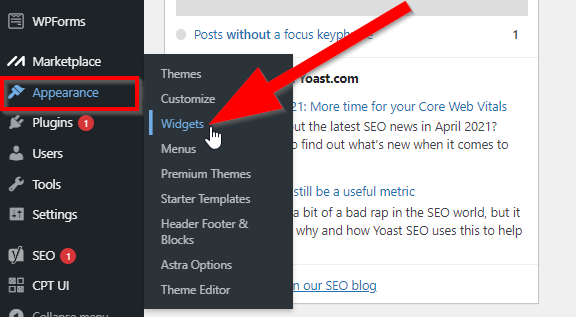
Once inside, you will see the dashboard. The dashboard is your main control center. Find the Appearance tab on the left. Click on it. A menu will drop down. Choose Customize from the list.
Now, the customization page will appear. This page lets you change many things. Look for the footer section in the options. Click on it. You can now start editing the footer.
Navigating To Theme Customizer
Open your WordPress dashboard. Look on the left side. Find the Appearance tab. Click on it. A list will appear. Choose Customize from the list. This opens the Theme Customizer. It shows your site preview. You can see changes live here.
On the left, find the Footer section. Click to open it. Here, you can edit the footer. You can change text or links. Add social media icons if you want. Make sure to save changes. Look at the preview. Check if it looks good. If yes, hit Publish. Now your footer is customized.
Using Widgets For Footer
Widgets make the footer more useful. They add links, text, or other items. Go to the WordPress dashboard. Find the “Appearance” menu. Click on “Widgets.” You will see many widget options. Drag a widget to the footer area. Drop it there. The widget is now in the footer. You can add more widgets if needed. Each widget has settings. Change them to fit your needs.
A neat layout makes the footer look nice. Arrange widgets in the right order. Use the “Customize” option for this. Go to “Appearance” and click “Customize.” Find the “Footer” section. Here, you can move widgets up or down. Place important widgets on top. Less important ones go below. Save changes when done. Your footer will look organized.
Editing Footer Code
Customizing the footer in a WordPress theme involves editing the footer code. Access the theme editor, locate the footer. php file, and make your desired changes. Save and refresh to see your updated footer design.
Accessing Theme Editor
Find the Theme Editor in your WordPress dashboard. Navigate to Appearance then click on Theme Editor. You will see a list of files on the right side. Look for the footer.php file. This file controls your site’s footer. Be careful when making changes here. Mistakes can break your site.
Modifying Footer.php
Open the footer.php file. You can add or remove code here. To change text, find the text you want to edit. Change it to your desired text. Save the file once you finish editing. Refresh your site to see changes. Always backup before editing files. A backup helps if something goes wrong.
Customizing With Footer Plugins
Choosing the right plugin is important. Some plugins offer easy drag-and-drop features. Others provide customizable options. Check reviews and ratings before picking one. This helps in finding the best plugin for your needs. Look for plugins with regular updates. They ensure better security and functionality.
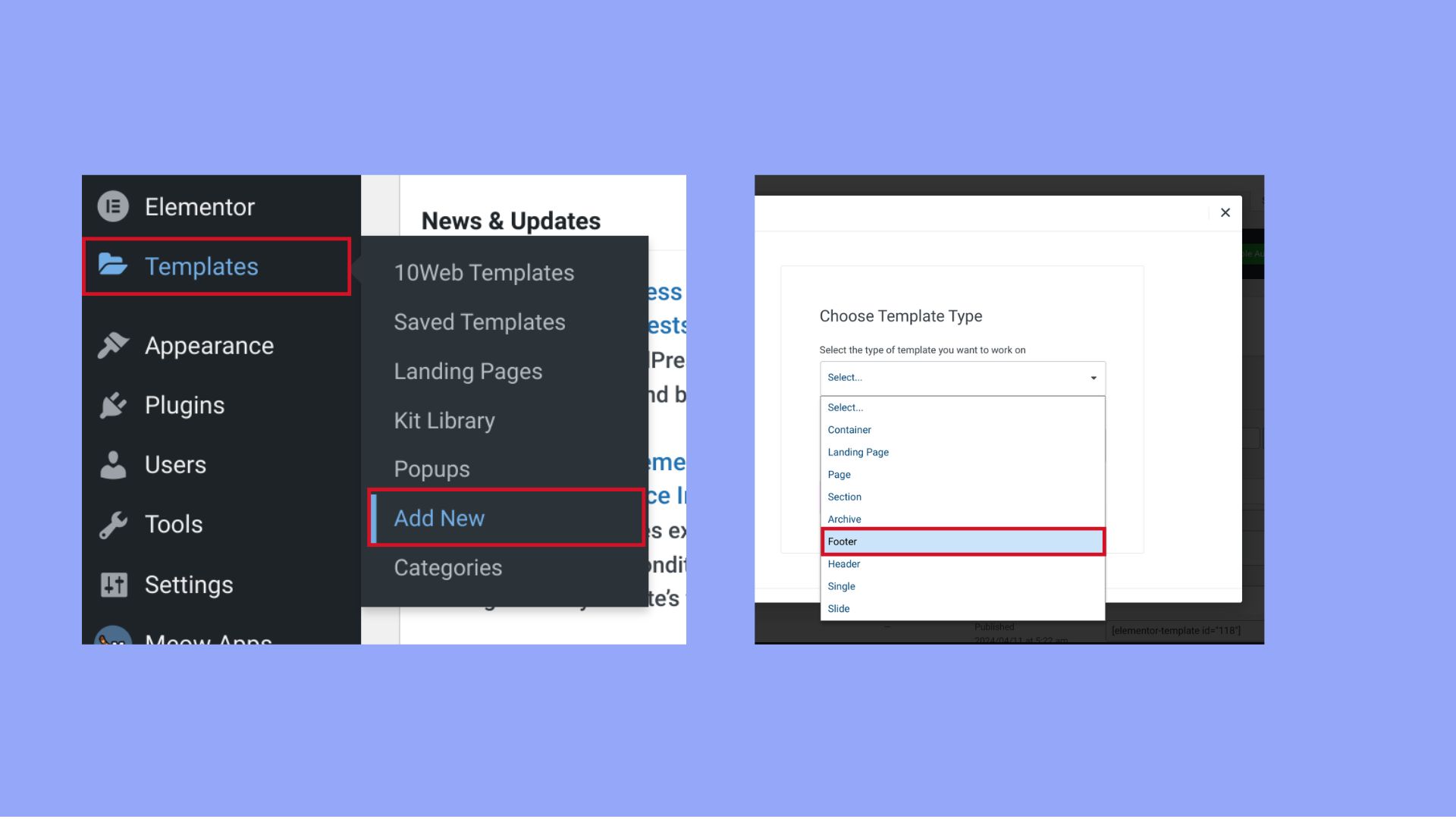
Start by going to your WordPress dashboard. Navigate to the Plugins section. Click on Add New. Search for your chosen plugin. Once found, click on Install Now. After installation, click Activate. Your plugin is now ready to use. Follow instructions provided by the plugin for customization.
Styling With Css
Customizing the footer in a WordPress theme enhances your site’s design and functionality. Use CSS to change colors, fonts, and layout. Personalize your site’s appearance with simple coding adjustments for a unique look.
Adding Custom Css
Use Custom CSS to change the footer look. Open your theme’s customizer. Find the additional CSS option. Enter the CSS code for your footer. Save changes to see the new style.
Testing Css Changes
Check if the changes work. Refresh the page. Look at the footer. Did the style change? If not, try again. Ensure your code is correct. Use simple CSS for basic changes. Complex CSS needs more testing.
Credit: 10web.io
Ensuring Mobile Responsiveness
Making sure your footer looks good on mobile is important. Use responsive design tools to adjust the footer layout. Check how it appears on different screen sizes. Keep text and links readable and easy to click. Avoid tiny fonts or buttons. Test on real devices if possible.
Use CSS media queries to change styles for smaller screens. This helps keep your footer neat and tidy. Try to keep images and icons small. Large images can slow down loading times.
Keep the design simple and clean. Complex designs may not work well on mobile. Remember, a good mobile footer helps users find information quickly. It makes your site more user-friendly.
Testing And Publishing Changes
Editing the footer in a WordPress theme involves testing and publishing your changes carefully. Ensure each update reflects your design and functionality goals. Preview modifications before finalizing to maintain consistency.
Previewing Changes
Use the WordPress Customizer to see your footer changes. This tool lets you view how your edits appear on your site. Always check on both computer and phone screens. This ensures everything looks good everywhere. Click the Preview button to view the changes. Don’t forget to save if you like the new look. You can go back and make more changes if needed.
Finalizing Updates
After previewing, decide if the changes are ready. If everything looks good, hit the Publish button. This makes your new footer live for everyone to see. Remember to double-check for any errors. You want your site to look its best. If you notice mistakes, go back and fix them. Your site should look neat and professional.

Credit: blog.hubspot.com
Frequently Asked Questions
How Do I Access Footer Settings In WordPress?
To access footer settings, navigate to your WordPress dashboard. Click on “Appearance” then “Customize. ” Look for “Footer” settings within the customization panel. You can adjust text, widgets, and layout here. Changes can be previewed in real-time before saving.
Can I Add Social Media Links To My Footer?
Yes, most WordPress themes allow adding social media links in the footer. Go to “Widgets” under “Appearance” and select the footer widget area. Add a “Social Media” widget and input your links. Save changes to see them appear in the footer.
How Do I Change Footer Text In WordPress?
To change the footer text, access the WordPress dashboard. Click “Appearance” then “Customize. ” Locate the “Footer” section. Edit the text in the provided field and save changes. Some themes may require editing footer. php in your theme files.
Can I Remove Footer Credits In WordPress?
Yes, removing footer credits is possible. Use the “Customize” option in the dashboard under “Appearance. ” Find the “Footer” section and look for a credit removal option. If not available, edit the footer. php file in your theme directory.
Conclusion
Customizing the footer in your WordPress theme is simple. You can make it unique to your site. Change text, colors, and add links easily. Use the theme settings or a plugin for more options. A well-designed footer helps visitors navigate your website.
It also improves your site’s look and feel. Take time to explore different designs. Make sure your footer matches your brand style. A good footer enhances user experience and boosts your site’s appeal. Remember, small changes can have a big impact.
Always preview your changes before saving. Enjoy creating a footer that stands out!


