
Are you looking to give your WordPress website a fresh, unique look without compromising on quality? Customizing a theme from The Theme Foundry might be just what you need.
Imagine your website standing out with a design that reflects your brand’s personality and engages your visitors right from the first click. But how do you start this customization journey without feeling overwhelmed? You’re about to discover straightforward steps that make customizing a WordPress theme not only achievable but enjoyable.
By the end of this article, you’ll feel empowered to transform your website into something truly special, capturing attention and driving engagement. So, let’s dive in and unlock the secrets to making your WordPress site truly yours.
Credit: graphicdesignjunction.com
Choosing The Right Theme Foundry Theme
First, think about what you need. Do you want a blog or a shop? Or maybe a photo gallery? Knowing your goals helps you pick the right theme. List the features you want. This makes it easier to choose.
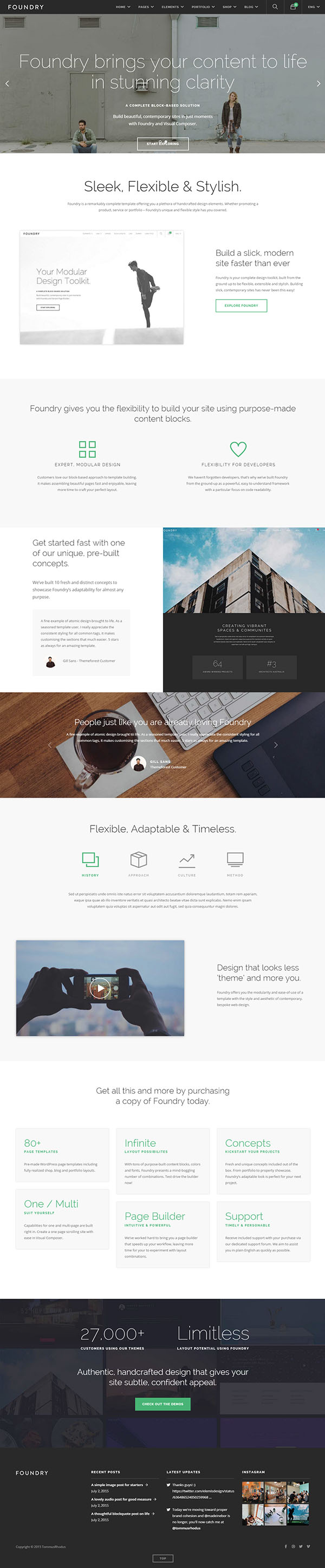
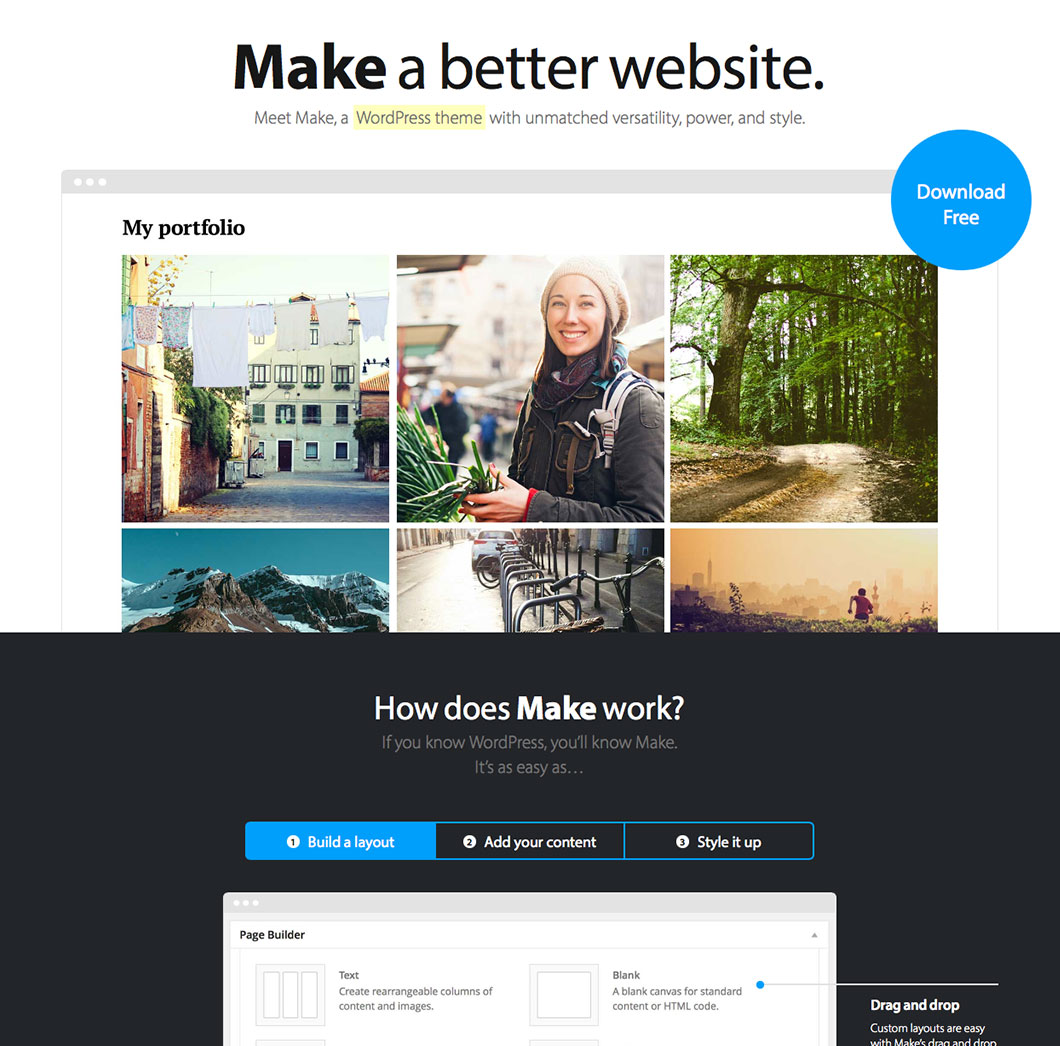
Theme Foundry offers many options. Some themes are for blogs. Some are for businesses. Each theme has a unique style. Look at the theme demos. See if they match your needs. Check the reviews too. Happy users mean good themes.
Installing The Theme
First, visit the Theme Foundry website. Look for the download button. Click it to start the download. Save the theme file on your computer. Make sure you can find it later. This step is very important. You need the theme file to upload it.
Log into your WordPress dashboard. Find the Appearance tab. Click on it. Then, click on Themes. You will see a button named Add New. Click it. Choose the Upload Theme button. Locate the theme file from your computer. Select it and click Install Now. Wait for the upload to finish. After that, activate the theme. Your new theme is now ready to use.
Theme Customization Basics
Explore the essentials of customizing a WordPress theme with Theme Foundry. Learn to adjust colors, fonts, and layouts easily. Enhance your site’s appearance by understanding basic customization options.
Using The WordPress Customizer
The WordPress Customizer is a tool. It helps make changes to your site. You can see changes live. It is very easy to use. You can adjust your site identity. This includes the site title and tagline. You can also change the site icon. The icon shows in the browser tab. It is also known as a favicon.
Site title is the name of your site. The tagline is a short sentence. It tells what your site is about. These changes are important. They help in defining your site’s look. Using the customizer is fun. It allows for creativity. You can try different looks. Find what suits your style.
Customizing Layout And Design
Colors make your website look nice. Choose colors that match your style. Use the theme customizer to change them easily. Fonts are the style of text. They help the words look pretty. Pick a font that is easy to read. Change it in the customizer too. You can see changes live. It helps make good choices. Bold or light fonts can set the mood. Try different styles to see what works.
The header is at the top of the page. It often shows your logo and menu. Change it to fit your needs. The footer is at the bottom. It can have contact info or links. Use the customizer to edit both places. Add or remove items as needed. Make sure they look neat and tidy. This helps visitors find important info quickly. Headers and footers should be simple. This makes them easy to use.
Adding Custom Widgets And Menus
Menus help users find things easily. Create a menu in the admin area. Click on “Appearance”, then “Menus”. Here, add pages, posts, or links. Select what you want to show. Save it. Manage menus by dragging items. Use the “Locations” tab to place menus. Choose where the menu appears. This helps users navigate your site.
Widgets add extra features. Find them in the “Widgets” section. Drag widgets to the sidebar or footer. Change the order anytime. Each widget has its own settings. Adjust them to fit your needs. Choose widgets that improve user experience. Examples include search bars, calendars, and social media links.
Incorporating Custom Css
Customizing a WordPress theme by incorporating custom CSS allows you to personalize its look and feel. This method lets you change colors, fonts, and layouts, enhancing your site’s design. With Theme Foundry, applying CSS is straightforward, making it easy for users to modify themes to suit their style.
Accessing Additional Css
Start by finding the WordPress dashboard. Click on Appearance and then Customize. There you will see the Additional CSS option. Click on it to open a new field. This is where you can add your custom code.
Writing Custom Css Code
Custom CSS lets you change your site’s look. Make text bold or change colors. Use simple code like color: blue; for blue text. To make changes, just type your CSS code in the field. Save your work by clicking the Publish button. Always check your site after changes. This ensures everything looks good.
Integrating Plugins For Enhanced Functionality
Customizing a WordPress theme from Theme Foundry becomes simpler with the right plugins. These tools enhance functionality, offering tailored features without coding. Elevate your site’s performance by selecting plugins that align with your specific needs.
Selecting Compatible Plugins
Choosing the right plugins is important. Plugins add extra features to your site. Some plugins do not work well with others. Always check if a plugin works with your theme. Read reviews about the plugin. Ask friends about their experience with it. Avoid plugins that slow down your site. Fast plugins make your site better. Reliable plugins are good. They help your site run smoothly. Keep your plugins updated. New updates fix bugs and improve features. Choose plugins that match your needs. Quality plugins help your site grow.
Configuring Plugin Settings
After installing a plugin, it’s time to set it up. Settings help you control how the plugin works. Always read instructions. They guide you on what to do. Adjust settings to fit your site. Some settings need special attention. Make sure you save changes. Check if the plugin works well. Test it on your site. Testing shows if everything is okay. If not, tweak the settings again. Proper settings make plugins work better. Settings control plugin actions. They help plugins do their job right. Follow the setup steps. Step-by-step ensures good results.
Credit: thethemefoundry.com
Testing And Optimization
A website must look good on all devices. Test the theme on phones, tablets, and computers. Use tools to check how it looks. Adjust the settings if needed. Make sure buttons and text are clear. A responsive site keeps visitors happy.
A slow site can frustrate visitors. Use speed testing tools to check the site. Compress images to make them smaller. Remove unused plugins and scripts. Enable browser caching for faster loading. A faster site improves the user experience.
Backing Up Your Custom Theme
Backup plugins keep your theme changes safe. These tools save your work. Plugins like UpdraftPlus and BackWPup are popular. They store copies of your theme. You can restore them easily. It’s like having a safety net.
Customizations make your site unique. Keep them safe. Always save changes before updates. Use child themes for customizations. This way, your main theme stays untouched. Child themes store your changes separately. Updates won’t remove them.
Credit: themeforest.net
Frequently Asked Questions
How Do I Start Customizing A WordPress Theme?
To start customizing, access your WordPress dashboard and navigate to Appearance > Customize. Here, you can modify settings like colors, fonts, and layout. For more advanced changes, consider using a child theme or custom CSS. Always back up your site before making significant modifications.
Can I Change The Theme’s Font Style?
Yes, changing the font style is possible through the WordPress Customizer. Navigate to Appearance > Customize, then select Typography. Here, you can adjust font styles, sizes, and weights. For more detailed customization, you might need to edit the theme’s CSS files or use a plugin.
Is Theme Foundry Suitable For Beginners?
Theme Foundry offers themes that are beginner-friendly. Their themes come with intuitive options and detailed documentation. This makes it easier for users to customize without extensive coding knowledge. You can also access community support for additional help and guidance.
How Can I Add Custom Widgets?
To add custom widgets, go to Appearance > Widgets in your WordPress dashboard. Drag and drop available widgets into your sidebar or footer areas. For more functionality, consider using plugins that offer additional widget options or create your own custom widgets through custom code.
Conclusion
Customizing a WordPress theme from Theme Foundry is straightforward. With basic steps, your site can look unique. Explore options for colors, fonts, and layouts. Test changes to ensure everything works well. Be patient and creative during customization. Use tutorials and guides for extra help.
Your site will reflect your vision. Practice and learning make the process easier. Soon, you’ll create a site that stands out. Enjoy the journey of personalization. Your WordPress theme will truly represent your style.


