
Your website is often the first impression visitors have of your brand, and a well-organized header menu can make all the difference. If you’re using a WordPress theme, you might have encountered the challenge of adjusting the spacing in your header menu.
It’s not just about aesthetics; proper spacing can enhance user experience by making navigation intuitive and visually pleasing. Imagine your visitors effortlessly finding what they need, leading to more engagement and conversions. This guide will show you how to customize your header menu spacing, ensuring that your website not only stands out but also functions seamlessly.
Ready to transform your site’s first impression? Let’s dive in.
Credit: wpastra.com
Choosing The Right Theme
First, make a list of your needs. Think about what you want. Do you need a simple or complex design? Check if the theme supports header changes. Some themes are better for this. Consider compatibility with plugins. This can be important. Make sure the theme works well with your WordPress version. Look at reviews to see what others say. A good theme has positive feedback.
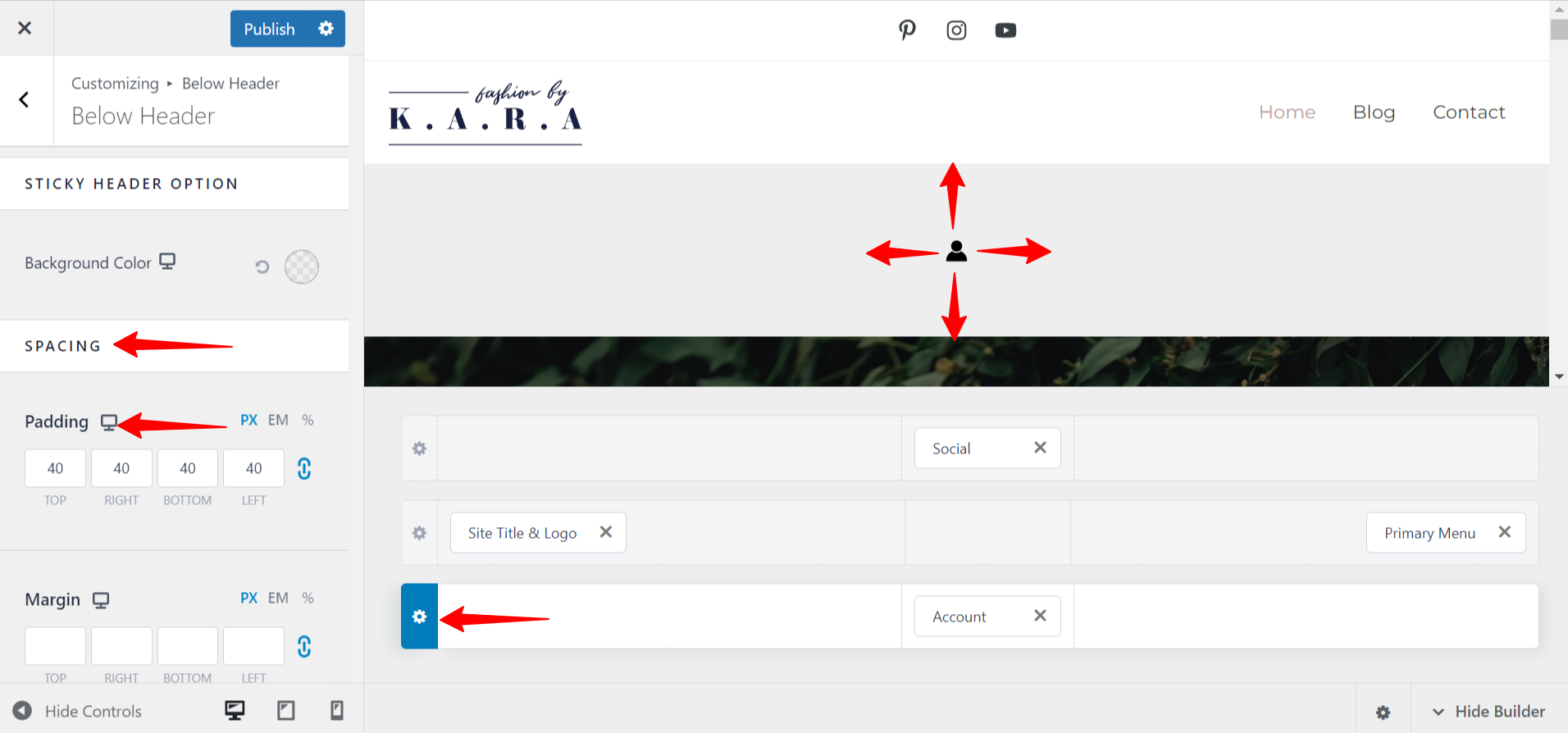
Explore the theme’s customization settings. Look for options that let you adjust the header space. Some themes have built-in tools. These can make changes easy. Use the WordPress Customizer. It can help you see changes live. Try different settings to find the best look. Remember, small changes can make a big difference. Save your work often. This prevents losing changes.
Credit: visualmodo.com
Accessing Theme Customizer
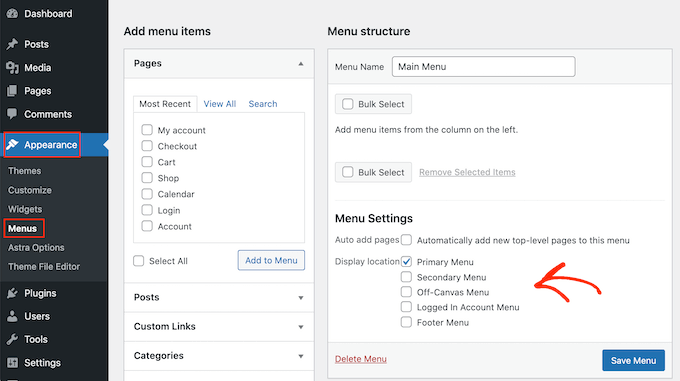
First, log in to your WordPress Dashboard. This is your control center. You can make changes here. Find the Appearance option on the left sidebar. Click on it. This will open more settings.
Look for Customize. Click on it to open the customizer. This tool helps you change your theme. You can adjust colors, fonts, and spacing. Make sure to save your changes.
Exploring settings is important. Take time to understand each option. This will help you make the best adjustments. Small changes can make a big difference. Your header menu will look great!
Using Css For Customization
CSS stands for Cascading Style Sheets. It changes how your website looks. With CSS, you can make the header menu neat and tidy. Open your WordPress dashboard. Go to Appearance, then click Customize. Look for Additional CSS. Here, you can type your changes.
To adjust spacing, use the padding or margin properties.
For example, type header { padding: 20px; } to add space.
If you want more, change the number. Keep trying until it looks right.
You can also use margin for outside space.
Type header { margin: 15px; } to add more space.
Utilizing Theme-specific Options
Adjusting header menu spacing can enhance a WordPress site’s appearance. Access theme-specific options in your dashboard. Tweak padding and margins for a balanced layout.
Explore Built-in Settings
Many WordPress themes come with built-in settings to help you adjust the header menu. These settings are easy to find in the theme’s customization panel. Start by navigating to the WordPress dashboard. Click on Appearance, then Customize. Look for menu settings. You might see options for padding and margin. These settings can help you change the spacing around your menu items. Try different numbers to see what looks best. If you can’t find these options, check the theme’s documentation. Sometimes, helpful tips are there.
Adjust Spacing Through Theme Options
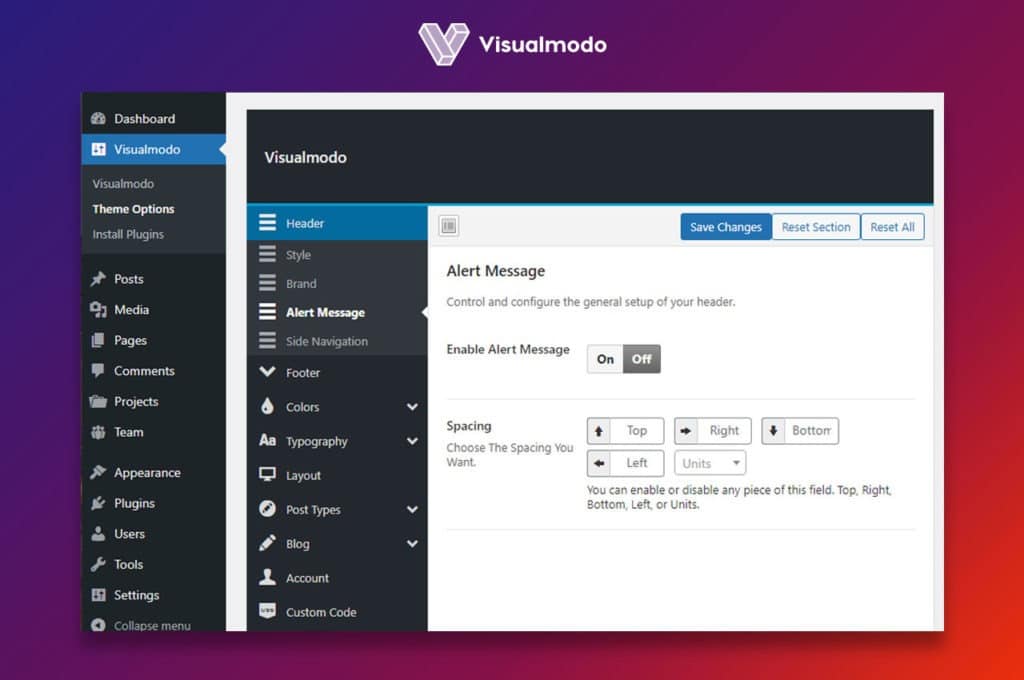
Some themes offer special options for spacing. This feature can be helpful when you need precise control. Look for a section labeled Menu Spacing or similar. You might find sliders or text boxes. Use them to adjust the space. A little change can make a big difference. Make sure to preview your changes before saving. This way, you ensure everything looks perfect.
Leveraging Page Builders
Explore the use of page builders to adjust header menu spacing in WordPress themes. Customize effortlessly with drag-and-drop features. Create visually appealing designs while maintaining a user-friendly interface.
Introduction To Page Builders
Page builders help make websites look better. They are tools that change the design. Users can drag and drop elements. These elements include text, images, and buttons. Builders are easy for beginners. They don’t need coding knowledge. Many themes support page builders. WordPress has popular ones like Elementor and Divi. Builders provide flexibility and control. They are useful for customizing the header menu.
Customize Header With Page Builders
Changing header menu spacing is simple. First, open the page builder. Then, select the header area. Look for padding and margin options. Adjust these settings to change space. Make sure changes look good on mobile screens. Use preview mode to check design. Builders often have live editing features. This helps see changes instantly. Remember, less space might crowd the menu. More space could look empty. Find a balance for a neat look.
Testing And Previewing Changes
Adjusting header menu spacing in a WordPress theme involves testing and previewing changes. Tweak CSS settings to ensure a balanced look. Use the WordPress customizer to see immediate effects on layout and design.
Check Responsiveness
Make sure your header menu looks good on all devices. Use different screen sizes. Responsiveness is key for user satisfaction. Resize your browser window. Watch how the menu adjusts. A well-spaced menu ensures easy navigation. Test on both mobile and desktop views.
Preview Across Different Devices
Preview your changes using various devices. Try a phone, tablet, and computer. Each device might display your menu differently. Adjust settings if needed. A consistent look is important. Check for alignment and spacing. Ensure links are easy to tap on mobile. A friendly user experience boosts engagement.
Troubleshooting Common Issues
Customizing header menu spacing in a WordPress theme often involves adjusting CSS settings. Modify padding and margins to achieve desired spacing. Ensure changes are saved and previewed for optimal results.
Identify Common Problems
Header menus sometimes look messy. Spacing issues are the main reason. Menus may be too close together. They can also be too far apart. These problems make websites look bad. Users might find it hard to navigate. Bad user experience can happen.
Effective Solutions And Tips
First, check the theme settings. Many themes have spacing options. Adjust these settings. CSS can also help. Add custom CSS code. Use the “margin” or “padding” properties. This changes the space around menu items. Preview changes before saving. It ensures menus look right.
Credit: www.wpbeginner.com
Frequently Asked Questions
How Do I Change Header Menu Spacing In WordPress?
To change header menu spacing in WordPress, navigate to your theme’s customization options. Look for the “Header” or “Menu” settings. Here, you can adjust padding, margins, or spacing. Save your changes to see the updated spacing on your website’s header menu.
Can I Customize Header Menu Spacing Without Coding?
Yes, you can customize header menu spacing without coding by using WordPress’s theme customizer. Many themes offer built-in options for adjusting menu spacing. If your theme lacks this feature, consider using a page builder plugin like Elementor or WPBakery for more customization flexibility.
Which Plugins Help With Header Menu Customization?
Plugins like Elementor, WPBakery, and Beaver Builder offer extensive customization options for header menus. These plugins allow you to adjust menu spacing, design, and layout without coding. They provide a user-friendly interface, making it easy to create a customized header that matches your website’s aesthetics.
Why Is Header Menu Spacing Important?
Header menu spacing is crucial for user experience and navigation. Proper spacing ensures readability and easy access to menu items. It also enhances the overall design and aesthetics of your website. Well-spaced menus can improve user engagement and make your site look more professional and organized.
Conclusion
Customizing header menu spacing is easy in WordPress themes. Follow simple steps to adjust spacing. Enhance your site’s look by improving menu alignment. A well-spaced header improves user experience. Visitors find navigation smoother and more enjoyable. Good menu design reflects professionalism.
It also helps in organizing content effectively. Experiment with different spacing options for the best result. Your site will look neat and organized. Keep your audience engaged by maintaining clarity in design. Ensure your changes are mobile-friendly. Happy customizing and enjoy a well-crafted website!


