
Have you ever felt like your WordPress site just doesn’t reflect your unique style or brand? You’re not alone.
Many WordPress users crave a personal touch to make their site stand out in the digital crowd. Customizing your WordPress theme can transform your site from generic to extraordinary. Imagine having a website that not only grabs attention but also keeps your visitors engaged.
You can achieve this without needing to be a tech wizard. In this guide, you’ll discover simple, actionable steps to modify your WordPress theme, giving you the power to make your site truly yours. Whether you’re looking to tweak colors, fonts, or layouts, we’ve got you covered. So, are you ready to unlock the potential of your WordPress theme and captivate your audience? Let’s dive in!
Choosing The Right Theme
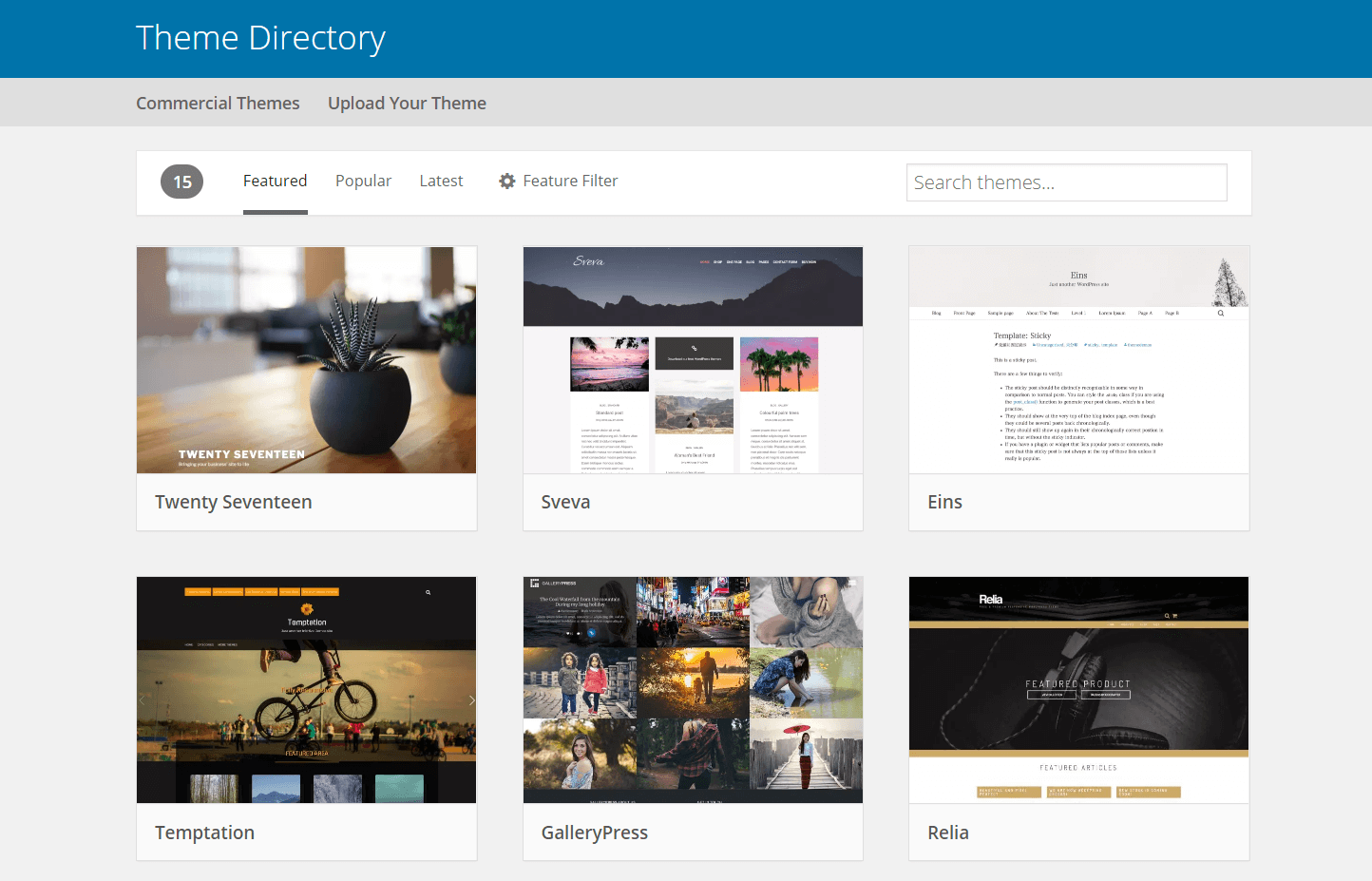
Picking a theme is fun but tricky. It needs to match your style. Make sure it’s mobile-friendly. Many people use phones. Check if it loads fast. Nobody likes waiting. Look for good reviews. Others’ opinions matter. Ensure the theme gets updates. Bugs need fixing. See if it supports plugins. They add features. Check customization options. More options mean more control. Free or paid? Free is good, but paid offers more. Think about your budget. Is it easy to use? Simple is better for beginners. Remember, your theme shows your site’s personality.
Many themes exist. Astra is light and fast. OceanWP offers many features. Neve is simple and clean. Hestia looks modern. Each has its perks. Explore them to see what fits. Divi allows much creativity. GeneratePress is another good pick. It’s known for speed. Twenty Twenty-One is a classic choice. Made by WordPress. Hello Elementor works well with Elementor plugin. Choose what suits your style.
Installing A WordPress Theme
Access your WordPress Dashboard. Click on Appearance in the left menu. Select Themes from the dropdown. You will see a list of themes. Choose a theme you like. Click Activate to use the theme. Explore the customize option to make changes. Change colors, fonts, and layout. Make your site unique.
Have a theme file ready. Go to the Dashboard. Select Appearance and then Themes. Click Add New at the top. Choose Upload Theme. Find the file on your computer. Click Install Now. After installation, activate the theme. Check your site for changes. Ensure everything looks good.
Customizing Theme Settings
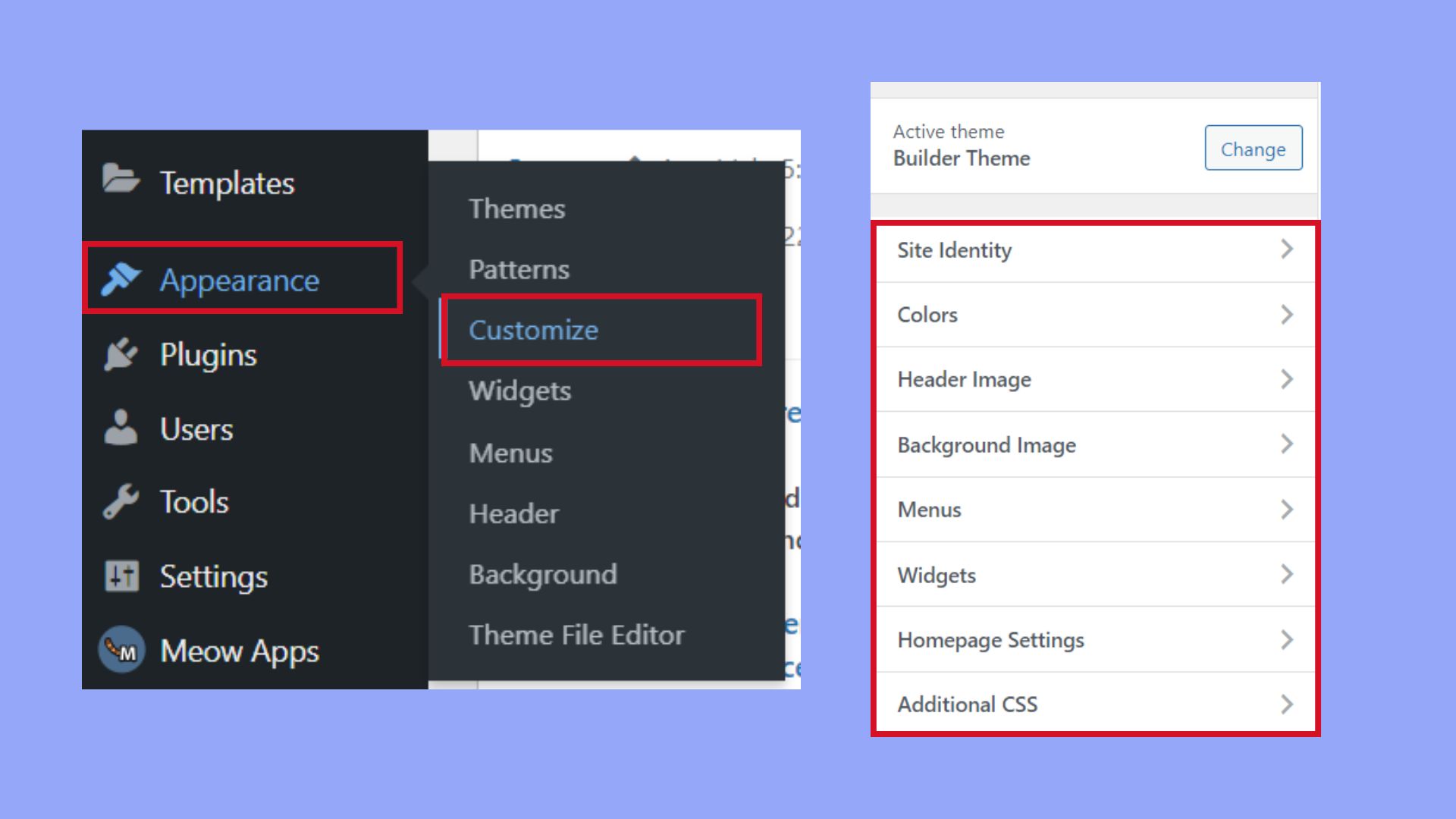
The WordPress Customizer is a great tool. It helps you change your theme. You can see changes in real time. This makes it easy to edit. Click on “Customize” from your dashboard. You will find many options there. Change the logo or site title. Make your site look unique.
Colors make your site fun. Fonts make it easy to read. In the Customizer, find the “Colors” and “Fonts” section. Click them. Choose your favorite colors. Select fonts that match your style. Make sure text is easy to read. This keeps visitors happy.
Widgets add cool features to your site. They can show recent posts or weather. Go to the “Widgets” section in the Customizer. Drag and drop widgets to your sidebar. Choose the ones you like. They make your site more useful. Try different widgets for the best look.
Credit: wpengine.com
Modifying Theme Code
CSS helps your website look nice. Change colors, fonts, and layouts with ease. Open the WordPress dashboard. Go to Appearance and click on Customize. Find the Additional CSS option. Here, you can add or change CSS code. Use simple code to change styles. For example, change a button color. Type button {background-color: blue;}. Check your website to see changes. Small changes can make a big difference. Practice and experiment with code.
A child theme protects your changes. Create a child theme for safe editing. First, make a new folder in your theme directory. Name it with your theme name and add -child at the end. Inside, create a style.css file. Add your CSS changes here. Next, make a functions.php file. This file helps load the parent theme’s style. Use child themes to keep updates safe. Avoid losing your changes. It’s a smart choice for theme customization.
Adding Custom Features
Plugins add extra tools to your website. Many plugins are free. Some are paid. Popular plugins can help with SEO. Others improve site speed. Plugins can add contact forms. Or even social media buttons. Always choose plugins that are compatible with your theme. Test plugins before using them. Too many plugins can slow your site. Keep your plugins updated regularly. This keeps your site safe.
Custom page templates change how a page looks. They make pages unique. You can create templates in the theme files. Templates can be used for blogs. Or even for portfolios. Each template has special settings. You can add different layouts or colors. Custom templates need careful planning. Start by choosing a design. Then write the code. Test your template before using it. This makes sure it works well.
Credit: 10web.io
Optimizing For Performance
Fast websites make users happy. Use a lightweight theme for speed. Remove any extra plugins not in use. They slow down your site. Optimize images to reduce their size. Smaller images load faster. Use a caching plugin to save load time. This stores data so it loads quickly next time. Faster sites rank better on search engines.
Many people use phones to browse. Your theme must look good on all screens. Choose a responsive theme for mobile users. Test your site on different devices. This ensures all users see it clearly. Mobile-friendly sites keep visitors longer. They also improve your site’s ranking.
Testing And Previewing Changes
Staging sites are like testing grounds for your website. You can make changes without affecting the live site. This keeps your real site safe from mistakes. Staging sites let you try new themes and plugins. You can see how they work before going live. Many hosting providers offer staging features. Always back up your site before testing. This ensures you can restore if needed. Remember, staging is important for big changes. It helps avoid unexpected problems. Your visitors won’t see your tests. Only you and your team can view them. This makes testing safe and private.
Websites must look good on all browsers. Cross-browser testing helps check this. Use tools to see how your site looks in different browsers. Check popular browsers like Chrome, Firefox, and Safari. Some features may not work in all browsers. Testing helps find these issues. Fix any problems before going live. This keeps your site looking good for all users. Make sure your site works on mobile devices too. Many people use phones to browse. Testing helps ensure a smooth experience for everyone.
Maintaining And Updating Themes
Backing up your theme is important. It saves your work. Use a backup plugin. This tool helps you save copies. Store backups on an external drive. It keeps your files safe. Regular backups protect against data loss. Always schedule backups. Make it a habit. This keeps your website secure.
Update your theme regularly. This fixes bugs and improves security. Check for updates often. Use the theme update feature. It is easy to find in the dashboard. Click to update. This process is quick. Keep your theme fresh. Updated themes run faster. They also have new features. Ensure your site works well.

Credit: wpmarmite.com
Frequently Asked Questions
How Do I Start Customizing My WordPress Theme?
Begin by accessing the WordPress dashboard. Navigate to “Appearance” and select “Customize. ” This section allows you to modify your theme’s layout, colors, and fonts. Use the live preview to see changes instantly before saving.
Can I Use A Child Theme For Customization?
Yes, a child theme is recommended for safe customization. It protects your changes from updates to the parent theme. Create a child theme by copying files and modifying them without affecting the original theme.
How Do I Change My Theme’s Colors?
To change colors, go to “Appearance” and click “Customize. ” Find the “Colors” section and select new colors for your theme. Save changes to update your website’s look instantly.
Is It Possible To Add Custom Css?
Yes, you can add custom CSS via the WordPress Customizer. Navigate to “Additional CSS” under “Customize. ” Insert your CSS code to change styles, layouts, or specific elements on your theme.
Conclusion
Customizing your WordPress theme can be simple and rewarding. Start small. Change colors, fonts, and images to match your style. Explore different plugins for added features. Remember, make changes that enhance usability. Keep your design clean and user-friendly. Test your site regularly to ensure everything works well.
Practice these steps to create a unique website. Enjoy the process and learn as you go. Your website reflects your brand and personality. Stay creative and patient. With time, your skills will grow. Your WordPress site will shine with your personal touch.


