
Are you ready to transform your website into a stunning, personalized platform? Customizing the Olsen Theme on WordPress is your gateway to achieving a unique and captivating online presence.
This theme is already popular for its elegant design and user-friendly features, but with a few tweaks, you can make it truly yours. Imagine capturing your audience’s attention from the first glance, making them want to stay longer and explore more.
Whether you’re a blogger, photographer, or small business owner, learning to customize the Olsen Theme can elevate your site to new heights. Dive in and discover how simple changes can make a big impact on your site’s look and feel. Get ready to unleash your creativity and watch your website shine!
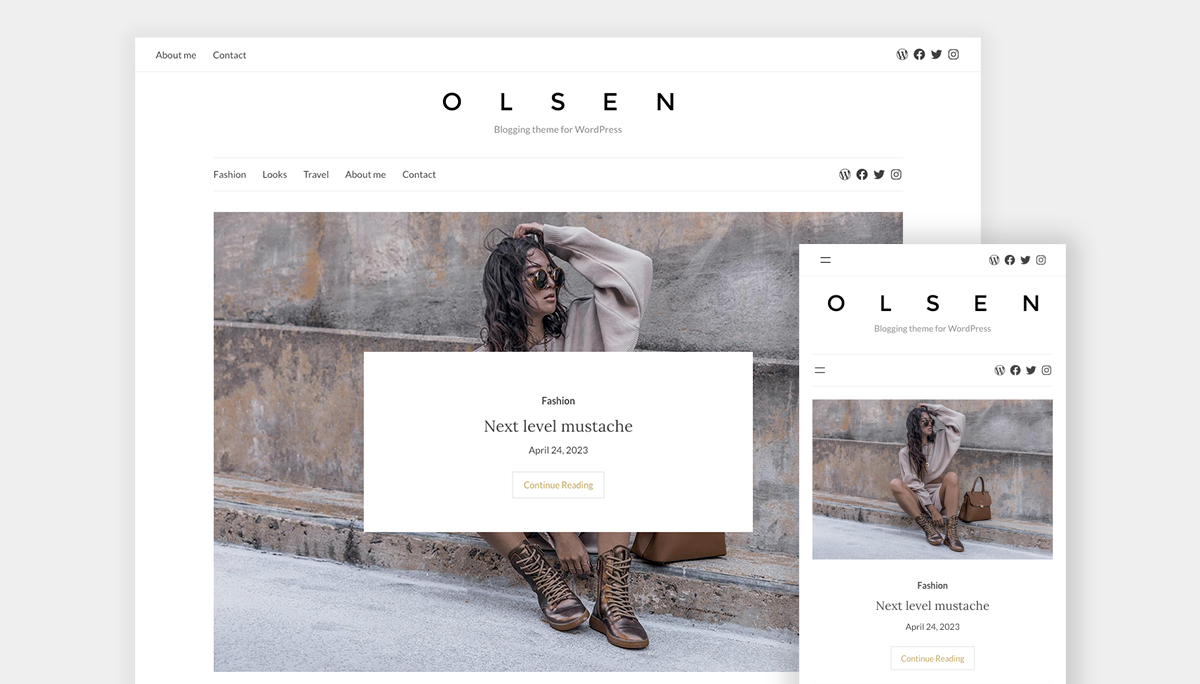
Credit: wordpress.com
Getting Started With Olsen Theme
First, go to your WordPress dashboard. Find the Appearance tab. Click on it. Then choose Themes. Next, click on Add New. Type “Olsen” in the search box. You will see the Olsen Theme. Click on the Install button. Wait a few seconds.
After installation, click on Activate. Now, the Olsen Theme is active. Your site looks fresh and new. Check the homepage to see changes. Customize it to suit your style. Explore the options available. Make your site unique.
Customizing The Layout
Olsen theme has many layout choices. Select a layout that fits your style. Think about your blog’s focus. Choose a layout that highlights your content. Some layouts are simple, while others are fancy. Look for a design that matches your taste. You can change layouts anytime. Trying different layouts helps find the best look for your site.
Layout settings let you fine-tune your site. Adjust the width of your content area. Make it wider or narrower. Set the number of columns. Change the colors to match your brand. Look at the font options. Choose a font that is easy to read. Preview changes before saving them. This helps you see how your site looks. Small tweaks make a big difference. Try different settings to find the best fit.
Personalizing The Header
A great logo makes your site unique. Use a clear and simple logo. Upload it in the WordPress dashboard. Go to Appearance and then Customize. Find the Site Identity section. Here, add your logo and site title. Choose a font that matches your style. Make sure your site title is visible. This helps visitors know your website.
A simple menu helps users find things fast. In the WordPress dashboard, choose Menus under Appearance. Create a new menu or edit an old one. Add pages like Home, About, and Contact. Drag and drop to change the order. Keep the menu short. Too many links confuse users. Make sure it looks good on phones and computers.

Credit: wordpress.com
Enhancing The Homepage
Begin by choosing the most important stories. Featured content should grab attention. Go to the customize panel on WordPress. Find the section for featured content. Use clear and bright images. They will stand out more. Pick engaging headlines that make people curious. Keep text short and to the point. This helps in keeping the page clean.
Widgets add extra features to your page. They can show recent posts or a search bar. To rearrange them, go to the widget area in WordPress. Drag and drop to change their order. Place important widgets at the top. This makes them easy to find. Use only a few widgets. Too many can slow down your site. Choose wisely for a fast and neat homepage.
Styling With Colors And Fonts
Change the look of your blog with the Olsen Theme on WordPress. Pick colors that match your style. Choose fonts that are easy to read and look good. Make your site unique and inviting with these simple tweaks.
Selecting Color Schemes
Colors make a website lively. The Olsen theme offers various options. Pick colors that match your brand. Choose from the color palette. Combine light and dark shades for balance. Make sure text is easy to read. Avoid too many bright colors. Use contrasting colors for buttons.
Custom Font Integration
Fonts tell a story. Pick a font style that fits your brand. Google Fonts are free and popular. Download your font choice. Upload it to the theme settings. Change the font size for better readability. Use bold for important words. Avoid using too many fonts. Keep it simple for a clean look.
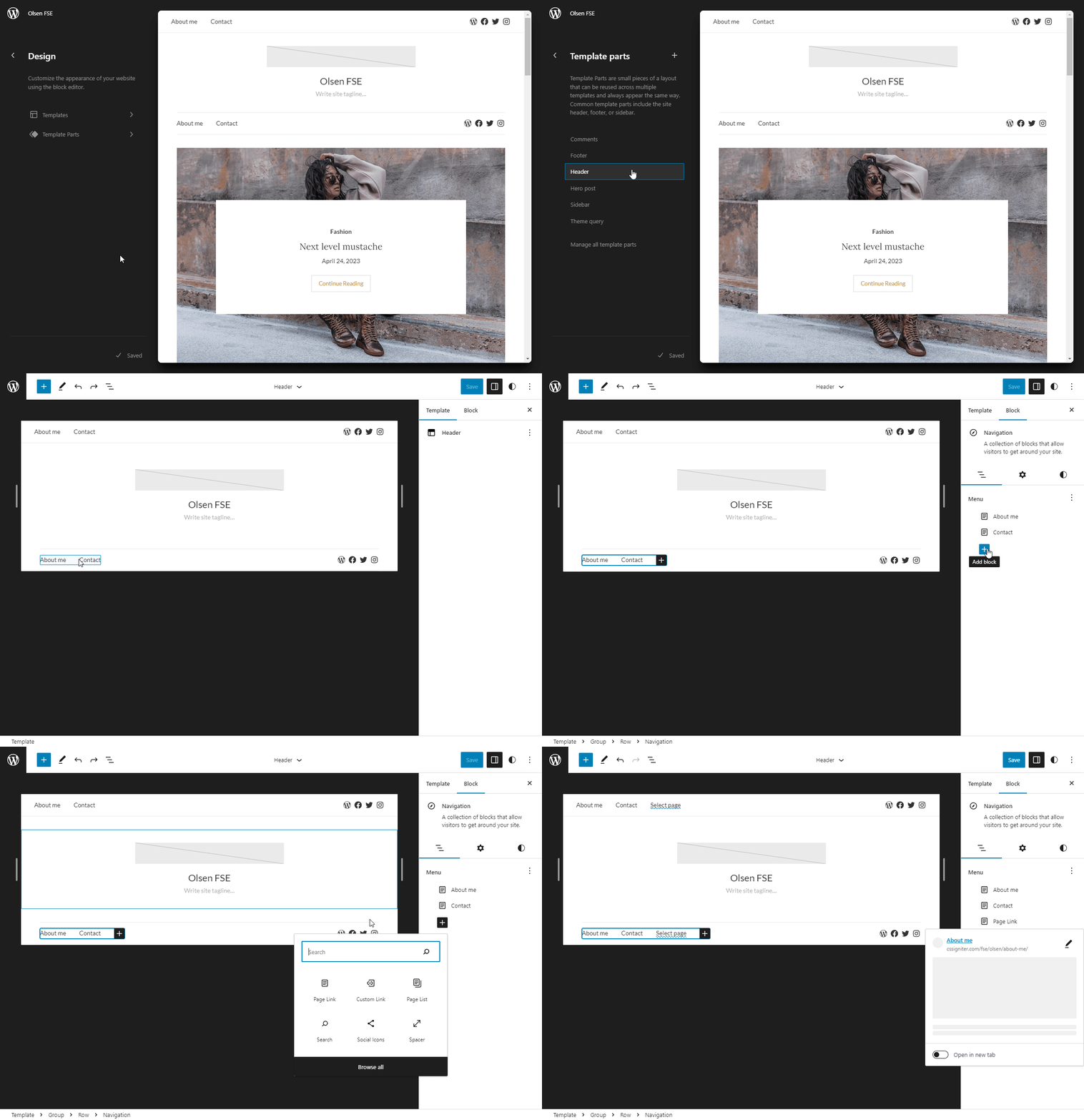
Credit: woocommerce.com
Optimizing For Mobile
Make your website look good on phones. Use a responsive design. A responsive design changes to fit any screen size. This helps people use your site on phones and tablets.
Keep buttons and links big. This makes them easy to tap. The text should be large enough to read without zooming. This way, everyone can read it easily.
Adjust your site layout for small screens. Use flexible grids. These grids adjust automatically. This keeps your site looking neat.
Check your images. They should resize to fit the screen. Large images slow down your site. Fast sites keep users happy.
Integrating Social Media
Customizing the Olsen Theme on WordPress enhances social media integration. Adjust widgets to display feeds. Add buttons for easy sharing. Optimize settings to improve connectivity and engagement.
Adding Social Links
Social links help connect with your audience. Easy steps add these links to your site. First, open the WordPress dashboard. Find “Appearance” then click “Customize.” Look for “Social Links” in the menu. You can add or edit links here. Paste each link in the box. Click “Publish” to save changes.
Social Sharing Features
Sharing features allow users to share your content. This increases your reach. To add these, go to your dashboard. Find “Plugins” and click “Add New.” Search for social sharing plugins. Install one that you like. Activate it. Go to the plugin settings. Choose where buttons will appear. Save settings to finish.
Utilizing Plugins For Extra Features
Plugins add extra features to your Olsen theme. They make your site better. Some plugins are very helpful. Others can slow down your site. Choose wisely.
Some plugins are a must-have. Yoast SEO helps with search engine rankings. Elementor makes designing pages easy. Jetpack offers security and performance boosts. Each plugin brings something unique. Pick what suits your needs best.
Not all plugins work well with Olsen. Check compatibility first. Some plugins may cause conflicts. Compatibility is crucial for smooth operation. Always update plugins regularly. This ensures they work correctly with your theme. Read reviews for more insights.
Finalizing And Publishing
Customize the Olsen Theme in WordPress by adjusting fonts, colors, and layouts to match your style. Make your site unique with easy-to-use options, then finalize and publish to share your personalized design with the world.
Reviewing Changes
Check your site for any misspellings or design errors. Click on every link to ensure they work. Review each image to confirm it displays correctly. Test the site on different devices like phones and tablets. This helps to ensure everything looks right.
Publishing Your Site
Once everything looks good, it’s time to publish. Go to your WordPress dashboard. Find the Publish button on the top right corner. Click it to make your site live. Now, everyone can see your work. Tell your friends and family to visit your site. Keep checking your site regularly for updates and improvements. Enjoy sharing your content with the world!
Frequently Asked Questions
How Do I Change Olsen Theme Colors?
To change colors in the Olsen theme, navigate to the WordPress Customizer. Select ‘Colors’ and modify the color palette as desired. You can adjust background, text, and link colors to match your branding. Save changes once you’re satisfied with the new look.
Can I Add Custom Fonts To Olsen Theme?
Yes, you can add custom fonts to the Olsen theme. Use the WordPress Customizer to access the ‘Typography’ section. Here, you can select Google Fonts or upload your own. Adjust font sizes and styles to suit your preferences and enhance your site’s visual appeal.
How To Modify Olsen Theme Layout?
Modifying the Olsen theme layout is easy. Go to the WordPress Customizer and select ‘Layout Options’. Here, you can adjust header, footer, sidebar, and main content areas. You can also change grid settings and column arrangements for a personalized design.
Is Olsen Theme Responsive?
Yes, the Olsen theme is fully responsive. It automatically adjusts to different screen sizes, ensuring your site looks great on all devices. You don’t need to perform additional steps for responsiveness, as the theme’s design is optimized for mobile, tablet, and desktop views.
Conclusion
Customizing the Olsen Theme can enhance your website’s appeal. Simple tweaks in design improve user experience. Personalizing colors and fonts make your site unique. Adding widgets keeps content dynamic and engaging. Explore theme settings for more options. Check preview before finalizing changes.
Regular updates ensure compatibility with plugins. Keep user navigation smooth and intuitive. Always back up your site to avoid data loss. Experiment and find what works best for your brand. With patience, crafting a visually appealing site becomes achievable. Your website can reflect your personal style and vision.


