
Ever wondered how to create your own unique WordPress theme? Imagine having complete control over your website’s design and functionality.
This is your chance to stand out and express your creativity. In this tutorial, you’ll discover the step-by-step process to craft a theme that truly reflects your style. Whether you’re a seasoned developer or just starting out, you’ll find this guide easy to follow and packed with tips to make the process smooth.
Get ready to transform your website into a masterpiece that captivates your audience. Let’s unlock the secrets to building a theme that sets you apart from the rest.
Getting Started
Discover how to create your own WordPress theme with this easy tutorial. Learn step-by-step processes for building a unique theme, tailored to your needs. Perfect for beginners eager to personalize their website design.
Essential Tools
To create a WordPress theme, you need a few essential tools. A good text editor is important. Notepad++ or Sublime Text are great choices. These editors help you write clean code. You also need a web browser for testing. Google Chrome or Firefox are popular. Additionally, a local server like XAMPP or MAMP is useful. These tools let you test your theme offline. Having a basic knowledge of HTML, CSS, and PHP is helpful too. These languages form the backbone of WordPress themes.
WordPress Installation
Start by installing WordPress on your computer. This is easy with a local server. Download WordPress from its official site. Extract the files into your server’s htdocs folder. Open your web browser and type localhost. Follow the steps to set up your WordPress site. Make sure to create a database for your site. Use tools like phpMyAdmin to do this. After setup, you can log in to your WordPress dashboard. Now, you are ready to start building your own theme.
Theme Structure
Crafting your own WordPress theme involves understanding theme structure. Start by organizing files like style. css, index. php, and functions. php. Each plays a crucial role in defining appearance and functionality.
File Hierarchy
Every WordPress theme has a specific file hierarchy. The main folder contains all essential files. Inside this folder, there’s style.css for styling. Another important file is index.php. This file manages your theme’s layout. The functions.php file is vital too. It adds extra functions to your theme.
Another key file is header.php. This file controls the header section. There’s also footer.php for the footer. Sidebars use the sidebar.php file. For single posts, there’s single.php. The comments section uses comments.php. All these files work together. They create the theme’s structure.
Core Files Explained
Each file has a role. Style.css defines colors and fonts. It makes your site look nice. The index.php file is like a map. It guides how pages display. Functions.php adds features. It can add widgets or menus. Header.php sets the top of each page. Footer.php sets the bottom.
Sidebar.php manages side content. Single.php handles one post at a time. Comments.php manages feedback on posts. These files are important. They help build a complete theme.
Creating A Basic Theme
The style.css file is very important. It tells WordPress about your theme. At the top, add a comment section. It should have your theme’s name, author, and version. This helps WordPress understand your theme better. Write simple CSS rules. Make sure your website looks nice and clean. This file is like the skin for your site. Change colors and fonts here. Use CSS to make it look nice.
The index.php file is the main part. It shows the content on your website. Start by creating a simple HTML structure. Use PHP to connect with WordPress. Add a loop to show posts. This loop helps display blog posts. It is simple and easy to follow. Index.php works with other files. Together, they make the website function well. Keep it clean and organized.
Credit: blog.templatetoaster.com
Customizing The Header And Footer
The header is the top part of your site. It shows your site’s name or logo. You can also add a menu here. To start, open the header.php file. Use HTML to place your logo and menu. Use CSS for colors and fonts. Make sure it looks nice on phones and computers. Keep the design simple and clean.
The footer is at the bottom of the page. It often shows links or contact info. Open the footer.php file to begin. Add your site details here. You can include social media links too. Use HTML and CSS for styling. Ensure it’s easy to read. A good footer helps visitors find what they need.
Adding Styles And Scripts
WordPress has a special way to add styles. Use the wp_enqueue_style function. It helps load stylesheets properly. This keeps your site fast and neat. Place this function in the functions.php file. You can give your stylesheet a name. Then add the path where the file is located. Don’t forget to add the version number. This helps when styles change.
JavaScript files make your site interactive. Use wp_enqueue_script to add them. This function is also used in functions.php. Give your script a name. Specify the file path and version. Decide if it loads in the header or footer. Loading in the footer helps speed. Remember to check for dependencies. If your script needs another, list it.
Designing Templates
Start by making a new file. Name it page-template.php. This file will help you create a special page layout. Add the template name at the top. Use this line: php / Template Name: CustomPage / ?. This tells WordPress the file is special. Add HTML and PHP code for your page design. Save the file in your theme folder. Now, this template is ready to use.
Make a new file for your post template. Call it single-template.php. This file will change how posts look. Add the necessary template name at the top. Use: php / Template Name: CustomPost / ?. Write the HTML and PHP code for your post design. Place this file in your theme folder. Your post template is now complete and ready to use.
Implementing WordPress Functions
The Loop is like a magic tool in WordPress. It helps display posts. Each post shows title, content, and date. The Loop runs as long as there are posts. Use while ( have_posts() ) to start. the_post() is used to move to the next post. Inside, call the_title() to show the post title. Use the_content() for the main text. Always end the loop with endwhile;. This keeps your theme organized.
Custom functions are like special helpers. They add unique features to your theme. Use function my_function_name() to start. Inside, write the code you need. Then, call this function where needed. Custom functions can be for many tasks. They can change how things look or work. Always test your functions. Ensure they don’t break the theme. Good functions make themes better and more fun.

Credit: www.youtube.com
Adding Widgets And Menus
Explore adding widgets and menus to enhance your WordPress theme design. Customize layouts with user-friendly widgets and intuitive menus. Create a seamless navigation experience for your visitors using this straightforward tutorial.
Registering Widget Areas
To make a space for widgets, use the register_sidebar function. Add this code to your theme’s functions.php file. This tells WordPress where to put the widget. Give it a name and an ID. Use different IDs for different areas. This way, each widget area is unique. Your users can add widgets easily.
Creating Navigation Menus
Menus help users move around your site. Use the register_nav_menus function. Add it in your theme’s functions.php file. Give each menu a name and a location. Then, go to your admin panel. You can add pages to your menu. Arrange them in the order you like. This makes your site easy to use.
Testing Your Theme
Testing your theme ensures your custom WordPress design works smoothly. Check functionality, load times, and mobile responsiveness. Adjust code for better performance and user experience.
Cross-browser Testing
Testing your theme on different browsers is crucial. Each browser might display your theme differently. Use tools like BrowserStack or CrossBrowserTesting. These tools help check how your theme looks on various browsers. Ensure your theme works on Chrome, Firefox, Safari, and Edge. Fix any display issues you find. This ensures every user has a good experience.
Debugging Common Issues
Sometimes, themes have problems. Debugging helps find and fix these problems. Use the WordPress debug mode. This mode shows errors in your theme. Check for PHP errors or missing files. Fix broken links and images. Ensure your theme is fast and responsive. Test it on mobile devices too. A well-tested theme works everywhere.

Credit: www.greengeeks.com
Deploying Your Theme
Crafting a WordPress theme can be exciting. Deploy your theme by uploading it via the WordPress dashboard. This process allows easy customization and gives your site a unique look.
Final Checks
Check your theme for errors. Make sure everything works. Test the layout on different devices. Ensure images load correctly. Verify links go to the right pages. Check for broken links. Look for spelling mistakes. Test your theme’s speed. Fast themes keep users happy. Use tools to check speed. Speed tests help fix slow problems.
Uploading To WordPress
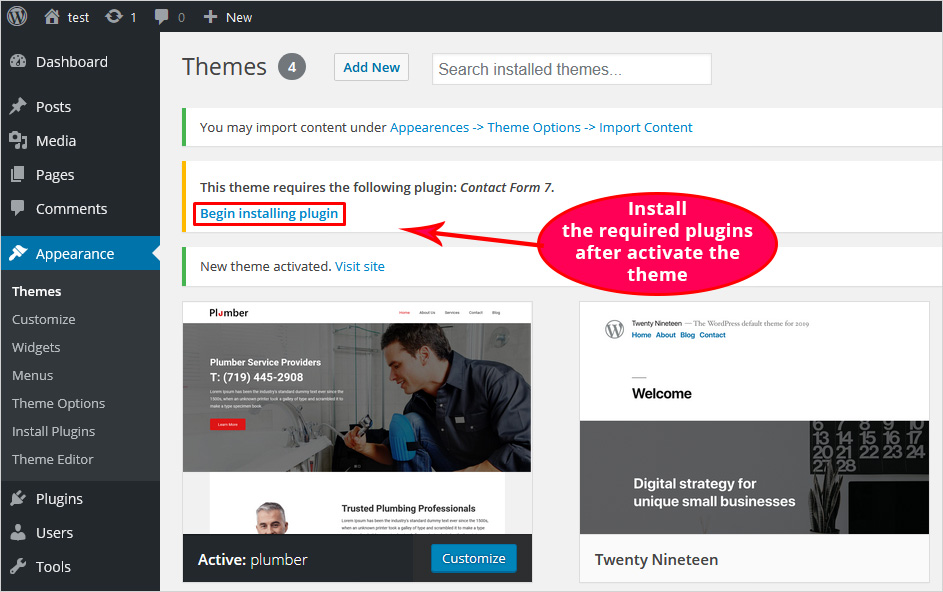
Log in to WordPress. Go to the dashboard. Find the “Appearance” tab. Click “Themes.” Select “Add New.” Choose “Upload Theme.” Find your theme file. Click “Install Now.” WordPress installs your theme. Activate the theme. Check your site. Make sure the theme looks right. Troubleshoot any issues. Fix problems quickly. Keep your site looking great. Update the theme as needed.
Frequently Asked Questions
What Is A WordPress Theme?
A WordPress theme is a collection of files that define the design and functionality of a WordPress site. It includes templates, stylesheets, and scripts, allowing customization of the site’s appearance. Themes enable users to change the look of their site without altering the core WordPress files.
How To Start Creating A WordPress Theme?
Begin by setting up a development environment. Install WordPress locally using tools like XAMPP or MAMP. Create a new folder in the ‘wp-content/themes’ directory. Develop essential theme files such as style. css, index. php, and functions. php. Use HTML, CSS, and PHP to design and build your theme.
What Tools Are Needed For Theme Development?
You need a code editor like Visual Studio Code or Sublime Text. Install a local server environment such as XAMPP or MAMP. Familiarize yourself with WordPress coding standards. Use browser developer tools to inspect and debug your theme. These tools help streamline the development process.
How To Customize Theme Design?
Customize your theme by editing CSS files and adding custom templates. Use WordPress functions to modify layouts and features. Create a custom header, footer, and sidebar. Utilize widgets and plugins for added functionality. Ensure your design is responsive and optimized for various devices.
Conclusion
Creating your own WordPress theme feels rewarding. You gain control over design and functionality. Follow the steps carefully. Start with planning, then coding. Use simple tools and clear instructions. Customize it to match your vision. Test it thoroughly before launching.
Keep learning and improving your skills. Your unique theme reflects your creativity. Enjoy the process and watch your website grow. Share your theme with others. Inspire them to try creating their own. Remember, practice makes perfect. Don’t rush the process.
Take your time and have fun.


