
Imagine visiting a website and being instantly captivated by its stunning design. That’s the magic of a well-crafted theme GUI interface in WordPress.
If you’ve ever wondered how to create such an experience for your own site, you’re in the right place. This isn’t just about aesthetics; it’s about engaging your visitors from the moment they arrive. By mastering this skill, you can transform your website into a visual masterpiece that not only holds attention but also converts visitors into loyal followers.
You don’t need to be a design expert to achieve this. With the right guidance, you can create a user-friendly, visually appealing interface that reflects your brand’s unique personality. Ready to unlock the secrets of theme design and elevate your WordPress site to new heights? Let’s dive into the essentials that will empower you to make your vision a reality.
Choosing The Right Theme
Picking a good theme is very important. Themes change how your site looks. They also affect how it works. Always pick a theme that matches your site’s purpose. For a blog, choose a simple design. For a store, a theme with product features is better. Check if the theme is mobile-friendly. Most people use phones to browse. A mobile-friendly theme looks good on any screen.
Look for easy customization options. Some themes are hard to change. Good themes let you change colors and fonts easily. Also, check the theme’s rating and reviews. High ratings mean people like it. Reviews tell you if there are problems. Lastly, make sure the theme is updated often. Frequent updates fix bugs and improve security.
Installing WordPress Locally
Start by downloading WordPress from the official site. Choose the latest version. Ensure your computer has XAMPP or MAMP installed. These programs create a local server. Open XAMPP and start the Apache and MySQL modules. Next, unzip the WordPress file. Move the folder to htdocs if using XAMPP. For MAMP, place it in the MAMP/htdocs folder.
Open a browser and type localhost/wordpress. Follow the setup instructions. Select English as the language. Enter database details. Use root for both username and password fields. Complete the setup by clicking Install WordPress. Now, WordPress is ready locally.
Setting Up A Child Theme
Creating a child theme is an important step. Start by making a new folder in your themes directory. Name it like your parent theme, but add “-child” at the end. This helps in identifying it easily. Next, create a style.css file inside this folder. Add a few lines of code to link it to the parent theme. This makes sure your child theme works correctly.
After that, make a functions.php file. This file will add new features to your theme. Use it to enqueue the parent’s styles. This ensures everything looks right. The child theme won’t break the main one. You can now add your own custom styles. This setup keeps the original theme safe.
Designing The User Interface
Colors make a big difference. Choose colors that match your brand. Use a color wheel for help. Avoid too many colors. Stick to two or three. This keeps it simple and clean. Make sure text is easy to read. Dark text on light background works well.
Fonts give your site a voice. Choose simple fonts for reading. Use one or two font styles. Too many fonts can look messy. Make sure the size is not too small. People should read without zooming in. Bold important words to grab attention.
Layouts help organize your site. Use grids to keep things neat. Grids make your site look balanced. Place items in rows and columns. This helps visitors find information quickly. Keep important info at the top. This is where eyes go first.
Customizing With Css
Headers and footers can change the look of a website. Use CSS to add colors and borders. Make headers bold for better visibility. Footers can have small text. Choose fonts that are easy to read. Align text to the left or center. Add padding for space. Use background colors to highlight areas.
Buttons and links can be styled with CSS. Change button colors to make them stand out. Use rounded corners for a soft look. Links can be underlined or bold. Choose different colors for visited links. Adjust the size of buttons for better accessibility. Make hover effects to show interaction. Add shadows for depth.
Forms need to be clear and easy. Use CSS to style inputs. Add borders and padding for neatness. Choose simple fonts for readability. Use placeholder text for guidance. Labels should be close to inputs. Highlight fields when they are active. Make submit buttons noticeable. Ensure forms are responsive for mobile users.
Credit: codeparrot.ai
Using WordPress Customizer
Add new sections to your theme easily. Go to the Customizer panel. Click on “Add a Section”. Name your section. Choose where it will appear. Add widgets or content. Preview changes as you go.
Change your site’s name and tagline here. Use the Site Identity setting. Upload a logo if you have one. Check how it looks instantly. Make sure it fits well. You can adjust it if needed.
Change your header image in seconds. Click on Header Image. Upload a new picture. You can also change the background. Choose a color or picture. Make your website look unique. Preview all changes live.
Adding Widgets And Menus
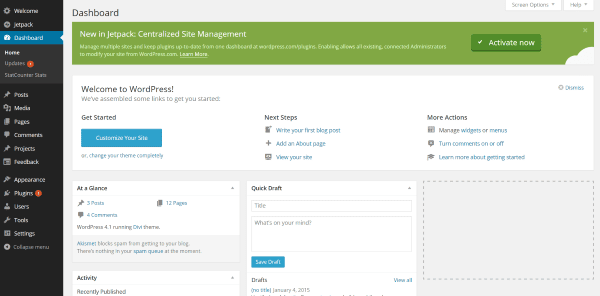
Start with a plan for your website’s navigation. Use the WordPress dashboard. Go to the Menu section. Click on “Create a new menu.” Name your menu. Add pages or posts you want. Drag to reorder them. Save your menu. Now, assign it to the right location. This helps visitors find their way. Easy and simple!
Sidebars make a site more useful. Add widgets to them. Go to Appearance > Widgets in WordPress. Drag a widget to your sidebar. Choose from text, images, or links. Customize each widget. Save changes to keep your design. This adds value to your site. Visitors like easy access to info.
Footers are at the bottom of a page. They give extra info. Use widgets here too. Head to the Widgets page. Find the footer section. Drag your desired widgets here. Add contact info or social media links. Save your setup. Footers help users get what they need fast.
Credit: www.elegantthemes.com
Implementing Responsive Design
Responsive design makes your theme look good on all devices. Testing is a key part of this. Check your theme on phones, tablets, and computers. Use tools like Google Mobile-Friendly Test. It shows how your theme works on small screens. Try viewing your theme on different screen sizes. See if text and images adjust well.
Testing Across Devices
Test on iOS and Android devices. Use different browsers like Chrome and Safari. Check if buttons and links work on touch screens. Make sure no parts are cut off. If something looks wrong, adjust your theme’s settings.
Ensuring Cross-browser Compatibility
Browsers display websites differently. Test your theme on Firefox, Chrome, Safari, and Edge. Ensure all features work the same. HTML and CSS should be clean and simple. Avoid using features not supported by all browsers. Keep your theme updated to fix compatibility issues.
Utilizing Plugins For Enhanced Ui
Plugins make the user interface better. They add new features. Picking the right plugins is important. They help make the site look good. Some plugins are easy to use. Others need more work. Choose plugins that fit your theme. Make sure they work well together. Look for plugins with good reviews. They should be updated often. This keeps the site safe and fast. A few popular plugins are Elementor and Divi. They help design pages easily. They offer many styles and templates.
Choosing Essential Plugins
Essential plugins are needed for a strong theme. They add useful features. Some plugins help with design. Others help with security. Choose plugins that fit your needs. Look for plugins with many downloads. They should have good ratings. They should be easy to use. Some plugins are free. Others cost money. Make sure they fit your budget.
Integrating Page Builders
Page builders make designing fun. They let you drag and drop items. This makes creating pages easy. Page builders have many tools. They help make the site look nice. They save time and effort. Choose a page builder that fits your style. Look for ones with many templates. Make sure they work with your theme. Some popular page builders are Elementor and WPBakery. They offer great features. They help design beautiful pages.
Testing And Debugging
Crafting a theme GUI interface in WordPress involves testing and debugging to ensure smooth functionality. Identify errors by carefully checking code and using tools to find issues. Fixing bugs enhances the user experience and ensures the interface works perfectly.
Identifying Common Issues
Testing helps find bugs in your theme. Common issues include missing images and broken links. A slow loading page is another common issue. Check if plugins cause problems. Ensure all files are correct. Theme updates can also cause issues. Fix errors quickly to avoid user problems.
Using Developer Tools
Developer tools are helpful for debugging. Use them to inspect elements. Check the console for error messages. Network tab shows loading times. Sources tab helps find missing files. Elements tab displays HTML structure. These tools make fixing issues easier. They are built into most browsers.

Credit: make.wordpress.org
Frequently Asked Questions
What Is A Theme Gui In WordPress?
A theme GUI in WordPress is a graphical user interface that allows users to customize their theme’s appearance easily. It provides visual tools to modify elements like colors, fonts, and layouts without coding. This makes theme customization accessible to users of all skill levels.
How To Start Creating A Theme Gui?
To start creating a theme GUI, first choose a theme framework or builder. Then, install and activate it on your WordPress site. Use its built-in tools to customize your theme’s appearance. Save your changes and preview them to ensure everything looks as desired.
What Tools Are Needed For Theme Gui Creation?
For theme GUI creation, you’ll need a WordPress theme framework or builder. Popular options include Elementor, Divi, and Beaver Builder. These tools offer drag-and-drop interfaces and customization options. You may also need basic knowledge of HTML, CSS, and JavaScript for advanced customizations.
Can Beginners Create A Theme Gui In WordPress?
Yes, beginners can create a theme GUI in WordPress using user-friendly builders like Elementor or Divi. These tools offer intuitive interfaces and pre-designed templates. They allow easy customization without coding. Beginners can quickly learn to create visually appealing themes with these resources.
Conclusion
Creating a theme GUI interface in WordPress is simpler than it seems. Start with a clear design plan. Use WordPress tools effectively. Experiment with different plugins. Customize with CSS for unique styles. Ensure your interface is user-friendly. Regularly test and update your design.
Keep learning and adapting new techniques. By following these steps, you build a functional and attractive GUI. Your WordPress site will stand out. Embrace creativity and simplicity. The result is a website that captures attention. A theme GUI that enhances user experience.
Engage visitors and keep them returning.


