
Are you ready to take your WordPress site to the next level? Imagine having complete control over your website’s look and feel, tailored precisely to your vision.
Creating your own theme options in WordPress isn’t just a possibility—it’s your gateway to a truly customized web experience. Whether you’re a seasoned developer or a curious beginner, this guide will show you step-by-step how to craft theme options that not only enhance your site’s aesthetics but also improve its functionality.
Dive in and discover how you can elevate your WordPress skills and create a site that stands out from the crowd. Your journey to a unique, user-centric website begins now.
Setting Up The Development Environment
Begin by installing a local server. This allows you to test WordPress. Popular options include XAMPP and MAMP. Download WordPress from their official site. Unzip the files into your server’s root folder. Access the WordPress setup through your browser. Follow the installation steps shown.
Next, create a new theme folder in the WordPress themes directory. Name it something unique. Add a style.css file. This file should have a special comment at the top. It tells WordPress about your theme. Also, include a functions.php file. This file will handle your theme’s special features.

Credit: www.wpexplorer.com
Understanding WordPress Themes
WordPress themes change how your website looks. They provide layout, design, and style. Users can choose or create themes to fit their needs. Themes have templates and stylesheets. These control design elements like fonts and colors. Some themes are free, while others cost money. Many developers create themes to help users. They ensure the site looks good and works well. With themes, websites become unique and attractive. Users can modify themes with theme options. This helps personalize the site even more. Understanding themes is key to building a great website.
Creating A Child Theme
Start with a new folder. Name it your theme’s name. Add style.css file here. This file tells WordPress about your child theme. Use the Template keyword in style.css. It links your child theme to the parent theme. Add functions.php file next. This file lets you add features. Write simple codes here. It helps in customizing your theme.
Copy parent theme files to your child theme. Only copy files you need. Never copy all files. Add new styles in the style.css file. These styles change how your site looks. Test your child theme. Check if it works well. Always keep backups. This saves you from losing changes.
Theme Options Frameworks
Many developers use popular frameworks for WordPress themes. These tools make theme building simpler. Some well-known frameworks include Redux, Kirki, and Options Framework. Each offers unique features. Redux is user-friendly and flexible. Kirki helps with customizer options. Options Framework is a simple choice for beginners.
Selecting a framework depends on your project needs. For a simple task, Options Framework is a good fit. For more complex projects, Redux or Kirki might work better. Consider the learning curve of each tool. Some frameworks are easier to learn. Check if they have good documentation and support. This can save time and effort.
Adding Theme Options Page
WordPress Customizer is a powerful tool. It helps you add theme options easily. To start, go to the Appearance menu. Click on Customize. You can add sections for your theme options here. Use simple controls like sliders and checkboxes. This makes it easy for users to change settings. Customizer updates are live. So, you see changes right away. This helps in tweaking designs quickly. Use it to make your theme more user-friendly.
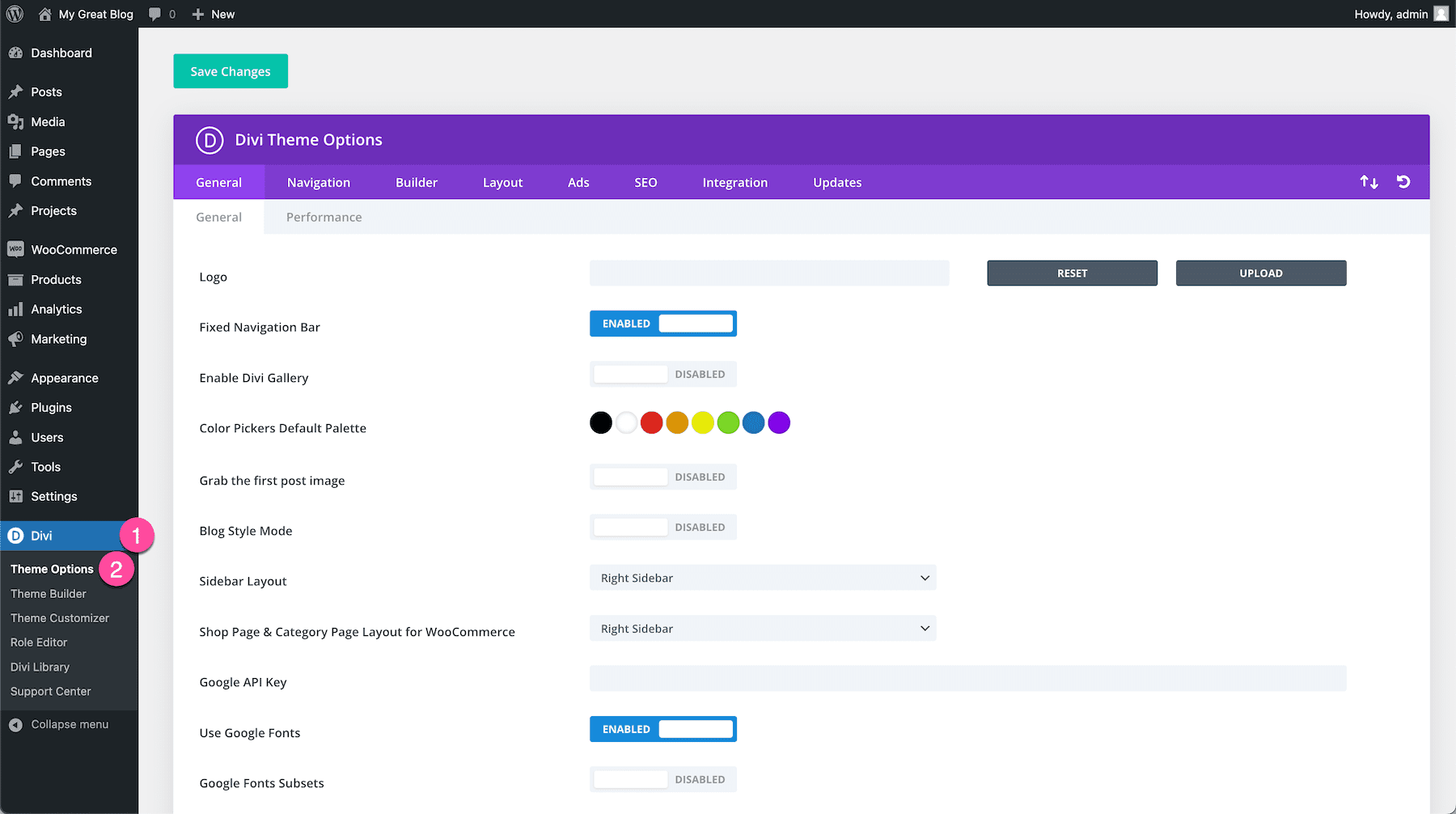
A custom admin page can be very useful. It lets you manage theme options from the dashboard. Start by creating a new function. Use add_menu_page to add your page. Set the page title and menu title. Choose capability to control access. Then, create sections and fields for options. This page can help organize settings in one place. Users find it easy to use. It makes your theme more customizable.
Building The Options Panel
Create a new menu in WordPress admin. Use add_menu_page() function. Choose a name for your menu. The menu will show in the dashboard. Next, define your settings. Use the register_setting() function. It will save your settings. Settings are grouped into sections. Use add_settings_section() to do this. Give each section a title. Keep titles short and clear.
Add controls with add_settings_field(). Controls can be text fields, checkboxes, or dropdowns. Each control needs a label. Labels help users know what to do. Choose inputs wisely. Use text fields for simple data. Checkboxes are good for yes or no options. Dropdowns offer multiple choices. Make sure inputs are easy to use. Keep the interface clean. Users should find it simple.
Saving And Retrieving Options
Create custom theme options in WordPress by saving and retrieving settings effortlessly. Enhance your site’s functionality with user-friendly options pages. Simplify theme management by storing settings in the database for easy access and modification.
Understanding WordPress Options Api
The WordPress Options API helps save settings. It stores data in the database. Each setting has a unique name. This name is the key. The key helps retrieve the setting later. The API uses functions like get_option and update_option. get_option retrieves data. update_option saves new data. You can also use add_option. This function adds new settings. These functions are simple to use. They help manage settings easily.
Implementing Save Functions
First, create a function to save settings. Use update_option inside this function. This saves data to the database. Next, use a form for user input. The form collects user data. Use POST method in the form. The method sends data to the server. On form submission, call the save function. This updates the database with new settings. Ensure the function checks user permissions. Only authorized users should save settings.
Credit: accreditly.io
Enhancing User Experience
Crafting personalized theme options in WordPress elevates user experience by offering tailored design control. Users can adjust layouts, colors, and fonts without coding skills. This enhances site aesthetics and functionality, making it more engaging and user-friendly.
Designing A User-friendly Interface
Creating a simple interface is key. Users like things they can understand fast. Use clear labels for each option. This helps users know what they are doing. Arrange options in a logical order. This way, users find what they need quickly. Use colors that are easy on the eyes. Bright colors can be distracting. Choose a font that is easy to read. This makes the interface more welcoming.
Providing Helpful Descriptions And Tips
Give short descriptions for each option. This helps users understand their choices. Use simple words and short sentences. Avoid complex language. Provide tips on how to use each feature. This guides users in the right direction. Keep tips clear and direct. Users appreciate helpful advice. Include examples where possible. Examples make things clearer.
Testing And Debugging
Common Issues and Fixes: WordPress themes can have bugs. Bugs make themes not work right. Some themes break on different screens. Check your theme on phones and tablets. Clear your browser cache often. This shows changes you made. Update your WordPress regularly. Updates fix many problems. Plugins may cause errors. Turn off all plugins. Turn them on one by one. This finds the plugin causing trouble. Themes need good coding. Bad coding breaks themes. Use tools to check your code. Fix any errors you find.
Ensuring Compatibility with Plugins: Plugins add features to WordPress. Not all plugins work with every theme. Test your theme with popular plugins. Popular plugins include WooCommerce and Yoast SEO. Check for plugin conflicts. Conflicts happen when plugins don’t work together. Update plugins regularly. Updates fix many issues. Contact plugin developers if problems persist. They can offer help. Some plugins need special settings. Read plugin instructions. Follow steps carefully.
Deploying Theme Options
Before making theme options live, test thoroughly. Check every feature and functionality. Make sure everything works as expected. Gather feedback from users. This helps identify any bugs or issues. Fix these before launching.
Set up a backup system. This ensures your data is safe. Schedule regular backups. Make sure you can restore easily if needed. Keep your site secure. Update plugins and themes regularly. This prevents vulnerabilities.
Regular updates are crucial. Ensure compatibility with the latest WordPress version. Monitor performance. Look for slow loading issues. Optimize code when necessary. Keep your audience happy. Offer support and solve problems quickly.
Credit: www.elegantthemes.com
Frequently Asked Questions
How Do I Start Creating Theme Options?
Begin by accessing your WordPress admin panel. Navigate to Appearance > Theme Editor. Create a new PHP file for custom options. Use functions. php to add settings and controls. Ensure you have basic PHP knowledge. Familiarize yourself with WordPress Codex for guidelines.
Test your options thoroughly before deploying them live.
Can I Customize Theme Options Without Coding?
Yes, you can use plugins to customize theme options. Popular plugins like Advanced Custom Fields or Theme Customizer offer flexibility without coding. They provide user-friendly interfaces to manage settings. Simply install the plugin, configure settings, and apply changes. Always back up your site before making significant modifications.
Which Tools Help In Theme Customization?
Utilize plugins like Customizer API, Advanced Custom Fields, or Options Framework. These tools enhance your customization process. They provide easy-to-use interfaces to manage options. Additionally, consider using page builders like Elementor for visual editing. These tools streamline creating and managing theme options efficiently.
Is It Safe To Create Custom Theme Options?
Creating custom theme options is safe if done correctly. Use child themes to prevent overwriting core files. Regularly back up your site data to avoid loss. Test new options in a staging environment before deploying. Ensure compatibility with WordPress updates to maintain security and functionality.
Conclusion
Creating your own theme options in WordPress is rewarding. Customize your site easily. Enhance user experience with tailored settings. Start with simple changes. Explore more features as you grow comfortable. The process boosts your site’s uniqueness. Your creativity shines through custom themes.
Engage visitors with personalized designs. Enjoy the flexibility WordPress offers. Experiment and learn new techniques. Build a site reflecting your vision. Make your mark online. With practice, skills improve over time. Keep exploring and refining your theme options. Your site becomes a true extension of your brand.


