
Creating a new template in your WordPress theme can feel like unlocking a hidden power for your website. It’s like giving yourself the freedom to customize and enhance your site exactly the way you want.
Imagine having the ability to tailor your pages to your unique vision, boosting not only your website’s aesthetic appeal but also its functionality. Whether you’re a seasoned WordPress user or just starting out, understanding how to create a new template can set your site apart from the rest.
This guide will show you how to make this process simple and effective. Stick around to discover step-by-step instructions, tips, and tricks that will empower you to make the most of your WordPress theme. Ready to dive in and give your website a makeover that truly reflects your brand? Let’s get started!
Credit: wordpress.org
Choosing The Right Theme
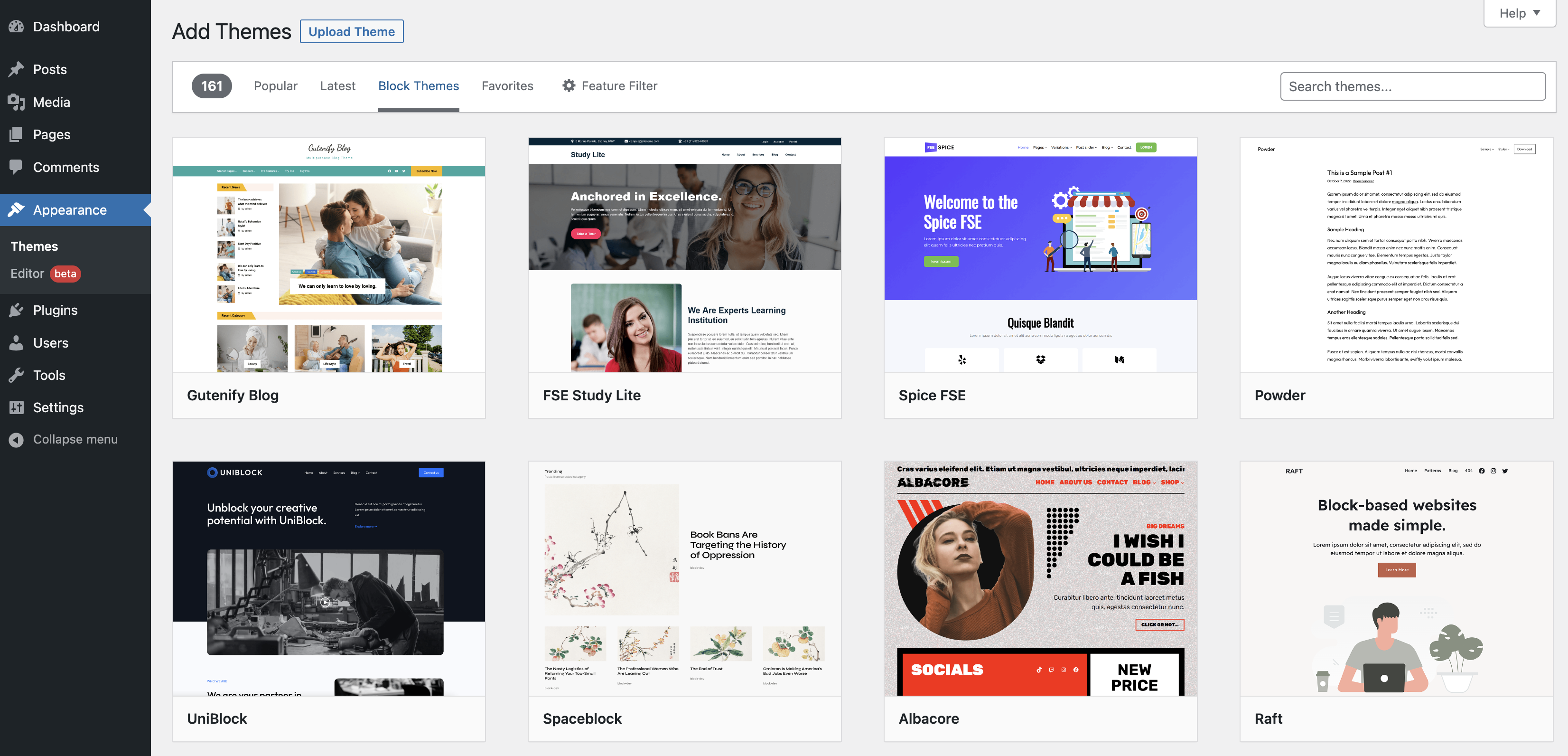
Pick a theme that fits your style. Look for one with easy settings. Themes should load fast. This helps your site speed. A fast site makes users happy. Make sure the theme is mobile-friendly. Many users browse on phones. Choose themes that have good reviews. Reviews can show if a theme is good.
Some themes offer customization options. This is important for personal touch. Check if the theme supports widgets. Widgets add extra features easily. Look at the theme’s demo. Demos show what a theme can do. Find a theme that matches your site’s purpose. A cooking blog needs a different look than a tech site.
Setting Up A Child Theme
Creating a child theme keeps your changes safe. Updates won’t erase them. First, make a new folder in the themes directory. Name it after your main theme with “-child” added. Next, make a style.css file in this folder. Write a few lines in it to show it’s a child theme.
Copy the template files from the main theme. Put them in the child theme folder. Edit these copies to make your changes. Always use the functions.php file to add extra code. Do not change the main theme files. This method makes updates easy. Your work stays safe and sound. Simple and smart!
Creating A Custom Template File
Start by opening your WordPress theme folder. Locate the file manager in your hosting dashboard. Open the folder named wp-content/themes. Here, select the theme you want. Now, create a new file. Name it with the .php extension. For example, my-custom-template.php.
Next, open this new file. Add the basic PHP template header. It should look like this:
php
        /
        Template Name: My Custom Template
        /
        ?
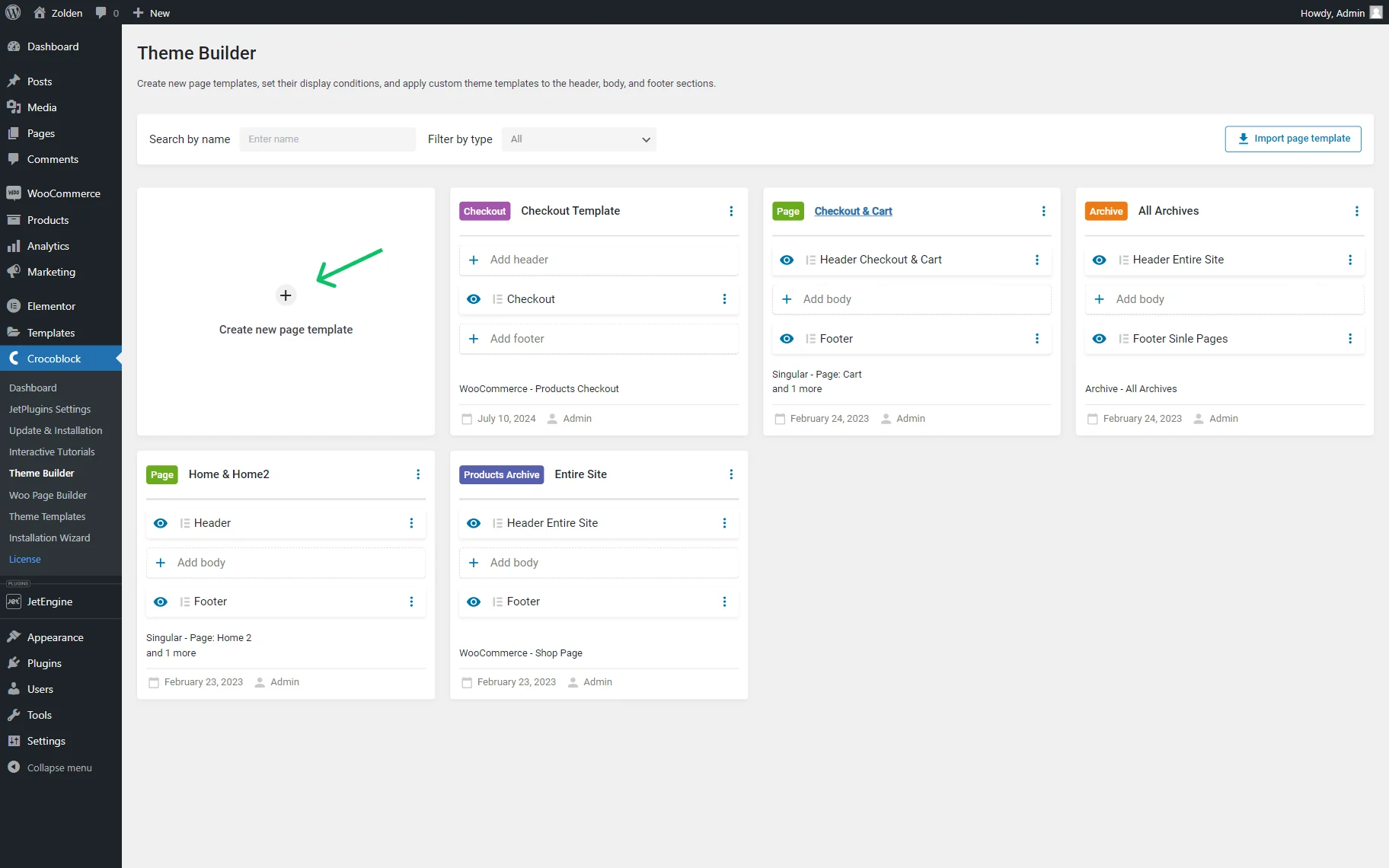
This code tells WordPress about your new template. Save your changes. Now, go to your WordPress admin panel. Create or edit a page. Under page attributes, find the template dropdown. Select your new template. This is how you make a custom template.
Credit: crocoblock.com
Adding Template Header Comments
Template header comments help in identifying your template. It is like a name tag. In WordPress, these comments are on top of the template file. They tell WordPress what your template is about.
Start with a PHP open tag. Then, write these comments inside. First, write “Template Name:” followed by your template’s name. This part is important. It helps users find the template in WordPress.
You can also add a description. This tells more about your template. For example, “Description: This is a special page template.” You can add more details if needed.
Remember to save your file. Now, your new template is ready to use. Add it to your WordPress theme and enjoy!
Modifying The Template Structure
Start by accessing your WordPress dashboard. Navigate to the theme editor. This editor allows you to view and change the code. Look for the “Template Files” section. Here, you will find a list of template files. Each file serves a specific purpose. Choose the file you want to modify. Click on it to open the editor window.
Make sure to backup your theme before changes. This step is crucial. Select the file you wish to edit. Use simple codes to modify it. Always save your changes. This ensures your modifications are applied. Check your website to see the updates. Sometimes changes may not appear instantly. Refresh your browser to confirm.
Integrating WordPress Functions
Adding new templates needs understanding of WordPress functions. These functions help your template talk to WordPress. First, include the get_header() function. This function adds the header part of your site. It is important for design.
Next, use the get_footer() function. This adds the footer to your template. Footers often contain site info. Including them makes your site complete. Finally, consider using wp_footer(). This function adds necessary scripts. Scripts are important for site performance.
Use functions.php file for custom functions. This file lets you add special functions. Custom functions can make your site unique. Always test your functions. Testing ensures everything works well.
Styling The Template
Make your template look nice. Use colors and fonts. Pick colors that match. Use fonts that are easy to read. This helps people understand your site. Keep spaces between sections. It makes content easy to read. Use headings and subheadings to guide the reader. Headings make content clear. Subheadings tell what comes next. Add images to make it lively. Pictures make content fun. They help explain things better.
Add buttons for actions. Buttons should be big and bright. Use buttons for important actions. They help users do things fast. Change styles often. Keep the template fresh. People like new styles. New styles keep users interested.

Credit: wpexperts.io
Testing The New Template
Check if your new template works. Open your website in a browser. Look at each page. Make sure it displays correctly. Use different devices like phones and tablets. It’s important to see how it looks everywhere.
Test the navigation. Click on links to ensure they go to the right places. Fix any broken links you find. Check the speed of your site. Slow websites annoy users. Make adjustments if needed.
Ensure all images load properly. Replace missing images promptly. It’s crucial for a good user experience. Confirm that forms are working. Contact forms should send messages correctly.
Ask a friend to visit your site. Their feedback can be valuable. They might notice things you missed. Testing ensures your template is ready for visitors.
Assigning The Template To A Page
First, open your WordPress dashboard. Find the Pages section on the left. Click on All Pages. Choose the page you want to edit. Look for the Page Attributes box on the right. Here, you can see a dropdown menu. This dropdown shows your templates. Select the new template you created. Remember to click Update or Publish to save changes. Now, your page uses the new template.
You may not see Page Attributes box. Go to Screen Options at the top right. Check the box for Page Attributes. This should make it appear. Always check for updates. This keeps your site running well.
Troubleshooting Common Issues
Sometimes, things might not work as planned. Themes can have bugs. Plugins might interfere. Check that everything is updated. This helps solve many problems. If something looks strange, try a different browser. Sometimes, clearing the cache helps. This refreshes the page.
Broken links can be tricky. Ensure links point to the right place. If not, edit them. Sometimes, settings can cause issues. Double-check your WordPress settings. Ensure they match your needs. This can solve many problems.
Errors might show up on the screen. Read them carefully. They tell you what’s wrong. Search online for solutions. Many people have faced the same problems. Their solutions can help you too.
Frequently Asked Questions
How To Add A New Template In WordPress?
To add a new template, navigate to your theme folder. Create a new PHP file and add the necessary template code. Use comments at the top to define the template name. Save and activate the template via the WordPress page editor.
Can I Customize WordPress Theme Templates?
Yes, you can customize templates by editing the theme files. Use a child theme to preserve changes during updates. Modify the PHP, CSS, or HTML code to achieve desired customization. Always backup before making significant changes.
What Tools Help In Creating WordPress Templates?
Tools like Elementor, Beaver Builder, and Divi assist in creating templates. These plugins offer drag-and-drop functionality. They simplify the design process for custom templates, even for users with limited coding skills.
Do New Templates Affect Website Speed?
Yes, templates can impact website speed. Ensure your template is optimized for performance. Minimize code and use efficient scripts. Test the website speed after implementing changes to ensure optimal performance.
Conclusion
Creating a new template in WordPress is simpler than it seems. Follow basic steps. Customize your design. Use tools effectively. Practice makes perfect. Experiment with different styles. Enhance your website’s look. Make navigation easy. Keep your audience engaged. Use clear and concise content.
Regular updates help maintain interest. Learn from feedback. Improve continuously. Templates are flexible. Adapt them to fit your needs. Build a site that reflects your vision. With patience, you can master template creation. Keep exploring. Your WordPress journey is just beginning.
Enjoy the process.


