
Imagine transforming your WordPress website into a unique reflection of your brand without writing a single line of code. Sounds like a dream, right?
But it’s entirely within your reach when you learn how to create your own theme options in WordPress. Whether you’re a seasoned web designer or a WordPress newbie, having your custom theme options can make your site stand out while offering a seamless user experience.
You might be wondering how to get started, and that’s precisely what this guide is here to help with. We’ll walk you through each step, making the process simple and stress-free. By the end, you’ll not only have a website that looks great but also feels uniquely yours. Ready to take control and unleash your creativity? Let’s dive into the world of WordPress theme options and see how you can elevate your site to new heights.
Setting Up Your WordPress Environment
First, you need to download WordPress from the official site. Get a local server like XAMPP or WAMP. These tools help run WordPress on your computer. Install the server and start it. Then, move WordPress files to the server folder. Open your browser and type localhost/wordpress to start the setup. Follow the steps to install. Now, your WordPress is ready locally.
Use tools that make work easy. A good code editor is important. Options like Visual Studio Code or Sublime Text are popular. They help you write clean code. For design, use tools like Photoshop or GIMP. These help create nice designs. Pick tools you are comfortable with. They should suit your needs.

Credit: visualmodo.com
Understanding WordPress Theme Options
Theme options are settings for your website’s look. They let you change colors, fonts, and layout. You can make your site unique. Theme options are usually found in the WordPress dashboard. They help you customize without coding. Choose what fits your brand best.
Custom theme options give you control over your site. You can match your style easily. It helps keep your site fresh and updated. No need for coding skills. Custom options save time and effort. Your site becomes more personal and engaging. Simple changes can make a big impact.
Creating A Basic WordPress Theme
WordPress themes need specific files. These files help the theme work. The main file is index.php. This file shows your content. Another important file is style.css. It gives your site its look. The functions.php file adds special features. These files make your theme complete.
Begin with style.css. This file controls colors and fonts. Add a header at the top. This tells WordPress about your theme. Now, edit functions.php. This file is for extra features. You can add widgets here. You can also register menus. These files are key to your theme.
Adding Theme Option Page
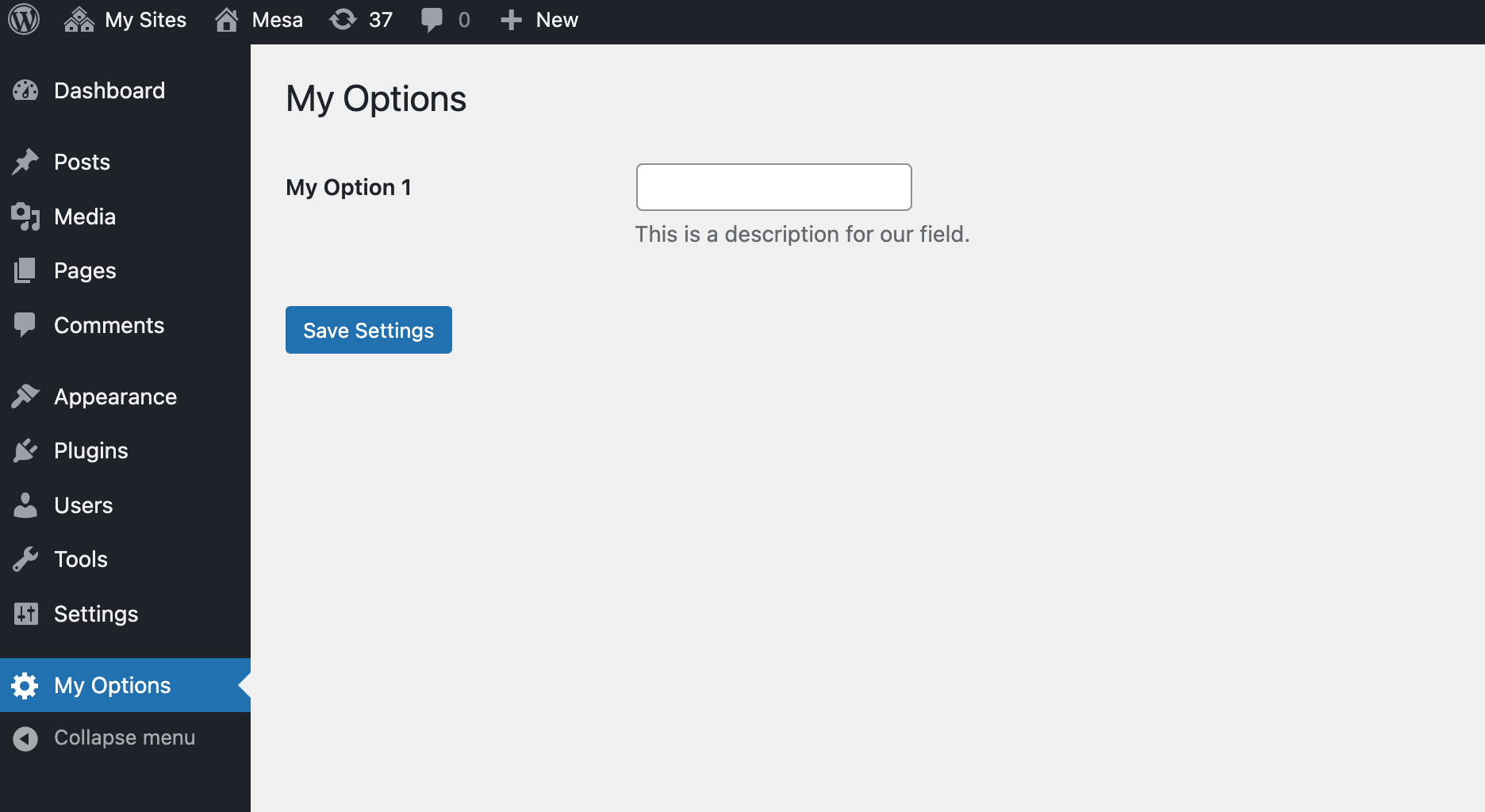
The add_theme_page function creates a theme option page. This page appears in the WordPress admin panel. First, write a function to build the page. Then, use add_action to link it with the admin menu. This makes the option page visible. The function needs parameters like page title and menu title. It also requires capability and function callback. The page title is what you see on the browser tab. The menu title shows in the sidebar. Capability decides who can access it. The callback function defines the page content. Use this wisely for user-friendly settings.
A custom admin menu makes navigation easy. It helps organize settings. Use the add_menu_page function for this. Set its parameters like page title and menu title. Also, set capability and menu slug. The function callback is for menu content. Icons can be added for better visuals. Remember, simpler menus are best. It ensures users find what they need fast.
Designing The Theme Options Interface
Creating a form for theme options is simple. Start with a basic HTML form. Use text fields, checkboxes, and dropdowns. Group similar options together. Make sure labels are clear. Users should understand what each option does. Always use default values. This helps users who are unsure. Keep the form neat and tidy. Avoid clutter. Use sections to organize. Clearly indicate sections with headings.
A well-styled options page attracts users. Use CSS to enhance appearance. Make buttons easy to find. Use contrasting colors for visibility. Fonts should be readable. Avoid using too many colors. Stick to one or two main colors. Ensure the page is responsive. It should look good on all devices. Test the page on different screens. Adjust styles if needed. Clean design is key. Keep it simple and user-friendly.
Saving And Retrieving Theme Options
Creating theme options in WordPress allows users to personalize their site easily. Save and retrieve settings using built-in functions. Customize appearance without coding expertise for a tailored web experience.
Using Get_option And Update_option Functions
Theme options let you customize your WordPress site. You can save these options using update_option(). This function stores data in the WordPress database. Retrieving saved options is easy. Use get_option() for this task. It fetches data from the database. Both functions work together. They help in managing theme settings. Keep your site unique with custom themes.
Validating And Sanitizing User Input
Validating input checks if it is correct. This step is important for security. Sanitizing input cleans the data. It removes unwanted parts. Use sanitize_text_field() to clean text. esc_html() is great for HTML. It helps protect your site. Always validate and sanitize data. Keep your website safe from harmful inputs.
Enhancing Theme Options With Frameworks
Creating theme options in WordPress becomes simpler with frameworks. These tools help developers build custom themes. They offer flexibility and ease in adjusting design elements. This approach ensures a personalized and efficient user experience.
Introduction To Theme Options Frameworks
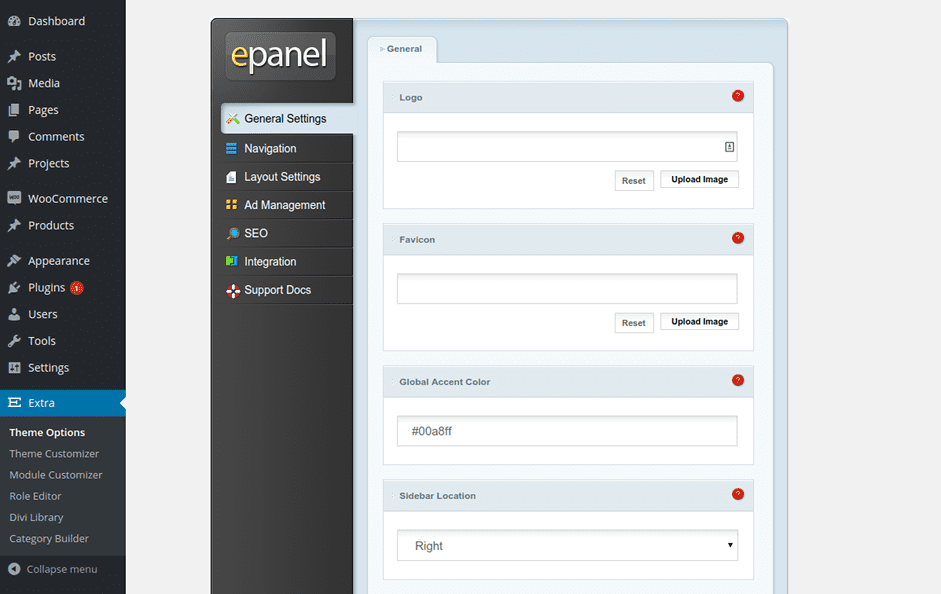
Theme options frameworks help make WordPress themes flexible. They let users customize themes easily. These frameworks offer a simple interface. Users can change colors, fonts, and layouts without coding. Developers save time using frameworks to build themes. They focus on design and functionality. Frameworks streamline the development process. They provide a solid foundation for themes.
Popular Frameworks To Consider
Many frameworks exist for WordPress theme options. Redux Framework is popular. It is easy to use and has many features. Options Framework is another choice. It is lightweight and simple. Kirki Customizer Framework offers advanced customization options. It integrates well with WordPress. Each framework has its strengths. Choose the one that suits your needs.
Credit: www.elegantthemes.com
Testing And Debugging Theme Options
Common Issues and Fixes: Themes might not save changes. This is a frequent issue. Check if the server has enough memory. Errors can appear if memory is low. Increase memory limit in the wp-config.php file. Another problem is options not showing. Ensure that functions.php has correct code. Typos can cause big issues. Always double-check your code. Sometimes, options reset after updates. This means the theme lacks stability. Test thoroughly before going live. Bugs can ruin user experience. Fix them quickly to keep users happy.
Ensuring Compatibility with WordPress Updates: WordPress updates often. Themes must work with each version. Use the latest coding standards. This keeps themes safe and efficient. Test themes on beta versions of WordPress. This helps catch potential problems early. Always backup before updates. This prevents data loss. Compatibility is key for a smooth theme. Make sure to regularly update your theme. Old themes can break with new WordPress updates.
Best Practices For Theme Options
Simple options are easier for users. Avoid too many choices. This helps users make decisions. Clear labels guide users well. Organized settings keep the page neat. Use tabs to split sections. This makes navigation smoother. Logical layout helps users find settings quickly. Avoid complex words in labels. This keeps it simple for everyone.
Fast loading is important. Optimize images and scripts. This speeds up the site. Secure options protect user data. Use secure coding practices. Regularly update and check for vulnerabilities. Backup settings prevent data loss. Store backups safely. Efficient code improves speed. Reduce unused files and code. This keeps the site smooth and safe.
Credit: www.wpexplorer.com
Frequently Asked Questions
How Do I Start Creating A Theme Option?
To start creating a theme option in WordPress, navigate to your WordPress dashboard. Access the functions. php file of your theme. Use the `add_theme_page` function to create a new menu item. This will serve as the entry point for your theme options panel.
What Is The Purpose Of Theme Options?
Theme options allow users to customize the appearance and functionality of their WordPress site. They provide a user-friendly interface for changing settings without editing code. This enhances the user experience by making it easier to personalize the website.
Can I Add Custom Fields To Theme Options?
Yes, you can add custom fields to theme options in WordPress. Use the Settings API to add custom fields. This allows you to offer more customization options, enhancing the flexibility and functionality of your theme.
Is Coding Required For Theme Options?
Yes, basic coding knowledge is required to create theme options in WordPress. You’ll need to use PHP to add and manage options. Familiarity with WordPress functions and hooks is essential to implement the options effectively.
Conclusion
Creating your theme option in WordPress can be simple. Start with clear goals. Use tools wisely. Customize features to match your needs. Ensure your theme is user-friendly. Keep design neat and clean. Test it thoroughly. Make adjustments as needed. Regular updates keep it fresh.
Focus on user experience. Engage your audience. A well-crafted theme boosts your site’s appeal. It enhances functionality. You now have the basics to create your own theme option. Enjoy the process. Happy designing!


