
Are you looking to expand your WordPress site without the hassle of switching themes or creating separate installations? Creating multiple pages on a single theme in WordPress can be a game-changer for your site’s versatility and user experience.
Imagine being able to offer distinct sections or even mini-sites under one cohesive design, all while keeping your management tasks streamlined. This not only enhances the user journey but also boosts your site’s SEO performance by keeping everything under one roof.
You’ll discover step-by-step how to effectively use your current theme to its full potential, turning your WordPress site into a multi-page masterpiece. Stick around to transform your website management experience!
Choosing The Right Theme
Select a theme that allows for many options. It should be easy to make changes. A flexible theme helps in designing different pages. Check if it supports custom layouts. This will help you create unique pages. Flexibility in design is very important.
Ensure the theme works well with WordPress plugins. Some themes might not support all plugins. It’s important to test this first. Check if the theme is updated often. This ensures compatibility with new WordPress versions. Updates help keep the theme safe and functional.
Setting Up Your WordPress Environment
Install WordPress on your computer. Use XAMPP or MAMP. These tools help run WordPress locally. Download WordPress from its official site. Extract files into the htdocs folder in XAMPP. Open phpMyAdmin to create a new database. Name it something simple. Remember this name for later.
Plugins add extra features to WordPress. Install the ones you need. Start with a SEO plugin. This helps your site rank better on search engines. Add a security plugin to protect your site. Install a backup plugin to keep your data safe. Don’t forget a speed optimization plugin. It makes your site faster and smoother.
Creating A Child Theme
A child theme allows changes without touching the main theme. This is very useful. Updates to the main theme do not affect your changes.
Your website stays safe and secure. Child themes are easy to create. They offer a way to customize your site.
First, create a new folder in the themes directory. Name it like your main theme with “-child” at the end. Next, create a style.css file in this folder.
Add details like theme name, description, and template. Then, create a functions.php file. Use this file to enqueue the parent theme’s styles.
Finally, activate the child theme from your WordPress dashboard. Now, you can start making changes.
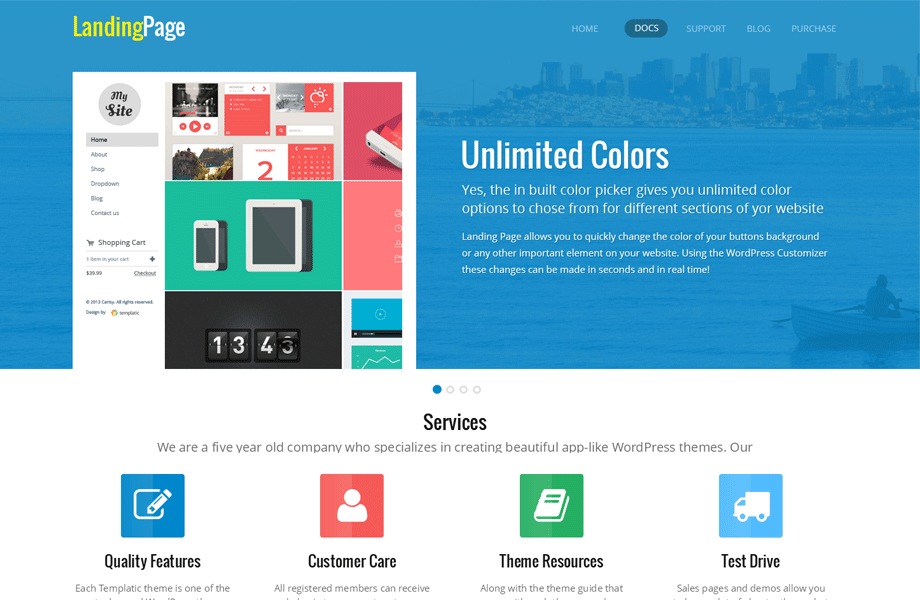
Credit: templatic.com
Designing The Homepage
Start by choosing a simple layout. A clean look helps visitors focus. Use easy-to-read fonts and keep colors soft. Arrange sections in a way that flows. Place important items at the top. Avoid cluttering the page with too much text. Use images to make it interesting. Ensure the layout is mobile-friendly. This helps users on phones and tablets. Test different layouts to find the best one.
Widgets make your page useful. Add a search bar to help find things. Include a contact form for easy reach. Show recent posts to keep content fresh. Use a social media widget to link profiles. Display a newsletter signup to grow your audience. Choose widgets that fit your site’s theme. Don’t use too many, as they can slow down the page.
Building Additional Pages
Adding more pages to a WordPress theme is simple. Start by going to the dashboard. Click on “Pages” and choose “Add New”. Here, write your page title. Add content using the editor. Save the draft or publish it when done. Repeat these steps for each new page. Keeping pages organized helps visitors find information fast.
Creating Consistent Navigation
Make sure every page has the same navigation menu. This helps users move around your site easily. Go to “Appearance”, then “Menus”. Add new pages to the menu. Place them in the right order. Check if all links work well. Clear menus make your website user-friendly.
Designing Individual Page Layouts
Each page can have a unique layout. Use page builders or WordPress blocks. Change colors, fonts, and images. Ensure text is clear and readable. Test the layout on different devices. Good design keeps people interested. Your site should look neat and tidy always.
Using Page Builders
Popular page builders make website creation easy. Tools like Elementor, Beaver Builder, and Divi are very famous. These help you create beautiful pages with ease. You can drag and drop elements. No coding skills needed. Choose from many templates. Customize them to fit your needs.
Elementor is known for its user-friendly interface. Beaver Builder offers great flexibility. Divi gives you many design options. Each has unique features. Pick the one that suits you best. Remember, page builders save time. They make web design fun and simple.
Enhancing page designs is important for any site. Good design attracts visitors. Page builders offer various tools to improve design. Use widgets for better layout. Add images and videos to make pages lively. Use fonts that are easy to read.
Colors should match your theme. Keep it simple, not too flashy. Check mobile view as well. Many visitors use phones. Make sure everything looks good on small screens. Test your pages often. Ensure they load fast and work properly. Good design keeps visitors happy.
Integrating Plugins For Enhanced Functionality
Integrating plugins can enhance functionality in WordPress, allowing multiple pages under a single theme. Simple plugin settings help customize layouts, making it easier to manage diverse content effectively.
Choosing Necessary Plugins
Choosing the right plugins is important for your WordPress site. Plugins add extra features to your theme. Always pick plugins that match your website’s needs. For example, choose a plugin for contact forms if you need them. Do not add too many plugins. Too many can slow down your website. Also, check the ratings and reviews before adding a plugin. This helps ensure you pick a good one.
Ensuring Plugin Compatibility
Plugins must work well with your WordPress theme. Always check if a plugin is compatible with your theme version. Sometimes, plugins may not work with other plugins. This can cause problems on your site. Before adding a new plugin, back up your website. This keeps your data safe. If a plugin causes issues, you can restore your site easily. Also, update your plugins regularly. Updates keep your site secure and running smoothly.
Testing And Optimization
Make sure your website works on all devices. Test on phones, tablets, and computers. Check the layout and buttons. Fix any issues you find. It is important for users. People use different devices every day. Your site should look good everywhere. This makes visitors happy. Happy visitors stay longer. They might come back.
Fast websites are better. Slow sites make users leave. Check your website’s speed. Use tools to help. Improve loading times. Compress images and files. Reduce code size. This helps performance. A fast site works well. Users enjoy it more. Better performance brings more visitors. More visitors mean more success.
Launching Your Multi-page Site
Test each page for errors. Ensure links work properly. Check images load fast. Review text for spelling mistakes. Confirm all buttons click through. Verify forms send information correctly. Look at site on mobile devices. Ensure site is easy to use. Check speed of site. Fast sites keep visitors happy. Test site on different browsers. Make sure site looks good everywhere. Fix any problems before launch. A smooth site is important.
Share your site with friends. Tell family about your new site. Use social media to spread the word. Post updates on Facebook. Tweet about your site on Twitter. Share pictures on Instagram. Write a blog post about your site. Ask friends to share your site. Create engaging content. Keep visitors coming back. Use SEO to make site easy to find. Good promotion helps your site grow.
Credit: themeforest.net

Credit: themeforest.net
Frequently Asked Questions
How Can I Add Multiple Pages To A WordPress Theme?
To add multiple pages, use the WordPress admin dashboard. Navigate to ‘Pages’ and click ‘Add New. ‘ Customize each page by selecting the desired theme template. Save your changes and publish. Repeat this process for each additional page you want to create on the same theme.
Is It Possible To Use One Theme For Multiple Pages?
Yes, you can use a single theme for multiple pages. Themes in WordPress are designed to support multiple pages. Customize each page individually within the theme’s settings. This allows for consistent design across all your pages while maintaining unique content.
Can I Customize Each Page Differently On One Theme?
Absolutely, WordPress allows individual page customization even with a single theme. Use page-specific settings or plugins to modify layouts, colors, and content. This flexibility ensures each page can have its unique look and feel while maintaining overall theme consistency.
What Plugins Help In Creating Multiple Pages?
Plugins like Elementor, WP Page Builder, and Beaver Builder are excellent for creating multiple pages. They offer drag-and-drop functionality and customizable templates. These tools simplify the process, enabling unique designs for each page while using a single theme.
Conclusion
Creating multi-page websites on a single WordPress theme is simple. It enhances site navigation and user experience. Choose a theme that supports multiple pages. Customize each page to fit your content needs. Ensure consistency in design for a professional look.
Use plugins for added functionality, if needed. Keep your site organized. Make it easy for visitors to find information. Regularly update content to keep it fresh and relevant. A well-structured website attracts more visitors. It boosts engagement and helps achieve your goals.
Start building today and watch your site grow.


