
Imagine transforming a simple HTML template into a fully functional WordPress theme. This might seem like a daunting task, but with the right guidance, you can do it with ease.
If you’ve ever felt frustrated by the limitations of static HTML or dreamt of harnessing the dynamic power of WordPress, this guide is tailored for you. By the end of this article, you’ll not only understand the step-by-step process but will also feel empowered to take control of your website’s design and functionality.
Are you ready to unlock the potential of your HTML templates and elevate your web development skills? Dive in to discover how you can effortlessly bridge the gap between HTML and WordPress.
Setting Up Development Environment
First, install a code editor like VS Code or Sublime Text. These tools help you write and edit code easily. Next, download and install WordPress. You can find it on the WordPress website. It is free to use and very popular. After that, set up a local server. XAMPP or WAMP are good choices. They let you run WordPress on your computer without going online. Finally, create a new folder for your theme. This folder will hold all your theme files. Name it something easy to remember. Now, you are ready to start building your theme.
Analyzing The Html Template
HTML templates have many parts. Each part has a role. Headers show the title. Footers have extra information. Sidebars contain links. These parts make the page complete. Look at each part carefully. Find what you need for your theme.
Some elements are very important. Navigation bars help users move around. Images make pages look nice. Forms let users send information. Save these elements for your theme. They make your theme better.
Make sure the template works with WordPress. Some templates need changes. Look at the code closely. Find any problems. Fix them before using the template. This helps your theme work well.
Splitting Html Into WordPress Files
The header file is named header.php. It contains the top part of the page. This includes the logo and navigation menu. The footer file is named footer.php. It holds the bottom part like copyright info. Both files help keep the design the same across pages.
The index.php file is the main file. It calls other files to display the page. It uses functions like get_header() and get_footer(). This makes the page complete. The index file is key to showing content.
Template partials are small parts of the theme. They can be reused on different pages. For example, a sidebar can be a partial. Use get_template_part() to add them. This keeps code clean and easy to manage.
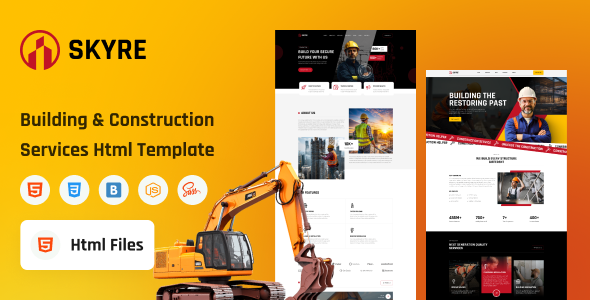
Credit: themeforest.net
Integrating WordPress Functions
WordPress hooks are special code that lets you change themes. These hooks help in adding dynamic content. They can make your site more interactive. Action hooks let you add or remove code. Filter hooks allow you to change how things look. They are like instructions. These hooks tell WordPress what to do. They make themes flexible and fun.
Using WordPress Hooks
Dynamic content implementation brings life to a website. WordPress helps by using functions. Functions let you show different content to users. For example, show a welcome message to new users. Or, show special offers to returning users. These changes happen automatically. It makes your site smart and friendly.
Styling With WordPress
Enqueueing is a way to add styles and scripts. It keeps things neat. Use the wp_enqueue_style() function. This adds CSS files to your theme. For scripts, use wp_enqueue_script(). This adds JavaScript files. Both functions need a handle name. This name helps WordPress manage them. Always use unique names for handles. It avoids conflicts.
The WordPress Customizer lets you change theme settings. You can edit colors and fonts. Add sections for settings. Users change options easily. Use customize_register action. It adds settings to the Customizer. Simple code makes changes quick. It helps users make themes look great. Themes become personal and unique.
Adding WordPress Features
Widgets are small blocks on your WordPress site. Adding widget support is easy. First, open your functions.php file. Add a line of code to register a widget. This helps in displaying widgets on your site. Widgets make your site more flexible. Users can add and move them.
Custom menus allow easy navigation. They improve the look of your site. Open the functions.php file. Add code to enable menu support. This lets users create and edit menus. Custom menus make finding content easy. Visitors love simple navigation.
Post thumbnails are also called featured images. They make posts look nice. To add them, use the functions.php file. Add a line to support thumbnails. Thumbnails help grab attention. They make your posts stand out. Remember to use high-quality images.
Testing And Debugging
Transforming an HTML template into a WordPress theme involves testing and debugging for seamless performance. Identifying errors ensures smooth functionality and compatibility across various browsers.
Cross-browser Testing
Every browser shows web pages a bit differently. Testing on many browsers helps find issues. Use tools like BrowserStack or CrossBrowserTesting. Check your theme on Chrome, Firefox, Safari, and Edge. Make sure everything looks good. Buttons, links, and forms should work. Always update browsers to the latest version for testing. This ensures compatibility with new features.
Troubleshooting Common Issues
Themes sometimes have issues. Common problems include broken links, missing images, or CSS errors. First, check for typos or code errors. Use WordPress debug mode for detailed error messages. Look for missing files in the theme directory. Updating plugins and themes often fixes problems. If the issue persists, consult online forums or support groups. They can offer solutions or workarounds. Regular backups prevent data loss during troubleshooting.
Credit: medium.com
Finalizing And Packaging The Theme
Make sure all files are in one folder. This includes HTML, CSS, JavaScript, and PHP files. Check each file for errors. Use a tool to find broken links. Test the theme on different browsers. It should look the same everywhere.
Compress the folder into a ZIP file. This makes it easy to share. Include a readme file. Explain how to install the theme. Add instructions for customization. Make sure the theme is easy to use. Users should not face problems.

Credit: www.youtube.com
Frequently Asked Questions
How Do I Convert Html To WordPress?
Converting HTML to WordPress involves creating a custom theme. Start by splitting your HTML into WordPress template files. Use PHP to integrate dynamic elements. Then, utilize WordPress functions to replace static content. Lastly, test your theme to ensure it functions correctly.
Can I Use Html Templates In WordPress?
Yes, you can use HTML templates in WordPress by converting them into themes. Break down your HTML code into WordPress-specific files. Add WordPress functions for dynamic content. This allows you to maintain the design while leveraging WordPress features.
What Are The Steps To Create A WordPress Theme?
Creating a WordPress theme requires several steps. First, set up a new theme folder and files. Next, convert your HTML design into WordPress templates. Incorporate PHP for dynamic features. Finally, test your theme thoroughly before deployment.
Is Coding Knowledge Necessary For WordPress Themes?
Basic coding knowledge is essential for creating WordPress themes. Familiarity with HTML, CSS, and PHP is crucial. Understanding WordPress functions and template hierarchy helps in customizing themes effectively. Without coding skills, customizing themes can be challenging.
Conclusion
Creating a WordPress theme from an HTML template is doable. Follow each step carefully. Start with HTML basics. Convert it into WordPress files. Use PHP for dynamic content. Understand WordPress functions. Test your theme thoroughly. Make sure it works smoothly.
Check compatibility with plugins. Ensure responsive design for mobile users. Customize as needed. Keep your code clean and organized. This process builds your skills. Enhances your website creation abilities. You gain control over your site’s look. Try it with patience.
Success comes with practice. Your website will reflect your creativity. Enjoy the journey of learning and building!


