
Creating a Genesis child theme in WordPress can feel like unlocking a secret door to endless design possibilities. Imagine having full control over your site’s look and feel, making it uniquely yours without touching the core framework.
This is where the magic happens. You don’t need to be a coding wizard to achieve this. With a few simple steps, you can customize your website to reflect your brand’s personality and stand out in the digital crowd. Whether you’re aiming to boost your site’s performance, improve SEO, or simply love the idea of personalizing every pixel, this guide will walk you through the process.
Get ready to transform your WordPress site into something truly exceptional. Are you excited to dive in and unleash your site’s true potential? Let’s get started!
Genesis Framework Basics
The Genesis Framework is a popular WordPress theme framework. It helps build beautiful websites. It provides a strong base for your site. Designers love it for its flexibility. It is simple to use. With Genesis, your site will load fast. Many developers use it. It is trusted by many. It also has good security features. This keeps your site safe.
Using Genesis offers many benefits. Your site will load faster. Fast sites rank better on Google. It has a clean code. This makes it easy to customize. Genesis themes are mobile-friendly. They look good on phones and tablets. You also get regular updates. This keeps your site secure and up-to-date. The support is great too. You can find help easily. Many tutorials and guides are available.
Setting Up Your Development Environment
Starting your WordPress journey requires important tools. First, a good text editor is needed. Sublime Text or Visual Studio Code are popular choices. They help write clean code. Next, install Git for version control. It keeps track of changes. A web browser like Chrome or Firefox is also essential. They help test the website. Finally, install FTP client. FileZilla works well for uploading files.
Begin with installing WordPress. Download from their official site. Follow the easy steps. Then, get the Genesis Framework. Buy it from StudioPress. After downloading, go to the WordPress dashboard. Click on Themes. Choose Add New and upload Genesis. Activate it once uploaded. This sets the base for your child theme.
Creating A Child Theme
A child theme lets you change a website’s look. It uses the main theme’s features. This keeps your changes safe during updates. You need to know how it works. Child themes are easy to make and useful.
First, make a new folder. This is your child theme directory. Name it anything you like. It should be placed in the themes folder. This keeps it organized and easy to find. Remember the name you give it.
The style.css file is important. It tells the website about your child theme. Create a new file inside your folder. Name it style.css. Add a few lines of code to it. This tells the website about the new theme.
The functions.php file adds features to your theme. Create a file named functions.php. Place it in your child theme folder. This file helps add custom code. It works with the main theme’s code. This makes your website unique.
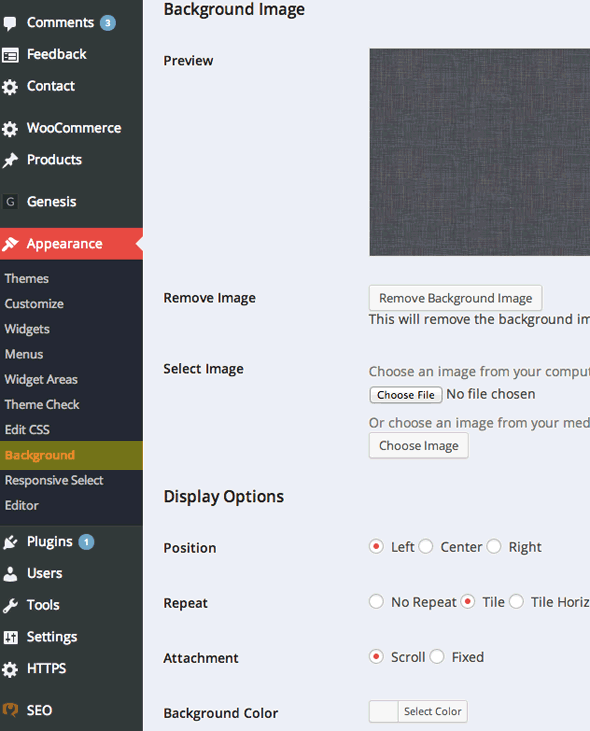
Credit: coolestguidesontheplanet.com
Customizing The Child Theme
Creating a Genesis child theme in WordPress allows for easy customization while keeping the original design intact. Modify styles, templates, and functionalities without affecting the parent theme. This ensures updates won’t erase your changes. Perfect for maintaining a personalized website.
Modifying Css For Styling
Start by locating the style.css file in your child theme. This file controls the look of your theme. You can change colors, fonts, and layouts here. Use CSS classes to change specific parts of your site. Make sure your changes are saved. Refresh your webpage to see the new styles. Experiment with different styles to find what you like best.
Adding Custom Functions
Use the functions.php file to add new features. This file allows you to add custom code. You can create special functions to improve your theme. Always back up your files before making changes. Test each new function to ensure it works correctly. If something breaks, you can remove the code to fix it.
Using Hooks And Filters
Hooks and filters are powerful tools in WordPress. They let you modify parts of your site without altering the core files. Use action hooks to add new content or features. Filter hooks help you change data before it appears. Both are essential for customizing themes. Learn to use them to make your site unique.
Testing And Debugging
Creating a Genesis child theme involves testing and debugging for smooth functionality. Identify errors quickly to ensure a seamless WordPress experience. Debugging helps improve theme performance and user satisfaction.
Common Issues And Fixes
Genesis Child Themes might face issues. Broken layouts and missing styles are common problems. Incorrect font sizes can also occur. CSS conflicts may cause design errors. JavaScript errors can break features. Outdated plugins might lead to failures. Updating plugins often solves problems. Check console logs for JavaScript errors. Validate HTML to find issues. Use browser developer tools to debug styles. Clear cache if changes don’t show up. Deactivate plugins one by one to find conflicts. Check theme functions for errors. Ensure compatibility with WordPress version.
Tools For Testing And Debugging
Browser Developer Tools are essential for debugging. They show CSS and JavaScript errors. Firebug and Chrome DevTools are popular choices. Theme Check Plugin finds theme errors. Debug Bar Plugin helps locate PHP warnings. Query Monitor Plugin identifies database issues. WP_DEBUG mode shows errors in WordPress. Log viewer plugins keep track of error logs. Pingdom Tools tests site speed and performance. GTmetrix analyzes page load time. These tools help improve theme function and user experience.
Deploying The Child Theme
Creating a Genesis Child Theme in WordPress involves deploying the child theme to customize your site easily. Start by installing Genesis as the parent theme, then create a new folder for your child theme in the themes directory. Modify the style.
css and functions. php files to suit your design needs.
Preparing For Deployment
Before deploying, ensure your child theme works. Check all functions and styles. Make sure everything looks good. Fix any issues now. This will save time later.
Uploading To The Server
To upload, you need an FTP client. FileZilla is a good choice. Connect it to your server. Find the WordPress themes folder. It’s in “wp-content/themes”. Upload your child theme folder here. Wait for it to finish. Then, go to your WordPress dashboard. Activate your child theme. Check your website. Make sure everything is working. If there are problems, check your files. Fix any errors you find.
Best Practices
Creating a Genesis Child Theme in WordPress involves selecting a design, setting up a functions. php file, and customizing styles using CSS. This approach ensures a unique look while maintaining the core functionalities of the Genesis framework. Tailor your website with ease and efficiency.
Maintaining Your Child Theme
Creating a backup is vital. Save your work regularly. This helps in case of errors. Keep your theme files organized. Use folders and clear names. This makes it easy to find things. Update your child theme often. This ensures you have the latest features. Always test new updates on a staging site first.
Ensuring Compatibility
Check your theme with different browsers. Make sure it works on Chrome, Firefox, and Safari. Test your site on mobile phones. It should look good on small screens. Use responsive design techniques. This ensures the site adapts to different devices. Install plugins carefully. Only use those compatible with Genesis. This avoids conflicts and ensures smooth operation.

Credit: www.sitepoint.com
Credit: www.youtube.com
Frequently Asked Questions
What Is A Genesis Child Theme?
A Genesis child theme is a customizable theme built on the Genesis Framework. It allows users to modify design elements without altering the core framework. This approach ensures updates don’t overwrite customizations, enhancing flexibility and security in WordPress theme development.
Why Create A Genesis Child Theme?
Creating a Genesis child theme offers customization and future-proofing benefits. It allows for unique styling while retaining framework stability. This approach ensures updates don’t interfere with your customizations, maintaining site integrity and functionality.
How Do You Set Up A Genesis Child Theme?
To set up a Genesis child theme, install the Genesis Framework first. Next, add your child theme folder to the themes directory. Activate the child theme via the WordPress dashboard. Customize it using CSS and PHP to fit your design needs.
Can I Customize A Genesis Child Theme Easily?
Yes, customizing a Genesis child theme is straightforward. Use CSS for styling changes and PHP for functionality adjustments. The Genesis Framework’s hooks and filters offer flexibility, allowing tailored designs while maintaining stability and update compatibility.
Conclusion
Creating a Genesis child theme in WordPress is straightforward. Start by understanding the basics. Customize according to your needs. Add unique features to enhance functionality. Use clean code for better performance. Always test your theme thoroughly. Check responsiveness on different devices.
Keep security in mind while designing. Regular updates are vital for smooth operation. With practice, your skills will improve. Your site will look professional and work efficiently. Enjoy the process and creativity involved. Learning these steps boosts your WordPress confidence.
Design with care and attention to detail. Your efforts will pay off in the long run.


