
Are you tired of using the same old WordPress themes that everyone else is using? Do you crave a unique look for your website that truly reflects your brand or personal style?
Creating a custom WordPress theme might seem like a daunting task, but it’s easier than you think. Imagine the thrill of crafting a website that stands out, one that is tailored specifically to your needs and vision. In this guide, you’ll discover a straightforward, step-by-step process to design and build your own WordPress theme from scratch.
Whether you’re a seasoned developer or a complete beginner, this article will empower you to take control of your website’s aesthetics and functionality. Dive in and unlock the secrets to transforming your WordPress site into a bespoke online space that captures your audience’s attention and keeps them coming back for more.
Credit: kinsta.com
Setting Up Your Environment
A text editor is a tool to write code. Choose a simple one like Notepad++ or Sublime Text. These are easy to use. They have features that make coding easier. Look for syntax highlighting. This helps in reading code. Make sure it supports PHP and HTML. These languages are used in WordPress themes.
Install WordPress on your computer. Use XAMPP or WAMP. These tools create a local server. Download WordPress from its official site. Extract files into the local server folder. Follow the setup guide. Create a database using phpMyAdmin. Link this database during setup. Now, WordPress is ready to use locally.
WordPress has a special file structure. The main folder is called wp-content. Themes are inside the themes folder. Each theme has its own folder. Look for files like style.css and functions.php. These files control your theme’s look and behavior. Understanding these files is key to creating themes.
Creating A Basic Theme
Create a folder in wp-content/themes. Name it your theme. This is your workspace. Every file you add goes here. Keep it organized. It’s your theme’s home.
Open style.css in your theme folder. Add theme details at the top. Example: Theme Name, Author. This tells WordPress about your theme. Add basic CSS. Change fonts, colors, and layout. Save changes. Your style is set.
Create a file called index.php in your theme folder. This file displays your content. Add HTML and PHP code. It fetches posts and pages. Basic layout goes here. Now, your theme can show content.
Customizing The Header And Footer
Crafting custom headers and footers enhances your WordPress theme’s appearance. Modify these sections to reflect your brand’s identity. With step-by-step guidance, transform basic designs into personalized features, ensuring your site stands out.
Editing Header.php
Open the header.php file in your theme folder. This file lets you change the top part of your site. Add your logo here. Change the site title and description. Add navigation links. Use HTML tags to make changes. Save your edits.
Modifying Footer.php
Find the footer.php file in the same folder. It controls the bottom part of your site. Add social media links here. Write a copyright notice. Include contact details. Adjust layout using HTML and CSS. Save changes when done.
Linking Stylesheets And Scripts
Open the functions.php file. Use wp_enqueue_style to link stylesheets. Use wp_enqueue_script for JavaScript files. Ensure paths are correct. Check if files appear on your site. This helps in adding custom styles and scripts.
Credit: www.wpzoom.com
Building The Main Content Area
The Loop is a key part of WordPress. It helps show your blog posts. Each post uses this code. Start by opening the index.php file. Add PHP tags at the top. Inside, use the while loop. It checks if there are posts to show. If there are, it shows them. This keeps your site fresh with new content. Always remember to close your tags.
Design these files for posts and pages. The single.php file is for blog posts. The page.php file is for static pages. First, copy the index.php file. Rename it to single.php. Do the same for page.php. Then, edit the files. Change title tags and content tags. This makes your site look unique. Use CSS to style them.
Customize templates to fit your site. Use template tags for this. Tags like the_title() and the_content() help. They pull the title and content from the database. Add these tags to your template files. It makes sure everything shows up right. Each template can look different. This is the magic of WordPress themes.
Implementing Theme Features
Creating a custom theme in WordPress involves implementing theme features step-by-step. Start by setting up a basic theme structure, then add custom templates and styles. Enhance functionality with widgets and plugins for a personalized design.
Adding Custom Menus
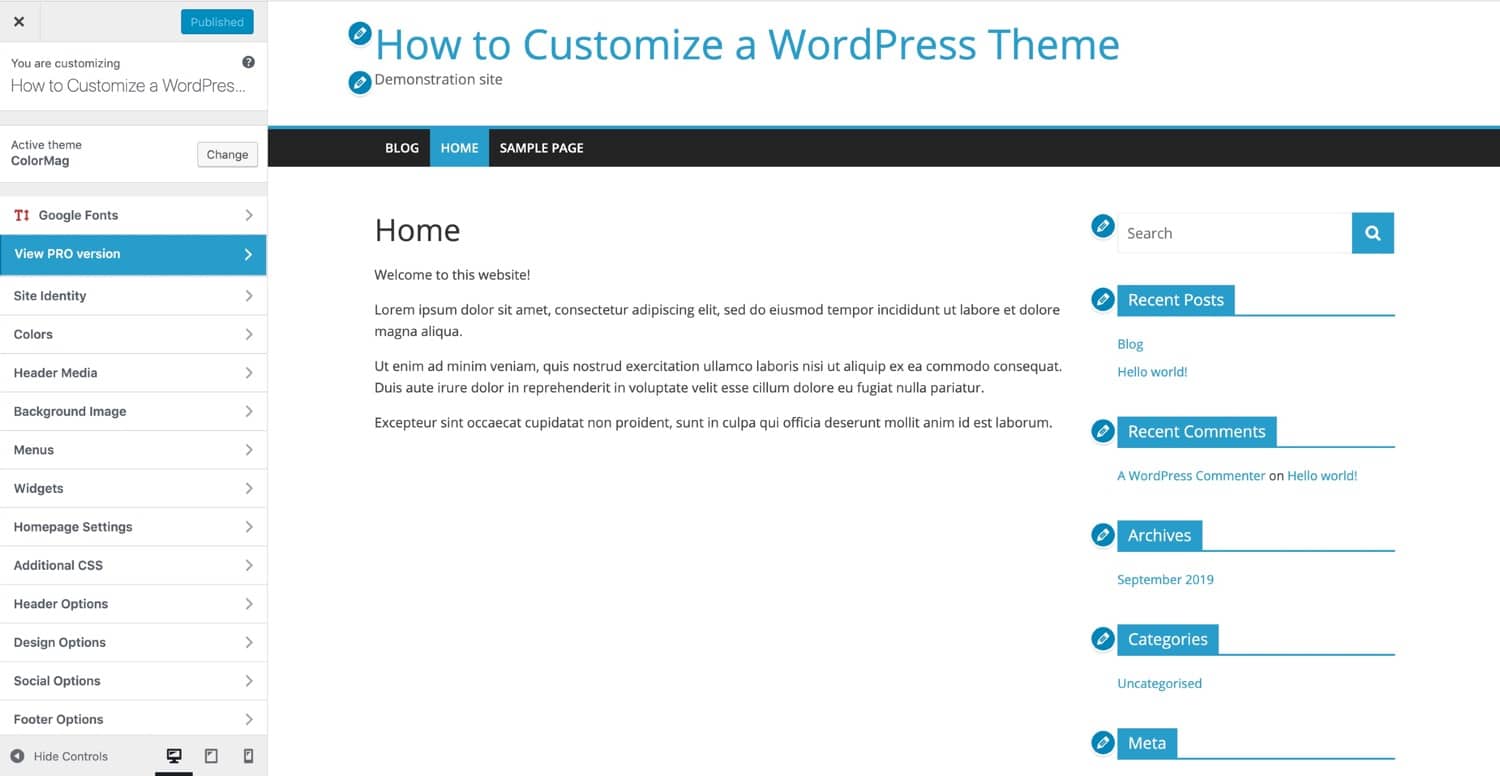
Creating custom menus is simple. Navigate to the Appearance tab. Click on Menus. You’ll see a menu editor. Add pages, links, and categories here. Save your menu. Now, go to Manage Locations. Assign your menu to a location. Menus help users navigate easily.
Creating Widget Areas
Widget areas enhance your theme. Visit the functions.php file. Use register_sidebar() function. Add your widget area details here. Include name, id, and description. Now, go to Appearance and choose Widgets. Drag and drop widgets into your new area. Widgets add dynamic content to your site.
Supporting Post Thumbnails
Post thumbnails make posts attractive. Go to functions.php. Add add_theme_support('post-thumbnails'). Now, edit your post. You’ll see a featured image option. Choose an image here. Save your post. Thumbnails draw attention and improve site visuals.
Styling Your Theme
CSS gives your theme its style. You can change the color of text, make borders, or add shadows. Want to change the size of things? CSS can do that too. Use CSS to make your site look nice. It is like dressing up your website.
Websites need to look good on all devices. Use responsive design to make your site fit phones and tablets. CSS helps with this. It can change the layout for small screens. Visitors can see your site on any device.
Fonts and colors make your site unique. Choose fonts that match your style. Use Google Fonts for more options. Pick colors that are easy to read. Your site will feel special with the right choices.
Enhancing Functionality With Php
Custom functions make your WordPress site unique. They help add special features. Functions are like recipes for your website. You can write them in the functions.php file. This file is in your theme folder. Always back up your site before making changes. Mistakes can cause problems. Test your functions on a safe site first. Keep your code simple and clean. This makes it easy to fix if needed.
Using WordPress Hooks
Hooks are like magic buttons. They let you add or change functions. Use action hooks to add new features. Use filter hooks to change how something works. Hooks are friendly helpers. They make your site do more. Explore WordPress documentation for more hook ideas. Remember, too many hooks can slow your site. Balance is key.
Implementing Shortcodes
Shortcodes are like shortcuts. They help display things fast. Use them to add galleries, forms, or videos. Write shortcodes in the functions.php file. Use the add_shortcode function. Shortcodes save time and are easy to use. They make your posts look neat and tidy. Shortcodes are friendly for beginners too. Try them and see the magic!
Testing And Debugging
Browser tools help find and fix code problems. They show how a website works. Inspect elements to see HTML and CSS. Check the console for errors. Use network tab to see loading times. These tools help make themes better.
Websites must look good on all browsers. Test your theme on Chrome, Firefox, and Safari. Each browser can show websites differently. Fix any issues you find. This ensures everyone sees your theme correctly.
Use validators to check HTML and CSS. They find errors in code. Fix errors for better performance. Check speed using performance tools. Fast themes make visitors happy. Keep testing until everything works well.
Preparing For Theme Distribution
A screenshot shows how your theme looks. Make sure the image is clear. It helps users understand your theme better. Add a description in the style.css file. This tells about your theme. Include the theme name, author, and version. These details are important. They help users know more about the theme.
Test your theme with the Theme Check plugin. It checks for errors. It ensures your theme follows WordPress standards. Fix any problems it finds. This makes sure your theme works well. A well-tested theme is safe and reliable.
Gather all theme files. Put them in a folder. Name the folder after your theme. Compress the folder into a .zip file. This makes it easy to share. Users can download and install your theme. Make sure all files are included. A complete package is important.
Credit: smashballoon.com
Frequently Asked Questions
How Do I Start Creating A WordPress Theme?
To start, set up a local WordPress environment using software like XAMPP. Familiarize yourself with basic HTML, CSS, and PHP. Download a starter theme like _Underscores_ for a solid foundation. Customize it by modifying the style. css file and tweaking template files.
Test your theme thoroughly before deploying.
Can Beginners Create Custom WordPress Themes?
Yes, beginners can create custom themes with patience and practice. Start by learning WordPress fundamentals and basic coding. Use resources like online tutorials and forums for guidance. Leverage starter themes and theme frameworks to simplify the process. Gradually, you’ll build the skills needed for more complex customizations.
What Tools Do I Need For Theme Development?
You need a code editor like Visual Studio Code, FTP client for uploads, and a local server environment like XAMPP. Use browser developer tools for debugging and inspection. Consider using version control systems like Git to manage changes. These tools help streamline the development process and enhance productivity.
How Can I Customize A WordPress Theme?
Customize a theme by editing template files and style sheets. Use the WordPress Customizer for basic modifications. Utilize hooks and filters for advanced changes. Consider using child themes for safe and efficient customizations. Testing changes thoroughly ensures compatibility and functionality across different devices and browsers.
Conclusion
Creating a custom theme in WordPress is easier than it seems. Follow the steps outlined above. Start with a simple design idea. Make your theme unique. Test your theme thoroughly before going live. Customize colors, fonts, and layouts to fit your needs.
Use plugins wisely to enhance functionality. Keep your theme updated for security and performance. Remember, practice makes perfect. Once you create your first theme, the process gets easier. Enjoy the journey of building your WordPress site. Happy customizing!


