
Have you ever wanted to customize your WordPress site without risking the loss of your hard work during updates? Creating a child theme might be your perfect solution.
Imagine having the freedom to tweak your site’s design and functionality while keeping the original theme intact. Sounds great, right? This guide will walk you through the straightforward process of creating a child theme in WordPress. By the end of this article, you’ll have the confidence to make your site truly yours, ensuring it stands out while remaining up-to-date.
Dive in and discover how you can take control of your site’s appearance and performance today!
What Is A Child Theme
A child theme is like a copy of a parent theme. It lets you make changes without breaking the original theme. You can customize your site safely.
The child theme uses the same style as the parent. But you can add your own styles and changes. This way, updates do not erase your work. It is a smart way to keep your site unique and safe.
Credit: wpengine.com
Benefits Of Using A Child Theme
Child themes keep your changes safe. Updates won’t erase them. This means your site stays fresh and secure. You can tweak your design easily. No need to touch the main theme. This saves time and effort. Developers love this. It gives them freedom to experiment.
Child themes are perfect for learning. Beginners get to see how themes work. They can try new things without fear. Mistakes won’t break the main theme. This is a safe way to learn and improve skills.
Child themes make customization simple. Want a new look? Change fonts, colors, or layouts. All with ease. This is great for unique websites. Stand out with your own style.
Preparing Your Environment
To create a child theme, certain tools are essential. You need a text editor like Notepad++ or Sublime Text. These help in writing code. A FTP client such as FileZilla is also important. It helps you upload files to your server. Make sure you have the WordPress site login details. This ensures you can access your site.
Before making changes, always back up your site. Use backup plugins like UpdraftPlus. These plugins save your site data. You can find them in the WordPress plugin store. A backup keeps your site safe. It prevents data loss if something goes wrong. Always double-check your backup to ensure it’s complete.
Credit: www.cloudways.com
Creating The Child Theme Folder
First, open the file manager in your hosting account. Find the wp-content/themes folder. This is where all themes live. You need to create a new folder here. Name it after your theme with -child at the end. For example, if your theme is Twenty Twenty-One, name it twentytwentyone-child.
Make sure the name matches the parent theme. This helps WordPress link them. Inside the child folder, create a style.css file. This file is important. It tells WordPress about the child theme. Start with this file to move forward.
Adding The Style.css File
The style.css file is important. It tells WordPress about the theme. This file needs a header. The header gives details. It includes the theme name, author, and version.
Use comments for the header. Start with / and end with /. Include the parent theme details. Write the name of the parent theme. Mention the parent theme version. This helps WordPress find the parent theme.
Below the header, add styles. These styles change the look of your site. You can add colors and fonts. Use simple CSS rules. This keeps your theme easy to manage.
Configuring The Functions.php File
The functions.php file is a part of the child theme. It acts like a plugin. It adds features to your theme. You can add custom code here. This file helps to change theme behavior. It does not change the parent theme’s core files. This keeps the original theme safe.
The parent theme’s styles need to be included. This ensures the child theme looks similar. Use the function wp_enqueue_style. It links the parent and child styles. This step is important. Without it, the child theme might look broken. Always ensure styles are linked correctly.
Activating The Child Theme
Activating a child theme in WordPress is simple. First, ensure your child theme is installed. Then, navigate to your WordPress dashboard and activate it under the “Appearance” section. This keeps your customizations safe during theme updates.
Uploading Via Ftp
Connect your computer to the FTP server. You need an FTP program. Use FileZilla or Cyberduck. Find the wp-content/themes/ directory. Open it. Copy the child theme folder. Paste it here. Check if the folder is copied. Look for style.css and functions.php files. These files are important. They make the child theme work. Ensure the upload is complete. Close the FTP program. You’re done with FTP upload.
Activating In WordPress Dashboard
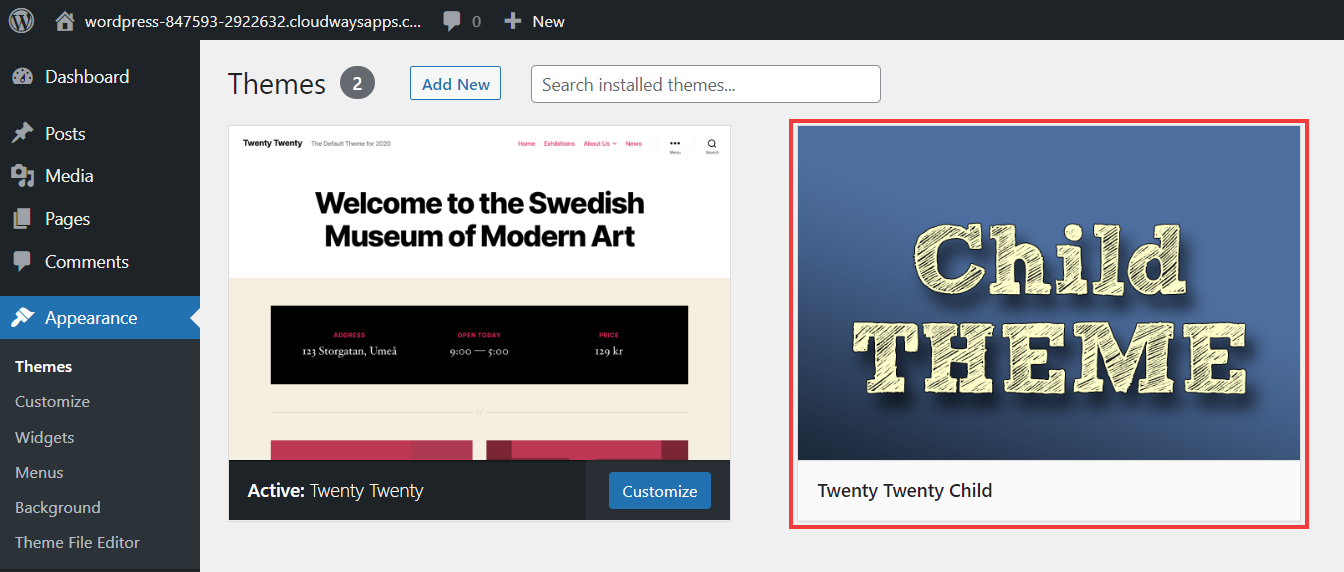
Log in to the WordPress Dashboard. Go to Appearance. Click on Themes. Find your child theme. It should be there. Click Activate. The theme is now active. Look at your site. Changes should be visible. Make sure everything looks correct. If errors occur, check the theme files. Visit settings if needed. Enjoy your new child theme.

Credit: developer.wordpress.org
Customizing The Child Theme
Creating a child theme in WordPress lets you safely customize your site. Start by creating a new folder for your child theme and add a style. css file. This method ensures your modifications remain intact during updates.
Css Customizations
Changing the look of a website is fun. Use CSS to make changes. Add styles to the style.css file. This file is in your child theme folder. Colors, fonts, and sizes can change here. Want a blue background? Write background-color: blue;. Save the changes. Refresh your site. See the magic!
Php And Template Modifications
Modify how your site works with PHP. Add code to the functions.php file. This file controls many parts. Want to change the header? Copy the header file from the main theme. Paste it in the child theme. Edit and save. Your changes will appear. Be careful with PHP. One mistake can break the site.
Testing And Troubleshooting
Creating a child theme in WordPress involves copying the parent theme’s files and modifying them. This allows safe updates and customization without losing changes. Testing and troubleshooting ensure the child theme functions correctly, avoiding conflicts and errors.
Common Issues
Sometimes, changes might not appear as expected. This can be due to caching problems. Clearing the cache often helps. Another issue could be missing files. Double-check if all files are in the right folders.
Styles might not show up correctly. Ensure that your CSS is linked properly. Also, check for any syntax errors in your code. A small mistake can cause big problems.
Debugging Tips
Enable debugging mode in WordPress. This will help find errors. Look for error messages on your screen. They can guide you to the problem.
Try to disable plugins one by one. Sometimes, plugins conflict with your theme. Keep an eye on your website after disabling each plugin. This helps find which one is causing trouble.
Best Practices For Child Themes
Creating a child theme keeps your website safe. It protects from updates. Always start with a clear plan. Know what you want to change. Use a proper folder structure. This helps keep files organized. Make sure to use clean code. Avoid clutter. Keep it simple and neat.
Choose a parent theme wisely. It should be stable. Check if the theme supports child themes. This is important. Keep your child theme updated. Updates fix bugs and improve features. Backup your work often. It’s easy to make mistakes. Backups save time. They save effort.
Test changes on a local server. This avoids breaking your live site. Use tools like XAMPP or WAMP. Learn basic CSS and PHP. These skills are helpful. They make customizing easier. Don’t forget to check your work. Make sure everything looks good. Ensure it works well.
Frequently Asked Questions
What Is A WordPress Child Theme?
A WordPress child theme is a theme that inherits its functionality from another theme, called the parent theme. It allows you to modify the design and features without altering the original files. This ensures your customizations remain intact even after parent theme updates, promoting efficient theme management.
Why Use A Child Theme In WordPress?
Using a child theme in WordPress ensures your customizations aren’t lost during parent theme updates. It allows safe modifications to the design and functionality. Child themes help maintain the integrity of the original theme, providing a secure and efficient way to personalize your website.
How Do I Create A Child Theme?
To create a child theme, first create a new folder in your WordPress themes directory. Then, create a style. css file with the required header information. Add a functions. php file to enqueue the parent theme’s styles. Finally, activate your child theme via the WordPress admin dashboard.
Can I Customize A Child Theme?
Yes, you can easily customize a child theme. Use the style. css file to modify design aspects. Add new functionality using the functions. php file. Child themes allow you to safely experiment with custom code while preserving the parent theme’s core functionality and updates.
Conclusion
Creating a child theme in WordPress is simpler than it seems. You gain custom design without losing updates. Start with a parent theme you like. Copy its style, then tweak it. Always test your changes before going live. This ensures your website works smoothly.
Remember, your child theme is unique to you. It reflects your vision and brand. Understanding this process empowers your creativity. Troubleshooting becomes easier with practice. Soon, customizing WordPress will feel natural. Enjoy the freedom a child theme offers. Your website can now evolve as your needs change.
Keep learning and experimenting.


