
Are you ready to take your WordPress skills to the next level without risking your existing theme? Creating a child theme can be your secret weapon.
Imagine having the freedom to customize your website, tweak designs, and add functionalities, all while keeping the original theme intact and safe from updates. It might sound complex, but with the right plugin, it’s as easy as pie. In this guide, you’ll discover how to effortlessly create a child theme using a plugin, ensuring your site remains unique and fully functional.
Dive in, and let’s transform your WordPress experience together!
What Is A Child Theme?
A child theme is a small theme. It takes features from another theme, called the parent theme. It lets you change the look of your site. You can change the style without changing the main theme. This keeps the parent theme safe. Updates will not break your changes.
Making a child theme is easy with a plugin. Plugins do the hard work for you. They create all the needed files. No coding is needed. Just install and activate the plugin. Follow the steps. Your child theme will be ready in minutes.
Benefits Of Using A Child Theme
Creating a child theme offers many advantages. It keeps the main theme safe from changes. Updates to the parent theme won’t affect your customizations. This means your website stays consistent and secure. A child theme allows easy experimentation. You can try new designs without risk. Mistakes are easily fixed. Just remove the changes and the parent theme remains intact.
Child themes also improve flexibility. They let you add new features with ease. You can tailor your site to your needs. This helps in keeping your site unique. Speed and performance stay high with a child theme. The code is cleaner and more organized. This makes your website load faster. Using a child theme is a smart choice for customization.
Choosing The Right Plugin
Picking the right plugin is crucial. Some plugins are easy to use. Others might be a bit tricky. Child Theme Configurator is a popular choice. It is user-friendly and effective. One-Click Child Theme is another great option. It’s simple and quick. Both plugins help create child themes effortlessly.
Check user reviews before installing. Look for plugins with high ratings. Compatibility with your WordPress version is important. Always update plugins regularly. This keeps them secure and functional. Avoid plugins with frequent errors. They can cause issues on your site.
Consider support options. Good plugins offer help if needed. Check if the plugin has a support page. A responsive support team is a plus. This ensures you get help quickly.
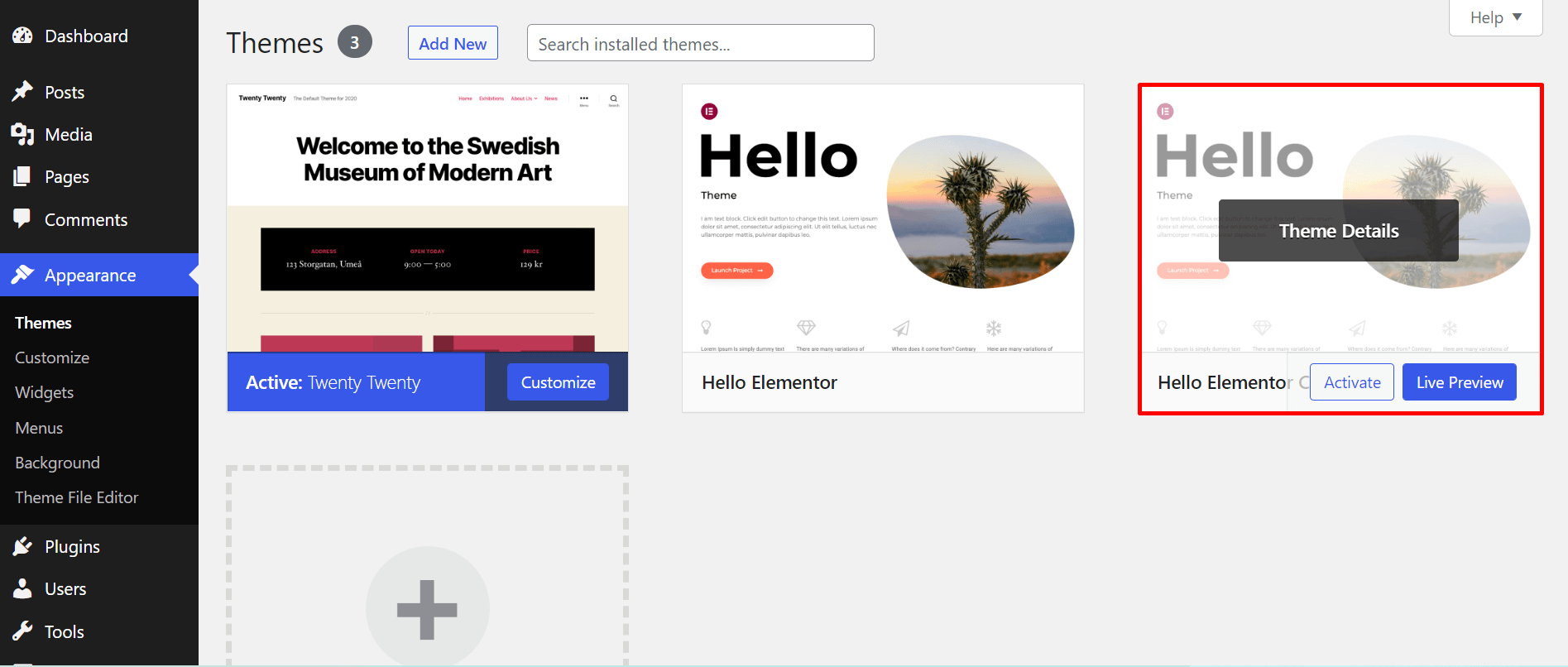
Credit: happyaddons.com
Installing A Child Theme Plugin
First, open your WordPress dashboard. Look for the Plugins section. Click on “Add New“. In the search bar, type “Child Theme“. You will see many options. Choose one with good reviews. Click “Install Now“. Wait for it to install. Now, click “Activate“. Your plugin is ready to use.
Go to the plugin settings. Follow the instructions there. Many plugins have easy steps. You may need to enter your Parent Theme details. This helps the plugin make the child theme. Once done, check if the child theme works. Go to “Appearance“, then “Themes“. Look for your new child theme there.
Setting Up The Plugin
Setting up the plugin simplifies creating a child theme in WordPress. Install the plugin, then activate it through your dashboard. Follow the easy steps provided to generate your child theme effortlessly.
Accessing The Plugin Menu
Click on the WordPress dashboard. Locate the Plugins section. Select “Add New“. Type “Child Theme Configurator” in the search bar. Click “Install Now“. After installation, click “Activate“. Go back to the dashboard. Find “Tools” in the menu. Click on “Child Themes“. Now, you are in the plugin menu.
Configuring Basic Settings
Choose the parent theme. Click “Analyze“. Wait for a moment. See the analysis results. No errors? Great! Select “Create New Child Theme“. Name your child theme. Pick the stylesheet option. Click “Create New Child Theme” again. Now your child theme is ready.
Creating The Child Theme
Start by choosing the parent theme you like. This is the main theme your site uses. Ensure the theme is active on your WordPress site. If not, activate it through the theme settings. This step is crucial. The child theme will depend on this parent theme.
Open the plugin to create the child theme. Fill in the details like name and description. You can also change the author name if needed. Double-check all details to avoid mistakes. Save your changes once you are satisfied.
Activating The Child Theme
Activate the child theme using a plugin. First, go to your WordPress dashboard. Find and click on Appearance. Then select Themes. Look for the child theme you created. Click Activate to start using it.
Check if the child theme works. Go to your website. Make sure it looks right. The design should match the parent theme. If changes are needed, go back to the dashboard.
Use the Custom CSS option if you want to change colors or fonts. Add new styles in the child theme’s stylesheet. This keeps the parent theme safe from changes. Plugins make this process easy for beginners.
Customizing Your Child Theme
Creating a child theme in WordPress using a plugin is simple. Install a suitable plugin, and customize your site safely. Child themes allow you to modify styles without affecting the main theme.
Adding Custom Css
Custom CSS changes the look of your site. It is easy to add. Use the WordPress Customizer. Go to Appearance, then Customize. Find the Additional CSS section. Paste your CSS code there. Save changes to see the new design. You can make colors, fonts, and sizes different. This way, your site looks unique. CSS is a powerful tool for styling.
Modifying Theme Templates
Theme templates control site structure. They are in the theme folder. Copy any template to your child theme folder. Edit this file to change your site. Use a simple text editor. Change small parts of the code. This way, you can add or remove sections. Be careful not to break the code. Always check your site after changes. Templates help customize layout and features.
Testing Your Child Theme
Testing the child theme is crucial. First, activate your child theme in the WordPress dashboard. Then, visit your website and look for any strange behavior. Check if images are missing. Make sure the layout is correct. If you see any error messages, note them down. Use the WordPress debug mode to find errors. This helps identify problems faster. Fix any issues you find.
Compatibility is key. Make sure your child theme works with other plugins. Test important plugins one by one. Deactivate each plugin and check the site. Reactivate it and move to the next. If something breaks, the plugin may not be compatible. Also, check if your theme works on different devices. Use a phone, tablet, and computer. Ensure everything looks good.

Credit: www.youtube.com
Troubleshooting Common Issues
Creating a child theme can sometimes lead to problems. The most common issue is a broken website. This happens if the parent theme is not active. Always check if the parent theme is installed and activated. Another problem might be missing files. Ensure all files are copied correctly.
Sometimes, the style.css file doesn’t load. This causes layout issues. Check if the file is linked correctly. Function errors can also occur. This happens if the functions.php file has mistakes. Review your code for errors.
Plugin conflicts can create problems too. Some plugins may not work with your child theme. Test your plugins to find the troublesome one. Remove or update it if needed. Always keep backups. This helps recover your site if something breaks.
Maintaining Your Child Theme
Keeping your child theme updated is important. Regular updates ensure security and performance. Start by checking for available updates in the WordPress dashboard. Always update plugins and themes to their latest versions.
Backup your site before applying updates. This prevents data loss. Use a reliable backup plugin for safety. Test updates on a staging site first. This helps identify any issues.
Customizations may need adjustments after updates. Check if your changes are intact. Review styles and functions for consistency. Seek help from community forums if needed.
Document changes made to the child theme. This helps track modifications. Keep a log of files edited and custom codes added. Organize this information for future reference. Consistent documentation eases troubleshooting.
Credit: wedevs.com
Frequently Asked Questions
What Is A WordPress Child Theme?
A WordPress child theme is a theme that inherits the functionality of another theme, called the parent theme. It allows you to modify styles and functions without altering the original files, ensuring updates to the parent theme won’t affect your customizations.
Why Use A Plugin For Child Themes?
Using a plugin simplifies the process of creating a child theme. It automates setup and minimizes errors, ensuring compatibility with the parent theme. Plugins can offer additional features like custom styling options and easy updates, making child theme management more efficient.
How To Install A Child Theme Plugin?
To install a child theme plugin, go to your WordPress dashboard, click on “Plugins,” and select “Add New. ” Search for a child theme plugin, click “Install Now,” and activate it. Follow the plugin’s instructions to create and customize your child theme.
Can Child Themes Be Customized Easily?
Yes, child themes can be customized easily. You can modify CSS, add functions, and tweak templates without altering the parent theme. This ensures your changes are preserved during updates. Plugins often provide user-friendly interfaces for further customization, enhancing flexibility.
Conclusion
Creating a child theme in WordPress is simple with a plugin. It helps maintain your site’s design during updates. Plugins streamline the process, saving time. You can customize without altering the main theme. This approach keeps your site safe and stable.
Always test changes in a safe environment. Explore plugins for more features and ease. Enjoy a more flexible and tailored WordPress site. Happy designing!


